
How to change the music for an event you already created
Change the soundtrack of a ready-made event through the three-dot menu in Vizz360. The change applies to upcoming videos, without affecting the ones already recorded.



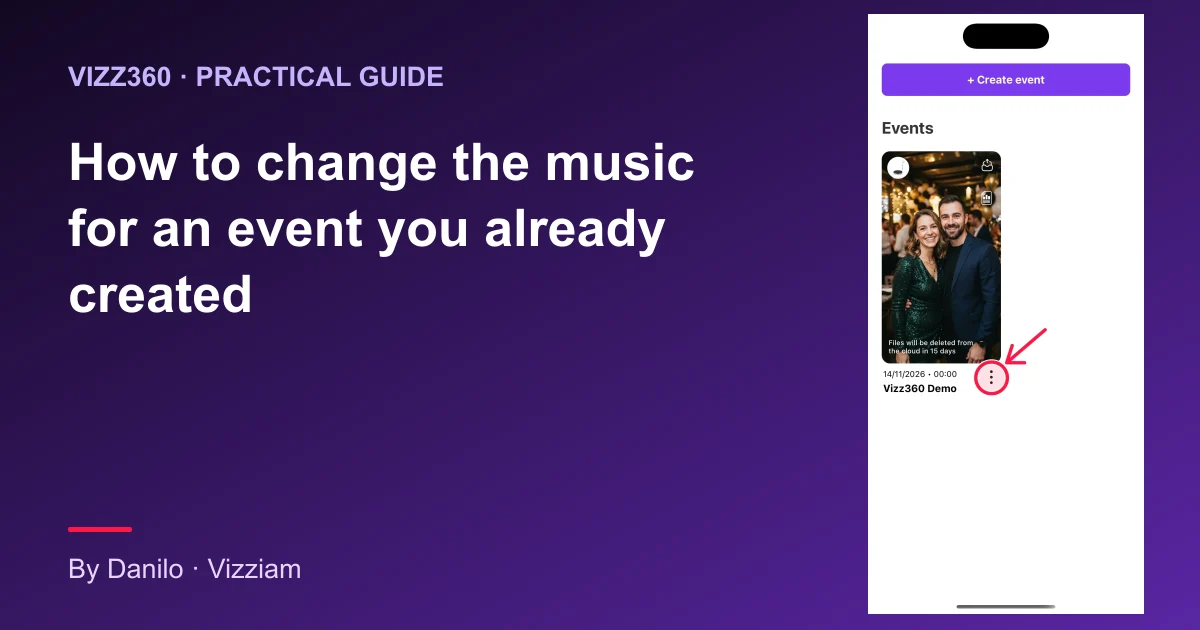
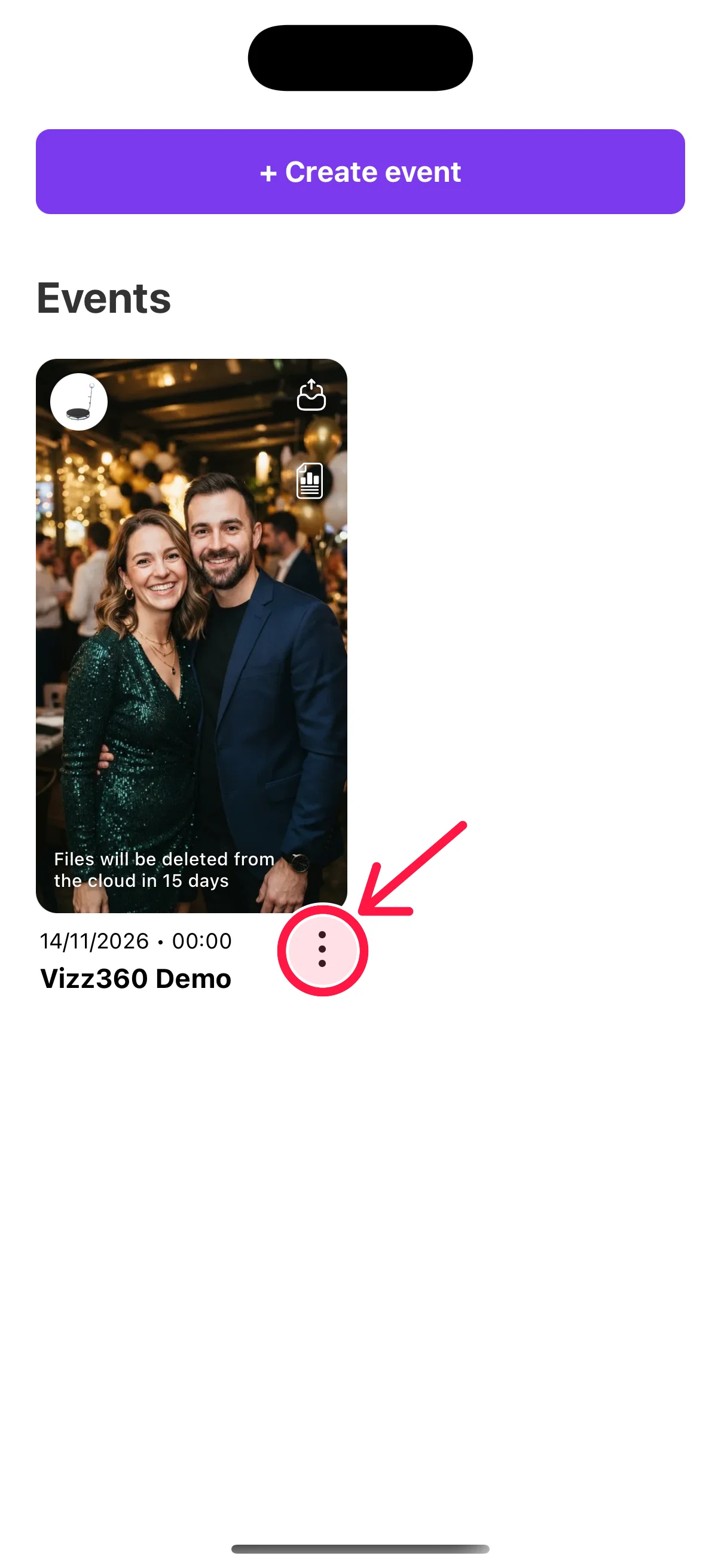
To change the music for an event you already created, tap the three dots on the cover and choose Change song. Save the new selection and test the next recording: videos that have already been recorded will not change.
Demonstration on the iPhone simulator, using Vizz360 7.39 and sample data. Some controls vary on Android and by plan.
Read the video steps
- The three dots open event actions, including changing music and overlays.
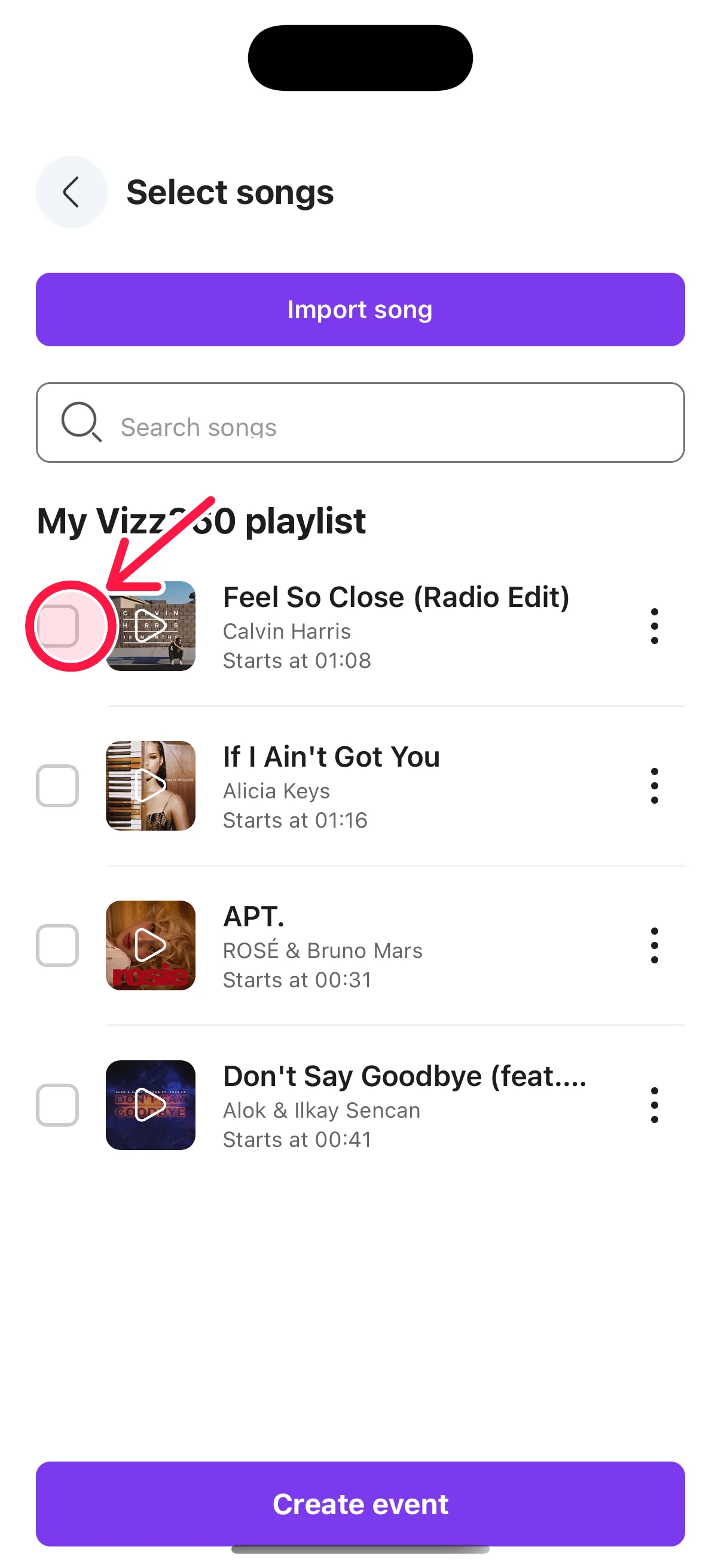
- Choose an available track from your library.
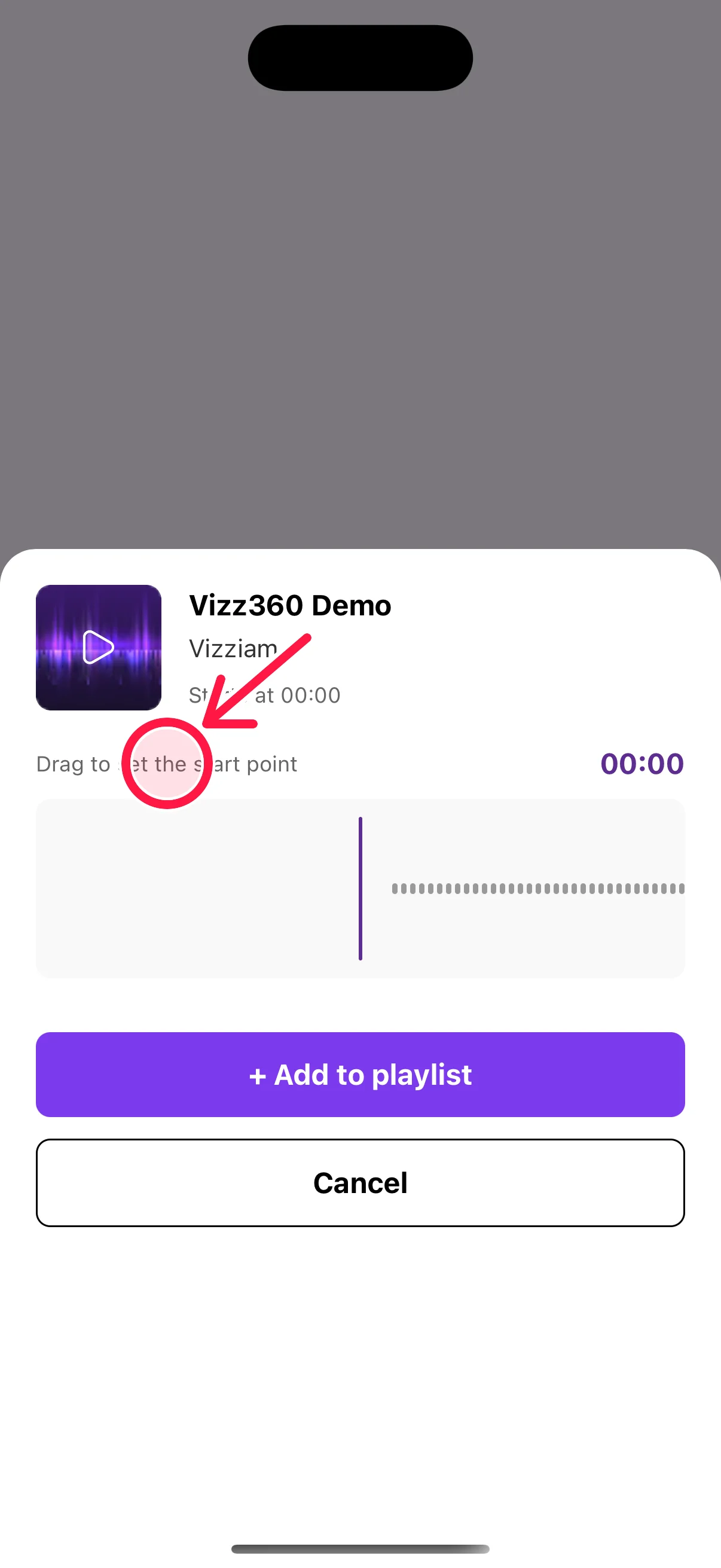
- Drag the track to choose where the excerpt starts.
The event is ready, but the client asked for a different song before the party starts. You do not need to start a new event just because the agreed soundtrack was updated.
Before you start
Have the new file available or find the track in the library. Make sure you are editing the correct event, especially when there are jobs with similar names. If you are changing it during operation, finish the capture in progress before reviewing the settings.
How to do it
-
On the Home screen, find the event cover.
-
Tap the three dots and select Change song.
-
In the library, choose the new track or import the file you want.
-
Check the playback and use Edit start time if you want it to begin at another section.
-
Save the selection and wait for the files to be prepared and for the update confirmation.
-
Enter the event, record a test, and listen to the full result.
Where to tap in the app
Check the result
The next recording should use the updated selection. Compare the name of the chosen song and the audio in the final file. If you only tested by playing an old video, you have not checked the change for the next capture yet.
If something does not go as expected
If the change does not finish, check the connection and wait for the track to be prepared. If there is a short music warning, adjust the starting point or the repeat option offered by the app. If the track is used in other events and you edit its start, read the warning: this change may also affect the next recordings in those events.
Quick questions
Will the videos I already delivered get the new music?
No. The update warning explains that the selection applies to the next videos; the ones already recorded do not change.
Do I need to create another event?
To update the soundtrack, there is a specific Change song action in the event menu.
Can I select multiple songs in this change?
Multiple selection follows the Plus access conditions. Check what is selected before saving.
Continue in the app
Open a test event in Vizz360 and practice changing the music before you need to do it during service.
Also read: How to choose the section of the music that plays in the video; How to import music for an event in Vizz360; How to choose multiple songs for the same event.

Download Vizz360
Record, edit and share 360° videos in seconds, right from your phone. Free download for Android and iOS, with in-app purchases.


Related articles

How to Position and Resize the Kiosk Shutter Button
How to Position and Resize the Kiosk Shutter Button. See the Vizz360 steps, app screens and what to check before using it at an event.

How to Adjust Photo Framing Inside an AI Overlay
How to Adjust Photo Framing Inside an AI Overlay. See the Vizz360 steps, app screens and what to check before using it at an event.

How to Change Your Vizz360 Account Email
How to Change Your Vizz360 Account Email. See the Vizz360 steps, app screens and what to check before using it at an event.