
How to lock orientation during recording
Find Lock orientation while recording in Vizz360 and check the control status. Understand the difference between camera, overlay, and TV orientation.



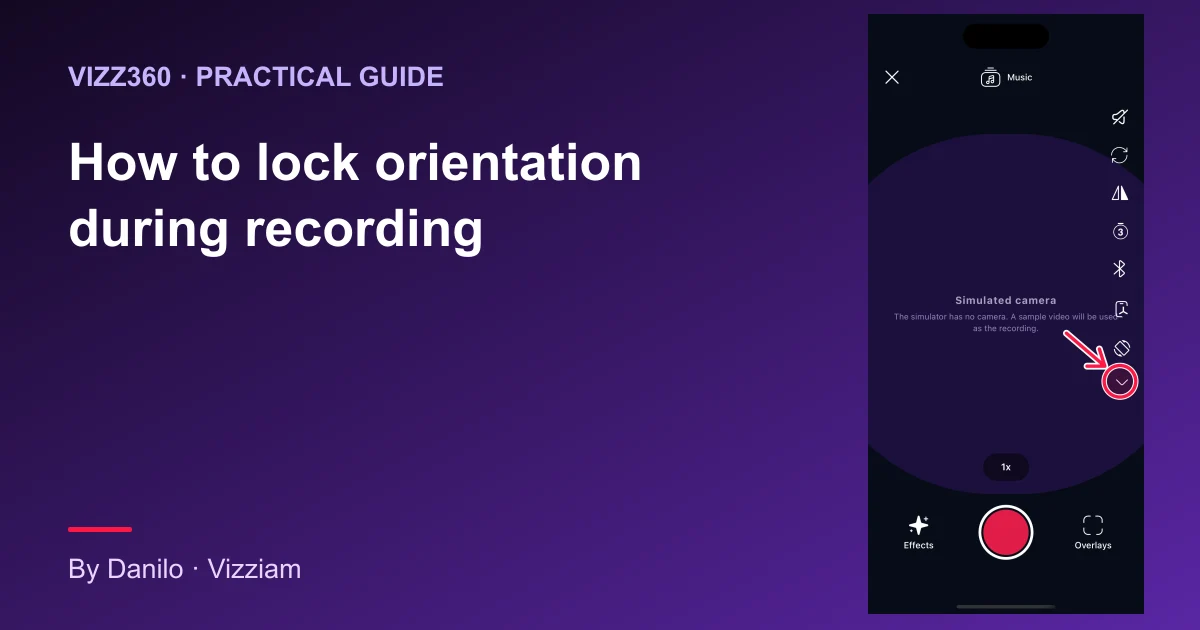
On the Record video screen, the Lock orientation button lets you control orientation lock during operation. The icon shows the current status. Make the adjustment before capturing and check the result in a test video.
Demonstration on the iPhone simulator, using Vizz360 7.39 and sample data. Some controls vary on Android and by plan.
Read the video steps
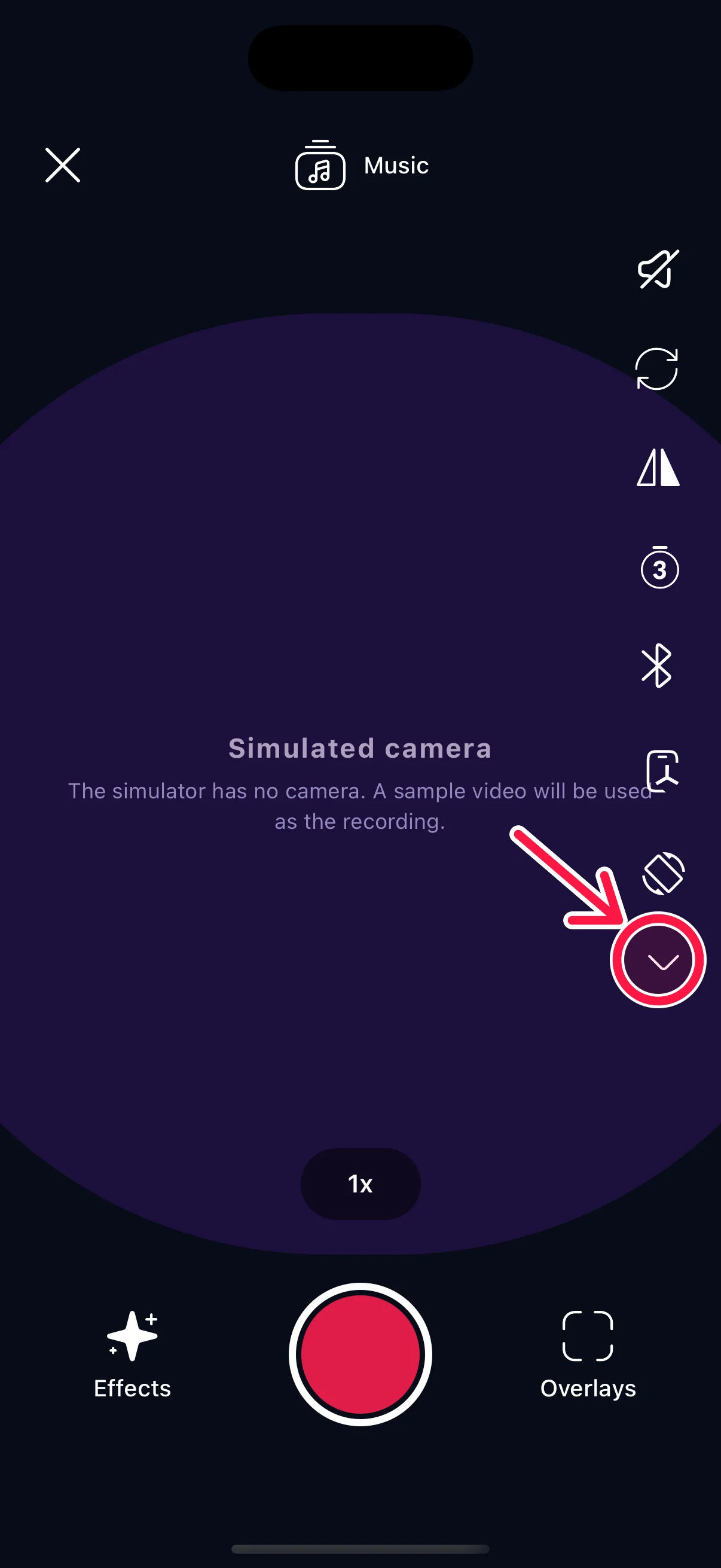
- When recording, expand the panel to access camera controls.
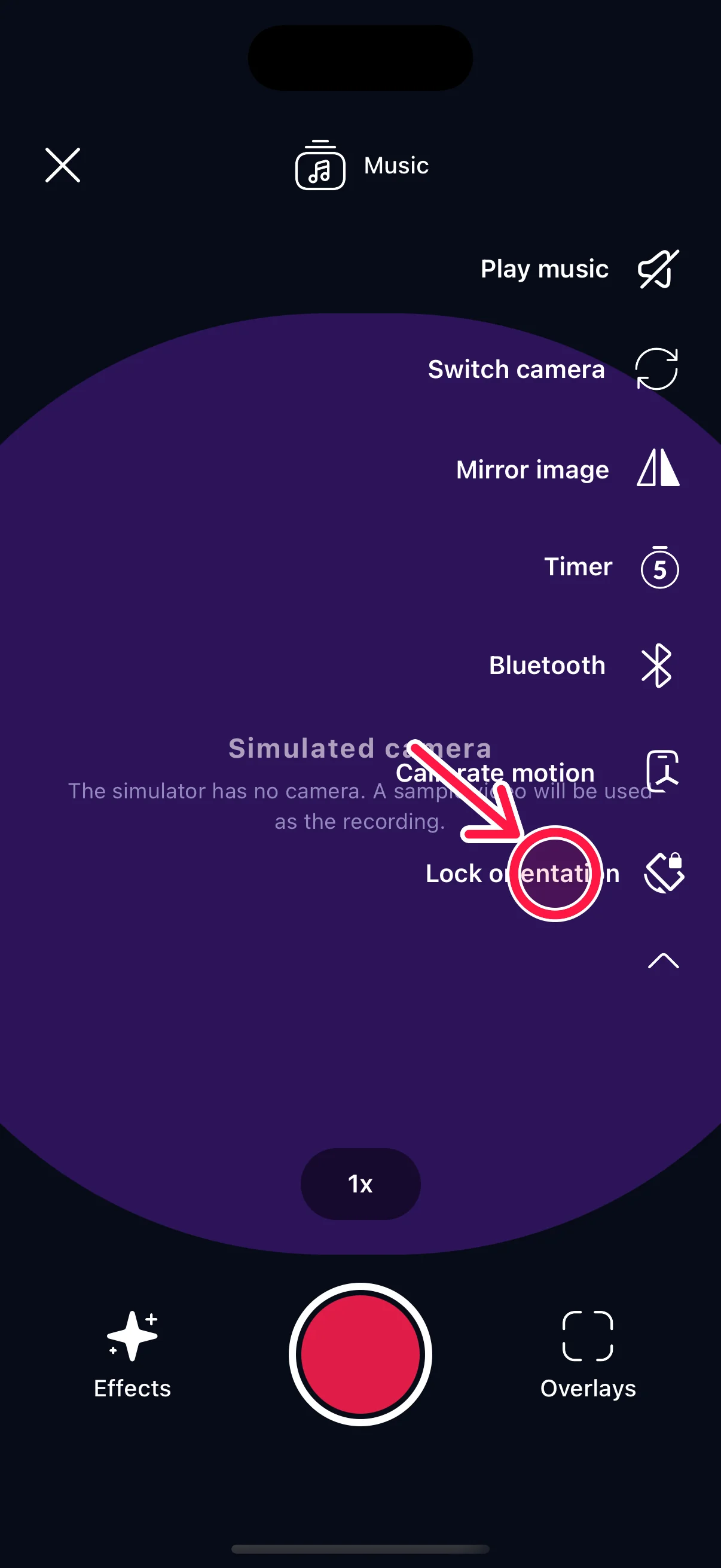
- Tap Lock orientation to keep the chosen framing.
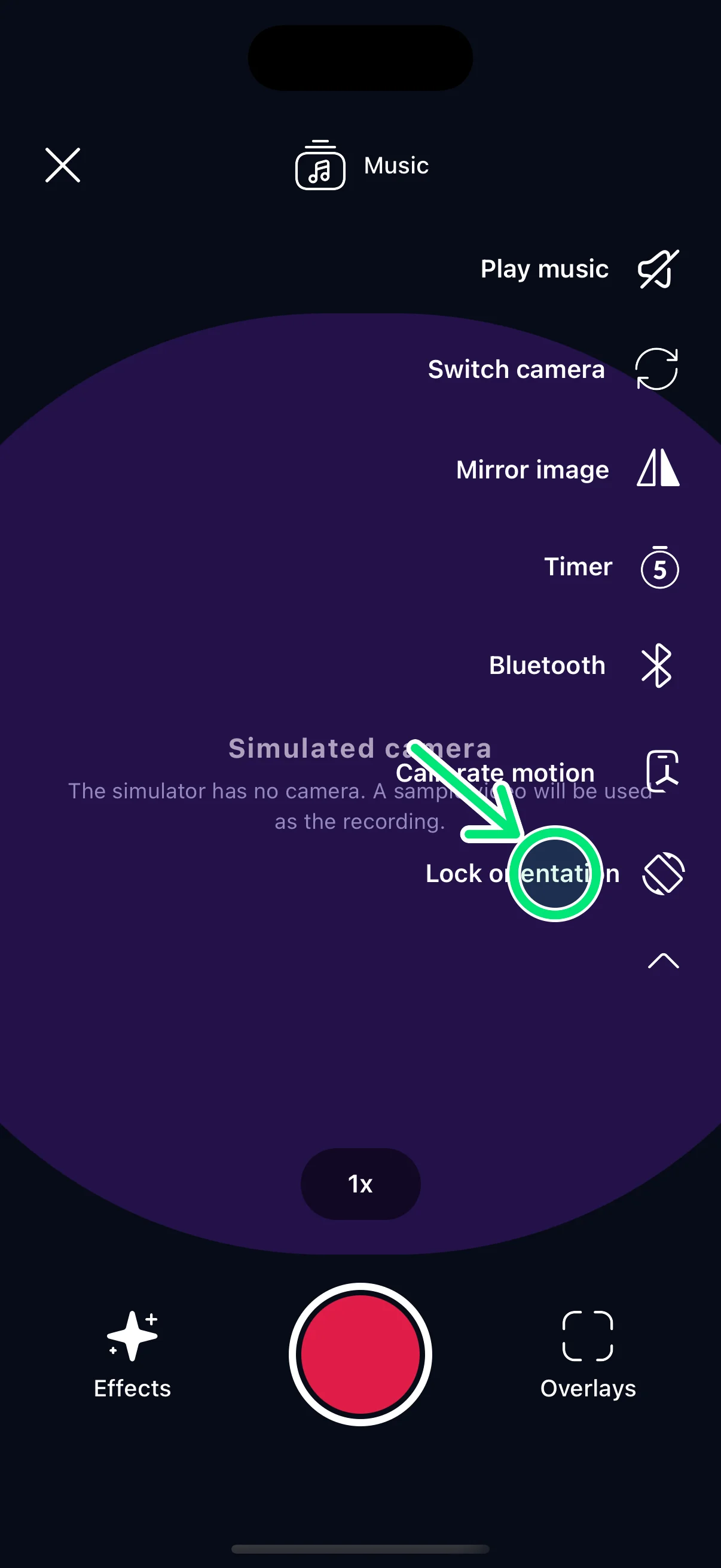
- With the lock enabled, check the framing on the device.
You are adjusting the mount and want to keep the camera orientation during operation. This check should be part of your setup, along with the mount and camera selection.
Before you start
Choose the position in which the phone will be used and secure the mount safely. Keep the camera orientation separate from the applied artwork and the TV orientation: these settings solve different problems.
How to do it
-
Open the event and go to Record video.
-
Expand the side menu names with the arrow, if needed.
-
Find Lock orientation and check the icon before tapping.
-
Adjust the lock status according to the operating position and check the preview.
-
Record a short capture with the mount in its final position.
-
Open the processed file and check whether playback and the overlay are oriented as you expected.
Where to tap in the app
Check the result
The test should be viewed outside the camera screen, in the final file. Check whether people appear in the correct direction and whether the artwork follows the frame. Do this check before serving guests, while you still have room to reposition the setup.
If something does not work as expected
If the overlay is stretched or cropped, check the file dimensions: locking orientation does not fix artwork with an unsuitable aspect ratio. If the issue is on the Photo Booth Kiosk TV, use the TV orientation step in that flow. The camera control should not be treated as a universal adjustment for every screen at the event.
Quick questions
Does locking orientation turn a horizontal overlay into a vertical one?
No. The artwork needs to have the right aspect ratio for the flow where it will be applied.
Does this button configure the Photo Booth Kiosk TV?
No. The kiosk has its own orientation step during preparation.
Can I change the position during recording?
Prepare the setup before capturing and check it with a test. This guide does not instruct you to move the mount while the equipment is in use.
Continue in the app
Check orientation in the Vizz360 test event and keep the same setup you will use with the public.
See also: How to switch cameras and mirror the image in Vizz360; How to use the 0.5x lens on a 360 photo booth; How to import a PNG overlay into a 360 video.

Download Vizz360
Record, edit and share 360° videos in seconds, right from your phone. Free download for Android and iOS, with in-app purchases.


Related articles

How to Position and Resize the Kiosk Shutter Button
How to Position and Resize the Kiosk Shutter Button. See the Vizz360 steps, app screens and what to check before using it at an event.

How to Adjust Photo Framing Inside an AI Overlay
How to Adjust Photo Framing Inside an AI Overlay. See the Vizz360 steps, app screens and what to check before using it at an event.

How to Change Your Vizz360 Account Email
How to Change Your Vizz360 Account Email. See the Vizz360 steps, app screens and what to check before using it at an event.