
How to use the 0.5x lens on the 360 photo booth
Use 0.5x for Vizz360 recording when the device offers that lens. Compare the framing with 1x and check the people and overlay in the final video.



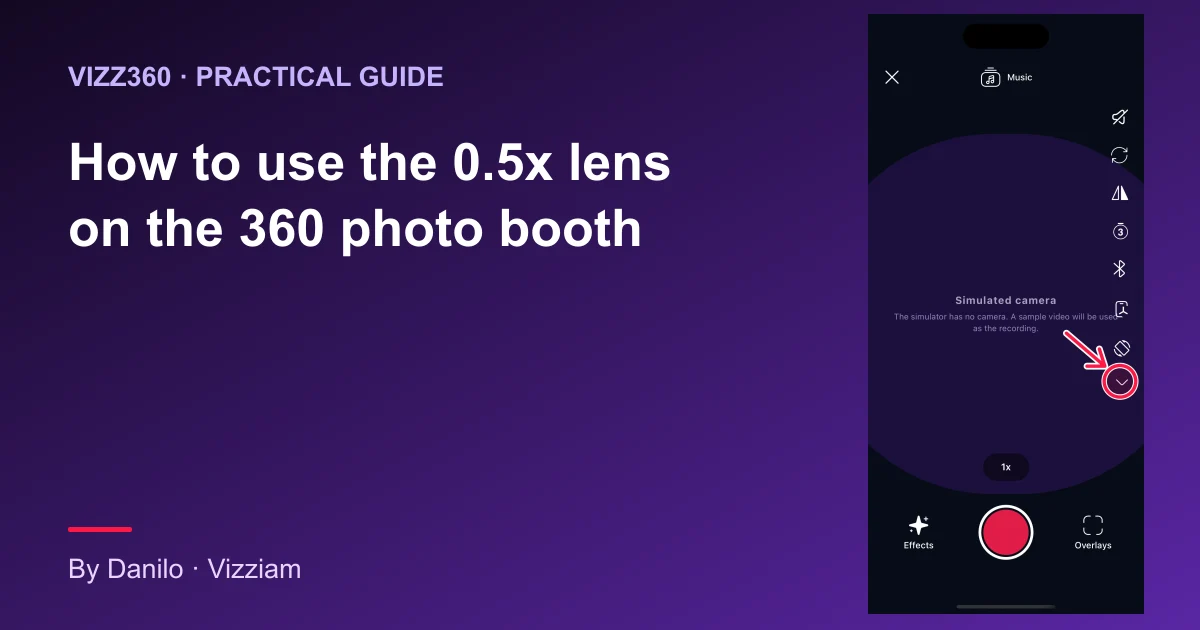
On the Record video screen, tap 0.5x when this option is available. It depends on the camera and the device. Use 1x to compare the framing and choose based on the actual result, without assuming every phone offers the same lens.
Demonstration on the iPhone simulator, using Vizz360 7.39 and sample data. Some controls vary on Android and by plan.
Read the video steps
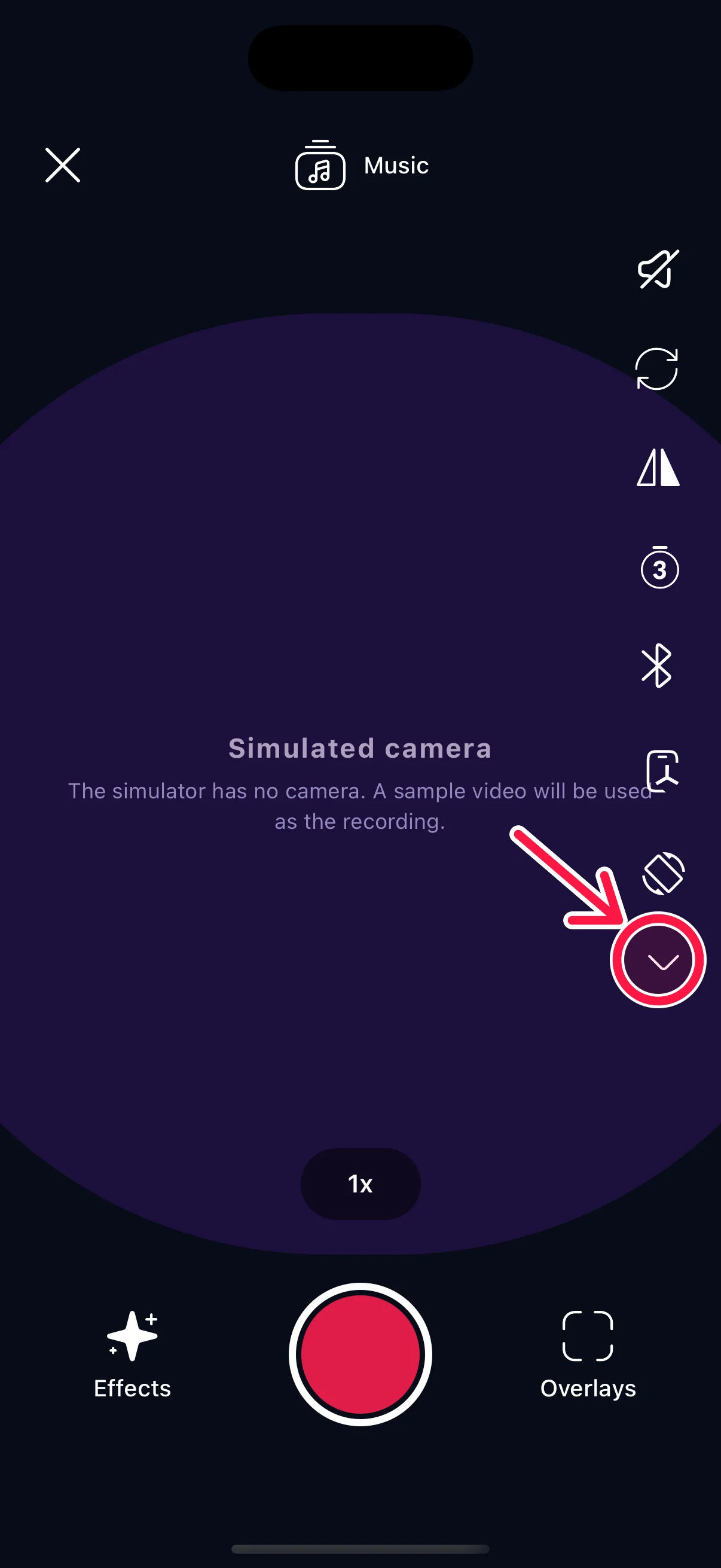
- When recording, expand the panel to access camera controls.
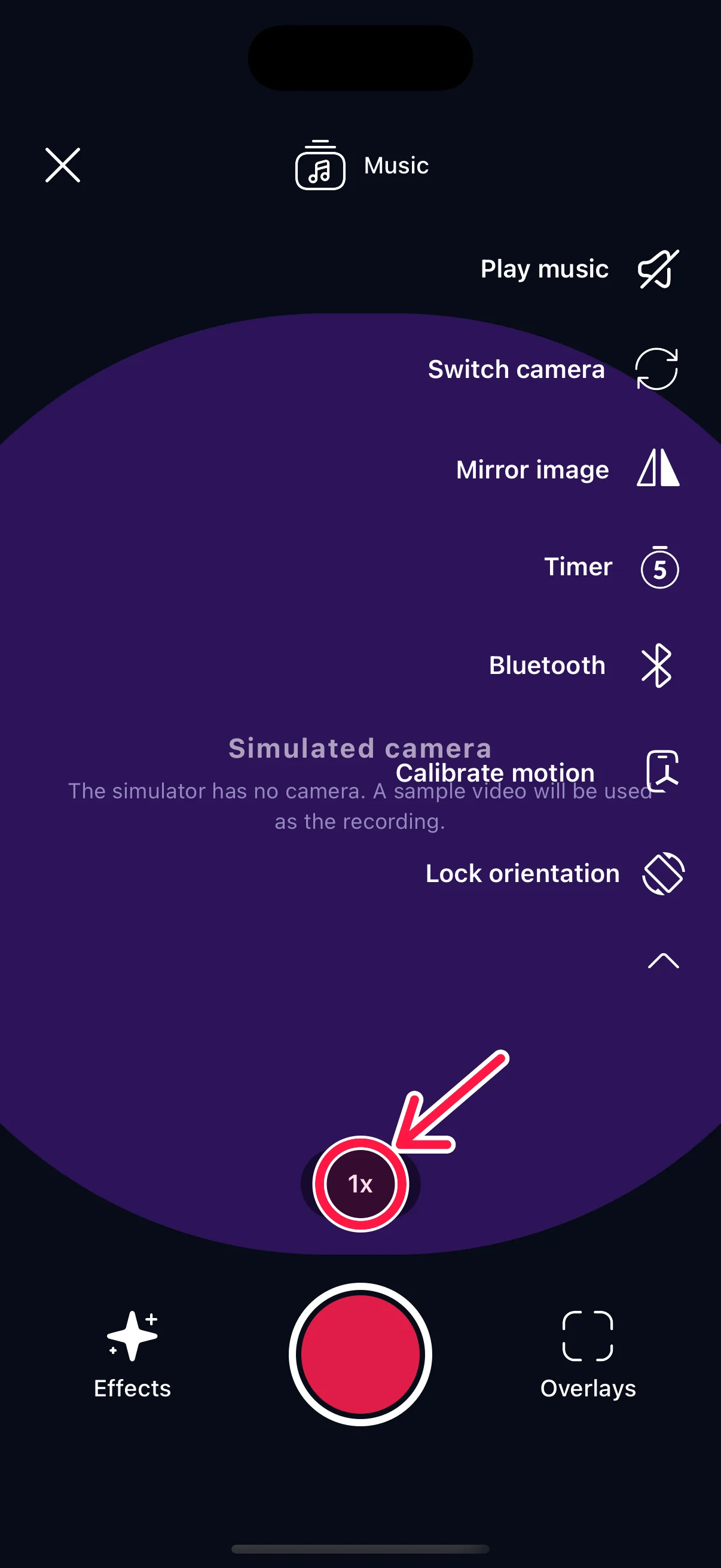
- Check the available lenses. The 0.5x option depends on device hardware.
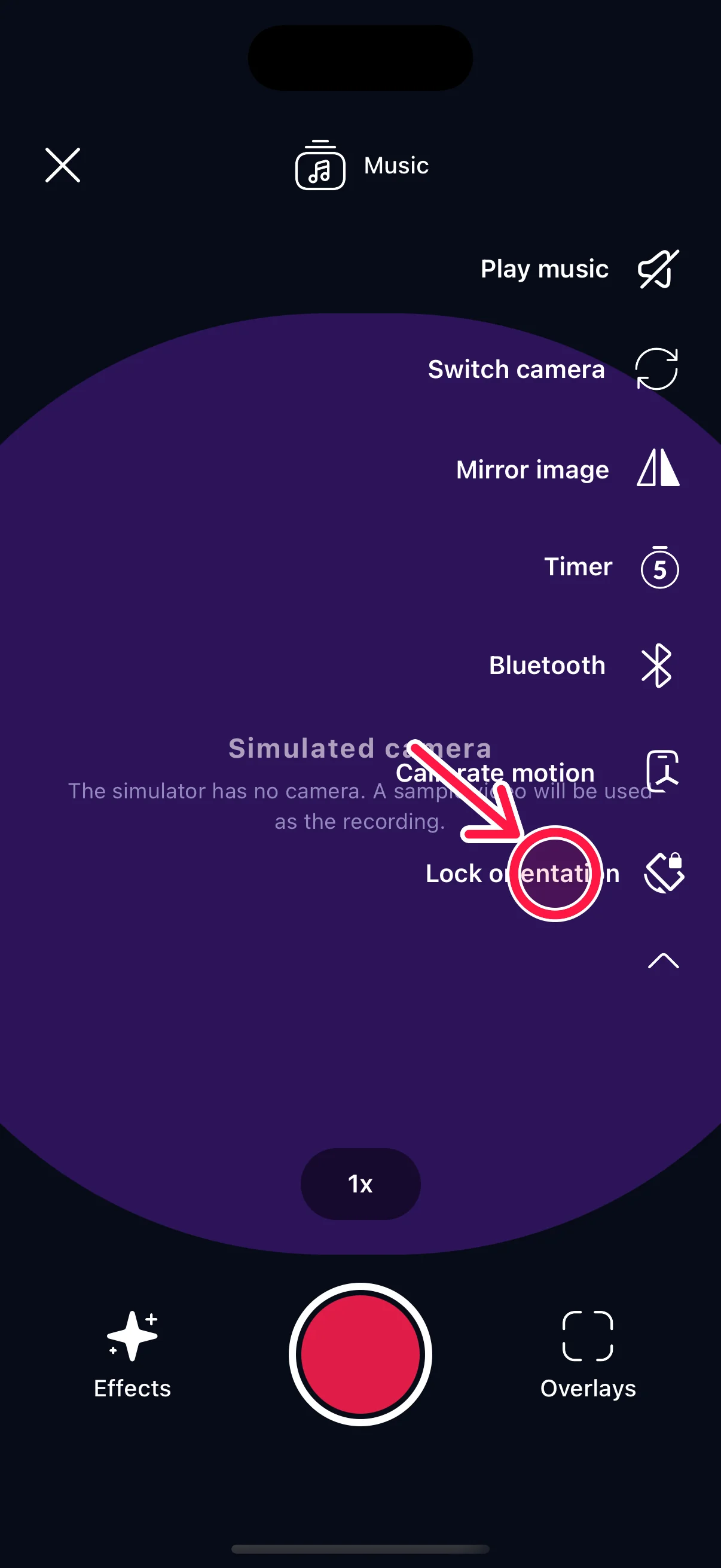
- Tap Lock orientation to keep the chosen framing.
The group looks tight in the frame and you want to check whether the wider camera helps. A wider image may fit the concept better, but it can also bring more of the surroundings into the video.
Before you start
Mount the phone in the position you will use and have a person or test group stand where the guests will be. Check the lighting and distance. The lens adjustment does not replace a safe setup and should not be used to compensate for people standing outside the area planned for the equipment.
How to do it
-
Open the event and go to Record video.
-
Look at the zoom area, where 0.5x and 1x appear when available.
-
Tap 0.5x and see how much of the environment appears in the preview.
-
Compare it with 1x, keeping people in the same position.
-
Choose the framing and record a test with the event overlay.
-
Play the final file and check the center and edges of the image.
Where to tap in the app
Check the result
Make sure everyone appears without the overlay covering faces or gestures. Also check what appears on the sides: cables, staff, lighting, and areas of the venue may become more visible. The framing you choose should make the guest look good and keep the environment organized.
If something does not go as expected
If 0.5x does not appear, check the active camera and the device options. Do not promise that updating a setting will create a lens the hardware does not have. If people near the edges look different than expected, compare the position and distance with 1x before deciding.
Quick questions
Do all Android phones and iPhones have 0.5x in the app?
No. Displaying it depends on camera and device support.
Does 0.5x change the video speed?
No. This value is in the framing area. Playback speed is configured in Set effect.
Should I always use the wider image?
There is no single choice. Compare the final file with the setup, the lighting, and the size of the group for your service.
Continue in the app
Prepare a test event in Vizz360 and check the full path before your next booking. You can find the app for iPhone and Android at the links below.
Also read: How to switch cameras and mirror the image in Vizz360; How to lock orientation during recording; How to import a PNG overlay for a 360 video.

Download Vizz360
Record, edit and share 360° videos in seconds, right from your phone. Free download for Android and iOS, with in-app purchases.


Related articles

How to Position and Resize the Kiosk Shutter Button
How to Position and Resize the Kiosk Shutter Button. See the Vizz360 steps, app screens and what to check before using it at an event.

How to Adjust Photo Framing Inside an AI Overlay
How to Adjust Photo Framing Inside an AI Overlay. See the Vizz360 steps, app screens and what to check before using it at an event.

How to Change Your Vizz360 Account Email
How to Change Your Vizz360 Account Email. See the Vizz360 steps, app screens and what to check before using it at an event.