
How to add images and videos to the kiosk home screen
Customize the Photo Booth Kiosk Home screen in Vizz360 with media and templates. See the options by orientation and the solid background when nothing is selected.



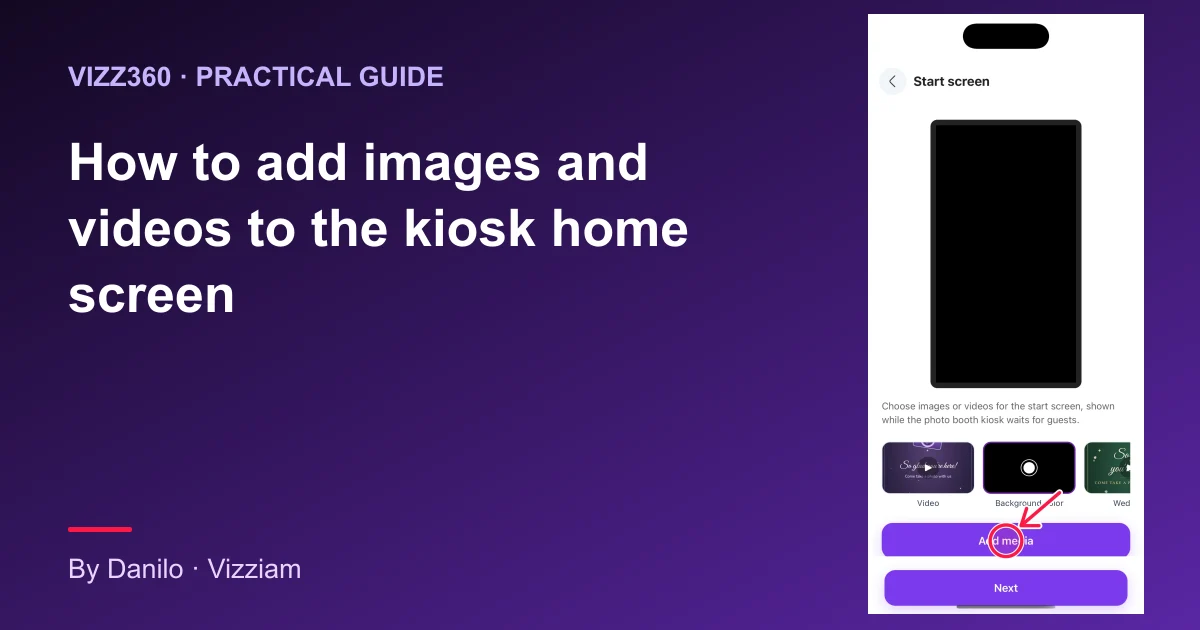
In the Start screen step of the Photo Booth Kiosk, use Add media or the ready-made options to set up the opening screen. You can review your choices by orientation. When no media is selected, the solid background is used; in a new event, the starting color is black.
Demonstration on the iPhone simulator, using Vizz360 7.39 and sample data. Some controls vary on Android and by plan.
Read the video steps
- On the idle screen, choose the media shown while the kiosk waits.
- Choose Photo library or Files to locate your media.
- Check the idle screen preview and tap Next.
The kiosk is waiting for the next guest, and you want to show an opening screen that matches the event’s look. This screen is the visual invitation to start the experience, and it needs to work from a distance without competing with the main instruction.
Before you start
Set aside images or videos that fit the screen being used, and check the language of the materials. Media with text in Portuguese will keep that text when you change the interface language; prepare the right version for your audience.
How to do it
-
When creating the Photo Booth Kiosk, continue to Start screen.
-
Check the orientation you are working in.
-
Use Add media to select your files, or browse the thumbnails of the available options.
-
Drag the thumbnail strip to see options that continue beyond the first visible area.
-
Check which media items are selected and review the solid background if you want to operate without selecting any media.
-
View the preview, finish the event, and open Start Photo Booth Kiosk to check the opening screen at its actual display size.
Where to tap in the app
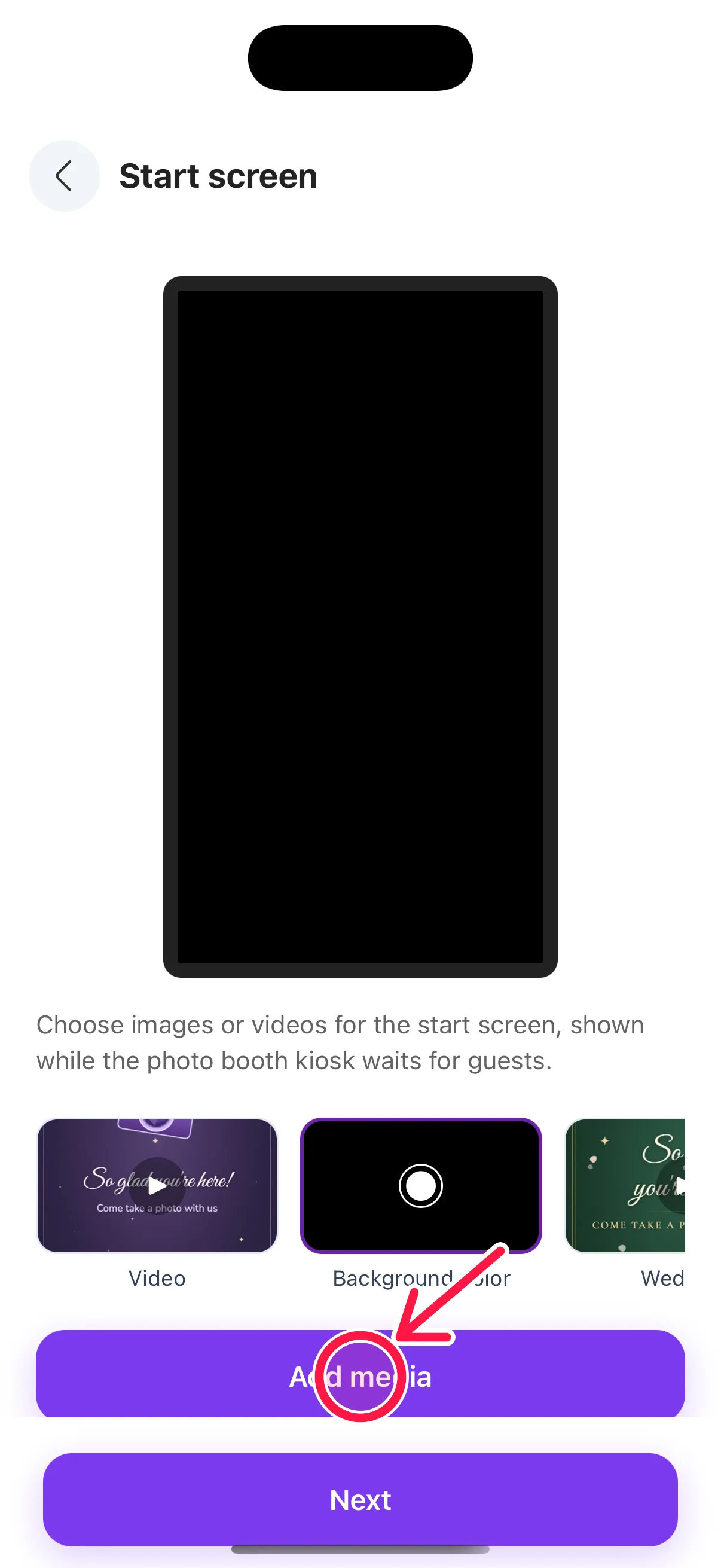
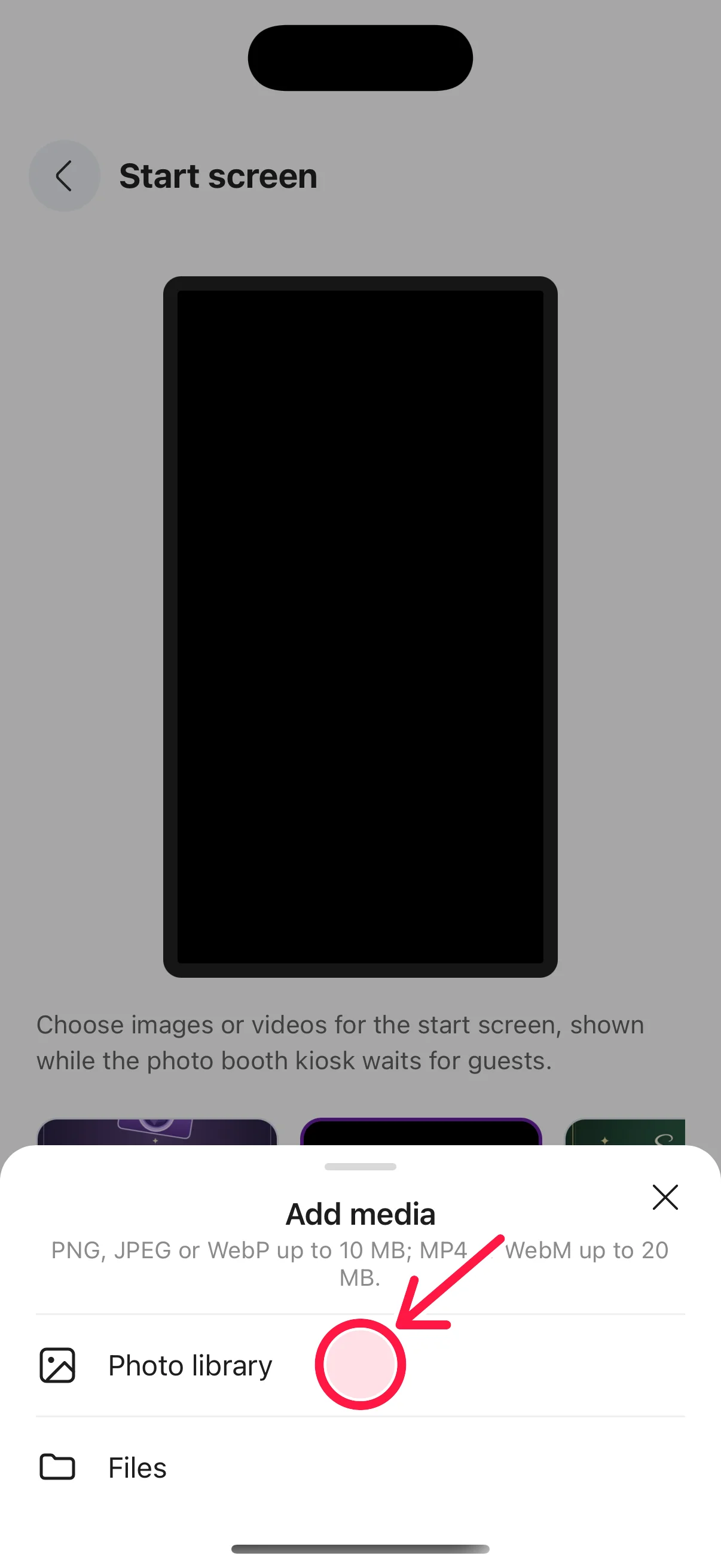
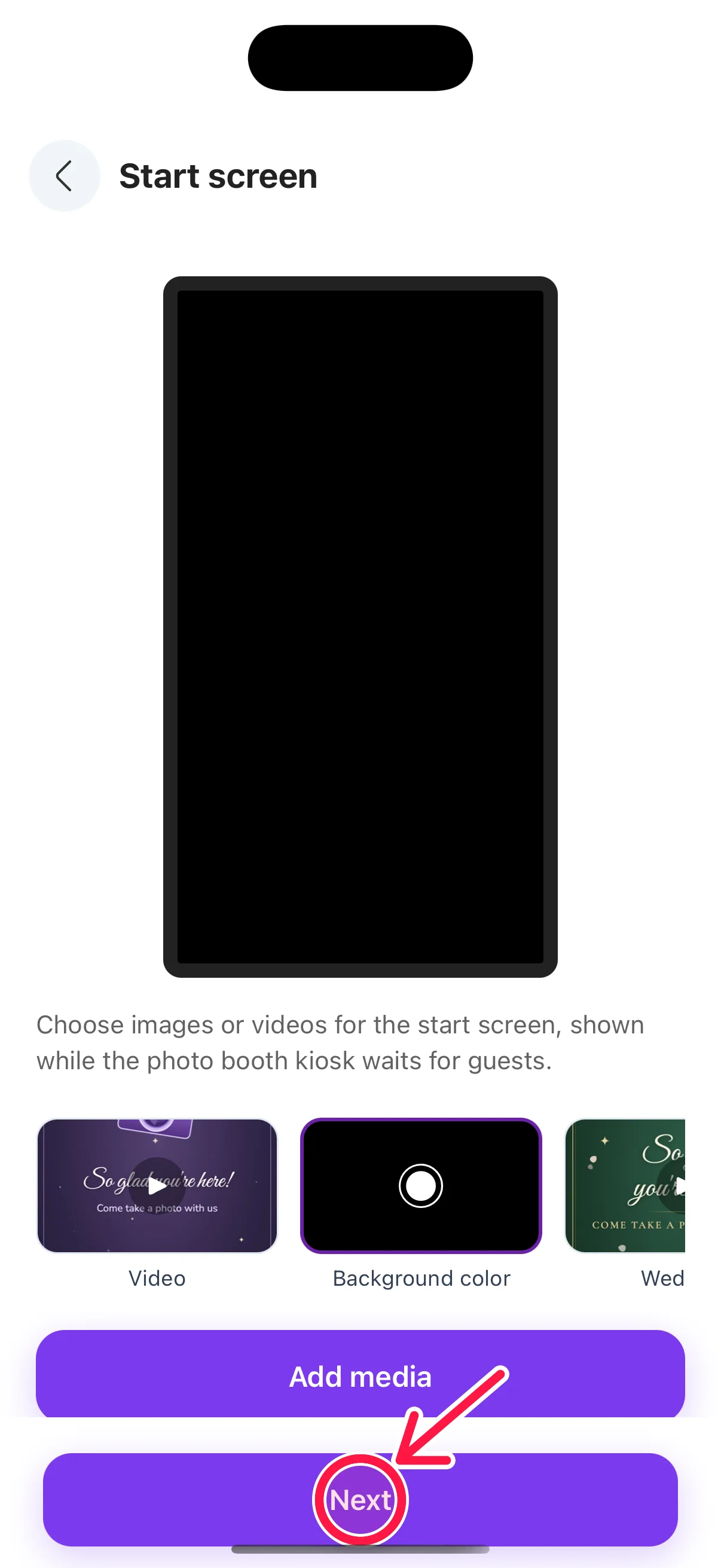
Check the result
The screen should show the event identity and make it clear how to start. For video, watch a few playback loops to evaluate motion and readability. Check the actual orientation: an opening screen viewed only in the vertical preview does not confirm the result on a horizontal TV.
If something does not work as expected
If only a color appears, check whether any media is selected. The app uses the solid background when all media has been deselected. If an option does not appear right away, scroll through the horizontal strip. If the material has words in another language, replace the file itself or choose the correct version; the interface does not translate text embedded in the video.
Quick questions
Do I need to add a video to the opening screen?
No. You can use an image or a solid background, depending on the options in the step.
What is the first color of a new event?
The default starting color is black. After that, check the choices you made during setup.
Is the Home screen the photo overlay?
No. It organizes the presentation before capture. The composition overlay is configured in its own step.
Continue in the app
Prepare a test event in Vizz360 and review the full flow before your next booking. You can find the app for iPhone and Android at the links below.
Read also: How to create a Photo Booth Kiosk event in Vizz360; How to adjust the kiosk countdown; How to let the guest choose the overlay on the kiosk.

Download Vizz360
Record, edit and share 360° videos in seconds, right from your phone. Free download for Android and iOS, with in-app purchases.


Related articles

How to Position and Resize the Kiosk Shutter Button
How to Position and Resize the Kiosk Shutter Button. See the Vizz360 steps, app screens and what to check before using it at an event.

How to Adjust Photo Framing Inside an AI Overlay
How to Adjust Photo Framing Inside an AI Overlay. See the Vizz360 steps, app screens and what to check before using it at an event.

How to Change Your Vizz360 Account Email
How to Change Your Vizz360 Account Email. See the Vizz360 steps, app screens and what to check before using it at an event.