
How to adjust the photo booth kiosk countdown
Set a 1- to 10-second countdown on the Vizz360 Photo Booth Kiosk. The wait happens before each photo; check it with a full test.



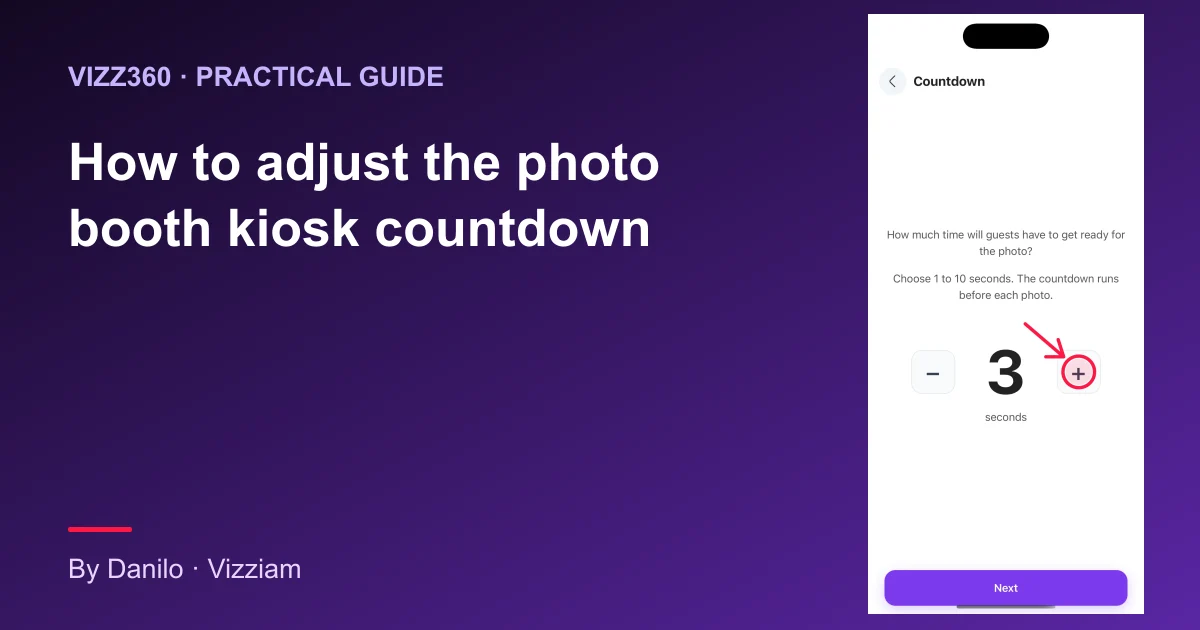
When setting up the Photo Booth Kiosk, the Countdown step lets you choose from 1 to 10 seconds. The countdown happens before each photo, giving the guest time to get ready.
Demonstration on the iPhone simulator, using Vizz360 7.39 and sample data. Some controls vary on Android and by plan.
Read the video steps
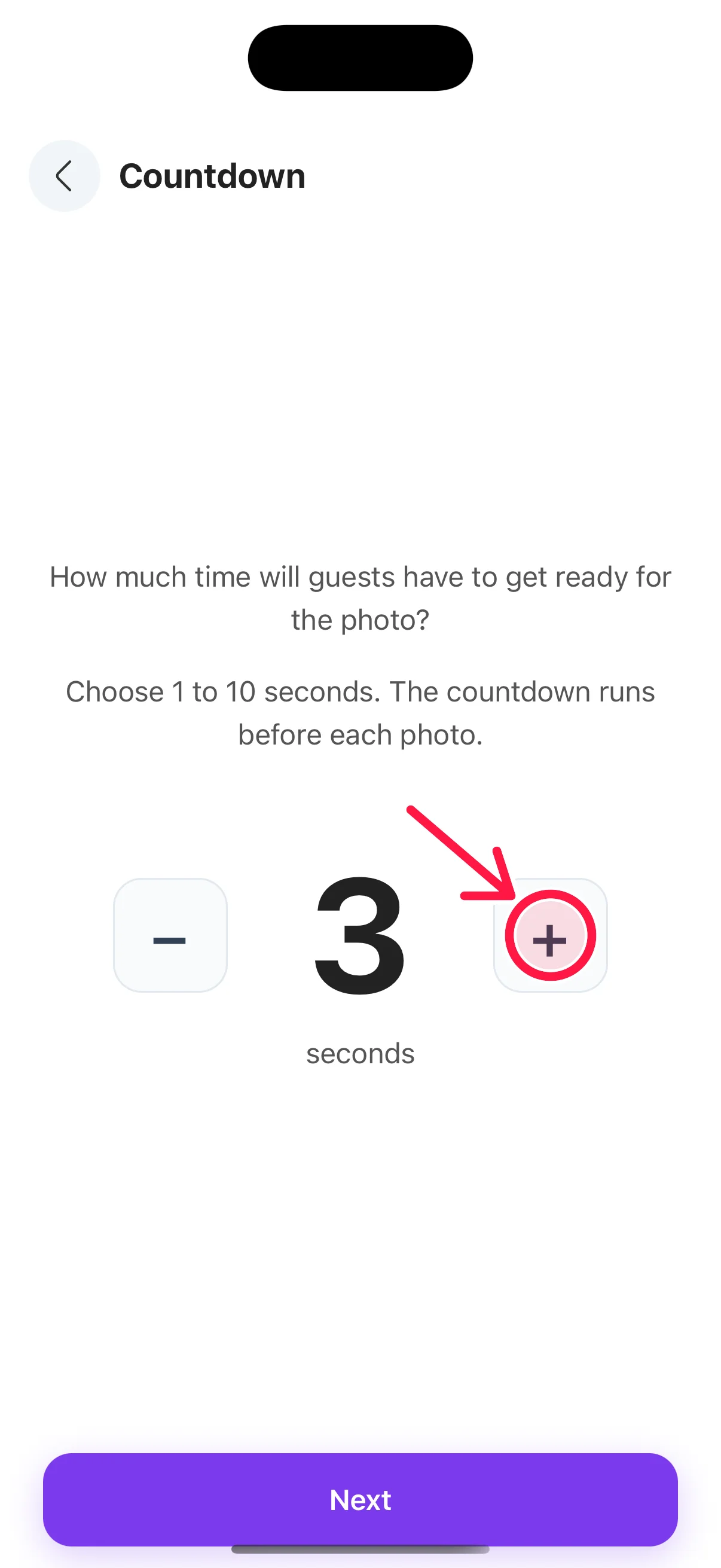
- Use + and − to choose 1 to 10 seconds before each photo.
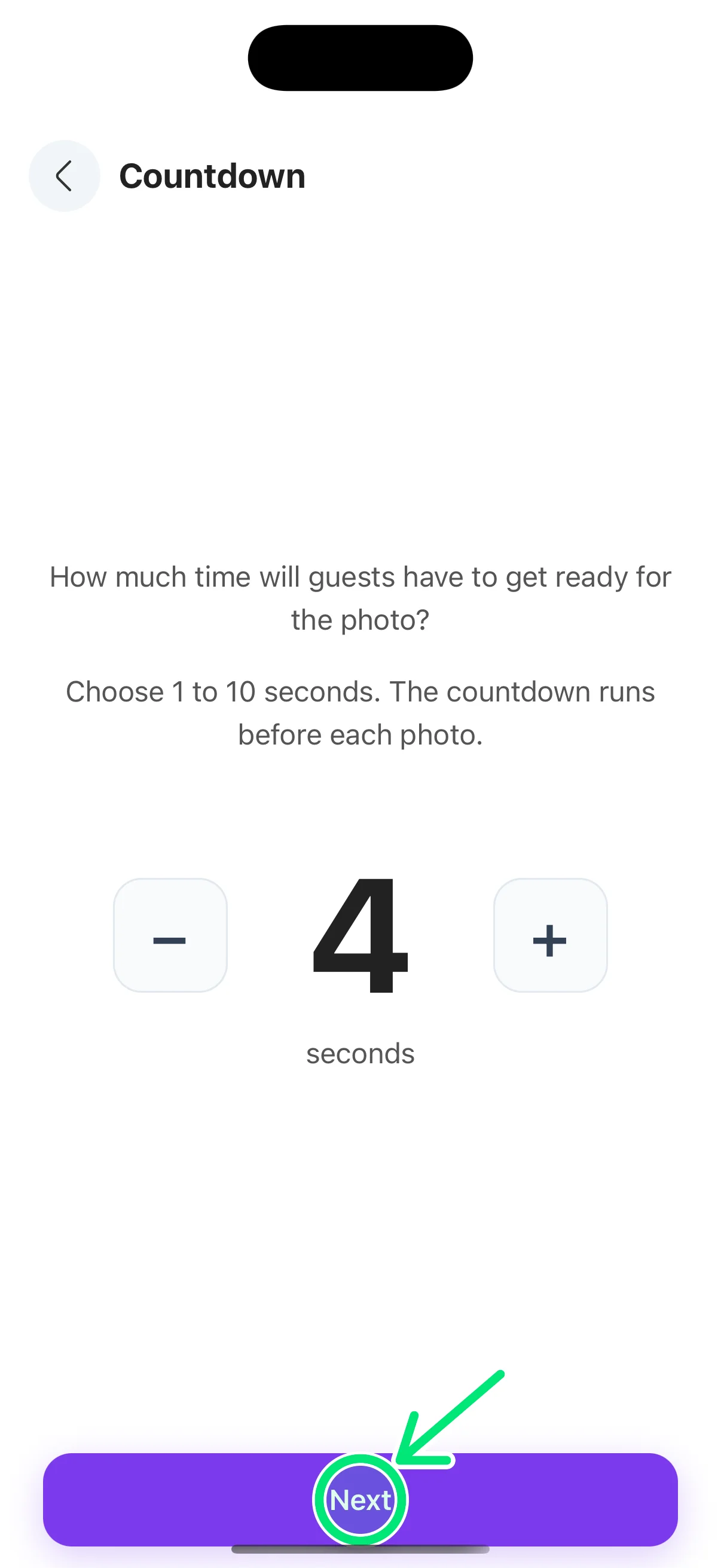
- Check the chosen delay and continue to test the flow.
Guests need more time to position themselves before each photo. The best duration is the one your audience understands and can follow, without making the sequence confusing.
Before you start
Know how many photos the overlay uses and how the person will pose. A composition with multiple captures repeats the countdown for every photo, so the time you choose affects the pace of the entire flow.
How to do it
-
In the Photo Booth Kiosk event setup, continue until Countdown.
-
Read the number shown in the center of the control.
-
Use − to decrease or + to increase, staying within the 1- to 10-second range.
-
Continue through the remaining steps and complete the setup.
-
Start the kiosk and go through the sequence with the overlay that will be used at the event.
-
Watch each capture to check whether the time allows the guest to change poses and recognize when the photo is starting.
Where to tap in the app
Check the result
The person should understand the countdown and be able to get ready for each capture. Check the full set of photos, not just the first one. If there is more than one participant, ask the group to test together: the time it takes one person to get into position may not reflect real use.
If something does not go as expected
If the flow feels long, review the number of photos in the overlay and the countdown for each one before changing several screens at the same time. If the person still misses the pose, check whether the visual instruction is clear and whether they can see the screen. The video recording timer is a different control and does not change this kiosk step.
Quick questions
Does the countdown appear only before the first photo?
No. The step instructions state that it happens before each photo.
Can I choose zero seconds?
In this kiosk step, the available range is from 1 to 10 seconds.
Is it better to always choose ten seconds?
There is no universal value. Test it with the overlay, the number of photos, and the audience for your service.
Continue in the app
Build a short sequence in Vizz360 and test the countdown with someone who does not know the kiosk flow yet.
Also read: How to create a Photo Booth Kiosk event in Vizz360; How to configure the photo spaces in the kiosk overlay; How to let the guest choose the overlay on the kiosk.

Download Vizz360
Record, edit and share 360° videos in seconds, right from your phone. Free download for Android and iOS, with in-app purchases.


Related articles

How to Position and Resize the Kiosk Shutter Button
How to Position and Resize the Kiosk Shutter Button. See the Vizz360 steps, app screens and what to check before using it at an event.

How to Adjust Photo Framing Inside an AI Overlay
How to Adjust Photo Framing Inside an AI Overlay. See the Vizz360 steps, app screens and what to check before using it at an event.

How to Change Your Vizz360 Account Email
How to Change Your Vizz360 Account Email. See the Vizz360 steps, app screens and what to check before using it at an event.