
How to Create a Photo Booth Kiosk Event in Vizz360
Prepare a Photo Booth Kiosk event in Vizz360: TV orientation, home screen, overlays, countdown, camera, and delivery steps.



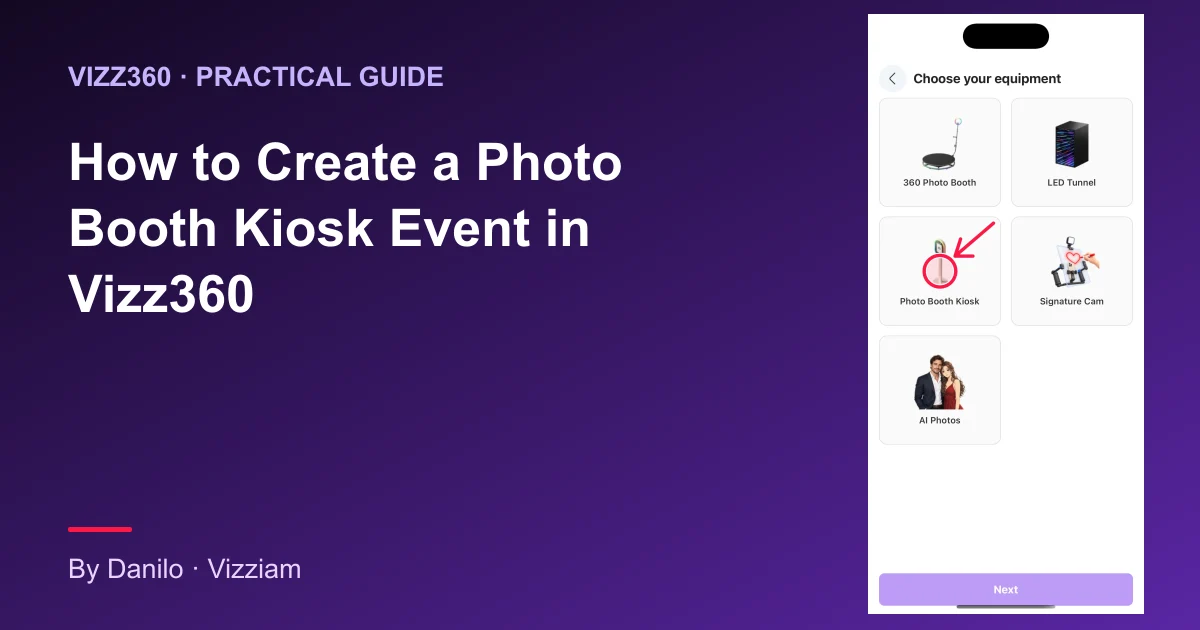
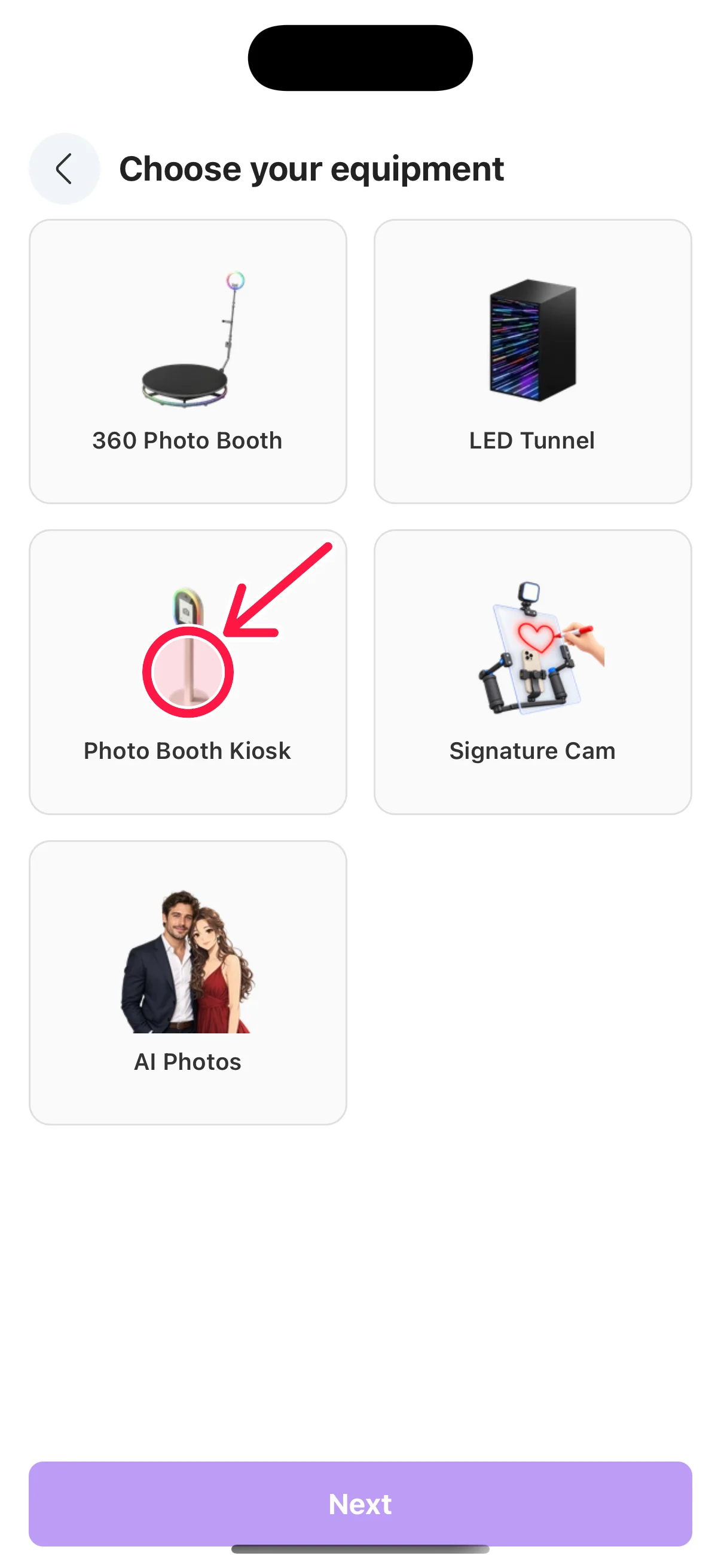
To create the photo flow, tap + Create event and choose Photo Booth Kiosk. The wizard lets you prepare the screen orientation, the opening screen, the overlays, and the steps guests follow before and after the capture.
Demonstration on the iPhone simulator, using Vizz360 7.39 and sample data. Some controls vary on Android and by plan.
Read the video steps
- Choose Photo Booth Kiosk to set up the photo flow.
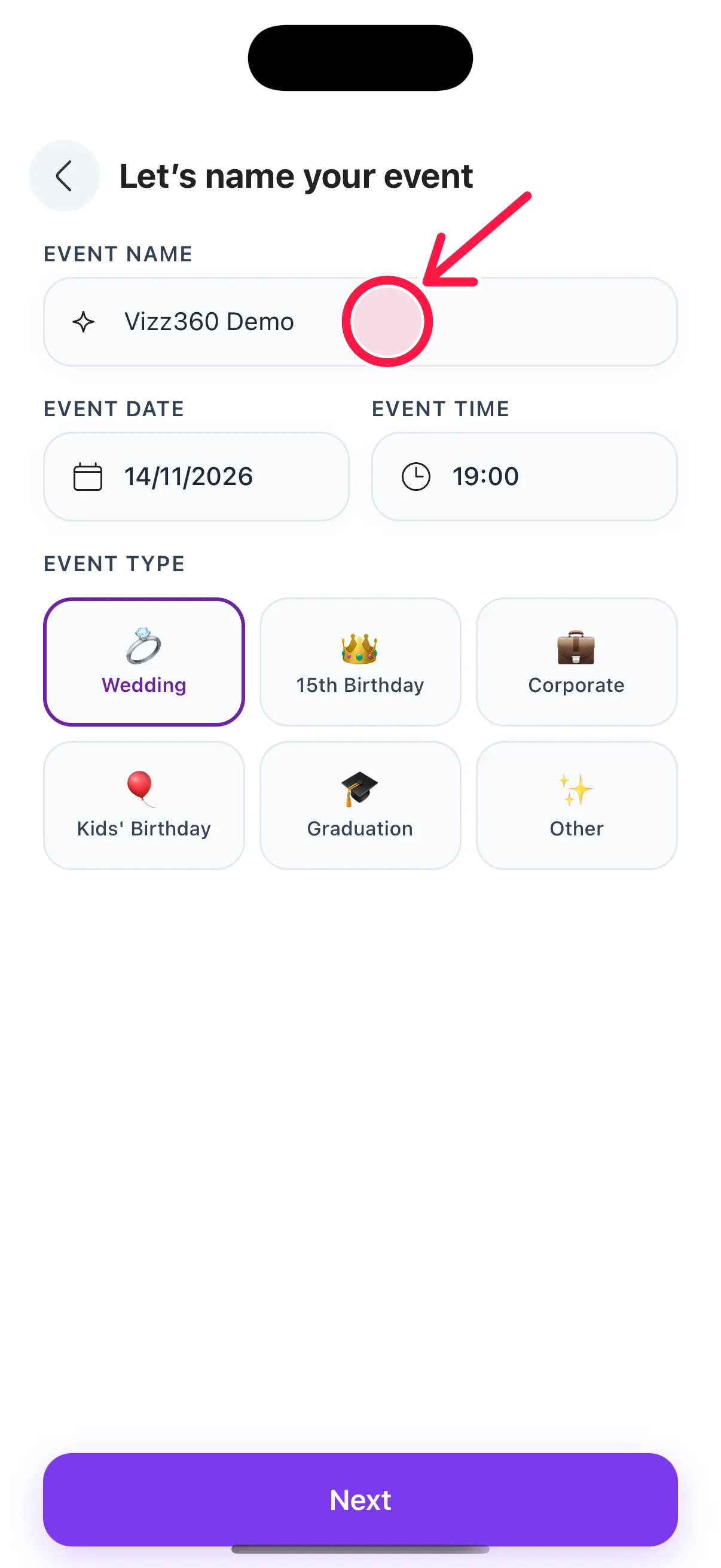
- Name the event and check its date, time and type.
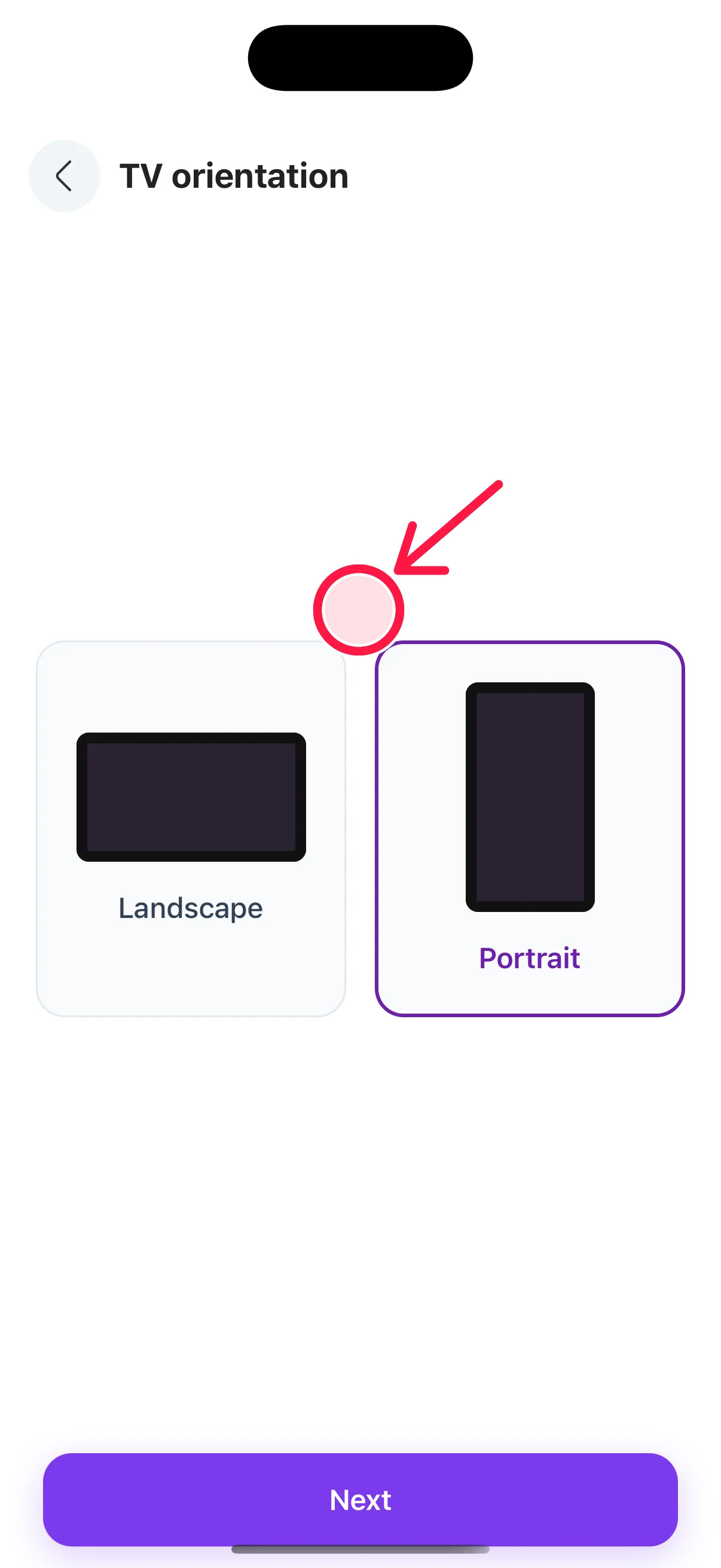
- Choose the orientation that matches the kiosk installation.
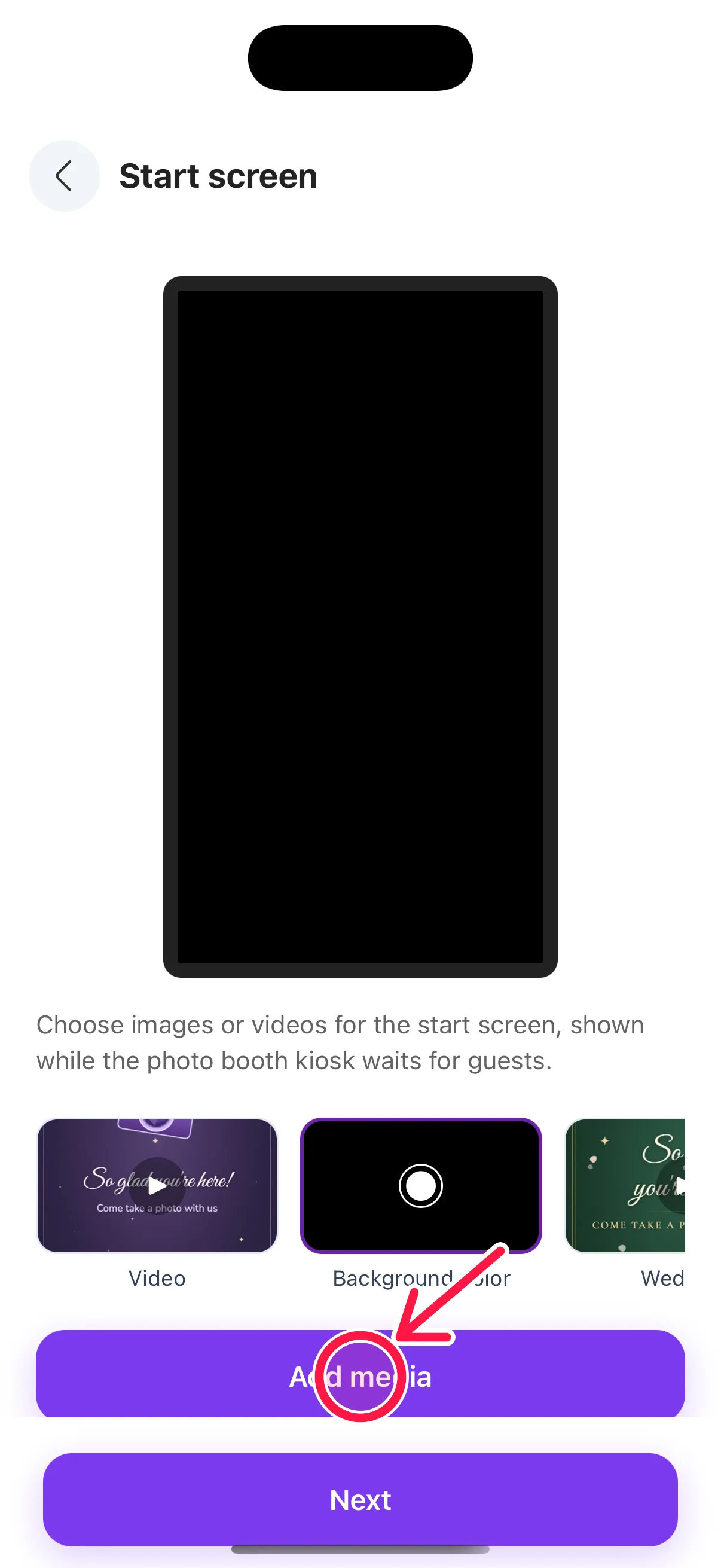
- On the idle screen, choose the media shown while the kiosk waits.
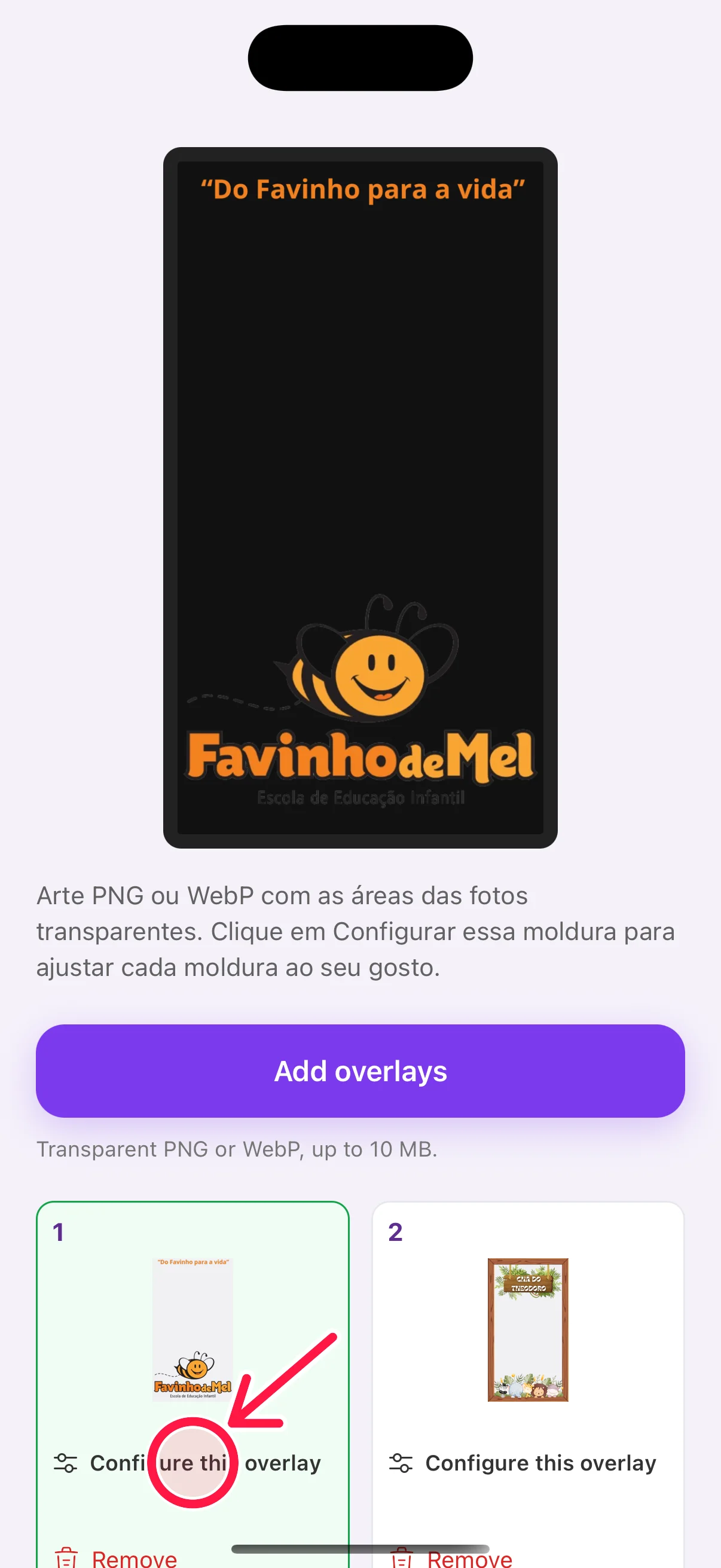
- Add the kiosk frames and review each option.
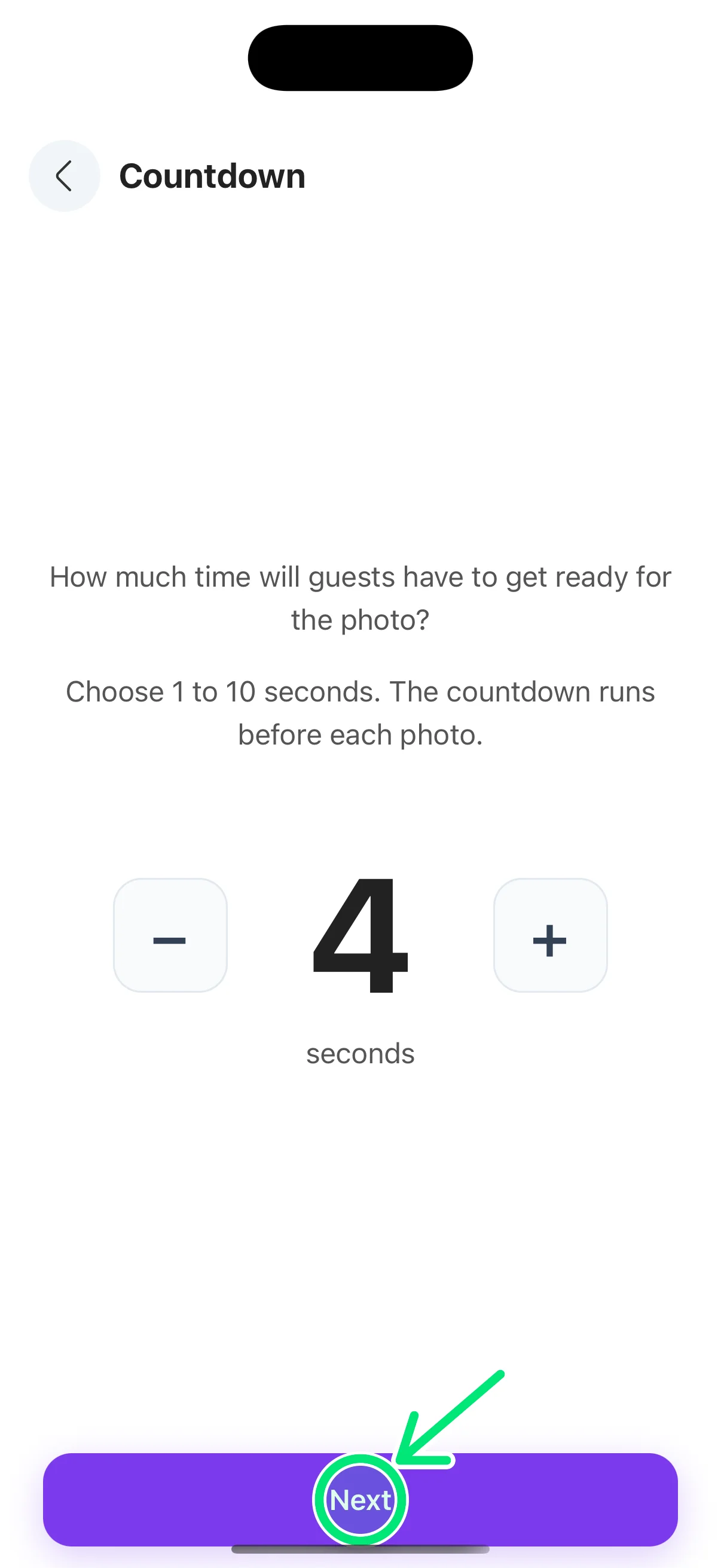
- Check the chosen delay and continue to test the flow.
You want to set up a photo flow where guests follow the instructions on the screen. Building the full flow helps you see whether the instructions make sense to someone using the kiosk for the first time.
Before you start
Have the approved visual identity, the operating device, and the screen that will be used. Check the files in the desired orientations. Customizing the background of an interface step is different from applying an overlay to the saved photo.
How to do it
-
On Home, tap + Create event and select Photo Booth Kiosk.
-
Fill in the event details and continue through the link and QR steps shown.
-
In the kiosk wizard, set the TV orientation and prepare the Start screen.
-
Add the Overlays and configure the photo spaces in each design.
-
Review the overlay selection steps, the steps between photos, and Countdown.
-
Check the camera, processing, finished photo, and thank-you screens. Finish the setup and use Start Photo Booth Kiosk to test the entire flow.
Where to tap in the app
Check the result
Ask someone to follow the screens without receiving explanations for each tap. Check whether they understand when to start, when to get into position, and where they receive the result. Then open the saved photo to check the composition, which is different from the visual background of the interface.
If something does not work as expected
If media appears on the Photo ready screen, do not assume it was applied to the photo file: this step also uses interface backgrounds. If the design has multiple spaces, configure the position and numbering before testing the captures. If the presentation looks cropped, check the selected orientation and the matching preview.
Quick questions
Is the Photo Booth Kiosk the same as a 360 video event?
No. It is a photo flow with its own setup and capture steps.
Can I choose the time before each photo?
Yes. The Countdown step lets you choose from 1 to 10 seconds before each capture.
Does everything that appears behind the photo go into the saved image?
No. Interface backgrounds, including on Finished photo, should not be confused with the overlay applied to the composition.
Continue in the app
Prepare a test event in Vizz360 and check the full path before your next booking. You can find the app for iPhone and Android in the links below.
Also read: How to add images and videos to the kiosk home screen; How to configure the photo spaces in the kiosk overlay; How to adjust the kiosk countdown.
If you are choosing a photo booth app, see how Photo Booth Kiosk mode handles capture, countdown, and overlays.

Download Vizz360
Record, edit and share 360° videos in seconds, right from your phone. Free download for Android and iOS, with in-app purchases.


Related articles

How to Position and Resize the Kiosk Shutter Button
How to Position and Resize the Kiosk Shutter Button. See the Vizz360 steps, app screens and what to check before using it at an event.

How to Adjust Photo Framing Inside an AI Overlay
How to Adjust Photo Framing Inside an AI Overlay. See the Vizz360 steps, app screens and what to check before using it at an event.

How to Change Your Vizz360 Account Email
How to Change Your Vizz360 Account Email. See the Vizz360 steps, app screens and what to check before using it at an event.