
How to configure the photo spaces in the photo booth kiosk overlay
Configure the Photo Booth Kiosk overlay spaces in Vizz360. Drag, resize, and choose the numbers that define which photos go into the composition.



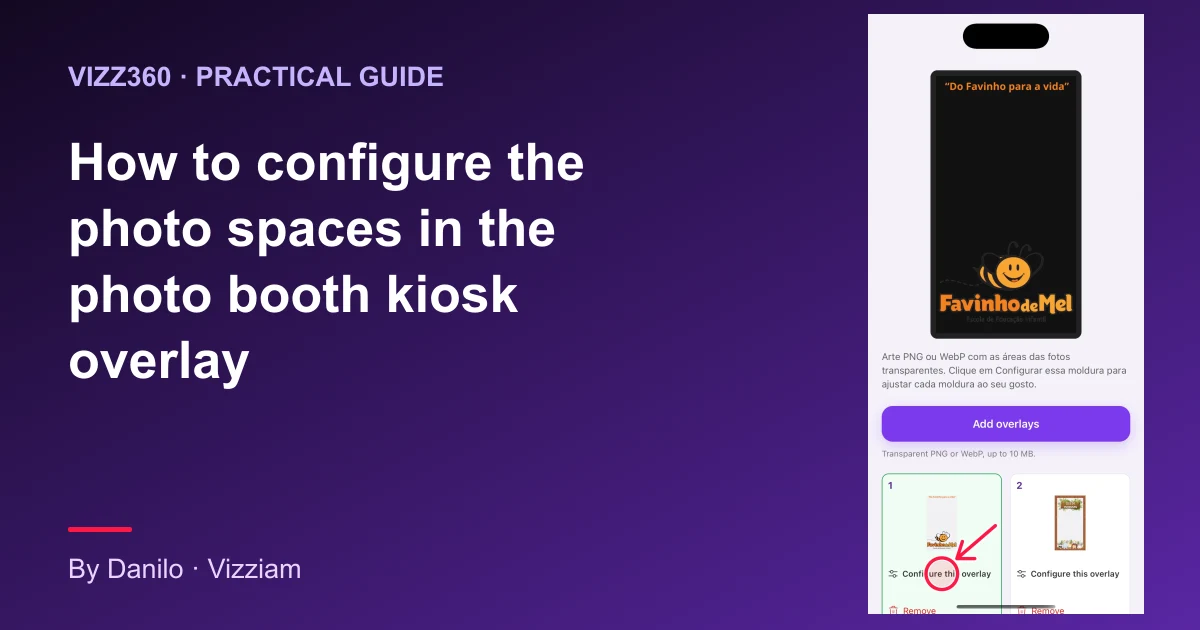
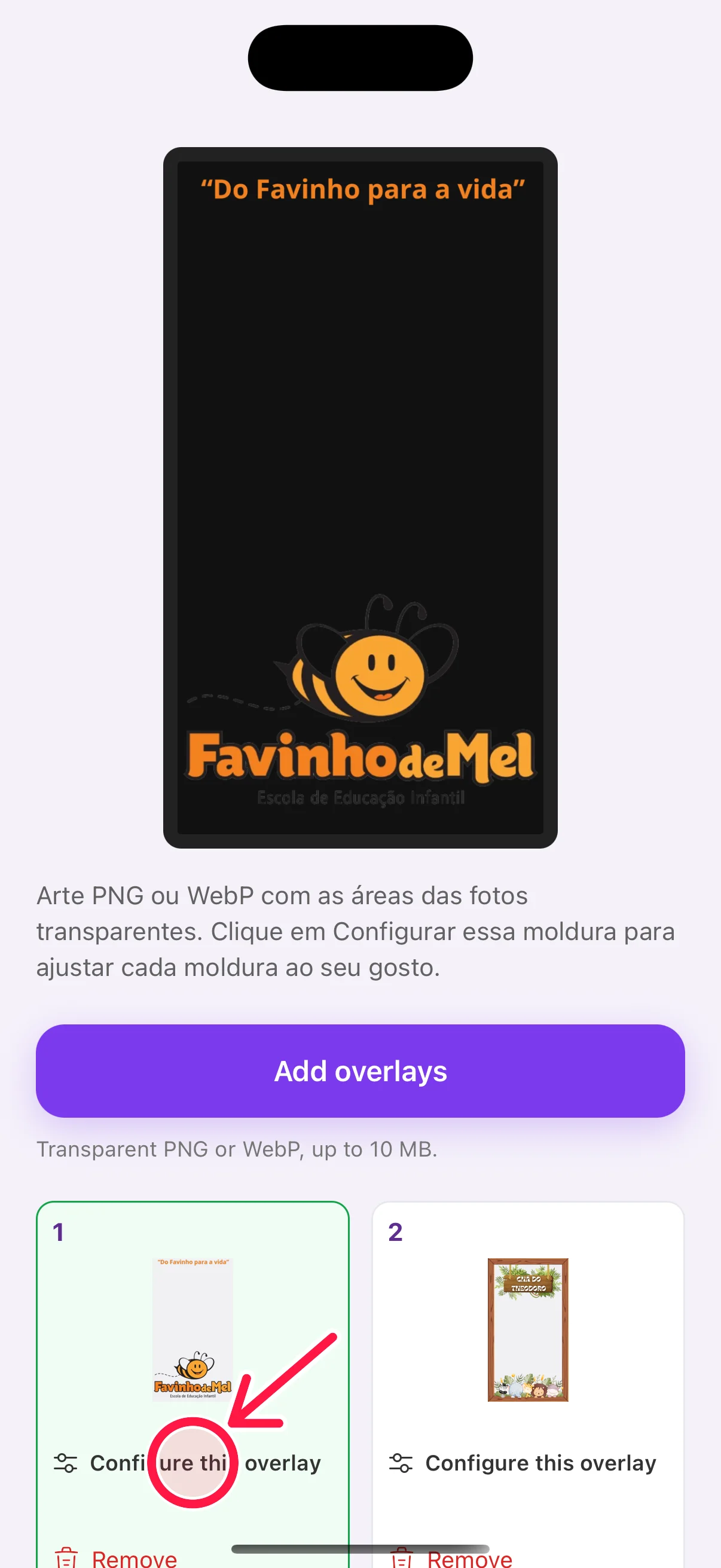
In the Photo Booth Kiosk overlay, tap Configure this overlay to review the photo spaces. The numbers indicate which capture goes into each position: matching numbers repeat the same photo.
Demonstration on the iPhone simulator, using Vizz360 7.39 and sample data. Some controls vary on Android and by plan.
Read the video steps
- Add the kiosk frames and review each option.
- Place the photo slots inside the frame’s transparent area.
- After checking the slots, tap Save settings.
Your overlay has several spaces, and you want to define where each capture appears. Checking this numbering is just as important as aligning the cutouts, because it determines what each part of the composition will show.
Before you start
Use artwork with clearly defined photo areas and be clear about how many different captures you want. Do not confuse the number of spaces with the number of photos: the same capture can appear repeated in different positions.
How to do it
-
In the kiosk’s Overlays step, add or select the desired artwork.
-
Tap Configure this overlay.
-
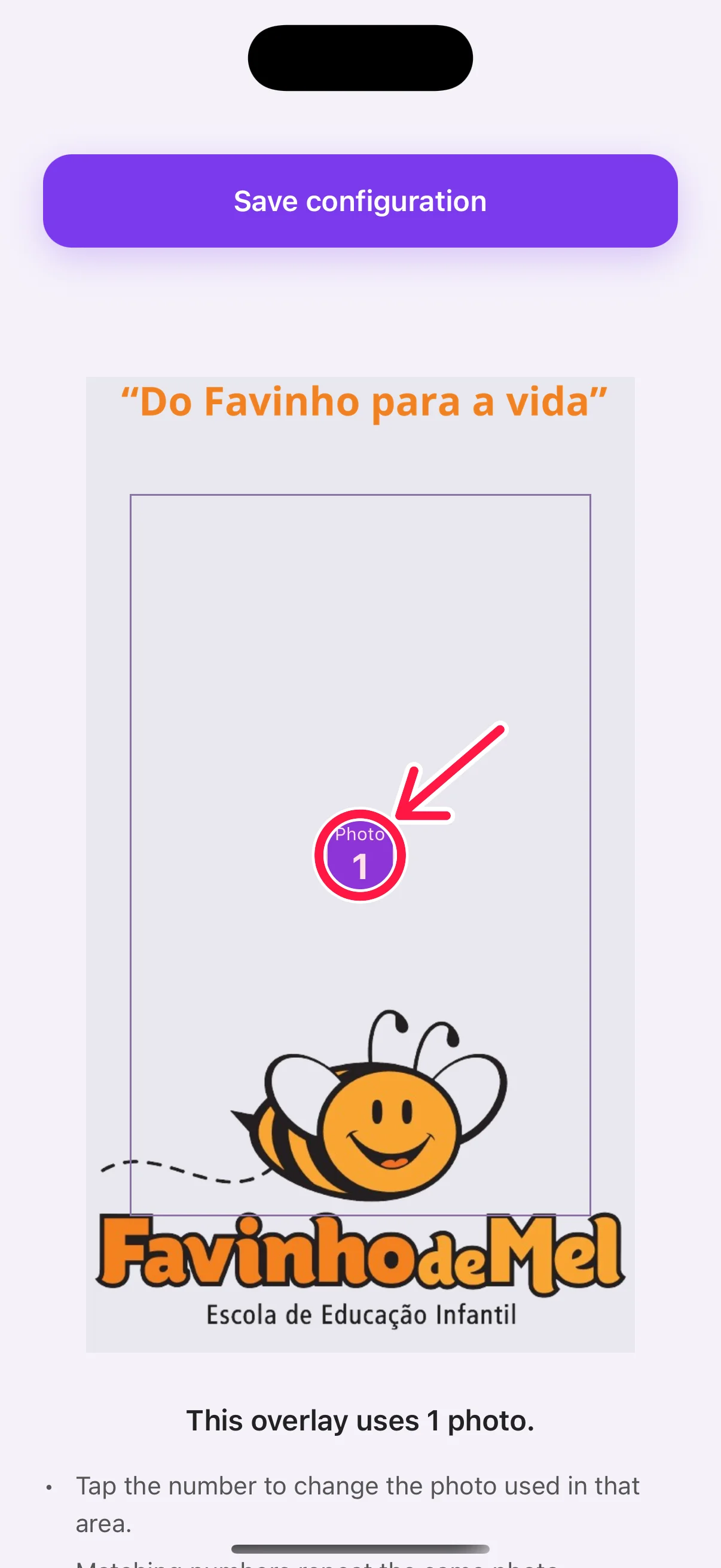
Select a space and adjust its position and corners; use − and + to resize it when needed.
-
Tap the number to change the photo used in that space.
-
If you need to swap the capture positions, drag one number onto another. Check the total number of photos shown by the editor.
-
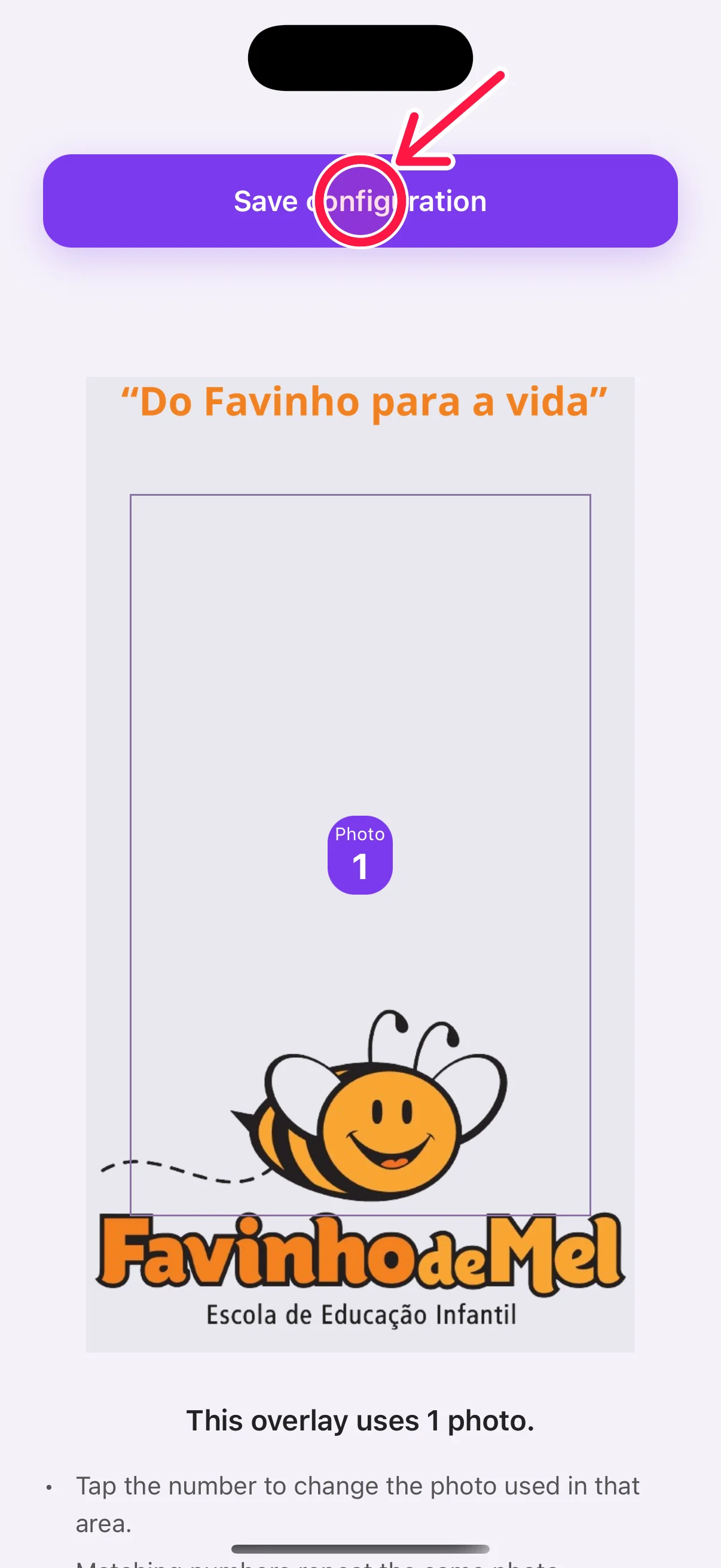
Use Save configuration, finish the event, and run a complete test sequence.
Where to tap in the app
Check the result
Open the final composition and compare each position with what you planned. Check whether faces are inside the transparent areas, whether there are any unexpected crops, and whether the repeated photos are intentional. The space preview does not replace a sequence with real captures.
If something does not work as expected
If the same photo appears in places that should be different, check the numbers: matching numbers repeat the capture. If the person is covered by the artwork, review the alignment and size of the space. The Reset button lets you return to the detected spaces, but check the result before saving, because manual adjustments need to be evaluated again.
Quick questions
Do three spaces mean three different photos?
Not necessarily. The number in each space defines the capture; repeated numbers use the same photo.
Can I change only the order of the photos?
The editor guides you to drag one number onto another to swap the positions.
Do the adjustments work the same way for any artwork?
Each overlay needs to be checked. Files with different cutouts and proportions require their own configuration.
Continue in the app
Prepare a test event in Vizz360 and check the full flow before your next job. You can find the app for iPhone and Android in the links below.
Also read: How to create a Photo Booth Kiosk event in Vizz360; How to let the guest choose the overlay on the kiosk; 360 photo booth overlay: size, transparency, and customization.

Download Vizz360
Record, edit and share 360° videos in seconds, right from your phone. Free download for Android and iOS, with in-app purchases.


Related articles

How to Position and Resize the Kiosk Shutter Button
How to Position and Resize the Kiosk Shutter Button. See the Vizz360 steps, app screens and what to check before using it at an event.

How to Adjust Photo Framing Inside an AI Overlay
How to Adjust Photo Framing Inside an AI Overlay. See the Vizz360 steps, app screens and what to check before using it at an event.

How to Change Your Vizz360 Account Email
How to Change Your Vizz360 Account Email. See the Vizz360 steps, app screens and what to check before using it at an event.