
How to Use Vizz360’s Ready-Made Video Templates
Choose and preview ready-made video templates in Vizz360. Learn about Plus access, template preparation, and why it’s important to test the final edit.



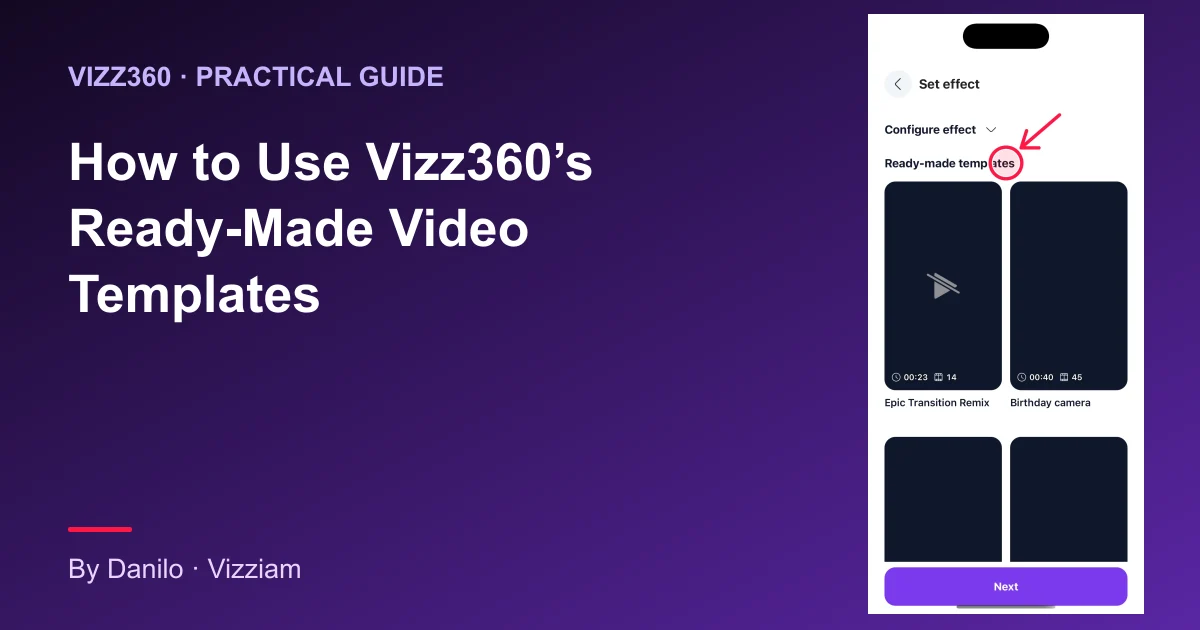
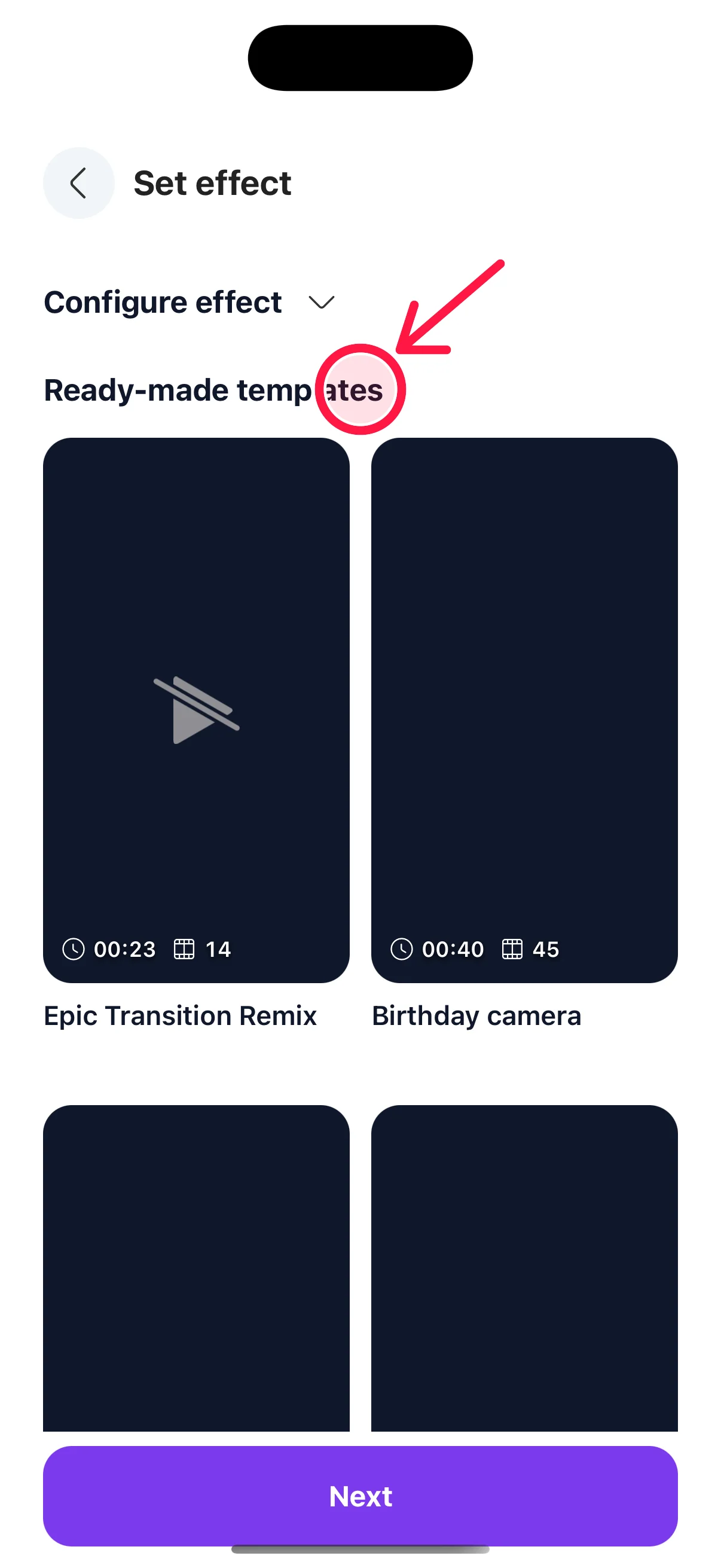
In Set effect, the Ready-made templates area lets you preview and choose ready-made edits for the video. Using these templates is a Plus feature; being able to view the showcase does not mean access is enabled on the account.
Demonstration on the iPhone simulator, using Vizz360 7.39 and sample data. Some controls vary on Android and by plan.
Read the video steps
- Under Ready-made templates, choose an option and test before the event.
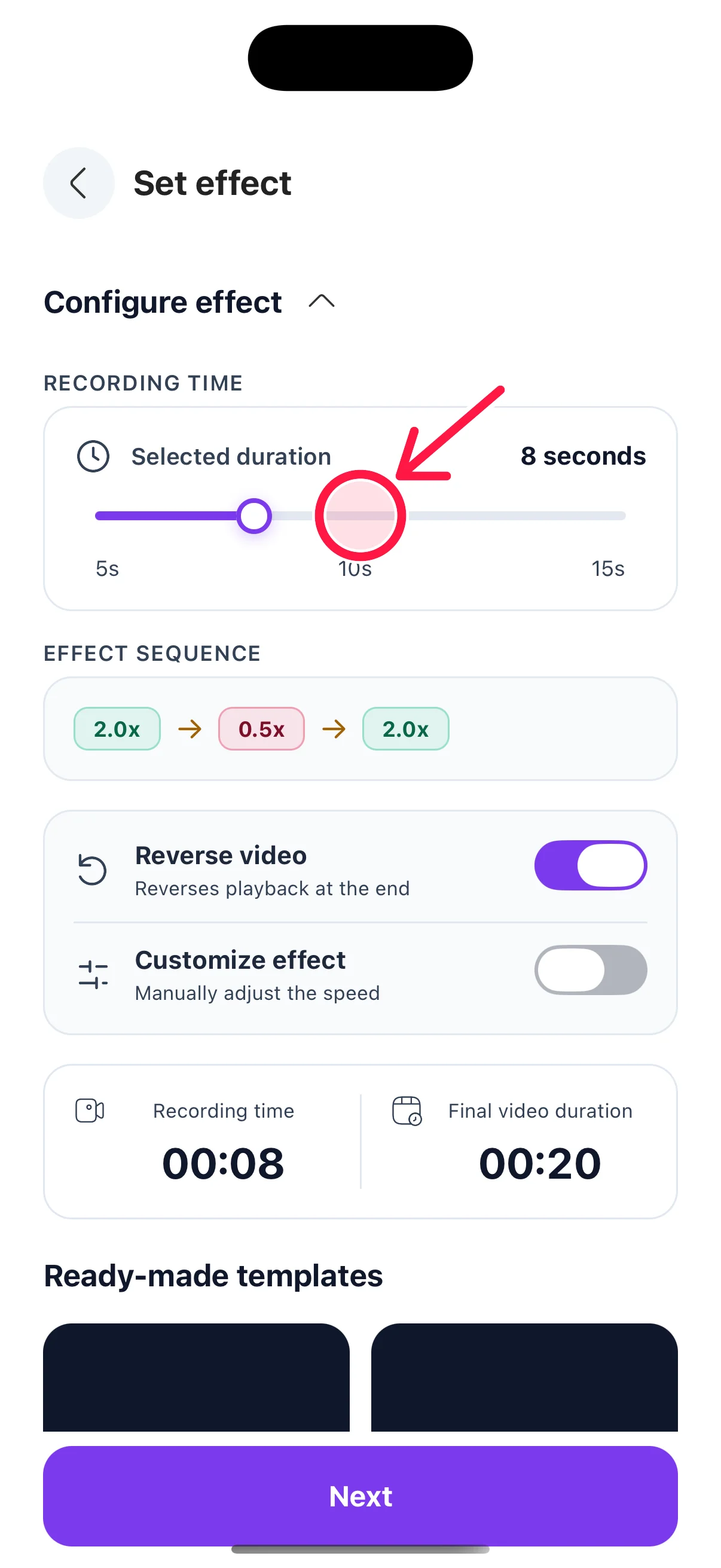
- Expand Configure effect and adjust Recording time.
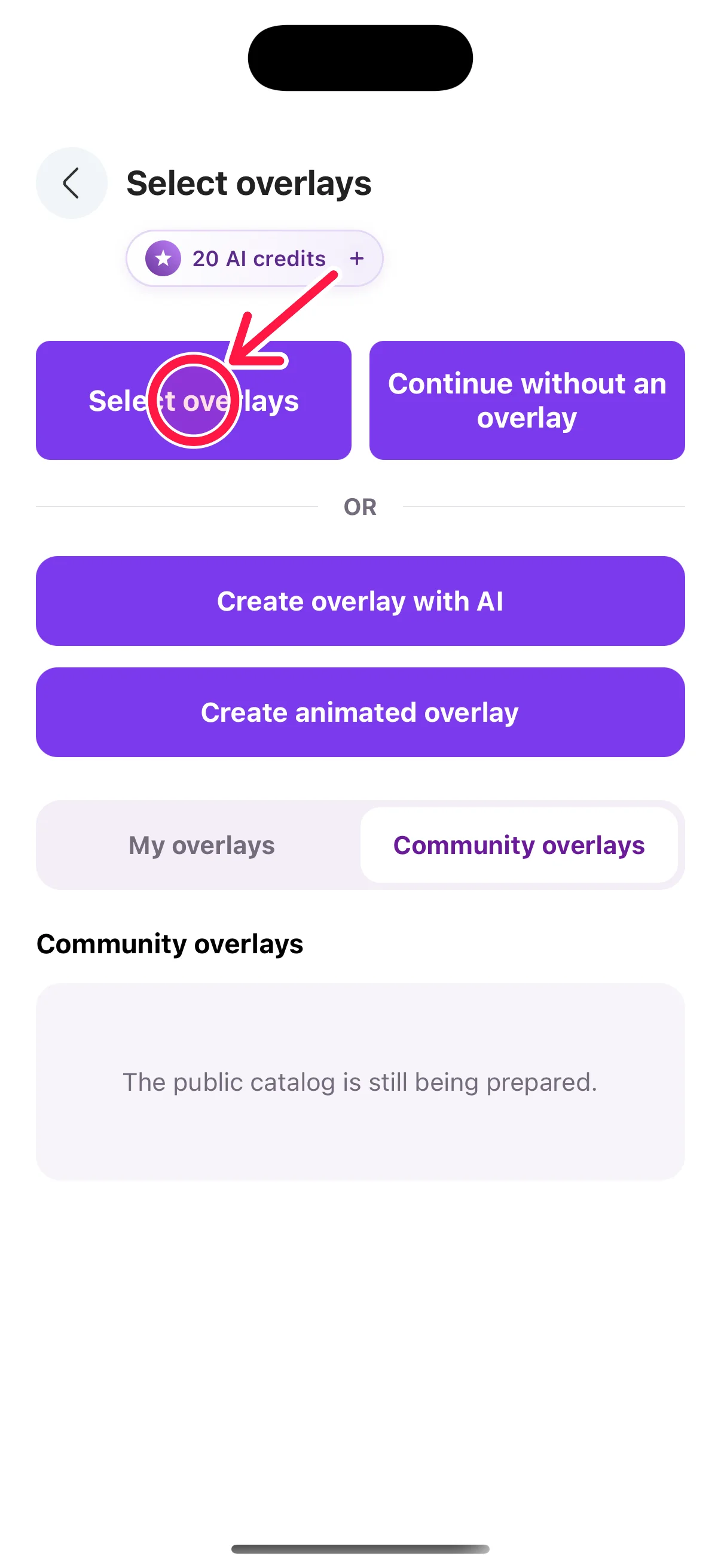
- Tap Select overlays to import your artwork.
You want to try a ready-made edit instead of setting up the entire speed sequence. The preview helps you compare styles, but testing it with your own video confirms whether the template works for your service.
Before you start
Check the account access and make sure you have a connection to prepare the template files. Pay attention to the preview’s length and style. A ready-made template has its own edit, different from manually building the standard speed sequence.
How to do it
-
When creating the event, continue until Set effect.
-
Open Ready-made templates and browse the catalog options.
-
Open the preview for the template that caught your attention and watch the full clip.
-
Select an option available with your access and continue through the event steps.
-
Wait for the files to be prepared before you start operating.
-
Record a test with the framing and action you plan to offer guests.
Where to tap in the app
Check the result
Check the beginning, the cuts, and the end of the processed file. The final duration is defined by the template. Also evaluate how the music and visual identity appear in the delivery, instead of judging only by the catalog thumbnail.
If something does not work as expected
If the account does not have Plus, the app lets you explore the showcase, but usage follows the access conditions and the available standard effect. If preparation fails, check the connection and complete the download before the service. Do not assume that a template seen on another device is already ready on this phone.
Quick questions
Can I edit the speed exactly like in the standard effect?
The template has its own structure. To control the standard sequence, use the effect configuration path instead of assuming the same controls change any template.
Is the capture duration the same as the template’s final duration?
Do not treat the numbers as equivalent. Check the preview and the complete test video.
Do I need to test even after seeing the preview?
Yes. The preview shows the style; your capture shows the framing, action, and result on the device used at the event.
Continue in the app
Prepare a test event in Vizz360 and review the full process before your next service. You can find the app for iPhone and Android in the links below.
Also read: How to Adjust Slow Motion and Speed in Vizz360; How to Choose Multiple Songs for the Same Event; How to Import a PNG Overlay for 360 Video.

Download Vizz360
Record, edit and share 360° videos in seconds, right from your phone. Free download for Android and iOS, with in-app purchases.


Related articles

How to Position and Resize the Kiosk Shutter Button
How to Position and Resize the Kiosk Shutter Button. See the Vizz360 steps, app screens and what to check before using it at an event.

How to Adjust Photo Framing Inside an AI Overlay
How to Adjust Photo Framing Inside an AI Overlay. See the Vizz360 steps, app screens and what to check before using it at an event.

How to Change Your Vizz360 Account Email
How to Change Your Vizz360 Account Email. See the Vizz360 steps, app screens and what to check before using it at an event.