
How to adjust slow motion and speed in Vizz360
Configure slow motion and the 360 video speed sequence in Vizz360. See where to adjust it and how to check the result with a test.



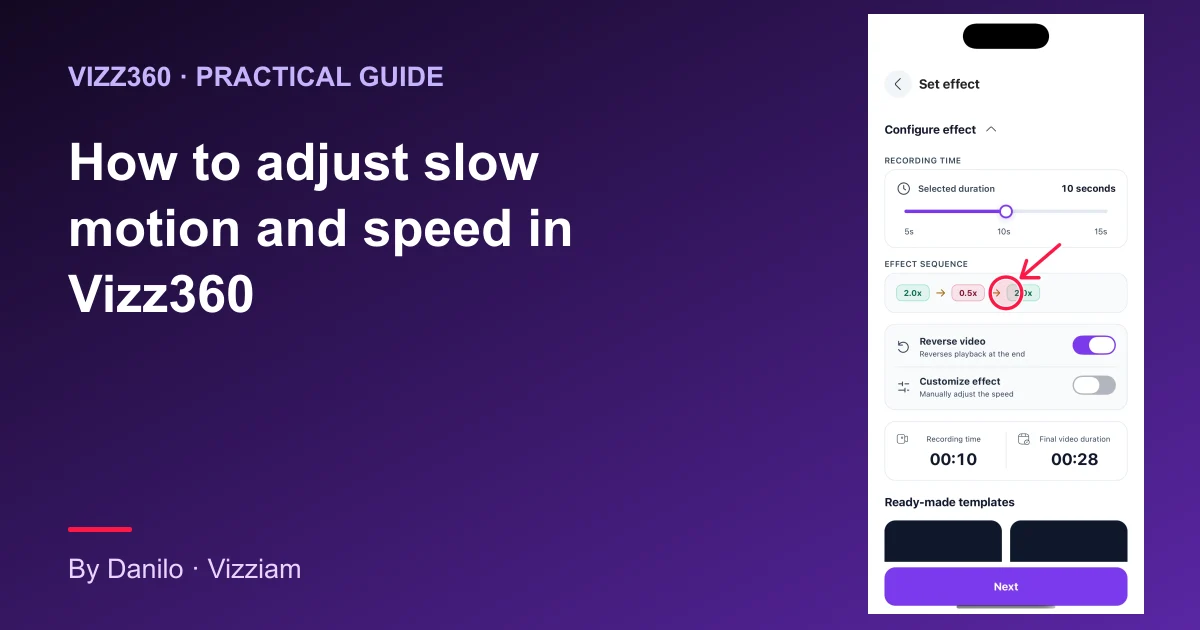
To adjust the speed, open Set effect and use Effect sequence. If you want to control the steps, enable Customize effect and open Speed settings. Slow motion becomes clear when you check the sequence in the final video.
Demonstration on the iPhone simulator, using Vizz360 7.39 and sample data. Some controls vary on Android and by plan.
Read the video steps
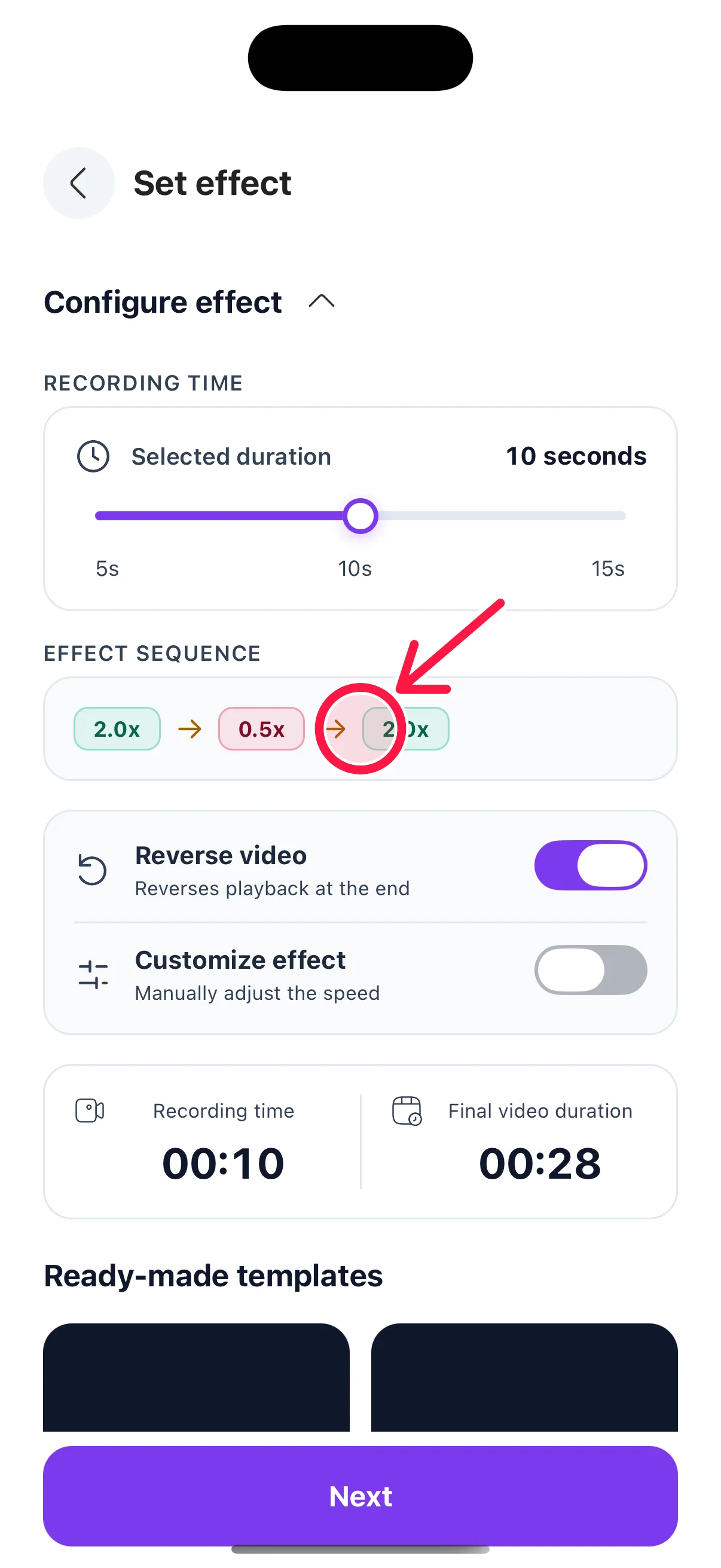
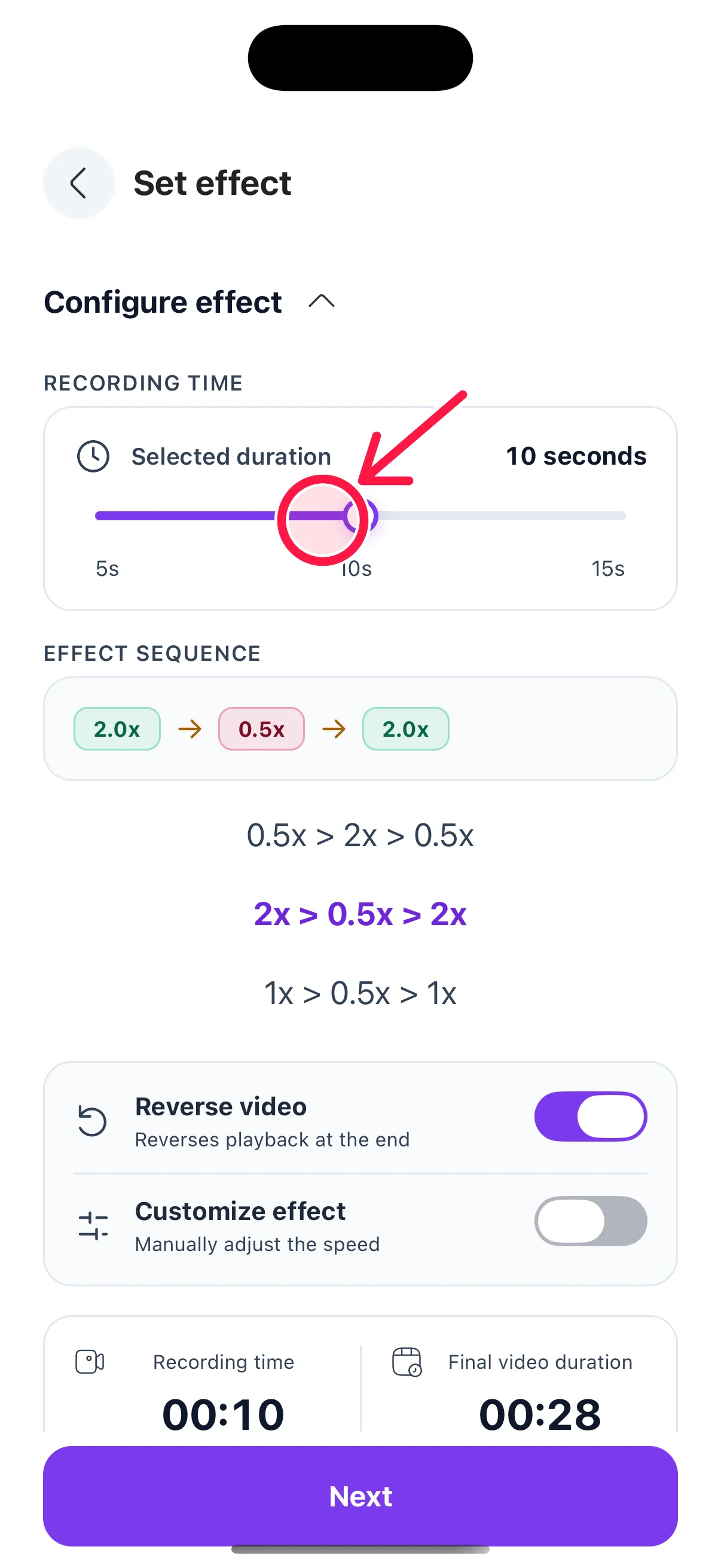
- Open Effect sequence to choose a combination of speeds.
- Choose a sequence and check the result before serving guests.
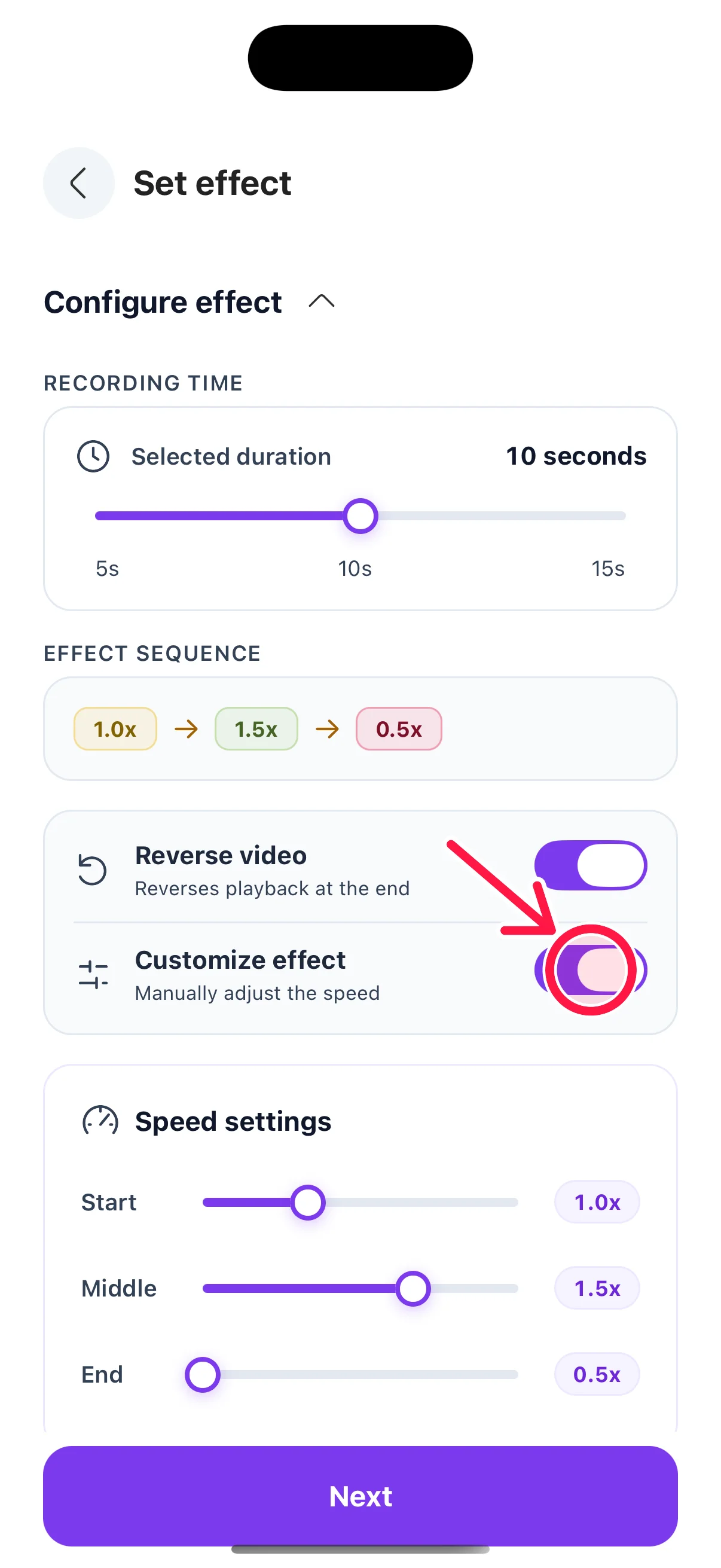
- Enable Customize effect to adjust speeds manually.
The movement looks good, but you want to highlight a segment in slow motion. The adjustment should match the action: a still pose and a wide gesture may need different rhythms.
Before you start
This path is for the standard effect. When a ready-made video template is selected, editing follows that template’s structure. Choose which approach you want to use before looking for the speed controls.
How to do it
-
While creating the event, go to Set effect and open Configure effect.
-
Tap Effect sequence and review the options shown.
-
For your own adjustment, enable Customize effect and use Speed settings.
-
Adjust the beginning, middle, and final segments while watching the speed values. Values below 1x mean slower playback; above 1x, faster playback.
-
Check the Reverse video option and finish the event.
-
Record a test and play back the full sequence with the music you chose.
Where to tap in the app
Check the result
The moment you wanted to highlight should appear with the right rhythm, without cutting off the important action. Also check the final duration and whether the track covers the playback. Changing the speed can change the amount of time the music needs to fill.
If something does not work as expected
If the standard controls do not appear, check whether a ready-made template is selected. If the result looks different from what you expected, review the entire sequence, not just one isolated value: acceleration, slow motion, and reverse may be combined. To compare two settings, use a similar movement in both recordings.
Quick questions
Is slow motion the same as increasing the capture time?
No. The camera captures for a set period, and the effect changes how that material will be played back.
Do I need to configure the three segments manually?
You can start with an available sequence and customize it when you know which part you want to change.
Does the adjustment improve a blurry image?
Do not rely on speed to fix focus or low light. Check the capture quality before evaluating the effect.
Continue in the app
Prepare a test event in Vizz360 and check the full path before your next booking. You can find the app for iPhone and Android in the links below.
Also read: How to choose the 360 video recording time; How to enable reverse video in Vizz360; How to choose the part of the song that plays in the video.

Download Vizz360
Record, edit and share 360° videos in seconds, right from your phone. Free download for Android and iOS, with in-app purchases.


Related articles

How to Position and Resize the Kiosk Shutter Button
How to Position and Resize the Kiosk Shutter Button. See the Vizz360 steps, app screens and what to check before using it at an event.

How to Adjust Photo Framing Inside an AI Overlay
How to Adjust Photo Framing Inside an AI Overlay. See the Vizz360 steps, app screens and what to check before using it at an event.

How to Change Your Vizz360 Account Email
How to Change Your Vizz360 Account Email. See the Vizz360 steps, app screens and what to check before using it at an event.