
How to switch cameras and mirror the image in Vizz360
Use Switch camera and Mirror image when recording in Vizz360. Check the preview and the final file before you start operating.



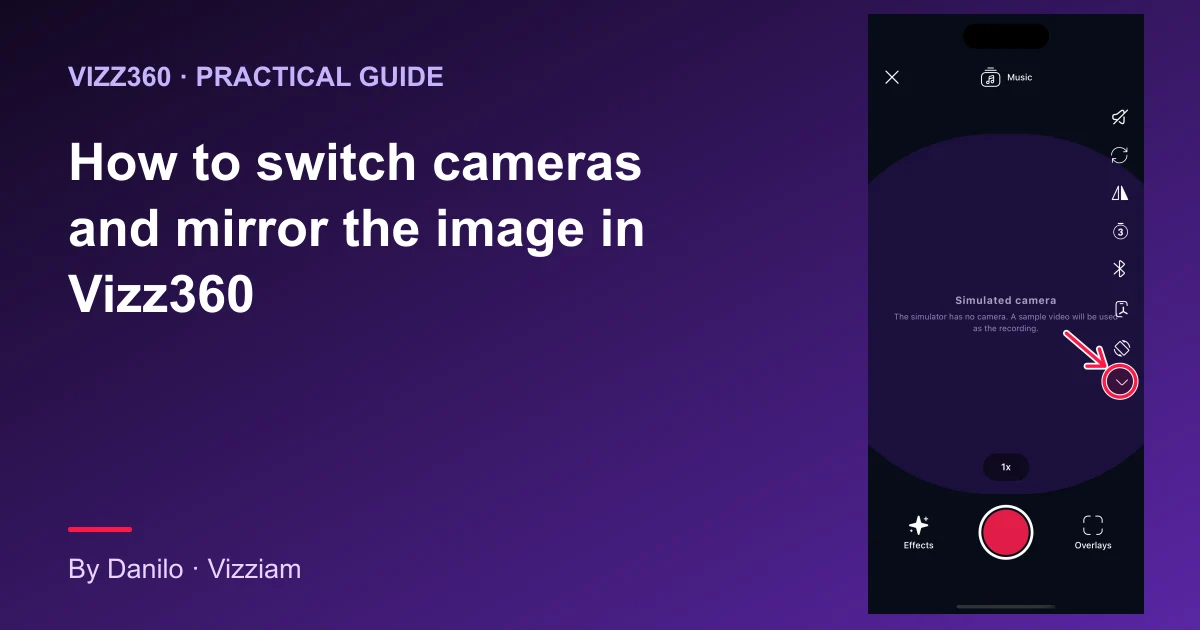
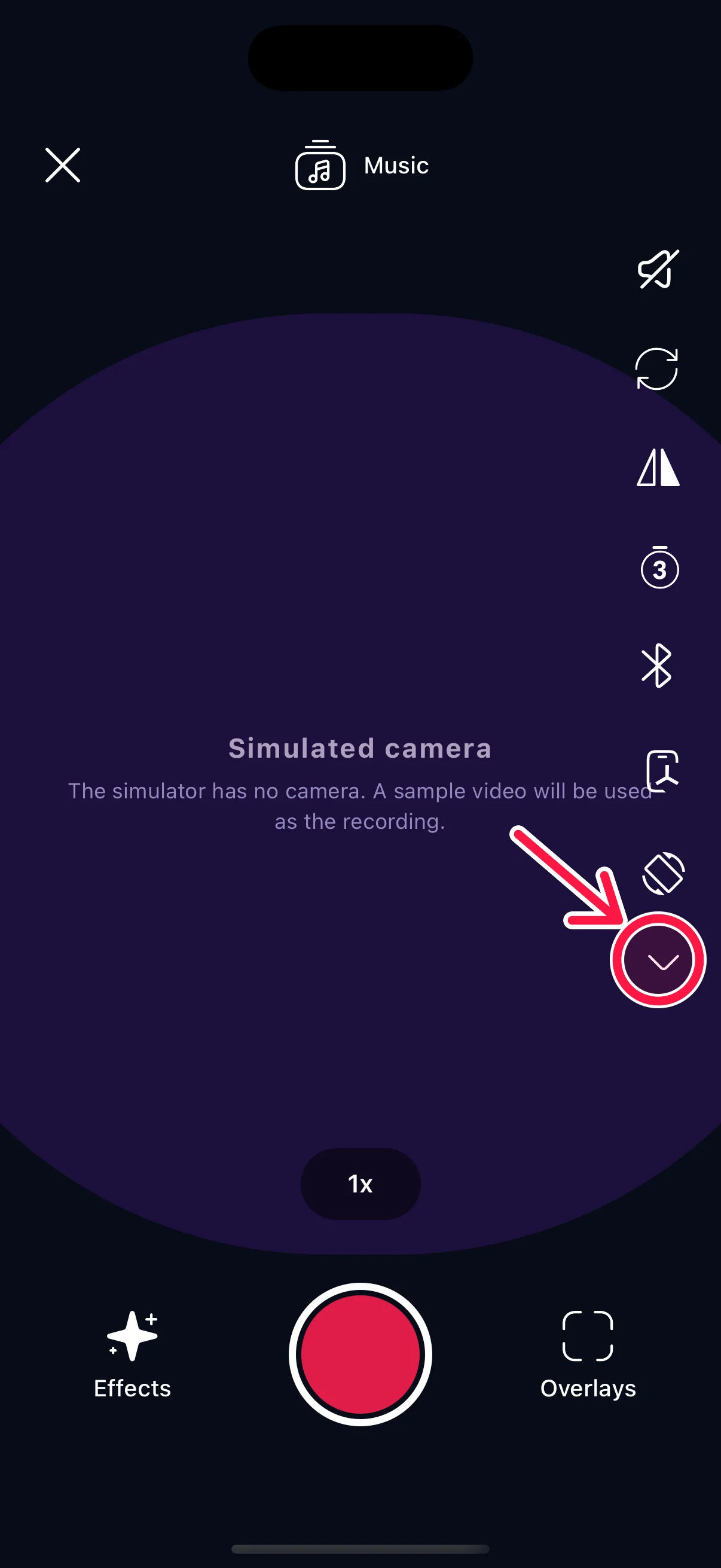
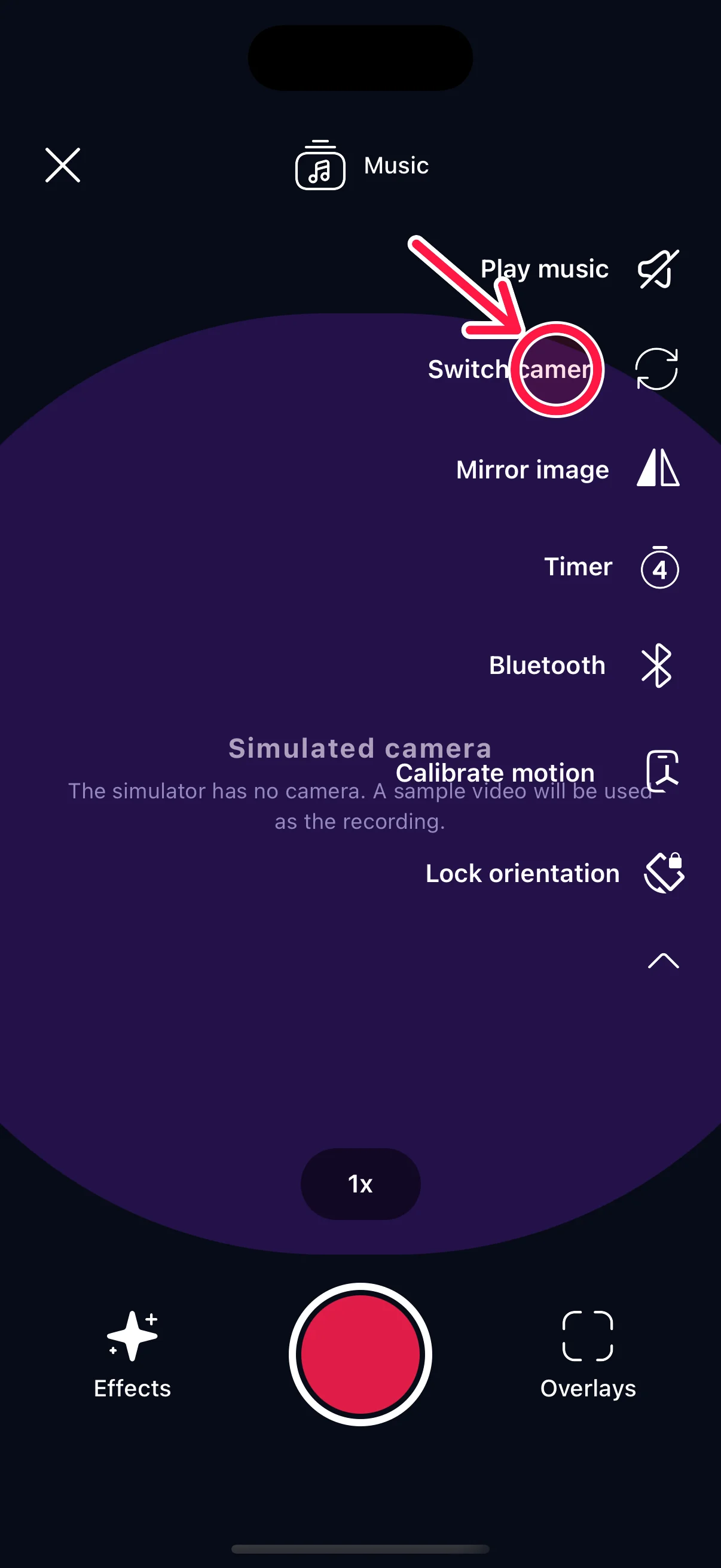
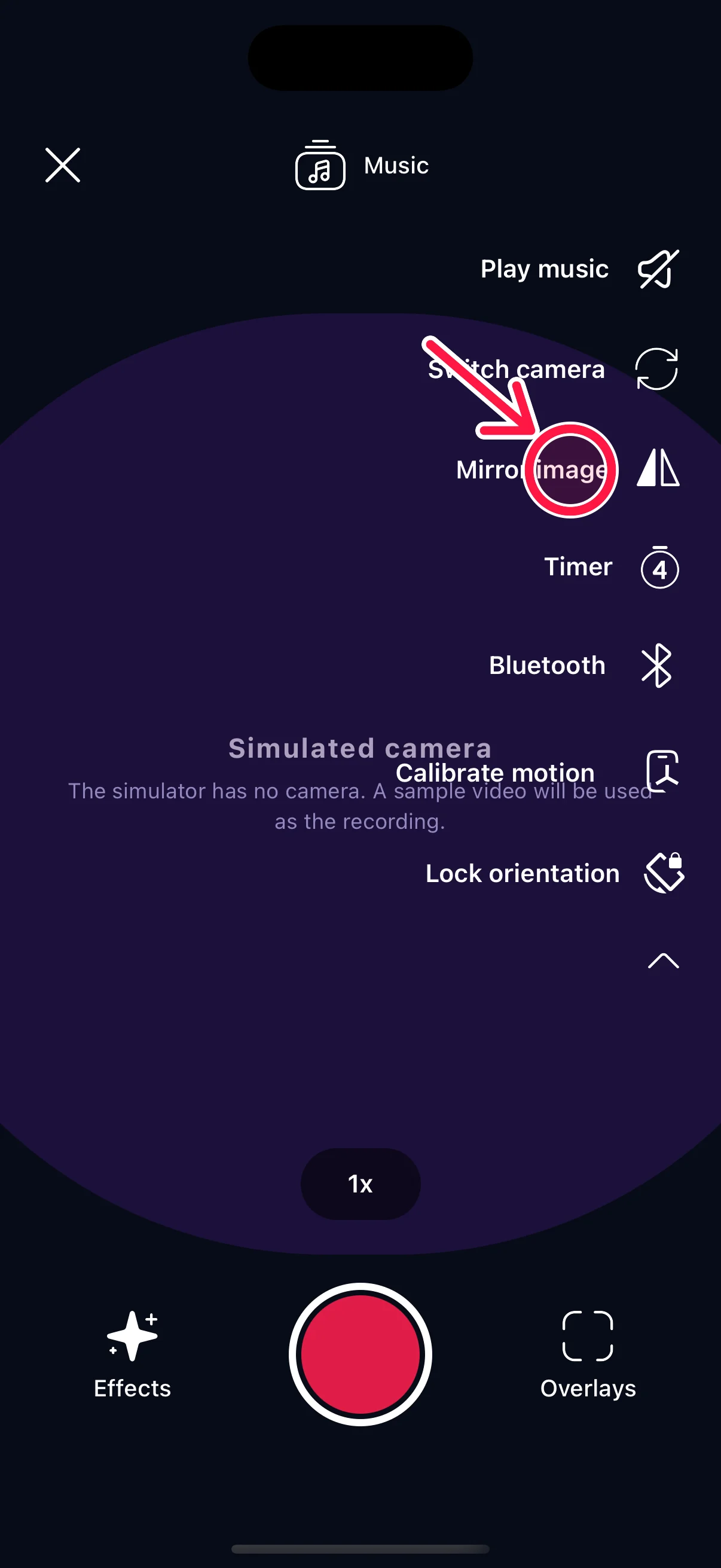
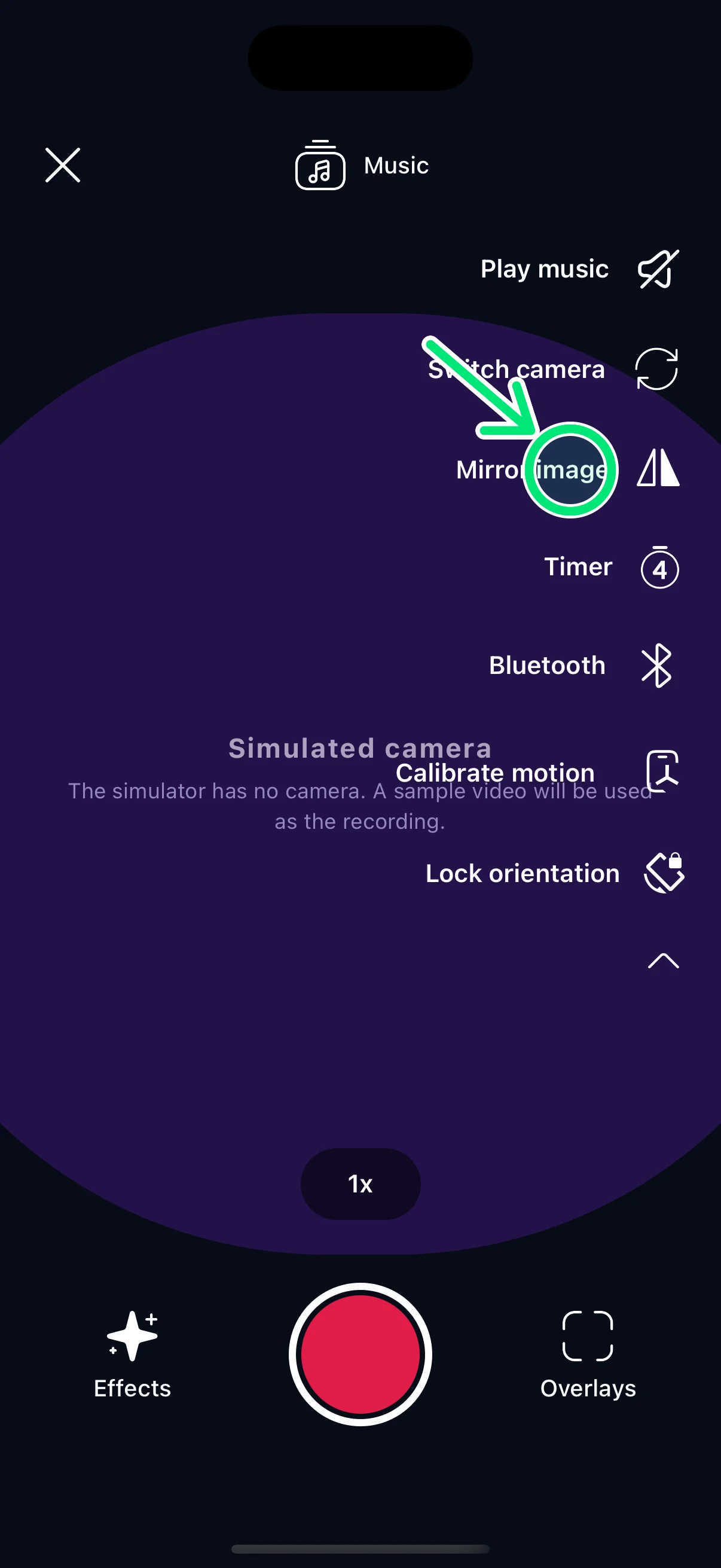
On the Record video screen, use Switch camera to toggle between the available cameras and Mirror image to change the direction of the image. If the names are collapsed, expand the side menu with the arrow to identify each control.
Demonstration on the iPhone simulator, using Vizz360 7.39 and sample data. Some controls vary on Android and by plan.
Read the video steps
- When recording, expand the panel to access camera controls.
- Use Switch camera to change between front and rear cameras.
- Use Mirror image when you need to flip the preview.
- Check the mirror setting before the next recording.
You changed the phone’s position and need to check the camera and image direction before the next capture. Checking the camera before you start prevents a capture pointed the wrong way or a composition that differs from what was agreed.
Before you start
Position the phone securely and make adjustments before starting the recording or countdown. The cameras and lenses depend on the device. Having an option on another phone does not guarantee that the same set will be available on yours.
How to do it
-
Open the event and go to Record video.
-
Expand the side menu with the arrow if you need to show the control names.
-
Tap Switch camera and check which image appears in the preview.
-
Use Mirror image if you want to flip the image and watch the change.
-
Review the framing with someone standing where the guests will be.
-
Make a test recording and open the processed video to check the result.
Where to tap in the app
Check the result
Check faces, the direction of movement, and elements that make mirroring obvious, such as clothing with text. Also evaluate the overlay placed on the final file: the camera preview is part of the check, but the processed delivery is what the guest receives.
If something does not go as expected
If the button is unavailable during capture, wait until it finishes before changing the options. If the image is not what you expected after switching, go back to the preview and identify the active camera. Do not try to fix the framing by moving the mount during a capture in progress.
Quick questions
Is switching cameras the same as choosing 0.5x?
No. Switching cameras changes the available source; 0.5x and 1x are framing controls shown depending on the camera and device.
Does mirroring change the direction the 360 photo booth spins?
No. The control affects the image, not the equipment’s motor.
Can I rely only on the preview?
Use the preview to position the phone, and also check a processed video. This validates the camera, effect, and overlay set used for the event.
Continue in the app
Set up a test event in Vizz360 and check the full workflow before your next booking. You can find the app for iPhone and Android in the links below.
Also read: How to use the 0.5x lens on a 360 photo booth; How to lock orientation during recording; How to use the timer before recording in Vizz360.

Download Vizz360
Record, edit and share 360° videos in seconds, right from your phone. Free download for Android and iOS, with in-app purchases.


Related articles

How to Position and Resize the Kiosk Shutter Button
How to Position and Resize the Kiosk Shutter Button. See the Vizz360 steps, app screens and what to check before using it at an event.

How to Adjust Photo Framing Inside an AI Overlay
How to Adjust Photo Framing Inside an AI Overlay. See the Vizz360 steps, app screens and what to check before using it at an event.

How to Change Your Vizz360 Account Email
How to Change Your Vizz360 Account Email. See the Vizz360 steps, app screens and what to check before using it at an event.