
How to Use the Timer Before Recording in Vizz360
Set the Timer on the Record video screen in Vizz360. Adjust the wait before capture and distinguish that time from the recorded duration.



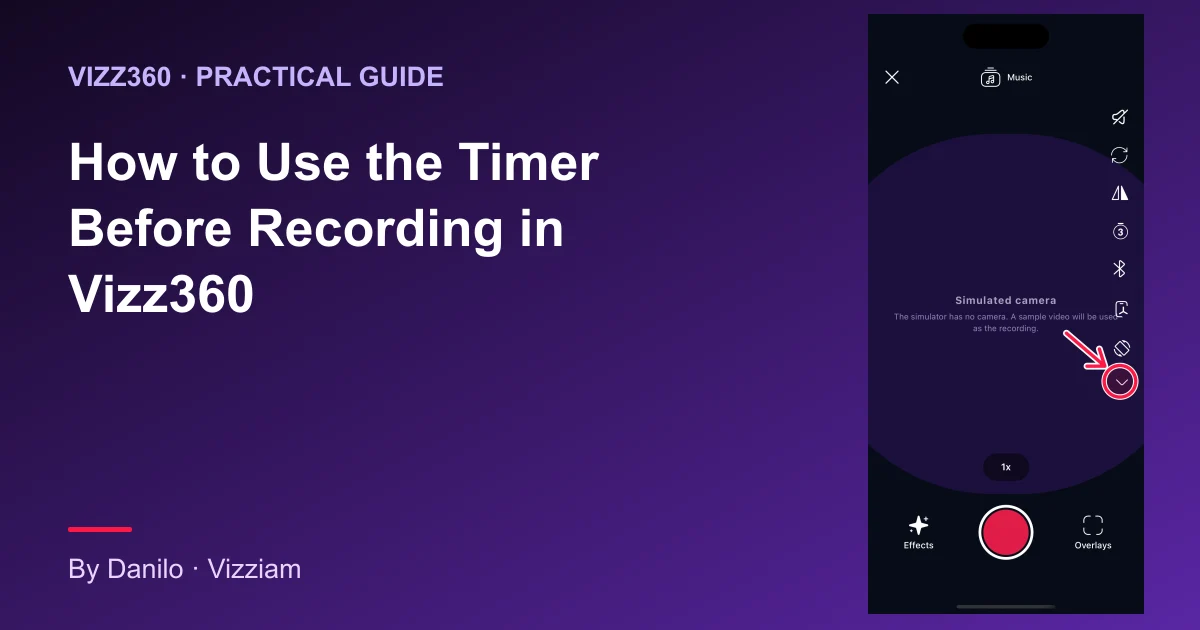
The Timer control on the Record video screen adjusts the wait before capture starts. Tap the icon to switch the displayed value: it cycles from zero to seven seconds and then back to zero.
Demonstration on the iPhone simulator, using Vizz360 7.39 and sample data. Some controls vary on Android and by plan.
Read the video steps
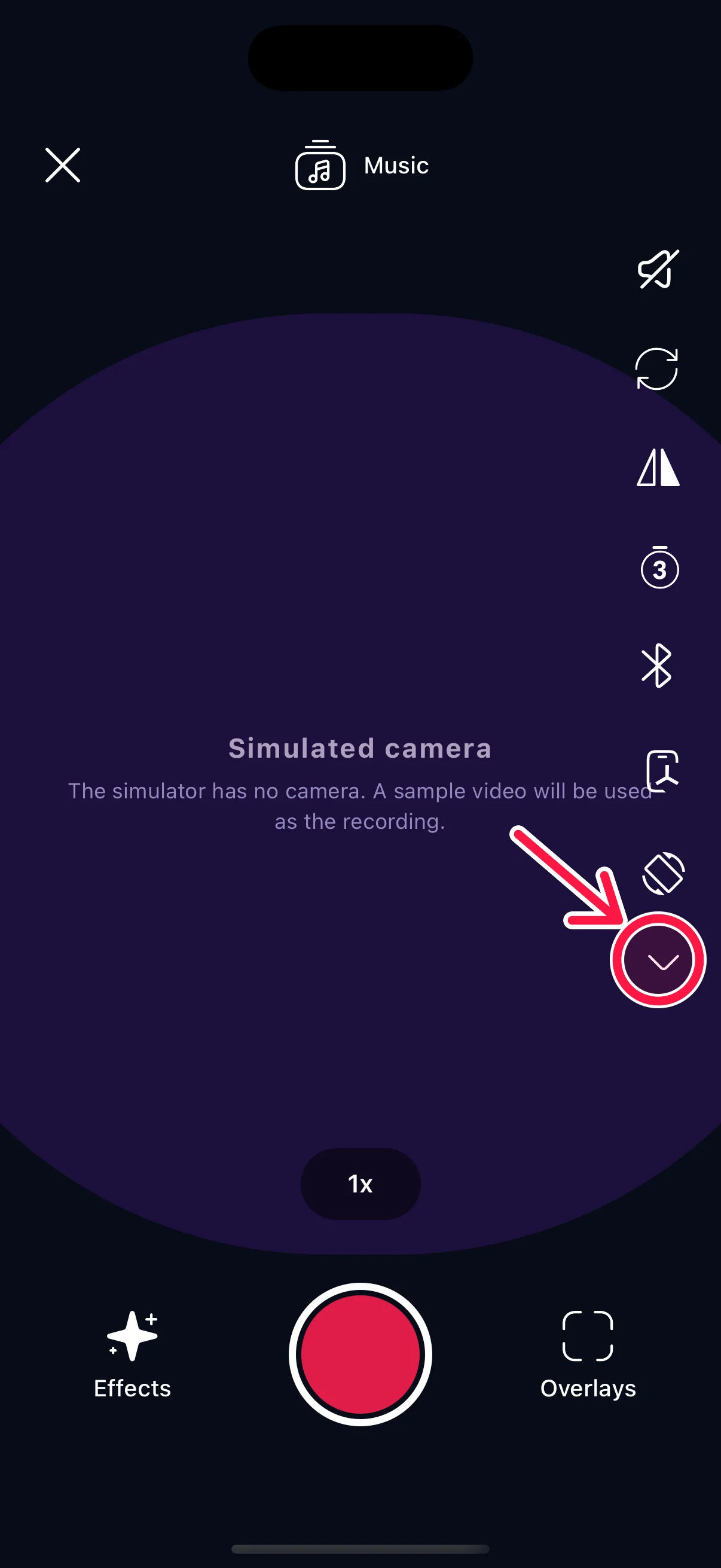
- When recording, expand the panel to access camera controls.
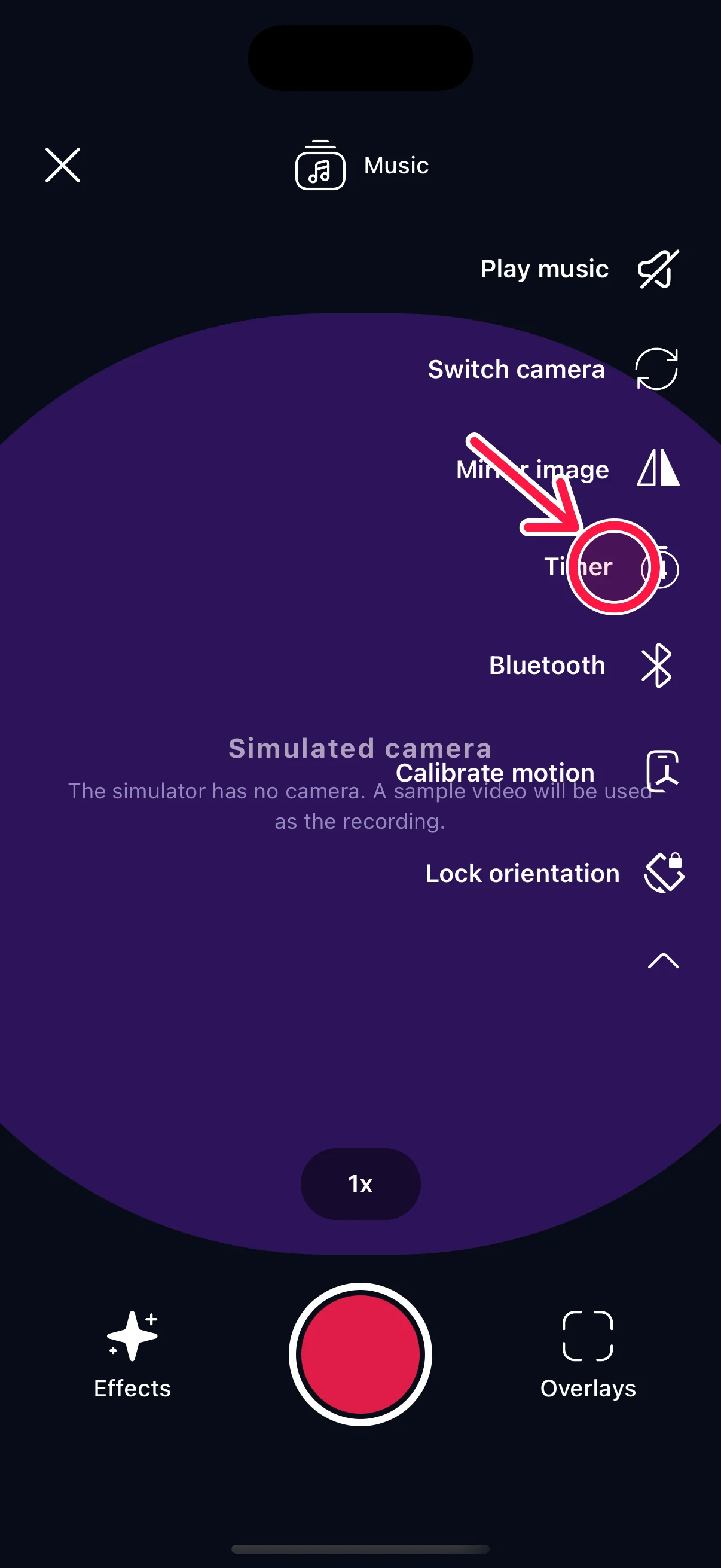
- Tap Timer to change the delay before recording.
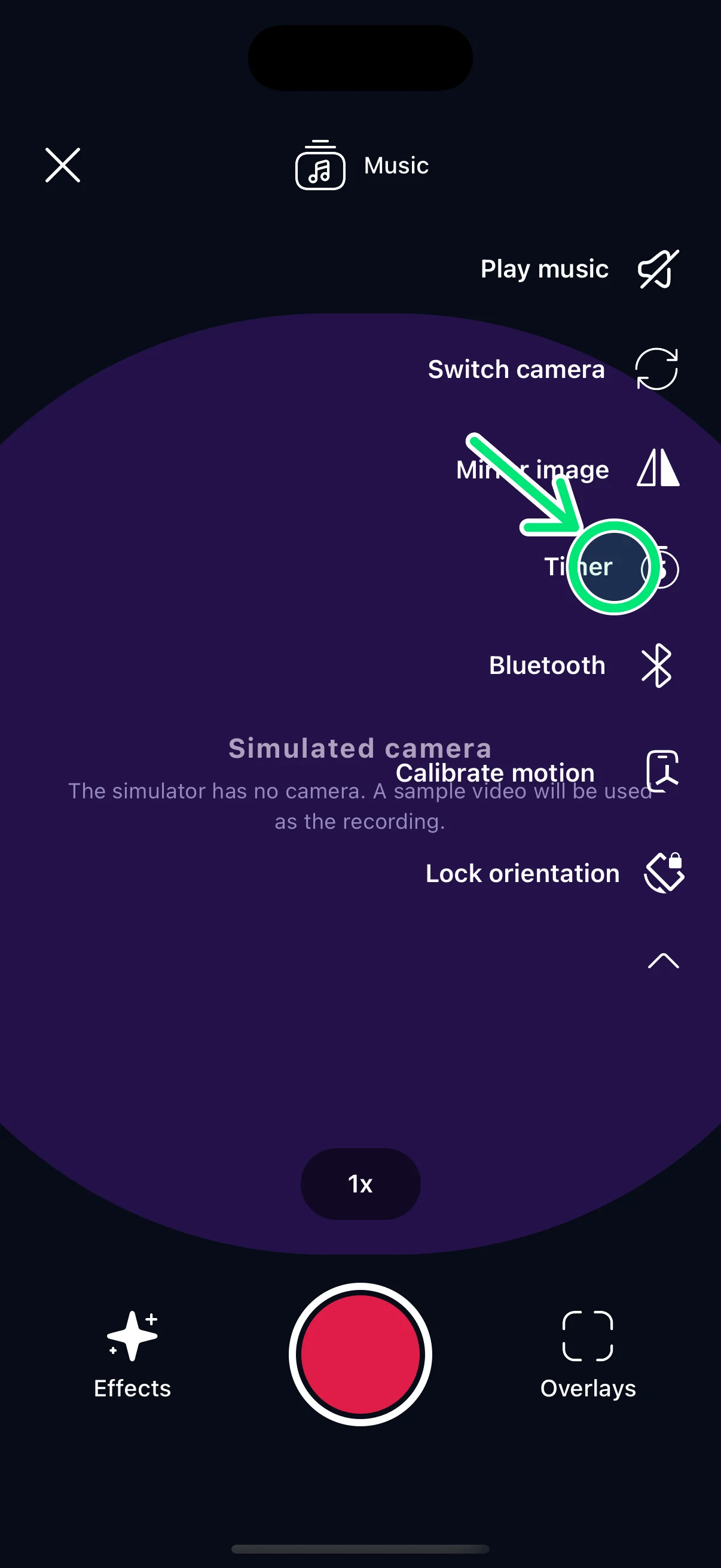
- Check the timer number and run a test.
The guest may still be getting into position when recording begins. A short wait gives them a cue to finish their pose before the camera starts recording.
Before you start
Decide how much time your audience needs to get into position and test the flow with your team. The timer does not replace operator guidance or safety precautions around the equipment’s movement area.
How to do it
-
Open the event and go to Record video.
-
Expand the side menu to find the Timer label if the names are hidden.
-
Tap the control and check the number shown on the icon.
-
Keep tapping until you reach the value you want. After seven, the control returns to zero.
-
Start a test capture and follow the countdown before recording begins.
-
Confirm with the person testing whether they had enough time to get into position.
Where to tap in the app
Check the result
The wait should happen before capture, and the person should understand when recording starts. Check the video to see whether the main gesture was captured from the beginning. A setting that feels comfortable for one guest may not be enough for a larger group.
If something does not work as expected
If the video did not get longer when you increased the timer, that is expected: this setting is the wait beforehand. To change the captured time, use Recording time in the effect settings. If the value seems different from the last use, check the number on the icon before starting the next take.
Quick questions
Does zero mean the video will not be recorded?
No. Zero removes the wait set by the timer; the capture duration is defined in another control.
Do I need to open a list to choose the seconds?
This control switches the value with each tap. Watch the number to know which option is active.
Is it the same timer as the Photo Booth Kiosk?
No. The kiosk has its own Countdown step, with a specific setting before each photo.
Continue in the app
Test the Timer in Vizz360 with someone standing in as the guest. It is a small adjustment worth aligning before the first line.
Read also: How to choose the recording time for 360 video; How to switch the camera and mirror the image in Vizz360; How to adjust the kiosk countdown.

Download Vizz360
Record, edit and share 360° videos in seconds, right from your phone. Free download for Android and iOS, with in-app purchases.


Related articles

How to Position and Resize the Kiosk Shutter Button
How to Position and Resize the Kiosk Shutter Button. See the Vizz360 steps, app screens and what to check before using it at an event.

How to Adjust Photo Framing Inside an AI Overlay
How to Adjust Photo Framing Inside an AI Overlay. See the Vizz360 steps, app screens and what to check before using it at an event.

How to Change Your Vizz360 Account Email
How to Change Your Vizz360 Account Email. See the Vizz360 steps, app screens and what to check before using it at an event.