
How to choose the recording time for a 360 video
Adjust from 5 to 15 seconds of capture in Vizz360’s 360 Photo Booth. Understand why slow motion, reverse, and templates change the final duration.



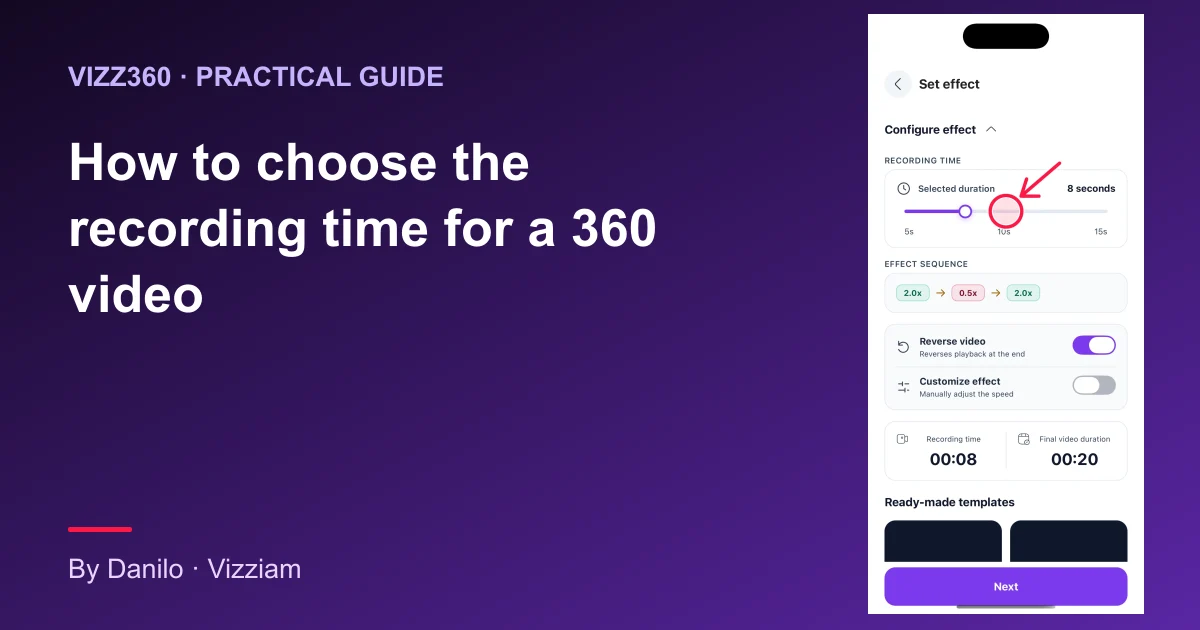
In the 360 Photo Booth event, adjust the capture time in Set effect → Configure effect → Recording time. The options range from 5 to 15 seconds. This value is the time recorded by the camera; the processed result may have a different duration.
Demonstration on the iPhone simulator, using Vizz360 7.39 and sample data. Some controls vary on Android and by plan.
Read the video steps
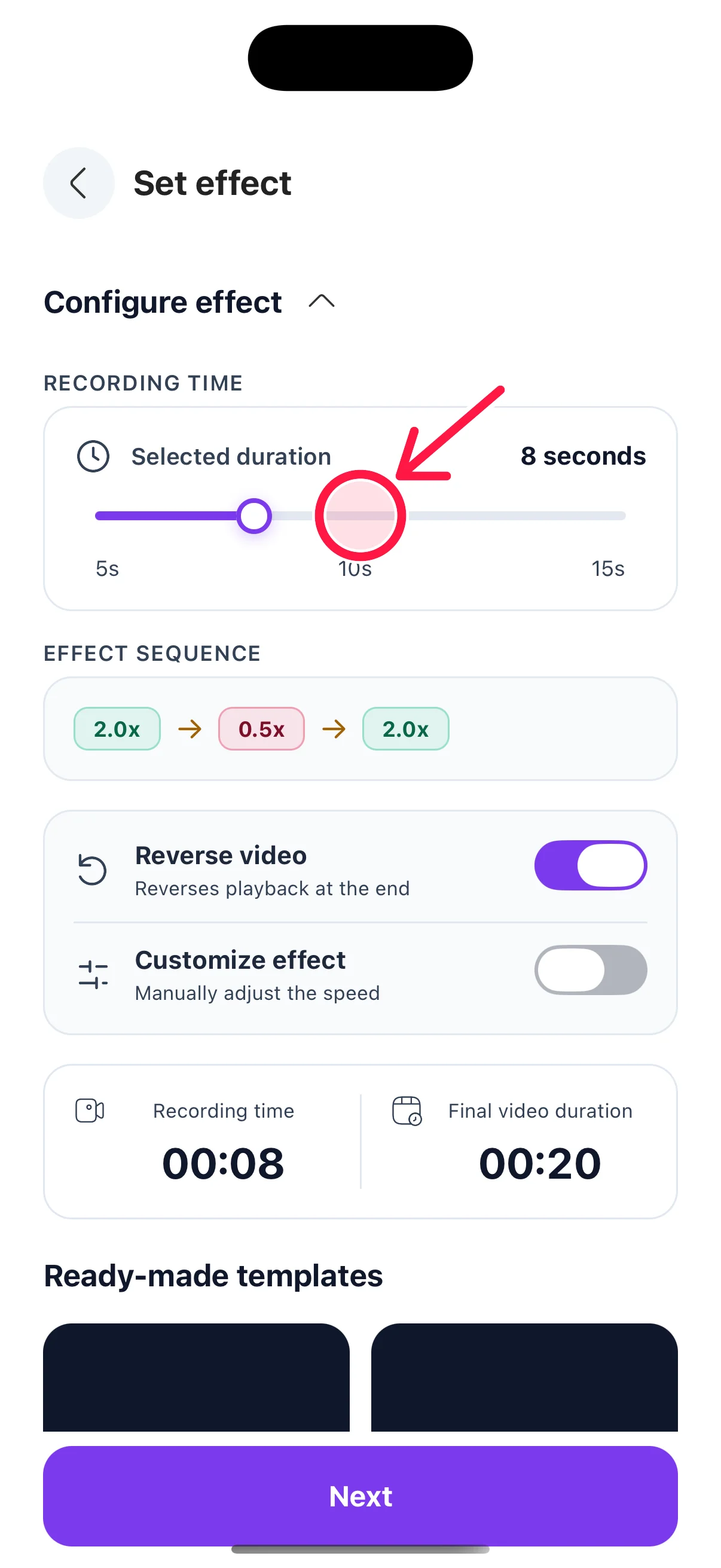
- Expand Configure effect and adjust Recording time.
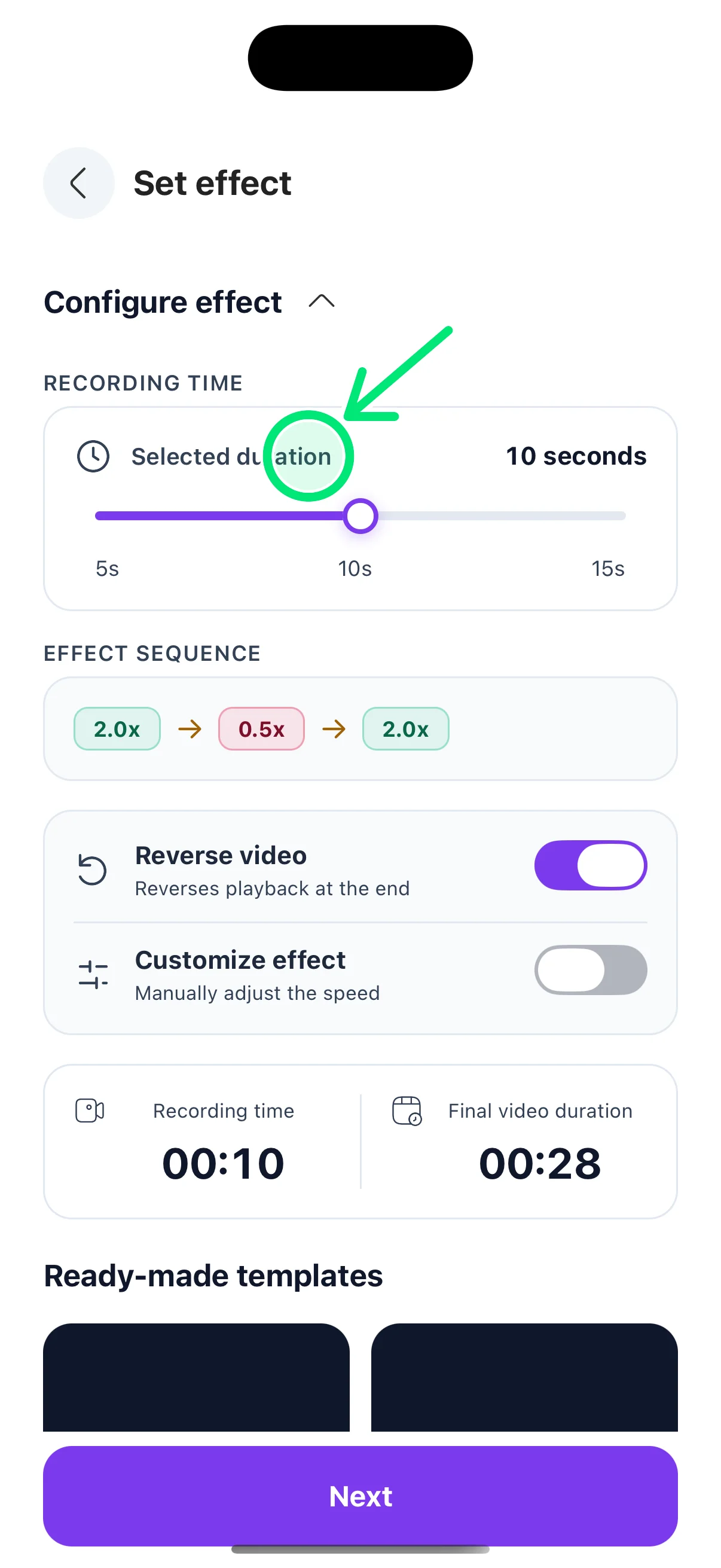
- This example records for 10 seconds. Check the final video length too.
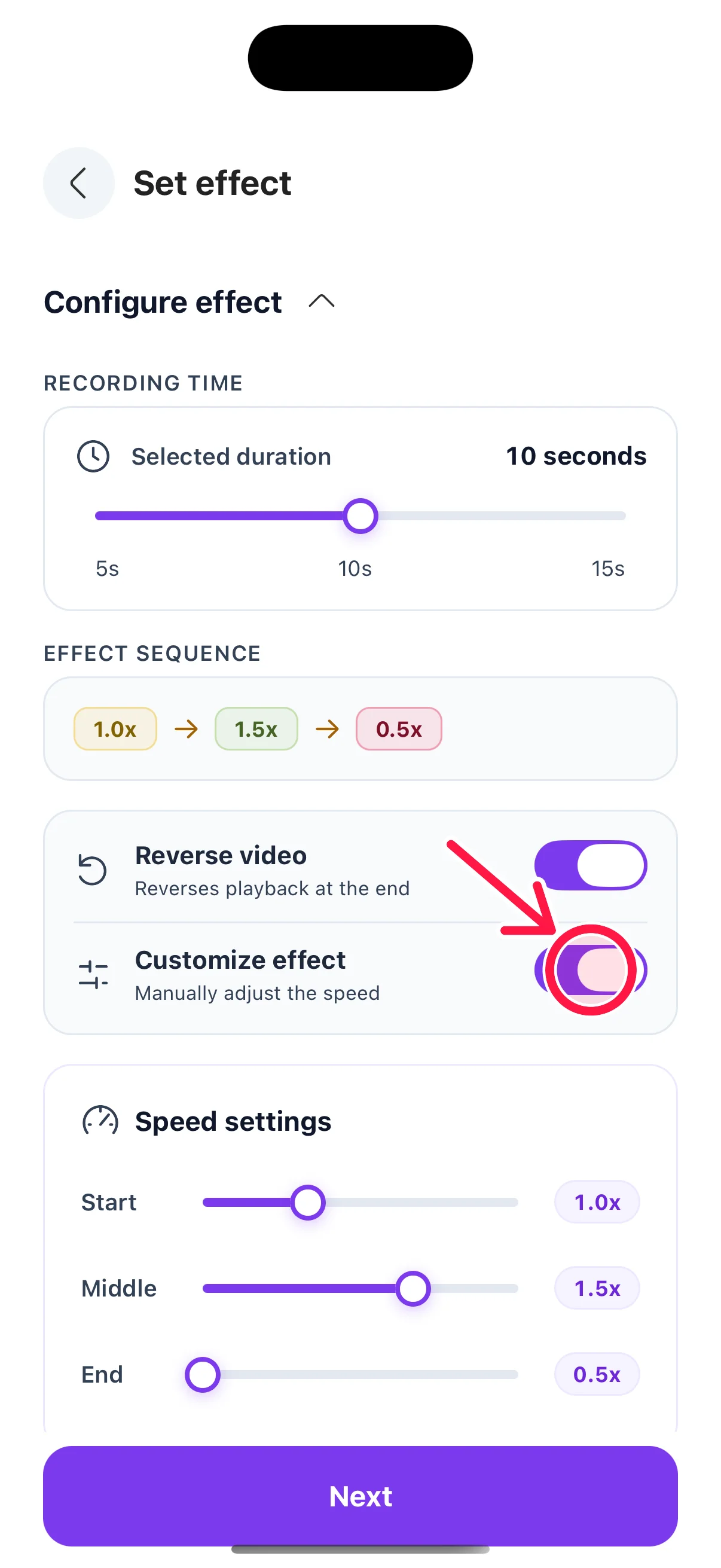
- Enable Customize effect to adjust speeds manually.
The line has grown and you want to adjust the capture duration without confusing that time with the final video. A slow motion segment or a reverse sequence changes playback without meaning the camera was recording for that entire time.
Before you start
Define the type of motion you plan to capture and set aside time for a test recording. Do not mix up options from other equipment: the LED Tunnel has additional options, while this guide covers the 360 Photo Booth.
How to do it
-
When creating the event, continue until Set effect.
-
Open Configure effect to show the controls.
-
Under Recording time, move the slider and check Selected duration.
-
Also look at the Effect sequence and whether Reverse video is enabled, because these choices influence the result.
-
Complete the event steps and record a test with the movement that will be used during service.
Where to tap in the app
Check the result
Play the final file and see whether the important gesture or spin appeared in full. Also evaluate how long it takes the audience to get into position and receive the video. You do not need to choose the longest option available: it needs to fit the event’s concept and work with the effect.
If something does not come out as expected
If the final video seems longer than the number you chose, check the speed and reverse settings before concluding that the capture failed. In Ready-made templates, the template edit defines the final duration. If you are seeing 20, 25, or 30 second options in another flow, check the selected equipment instead of assuming every mode has the same limit.
Quick questions
Will the final video be exactly the duration I chose?
Not necessarily. Capture duration and duration after effects are different measurements.
Do more seconds guarantee a better video?
No. Framing, movement, and the effect need to work together. Check with a short recording before operating at the event.
Is the timer part of this time?
The timer is the wait before capture begins. It has a separate control on the recording screen.
Continue in the app
Set up a test event in Vizz360 and check the full path before your next service. You can find the app for iPhone and Android at the links below.
Also read: How to adjust slow motion and speed in Vizz360; How to enable video reverse in Vizz360; How to use Vizz360 ready-made video templates.

Download Vizz360
Record, edit and share 360° videos in seconds, right from your phone. Free download for Android and iOS, with in-app purchases.


Related articles

How to Position and Resize the Kiosk Shutter Button
How to Position and Resize the Kiosk Shutter Button. See the Vizz360 steps, app screens and what to check before using it at an event.

How to Adjust Photo Framing Inside an AI Overlay
How to Adjust Photo Framing Inside an AI Overlay. See the Vizz360 steps, app screens and what to check before using it at an event.

How to Change Your Vizz360 Account Email
How to Change Your Vizz360 Account Email. See the Vizz360 steps, app screens and what to check before using it at an event.