
How to view and disconnect team devices
Check Team and devices in your Vizz360 Profile. Identify devices by person, system, and last access, and disconnect them with an authorized account.



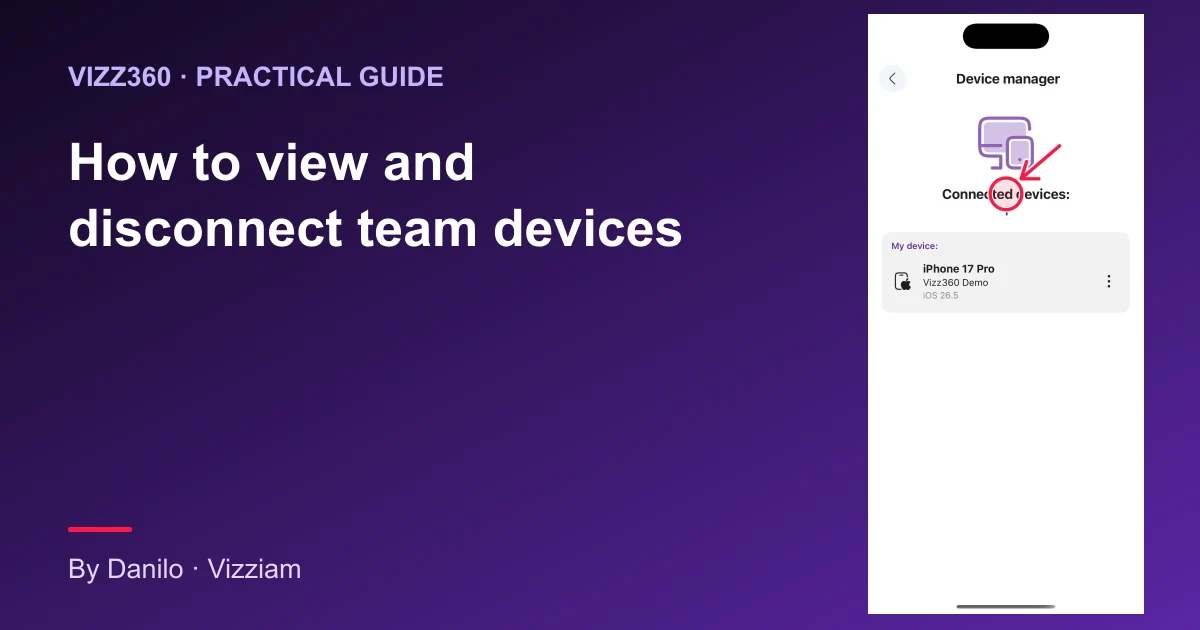
In Profile, open Team and devices to check the Device manager. The screen shows the connected devices. Owners and administrators will see actions such as Edit name and, when available, Disconnect device.
Demonstration on the iPhone simulator, using Vizz360 7.39 and sample data. Some controls vary on Android and by plan.
Read the video steps
- Review connected devices before changing team access.
- Review each team member’s name and device.
- In the team member’s menu, review the disconnect option before confirming.
The device used for operations has changed, and you want to check which devices are still linked. Clear identification helps you avoid confusing the device that left the operation with the phone that is still working at the event.
Before you start
Use an account authorized to manage the team. Coordinate any disconnection with the person operating the device and check whether there is any work in progress. This guide helps you recognize and manage the correct device; do not use the device counter as the only way to identify it.
How to do it
-
Open Profile in Vizz360.
-
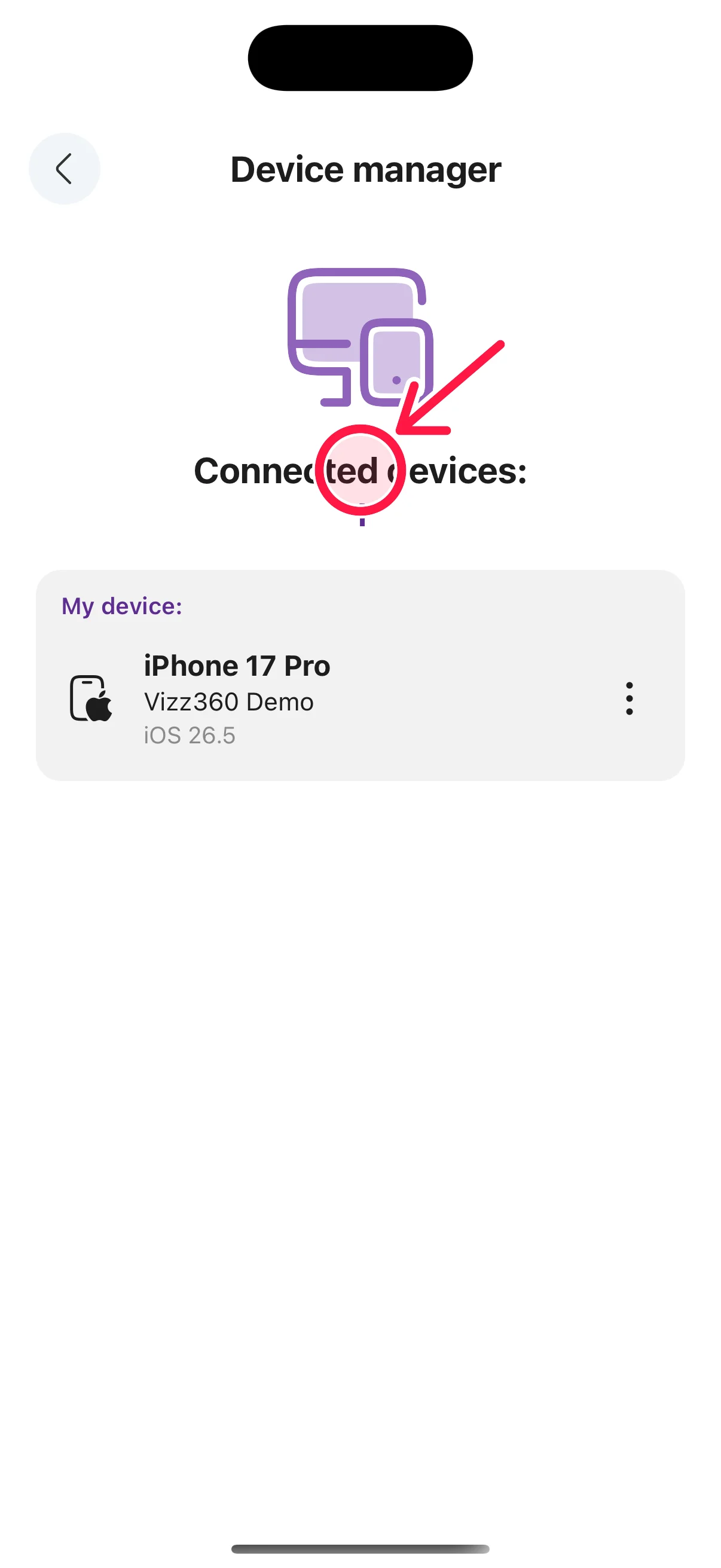
Go to Team and devices and open the Device manager.
-
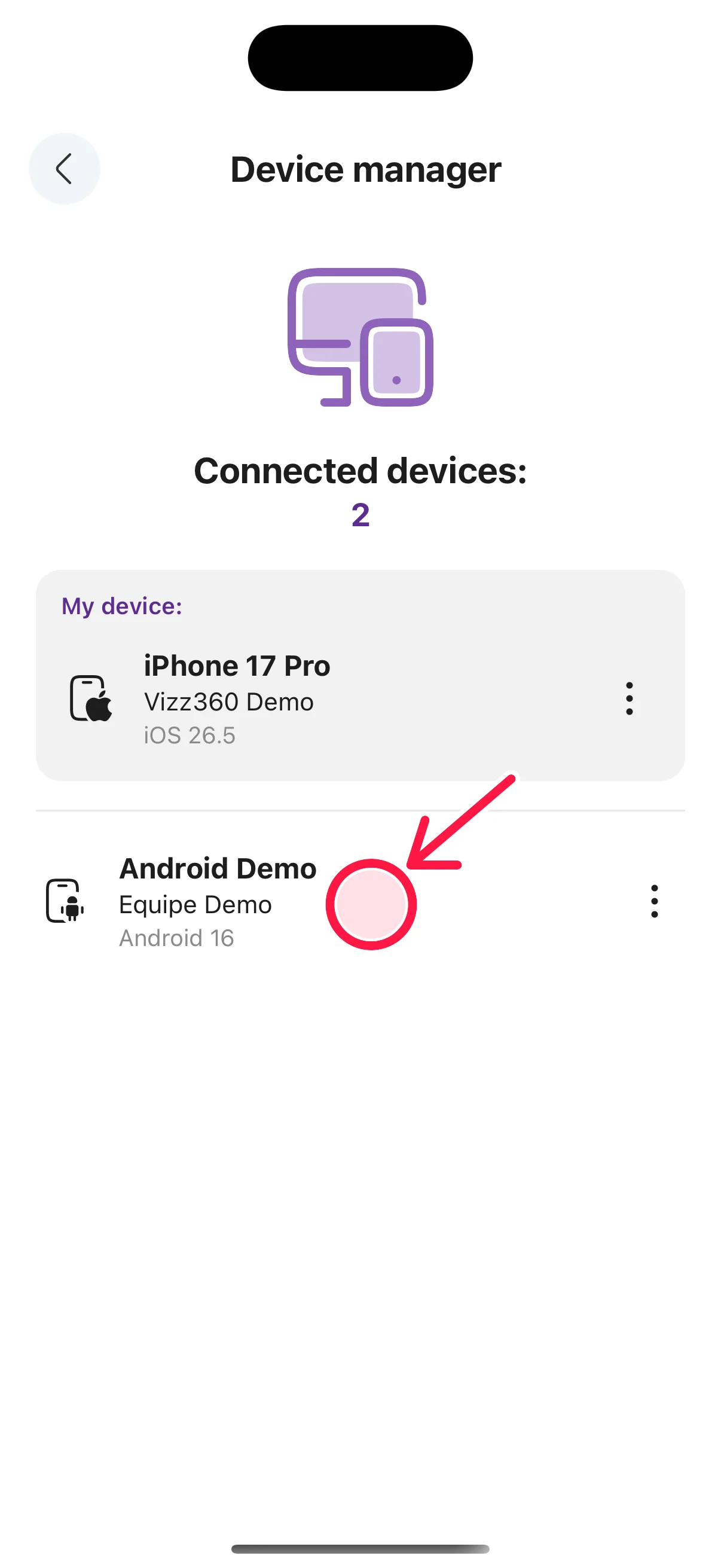
Check My device and compare the other rows by the person's name, system, and last access.
-
If you have administrative permission, open the three dots for the device you want to review.
-
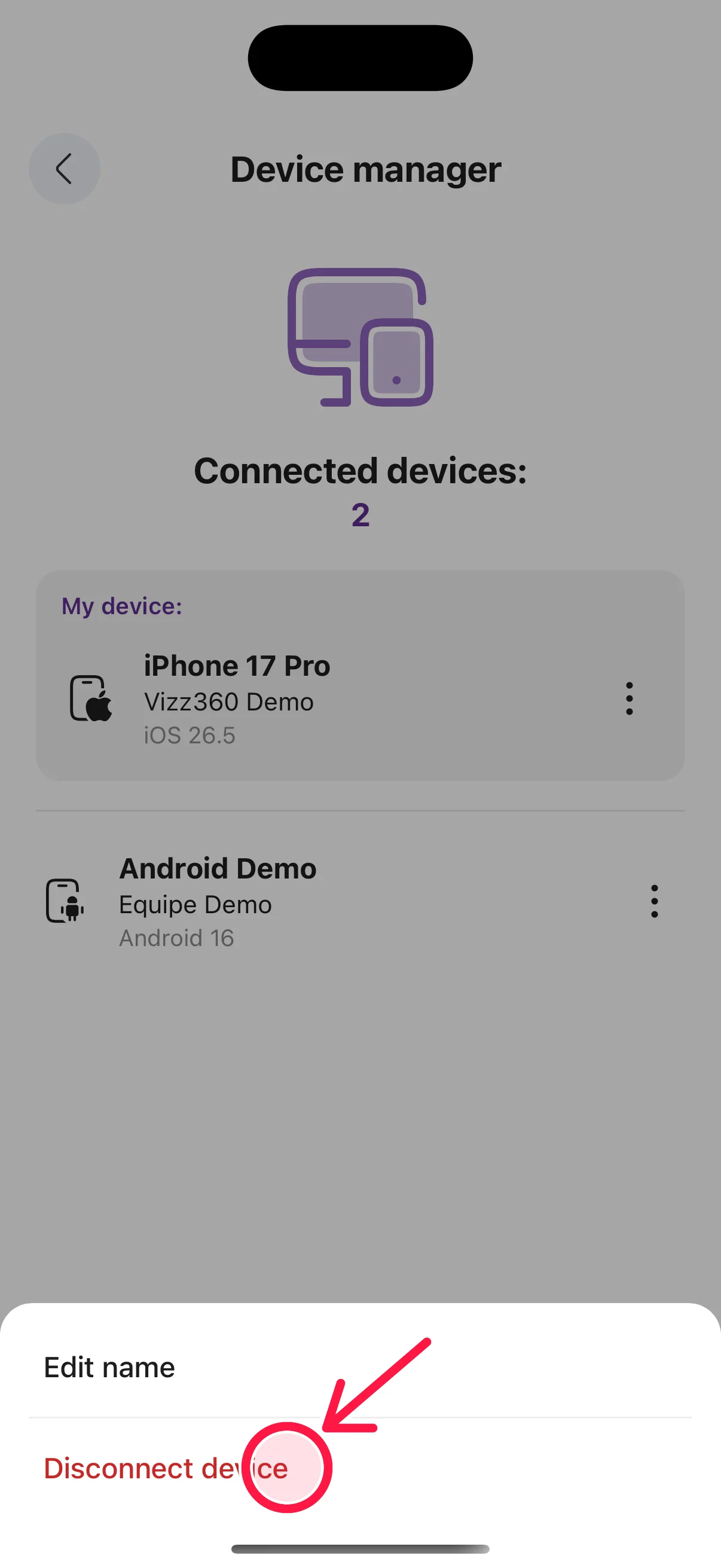
Use Edit name to make the identification clear. To end the link allowed by the screen, choose Disconnect device and read the confirmation.
-
Check the list again and confirm with the team whether the expected device was affected.
Where to tap in the app
Check the result
The list should remain easy to understand for whoever manages the operation. Always compare the device details before taking action: generic or repeated names make it easier to select the wrong person.
If something does not go as expected
If the three dots do not appear, check the account role: the screen restricts actions to the owner or an administrator. If a row does not offer disconnection, do not treat that as proof that the app is not responding; the actions depend on the data and permissions for that entry.
Quick questions
Can any team member disconnect others?
No. The display of administration actions depends on the account role.
Can I improve device identification?
When authorized, use Edit name and enter a recognizable name for the linked person.
Does the number of devices tell me by itself which one I should remove?
No. Check the person, system, and last access, as well as what was agreed with the team, before selecting a row.
Continue in the app
Organize team names in Vizz360 before a weekend with several bookings. A clear list makes it easier to check access.
Also read: How to invite a team member to operate an event; How to join an event through an invitation you received; How to change the Vizz360 app language.

Download Vizz360
Record, edit and share 360° videos in seconds, right from your phone. Free download for Android and iOS, with in-app purchases.


Related articles

How to Position and Resize the Kiosk Shutter Button
How to Position and Resize the Kiosk Shutter Button. See the Vizz360 steps, app screens and what to check before using it at an event.

How to Adjust Photo Framing Inside an AI Overlay
How to Adjust Photo Framing Inside an AI Overlay. See the Vizz360 steps, app screens and what to check before using it at an event.

How to Change Your Vizz360 Account Email
How to Change Your Vizz360 Account Email. See the Vizz360 steps, app screens and what to check before using it at an event.