
How to Join an Event Using the Invitation You Received
Received an invitation to operate an event in Vizz360? Paste the full link into the app and check your access before the job.



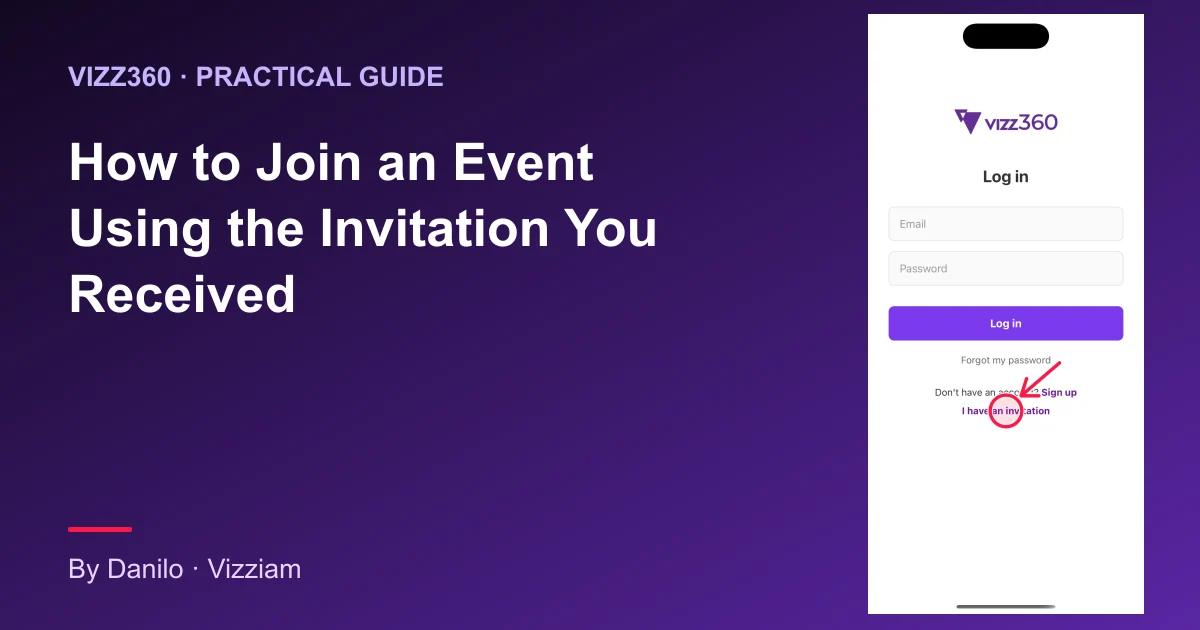
To join an event you were invited to, open the Vizz360 invitation flow and paste the full link you received. If you are already in team operation, the home screen offers Paste invitation from another event so you can add new access without leaving your account.
Demonstration on the iPhone simulator, using Vizz360 7.39 and sample data. Some controls vary on Android and by plan.
Read the video steps
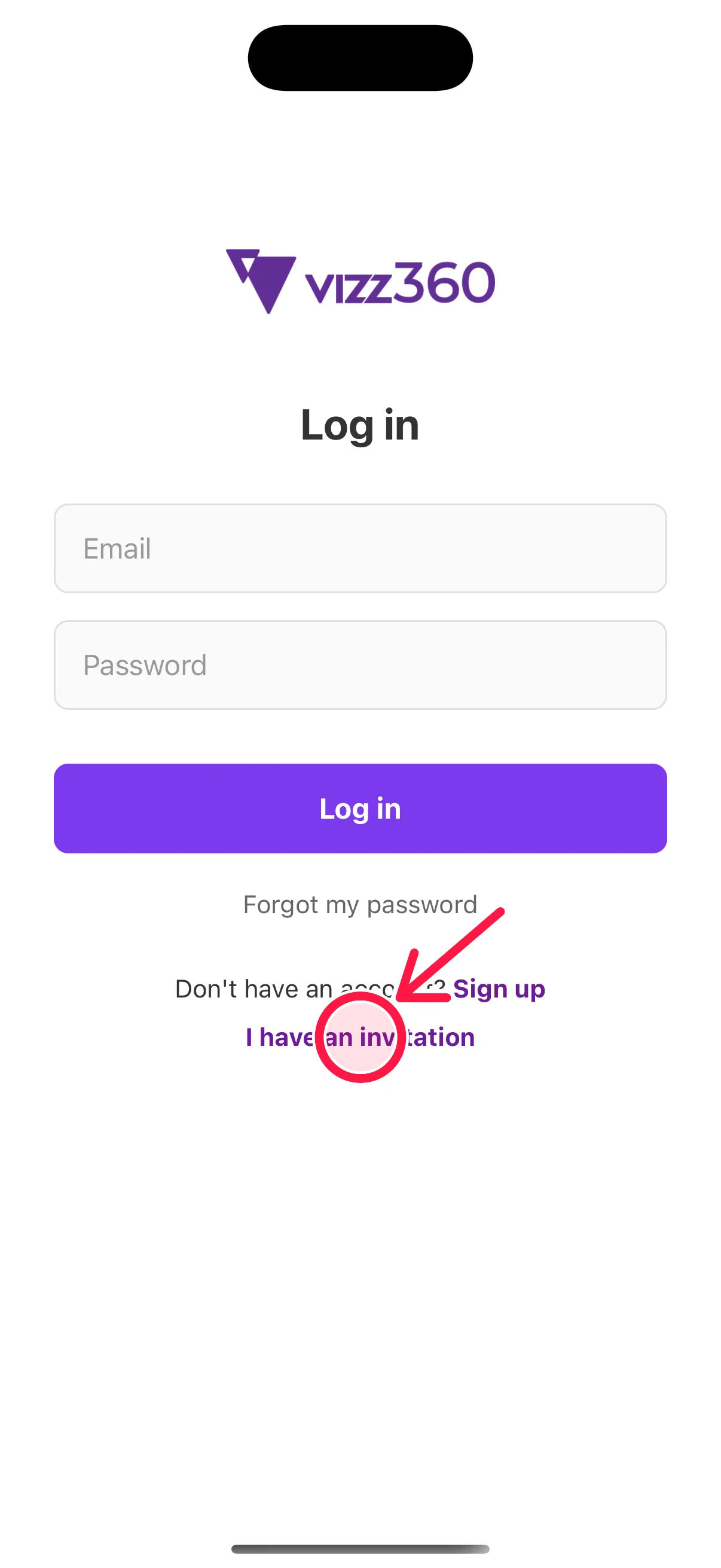
- On the sign-in screen, tap I have an invitation.
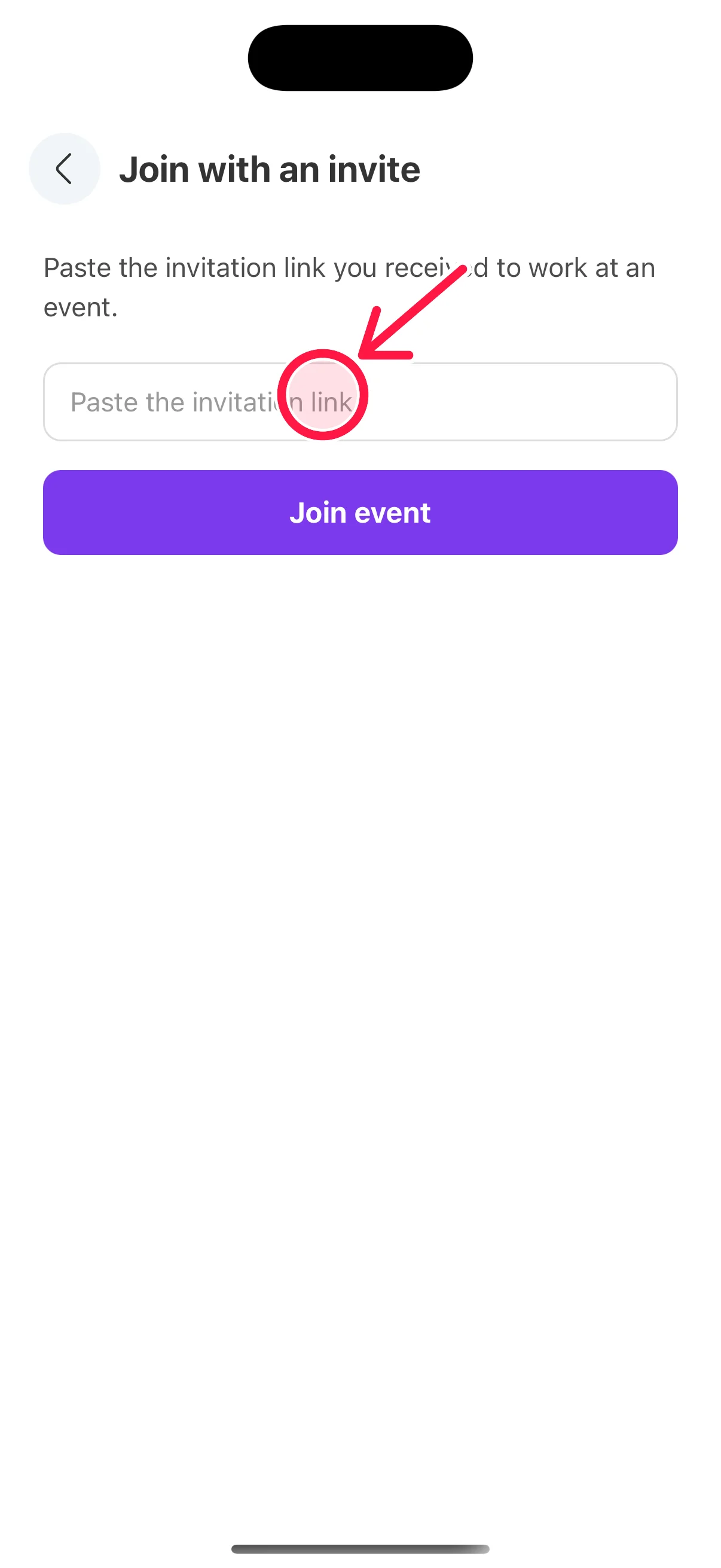
- Paste the link you received from the event owner.
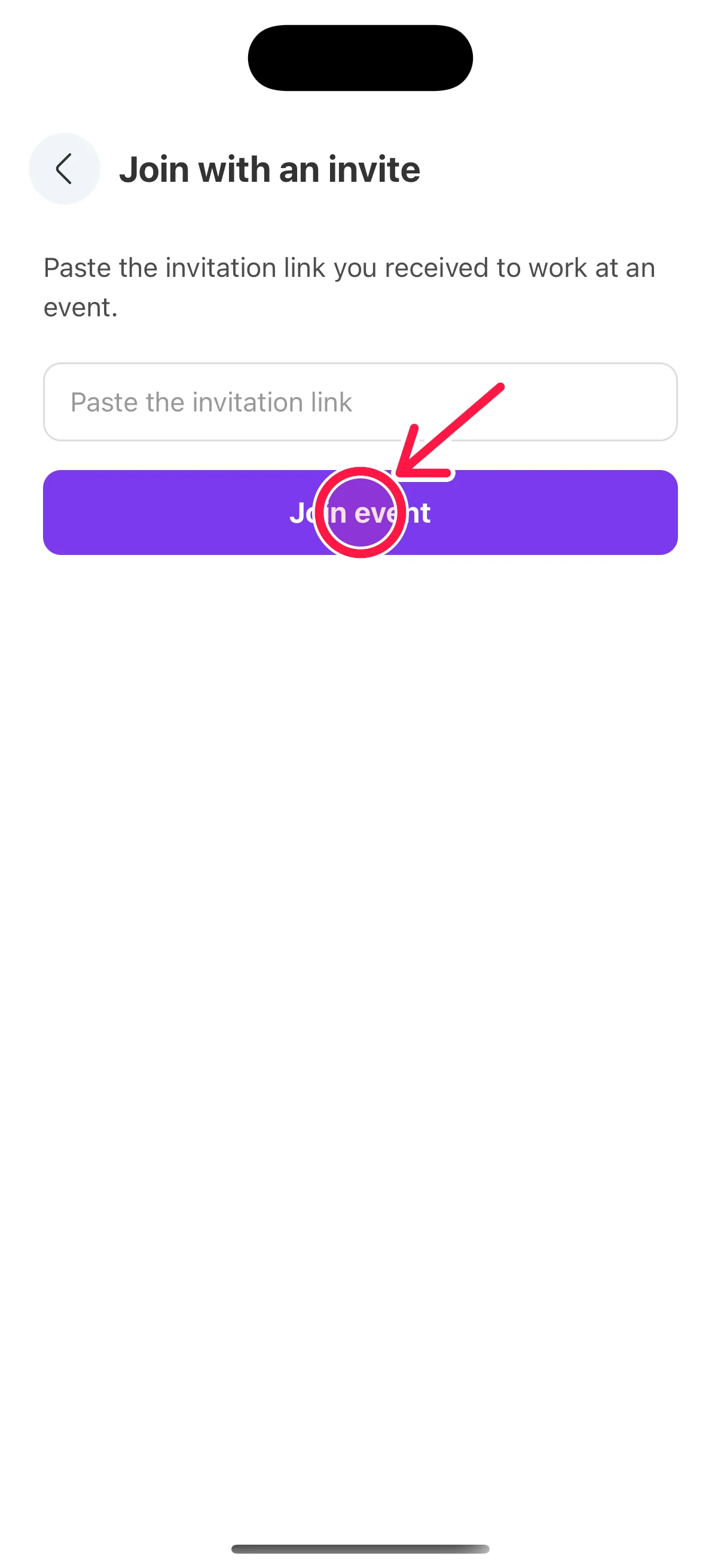
- Tap Enter event and check the access granted.
You received a link from the person in charge and want to open the event in your own account. You should test your access before you get to the venue, while it is still easy to ask the person in charge to fix anything.
Before you start
Install the app, sign in to the correct account, and make sure you have a connection. Check that the address you received is an operation invitation, not the public link for watching the videos. Invitations can expire or may already have been used.
How to do it
-
Copy the full invitation sent by the person in charge of the event.
-
Open Vizz360 and enter the invitation flow. To add another event to the team, use Paste invitation from another event on the home screen.
-
Paste the entire address into the field, without removing any part of the link.
-
Tap Join event and wait for confirmation.
-
Check whether the event name appeared in your list.
-
Open the event and finish preparing the materials on the device that will be used to operate it.
Where to tap in the app
Check the result
The correct event should appear in your account and open with the expected details. Compare the name and date with what was agreed. Then check the files required for operation, especially if the venue will have limited internet.
If something does not work as expected
If you see Invalid invitation, copy the full address again. If the app says it was not possible to join, the invitation may have expired, may already have been used, or may belong to another account. Ask the person in charge to check the access. A screenshot of the link or a manually typed event name does not replace the requested address.
Quick questions
Do I need to sign out of the account to accept a second event?
The team home screen has the action to paste an invitation from another event without logging out.
Can I use the gallery link to operate?
No. The address for watching the media is different from the collaborator invitation.
Does accepting the invitation prepare the offline files?
Do not assume that. Open the event while connected and complete the necessary downloads and confirmations on the device that will be used.
Continue in the app
Install Vizz360 on your work device and check the invitation ahead of time. That way, access does not have to be resolved during the party.
Also read: How to Invite a Collaborator to Operate an Event; How to Record 360 Videos Without Internet in Vizz360; How to View and Disconnect Team Devices.

Download Vizz360
Record, edit and share 360° videos in seconds, right from your phone. Free download for Android and iOS, with in-app purchases.


Related articles

How to Position and Resize the Kiosk Shutter Button
How to Position and Resize the Kiosk Shutter Button. See the Vizz360 steps, app screens and what to check before using it at an event.

How to Adjust Photo Framing Inside an AI Overlay
How to Adjust Photo Framing Inside an AI Overlay. See the Vizz360 steps, app screens and what to check before using it at an event.

How to Change Your Vizz360 Account Email
How to Change Your Vizz360 Account Email. See the Vizz360 steps, app screens and what to check before using it at an event.