
How to choose the part of the song that plays in the video
Use Edit start in Vizz360 music to choose the section of the video. Understand the short track warning and how it affects upcoming event videos.



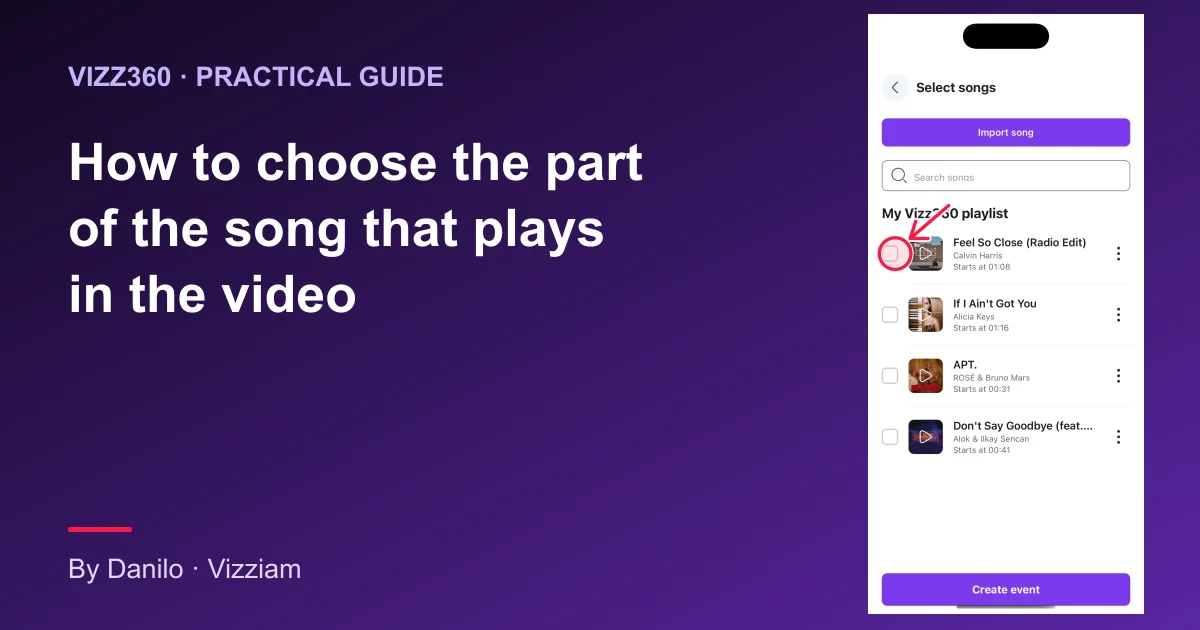
To choose where the music starts, open the track options in the library and use Edit start time. The new starting point applies to the next videos from events that use that song; files that have already been recorded will not change.
Demonstration on the iPhone simulator, using Vizz360 7.39 and sample data. Some controls vary on Android and by plan.
Read the video steps
- Choose an available track from your library.
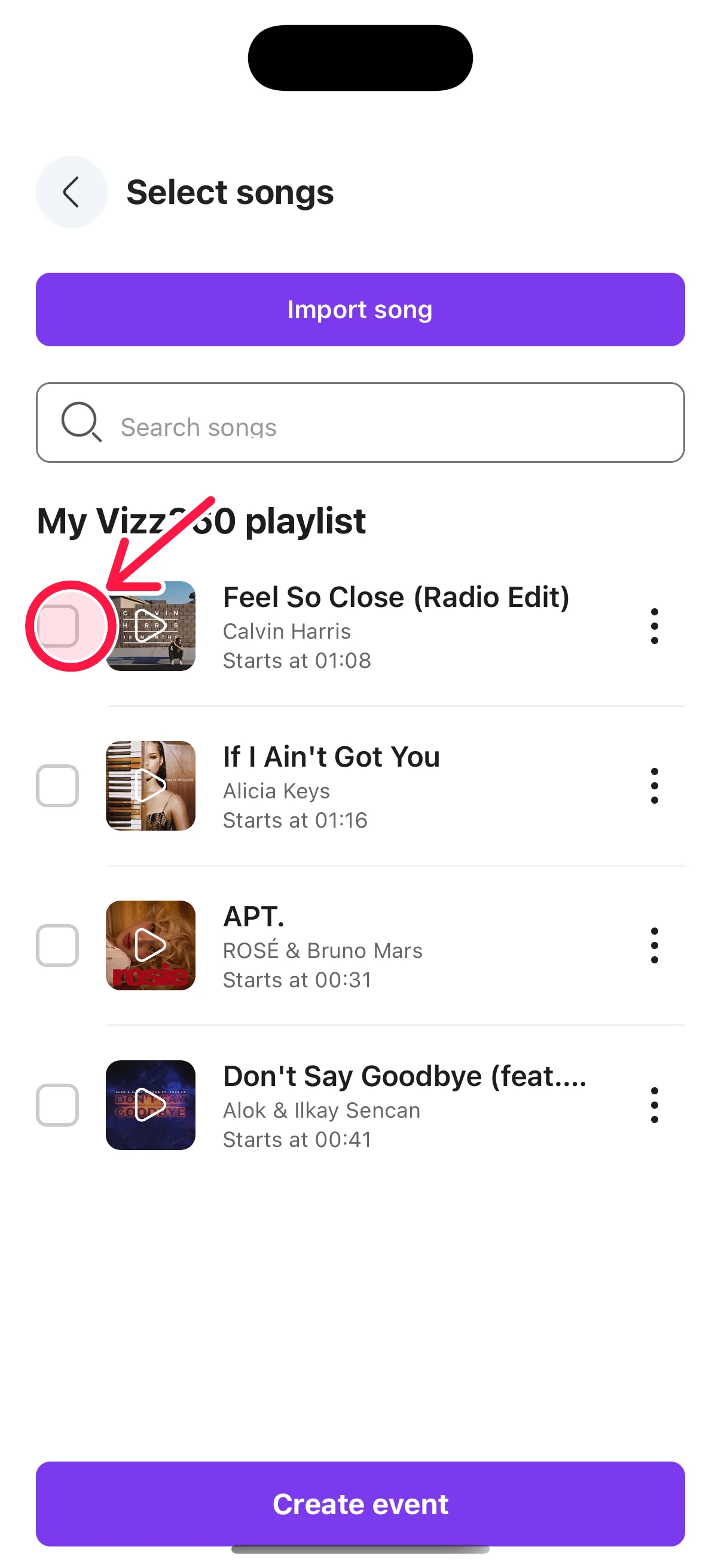
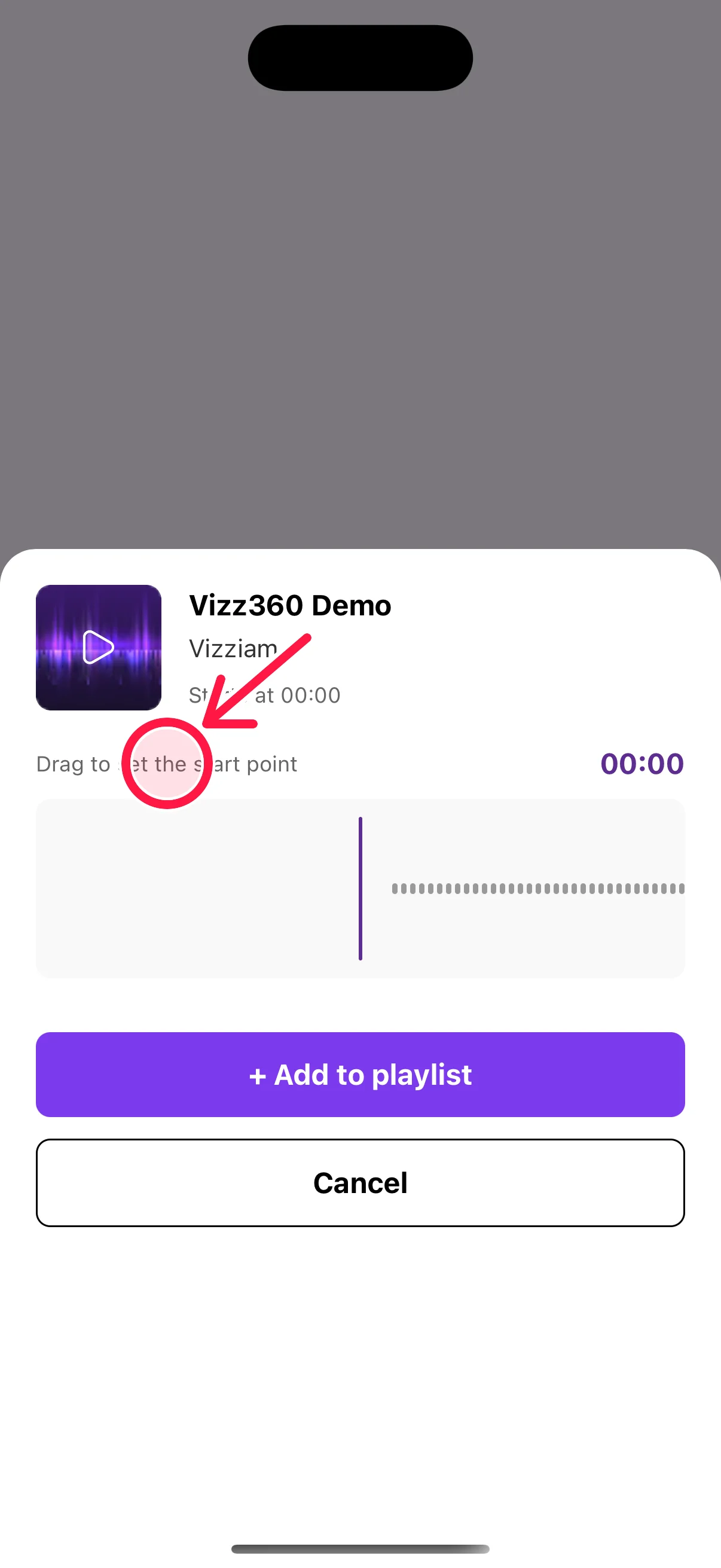
- Drag the track to choose where the excerpt starts.
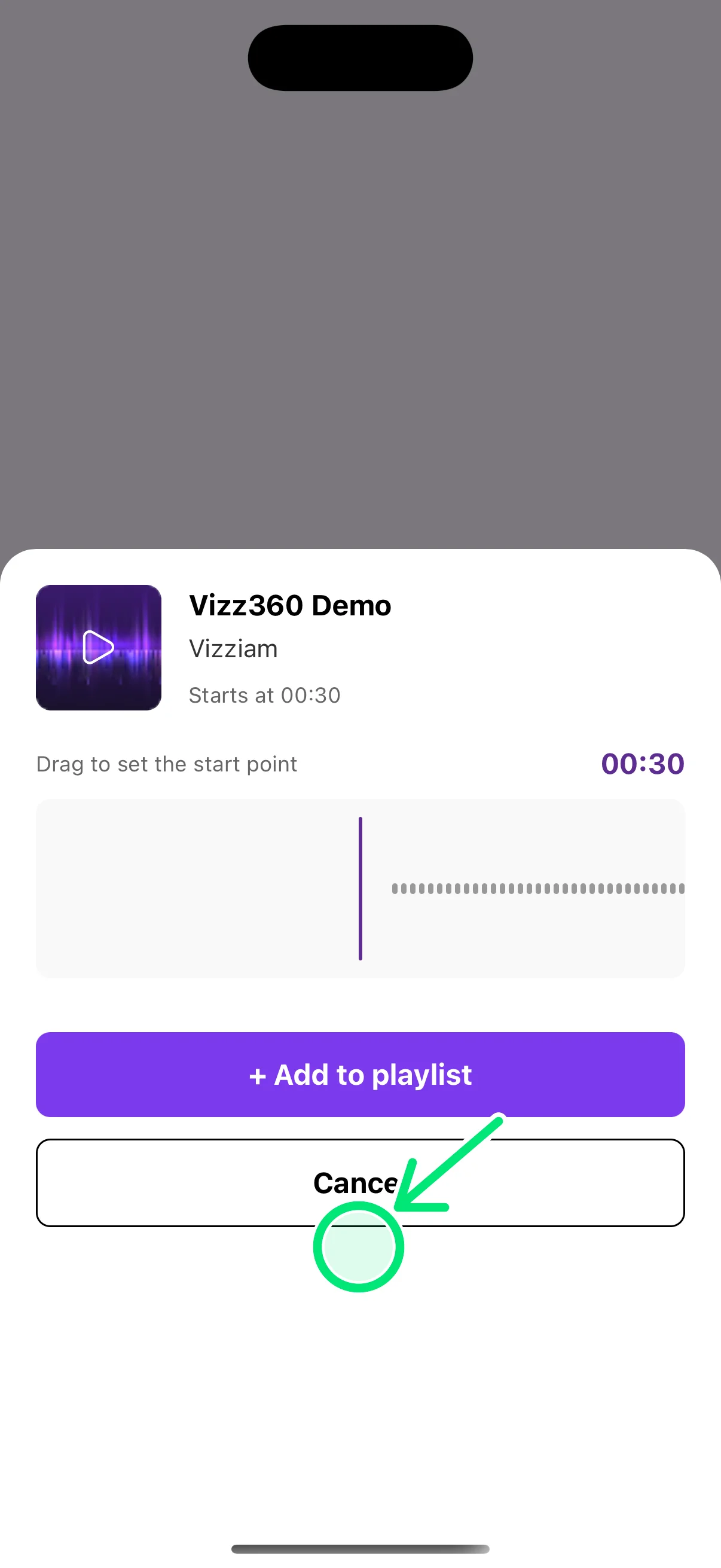
- Check the start time and add the excerpt to the playlist.
The song starts with a long intro, but you want the video to begin right at the most impactful part. Adjusting the starting point is usually more useful than changing the entire track when the issue is only the intro.
Before you start
Check the length of the processed video and how much audio remains after the point you want to choose. A long song can become too short for the final delivery if the start is moved too close to the end.
How to do it
-
Open the music selection and find the track in the library.
-
Open the song options and tap Edit start time.
-
Adjust the starting point and listen to the preview to identify the section.
-
Read the warning if the song is already being used in other events. Confirm Save start time only after you understand which upcoming recordings will be affected.
-
If The song will end before the video appears, use Adjust start time or consider Repeat in these events, depending on the result you want.
-
Record a test and listen to the full section in the final video.
Where to tap in the app
Check the result
The music should come in at the chosen moment and play through the file until the end without an unexpected interruption. Also check whether a repeat makes sense: the return to the beginning can be noticeable on some tracks.
If something does not work as expected
If the old section continues in a video that was already recorded, that is expected: changing the start does not recreate existing files. If other events start at a different point, check whether they use the same song from the library. The shared-use warning helps you avoid making a change while thinking only about today’s party.
Quick questions
Can I adjust the start after importing?
Yes. The Edit start time action is in the track options in the library.
Does the app cut the original file forever?
The purpose of this adjustment is to define the entry point used by Vizz360. Check playback and avoid confusing a usage setting with editing your source file.
Why does a short music warning appear?
The app compares the remaining audio with the required duration. Moving the start back or repeating the track are alternatives shown depending on the situation.
Continue in the app
Prepare a test event in Vizz360 and check the full path before your next booking. You can find the app for iPhone and Android in the links below.
Also read: How to import music into an event in Vizz360; How to change the music for an event you already created; How to choose multiple songs for the same event.

Download Vizz360
Record, edit and share 360° videos in seconds, right from your phone. Free download for Android and iOS, with in-app purchases.


Related articles

How to Position and Resize the Kiosk Shutter Button
How to Position and Resize the Kiosk Shutter Button. See the Vizz360 steps, app screens and what to check before using it at an event.

How to Adjust Photo Framing Inside an AI Overlay
How to Adjust Photo Framing Inside an AI Overlay. See the Vizz360 steps, app screens and what to check before using it at an event.

How to Change Your Vizz360 Account Email
How to Change Your Vizz360 Account Email. See the Vizz360 steps, app screens and what to check before using it at an event.