
How to invite a collaborator to operate an event
Generate a collaborator invitation for an event in Vizz360. Set the name and expiration, then share the one-time-use link without sending your password.



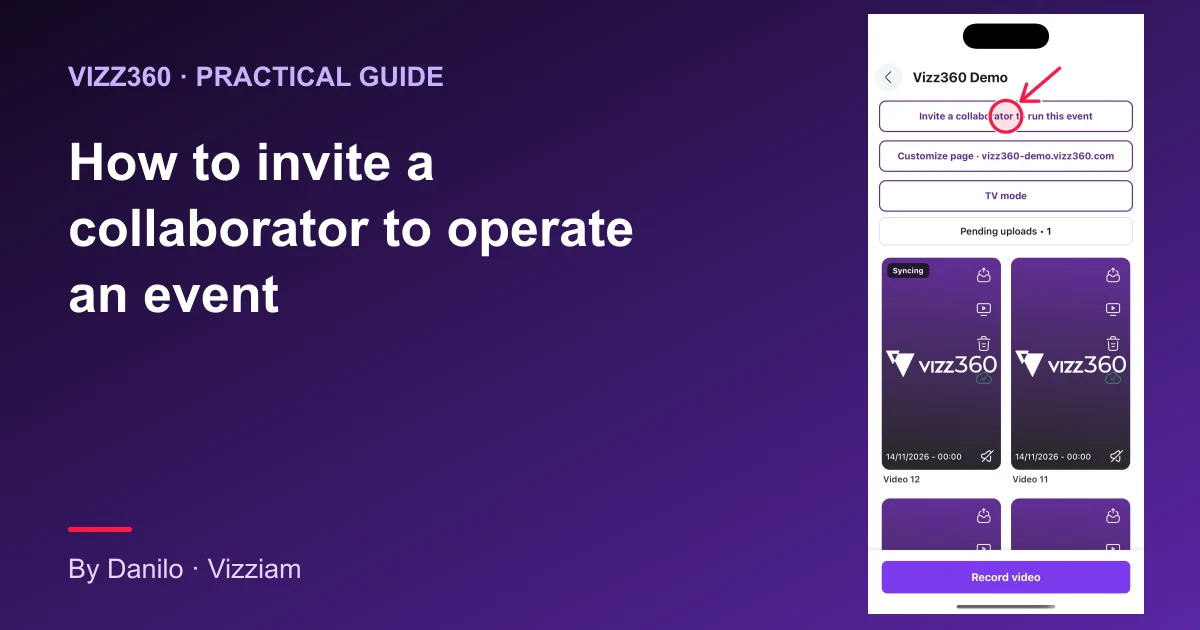
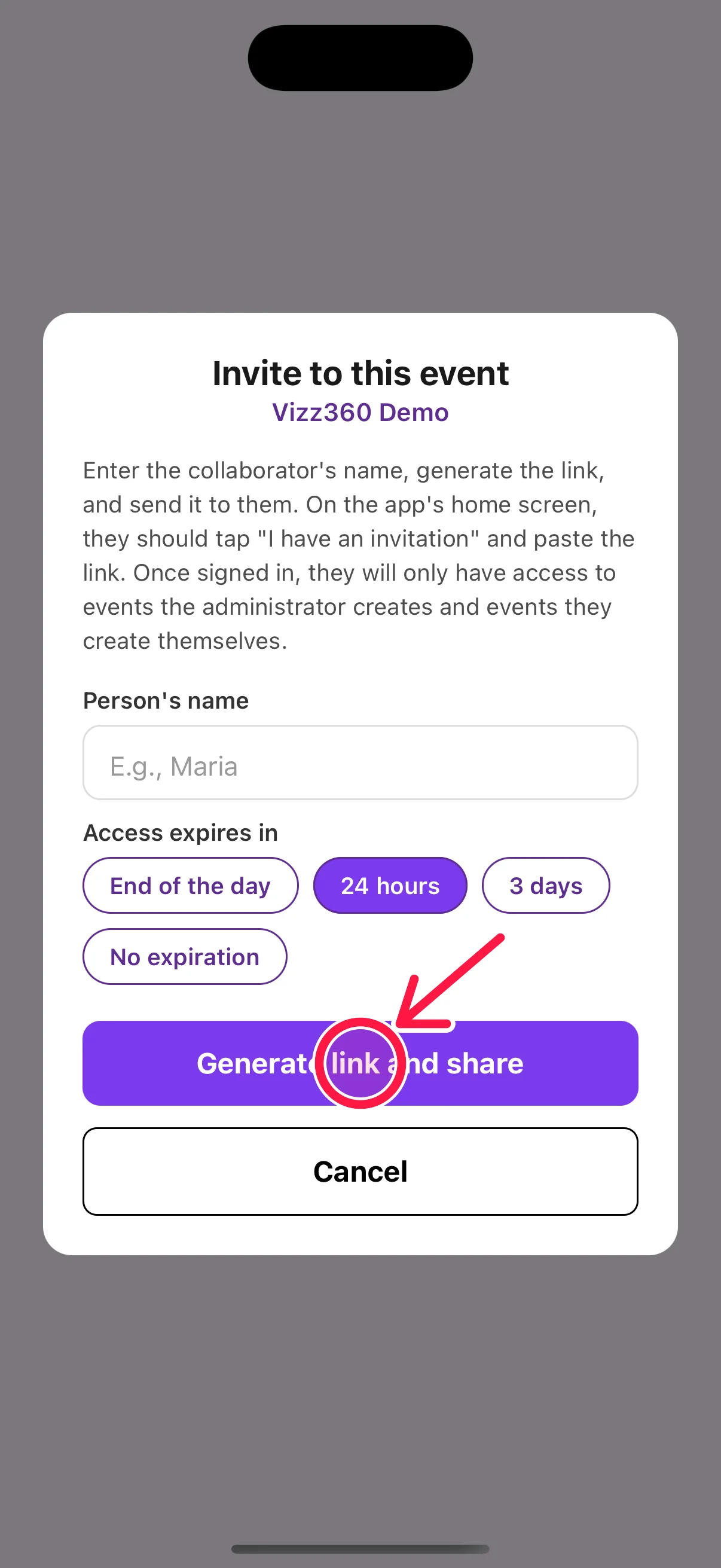
Open the event and tap Invite a collaborator to run this event. Enter the name, check the expiration, and generate the link. The invitation gives access to the invited event and is for one-time use.
Demonstration on the iPhone simulator, using Vizz360 7.39 and sample data. Some controls vary on Android and by plan.
Read the video steps
- Inside the event, tap the invite collaborator icon.
- Enter the name of the person who will operate this event.
- Choose how long the invitation will stay valid.
- Generate the link and send it only to the chosen collaborator.
You are sending someone else to run the event and need to grant access to that job. This process organizes access to the job without asking the other person to sign in with your password.
Before you start
Use the account responsible for the event and confirm the collaborator’s name. Choose an expiration period that suits the service. The invitation link is different from the public gallery link: one grants operation access, while the other is used to deliver the content.
How to do it
-
Open the correct event in Vizz360.
-
Tap Invite a collaborator to run this event to open Invite to this event.
-
Fill in the person’s name and check the invitation expiration option.
-
Use the action to generate the link and wait for confirmation.
-
Copy the address or tap Share on WhatsApp to send it to the right person.
-
Tell the collaborator to sign in to Vizz360 with their own account and paste the invitation in the app’s invitation flow.
Where to tap in the app
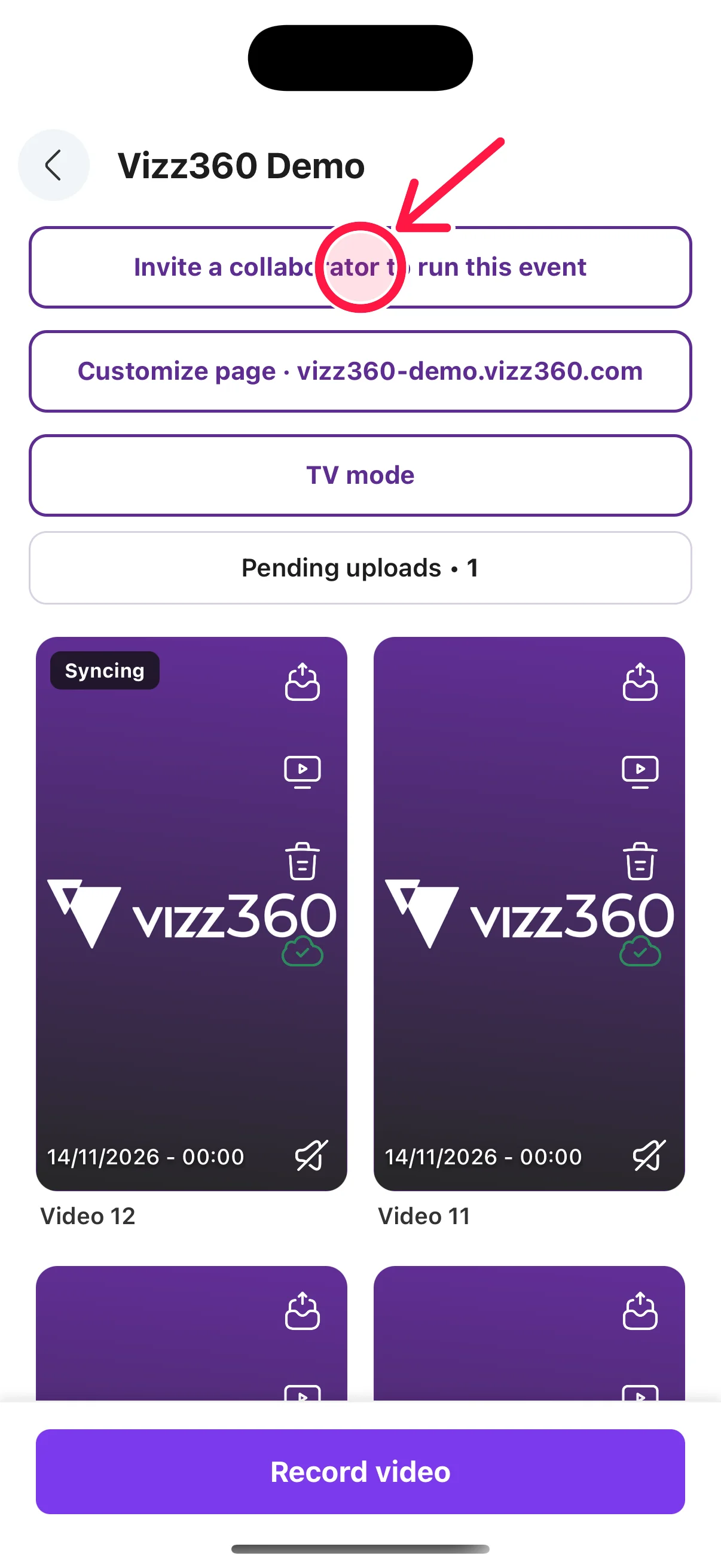
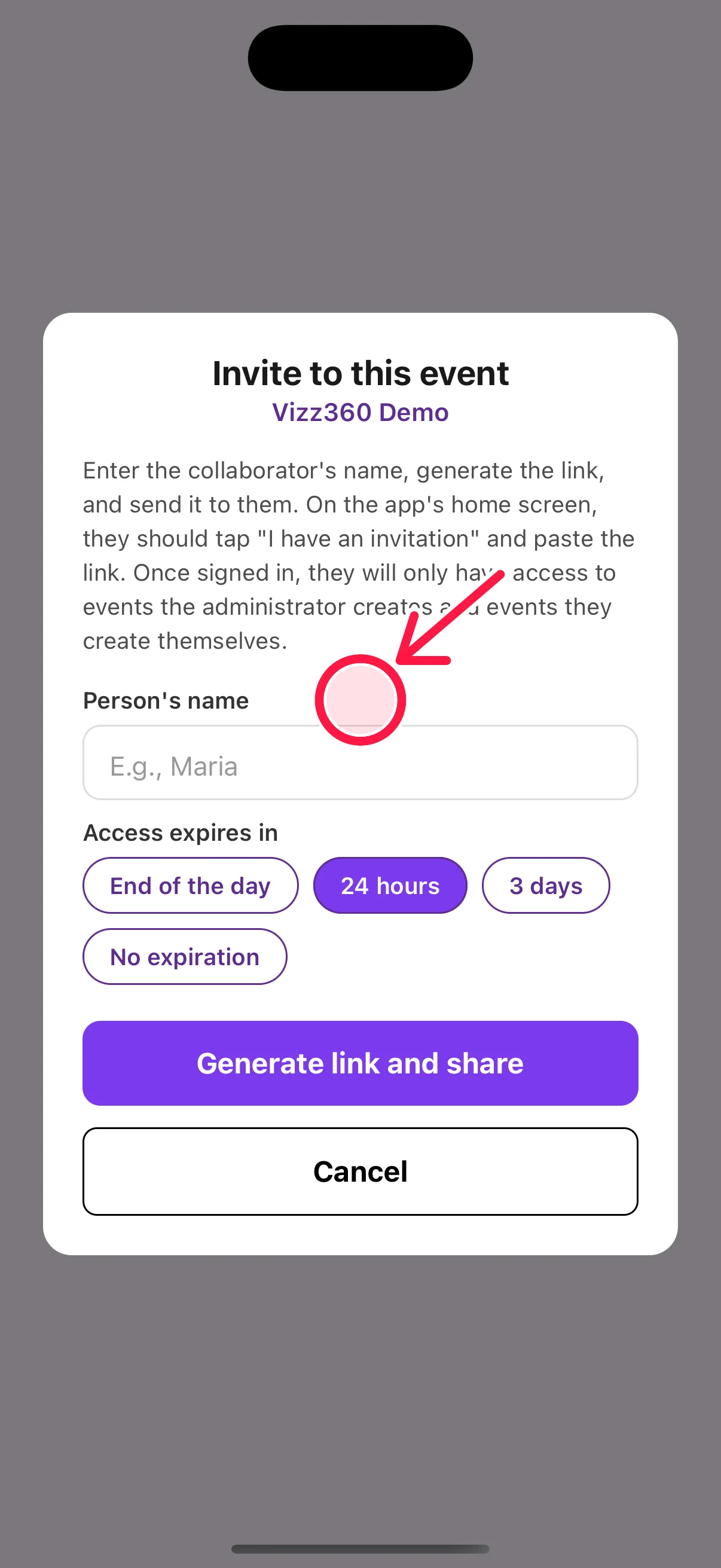
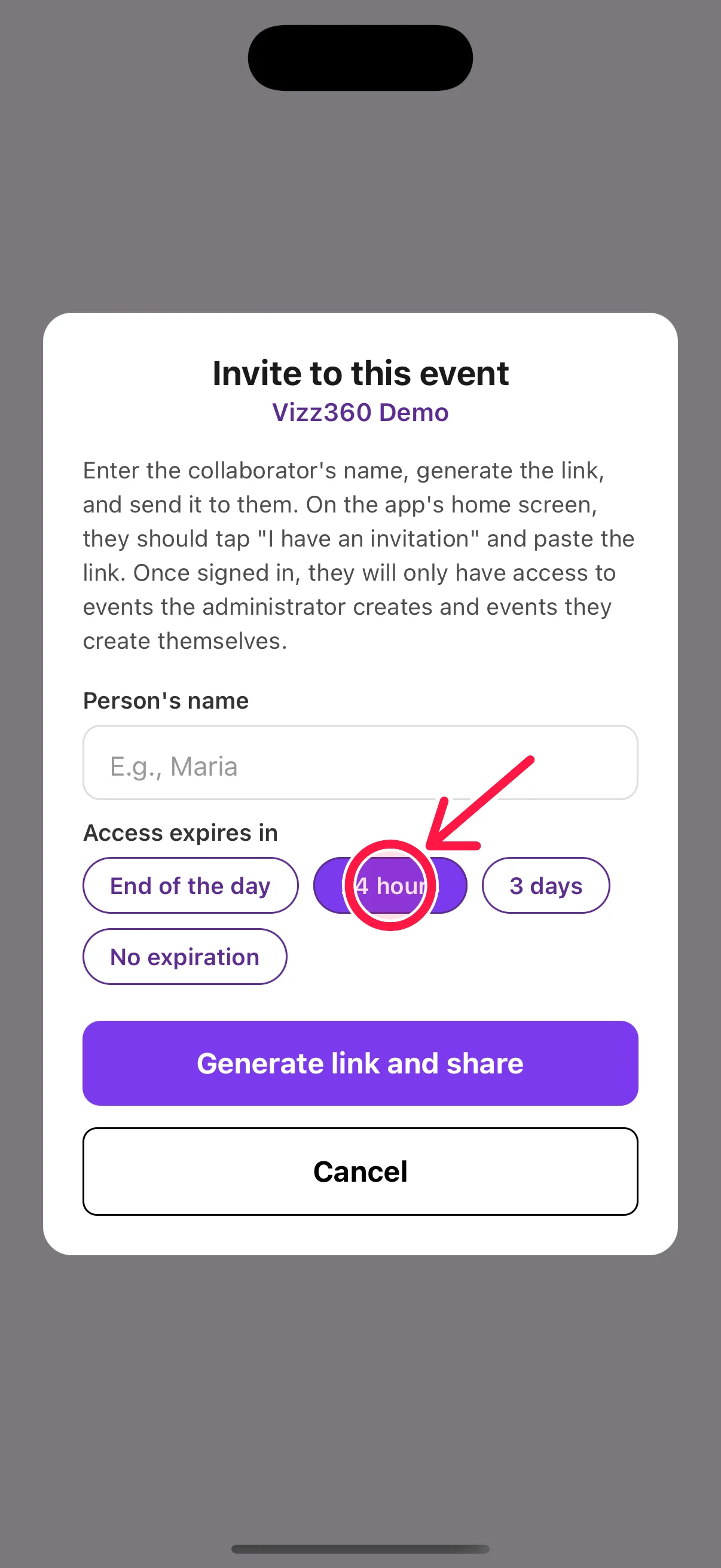
Check the result
Ask the person to confirm that the event appeared and open the setup on their own device before the service day. If there is material to download or an online team confirmation, take care of that preparation while you still have a connection.
If something does not go as expected
If someone forwards the same invitation to several people, remember that it is for one-time use. If the collaborator cannot sign in, check the expiration, previous use, and the account they are signed in to. Do not try to work around the problem by sharing your password; generate the proper access for the person who will operate the event.
Quick questions
Is it the same link I send to the party guests?
No. The collaborator invitation is for operation access. Gallery sharing is a separate flow.
Does one link work for the whole team?
This invitation is for one-time use and tied to the event. Prepare the necessary access for each person according to the account conditions.
Does the invitation unlock all my events?
The invitation message states access to this event. Do not present it as general account access.
Continue in the app
Set up a test event in Vizz360 and go through the full process before your next booking. You can find the app for iPhone and Android in the links below.
Read also: How to join an event with the invitation you received; How to view and disconnect team devices; How to record 360 videos without internet in Vizz360.

Download Vizz360
Record, edit and share 360° videos in seconds, right from your phone. Free download for Android and iOS, with in-app purchases.


Related articles

How to Position and Resize the Kiosk Shutter Button
How to Position and Resize the Kiosk Shutter Button. See the Vizz360 steps, app screens and what to check before using it at an event.

How to Adjust Photo Framing Inside an AI Overlay
How to Adjust Photo Framing Inside an AI Overlay. See the Vizz360 steps, app screens and what to check before using it at an event.

How to Change Your Vizz360 Account Email
How to Change Your Vizz360 Account Email. See the Vizz360 steps, app screens and what to check before using it at an event.