
How to share a video without internet in Vizz360
Use Offline sharing for a video in Vizz360 over the same Wi-Fi network. See the network QR code, the media QR code, and the precautions during download.



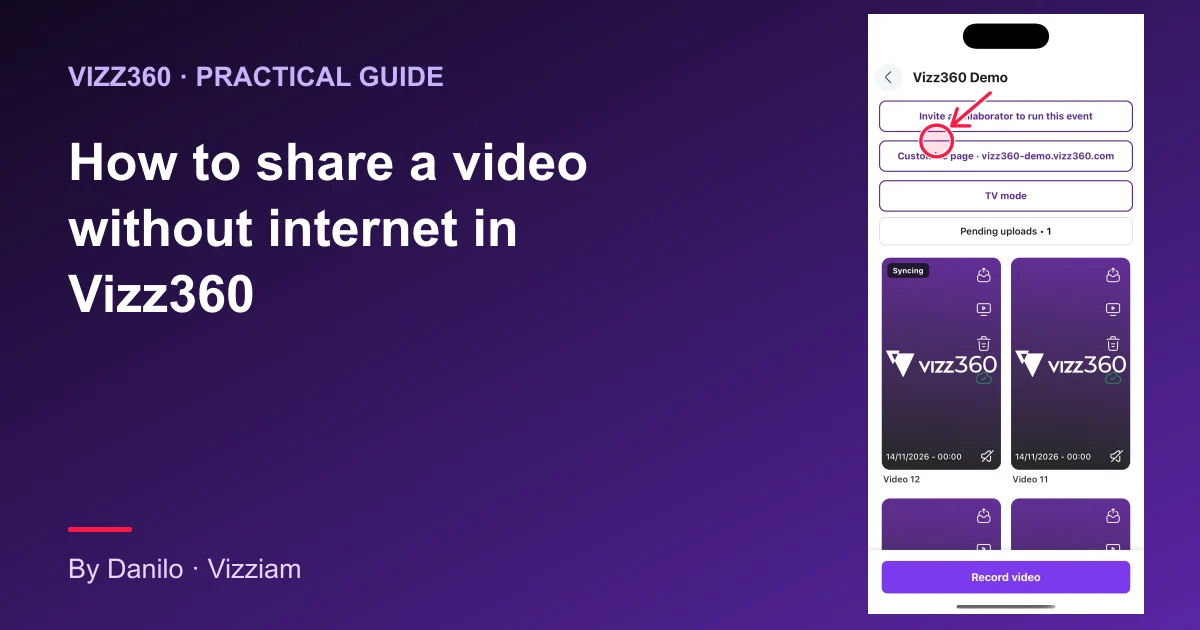
Vizz360 lets you share an individual media file over the local Wi-Fi network in Offline mode. The guest connects to the prepared network and opens the video QR code; the source app needs to stay open until the download is complete.
Demonstration on the iPhone simulator, using Vizz360 7.39 and sample data. Some controls vary on Android and by plan.
Read the video steps
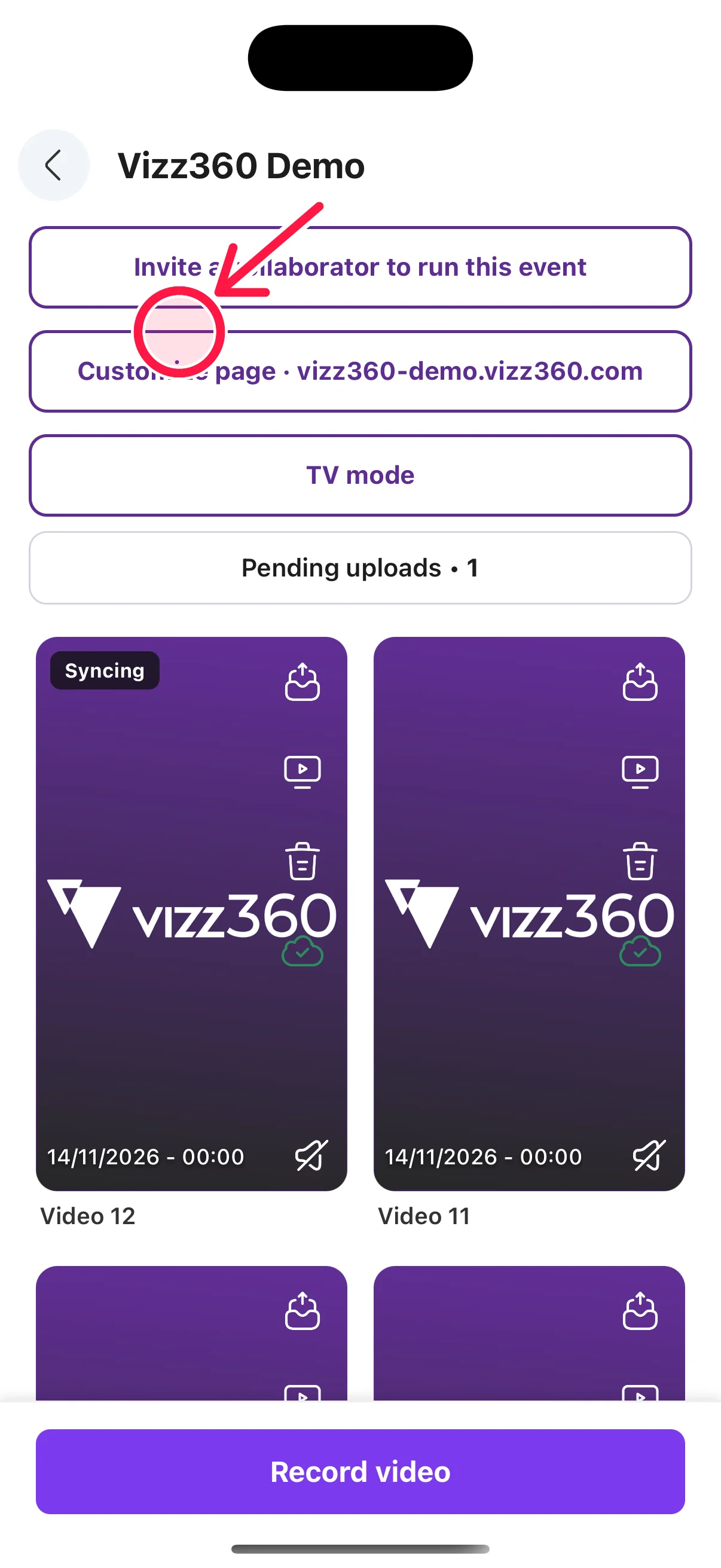
- Inside the event, choose the guest’s video.
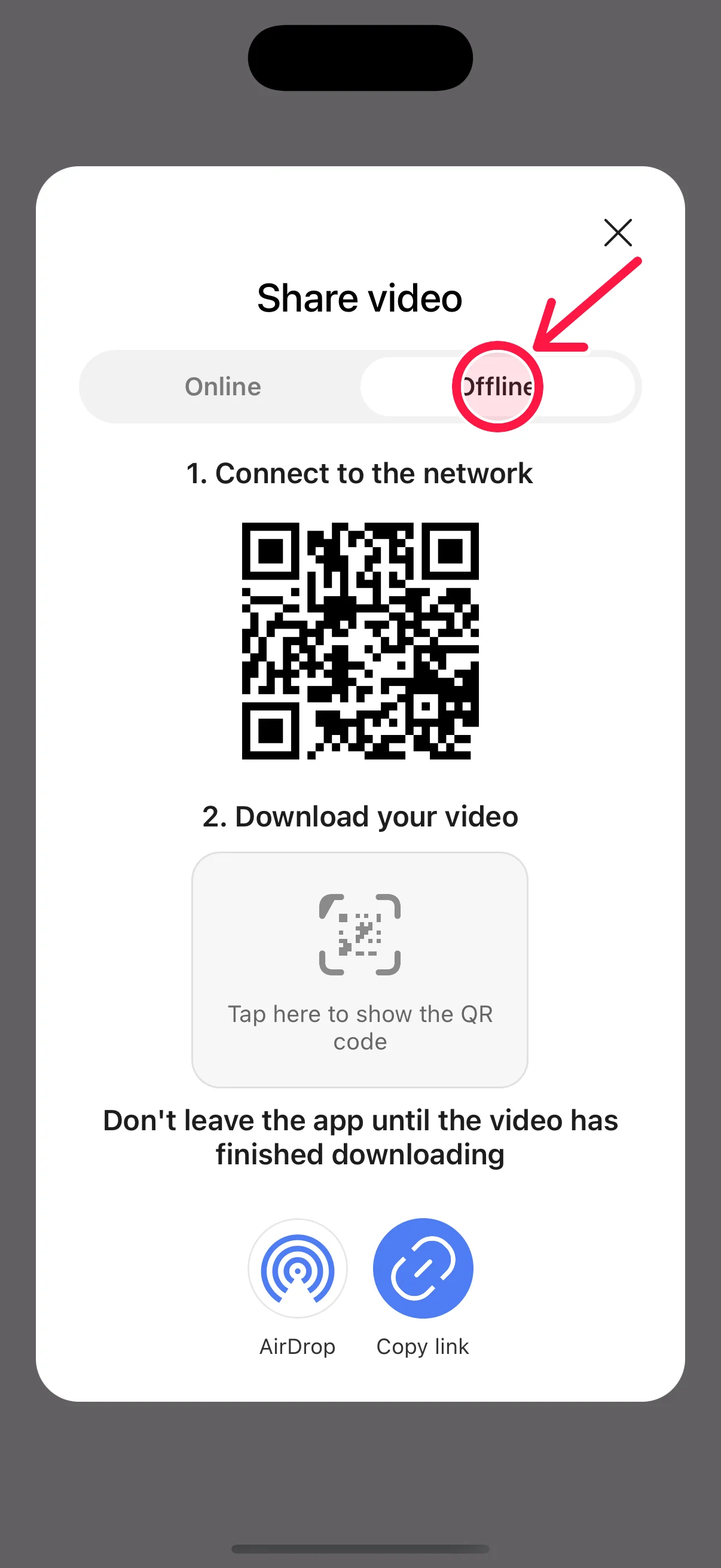
- Without internet, open Offline when sharing an individual video.
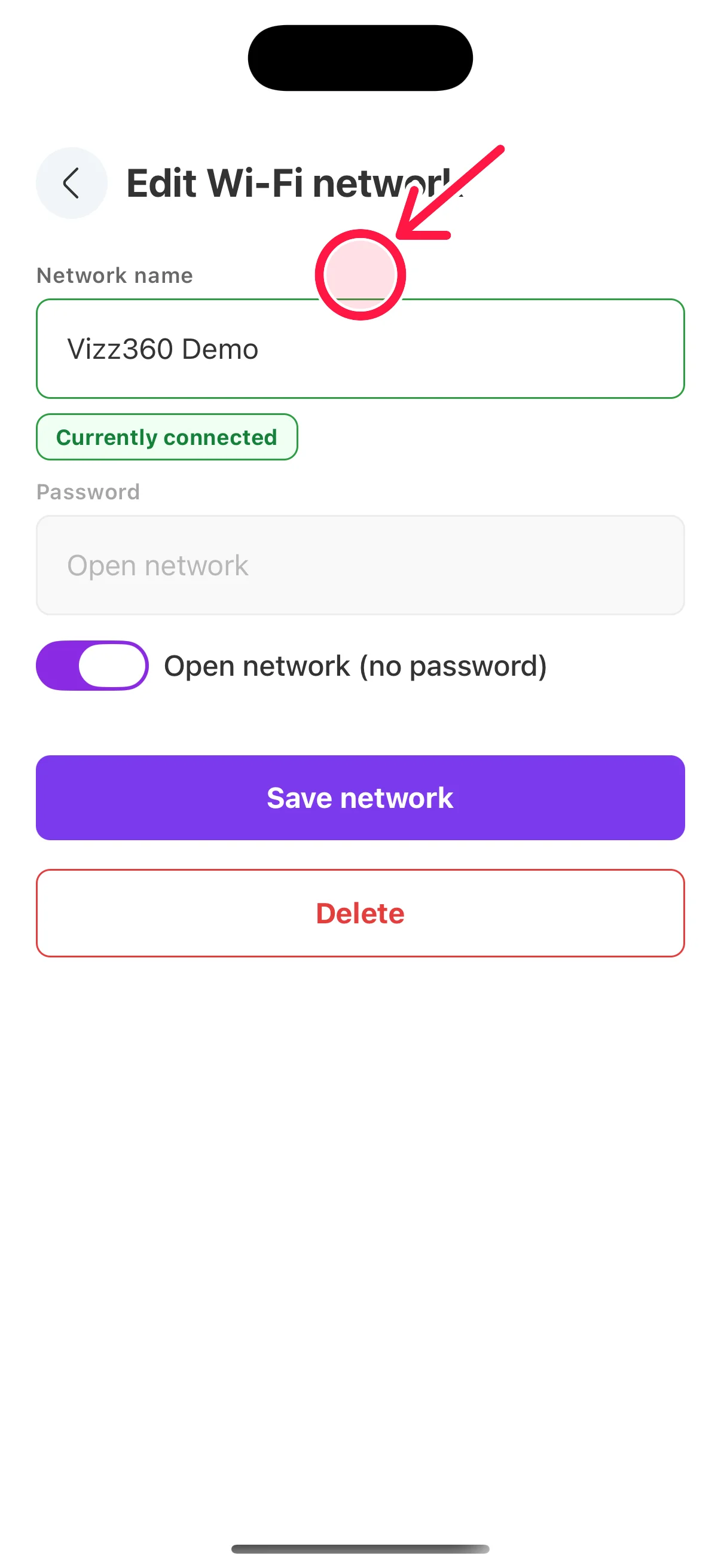
- Check the exact name of the event network.
The venue’s Wi-Fi connects, but the internet doesn’t work, and the guest wants the video now. Being connected to a router is different from having internet access. Understanding that difference helps you choose the right flow.
Before you start
Have a local network that allows communication between devices. Set the correct name and password in the app and make sure both are connected to that network. Sharing the entire gallery is not available in Offline mode.
How to do it
-
Open the event and the sharing screen for the video you want to deliver.
-
Select the Offline tab in Share video.
-
Follow the current network setup, entering the Wi-Fi details as the app shows them.
-
Show the network QR code so the guest can connect their phone. Check the network name before moving on.
-
Once connected, show the media QR code to open the local delivery.
-
Keep Vizz360 open on the source device while the other phone finishes the download.
Where to tap in the app
Check the result
On the guest’s phone, open the received file and play the video. For this test, it’s not enough for the QR code to open a page: delivery is only complete when the content can be played on the destination device.
If something doesn’t go as expected
If the local page doesn’t open, check that the phones are still on the same network and that Vizz360 is open. Guest networks at some venues isolate devices, preventing local communication. If the network doesn’t allow this flow, use another prepared network or upload the video and deliver the online link when internet is available.
Quick questions
Do I need internet on the router?
The flow described is local. The network needs to connect the devices to each other; that is different from providing internet access.
Can I share the entire gallery this way?
No. In Offline mode, go into the event and share each media file separately.
Does the same QR code work after the guest leaves?
Don’t count on it: local access depends on the network and the source app. For remote access, use the online link after the upload.
Continue in the app
Prepare a test event in Vizz360 and check the full path before your next booking. You can find the app for iPhone and Android in the links below.
Also read: How to set up Wi-Fi to share videos locally; How to record 360 videos without internet in Vizz360; How to send videos from iPhone to Android and vice versa.

Download Vizz360
Record, edit and share 360° videos in seconds, right from your phone. Free download for Android and iOS, with in-app purchases.


Related articles

How to Position and Resize the Kiosk Shutter Button
How to Position and Resize the Kiosk Shutter Button. See the Vizz360 steps, app screens and what to check before using it at an event.

How to Adjust Photo Framing Inside an AI Overlay
How to Adjust Photo Framing Inside an AI Overlay. See the Vizz360 steps, app screens and what to check before using it at an event.

How to Change Your Vizz360 Account Email
How to Change Your Vizz360 Account Email. See the Vizz360 steps, app screens and what to check before using it at an event.