
How to save Wi-Fi details to share videos locally
Save the current network in Vizz360 to share videos locally. Enter the correct password or mark it as an open network and test both QR codes.



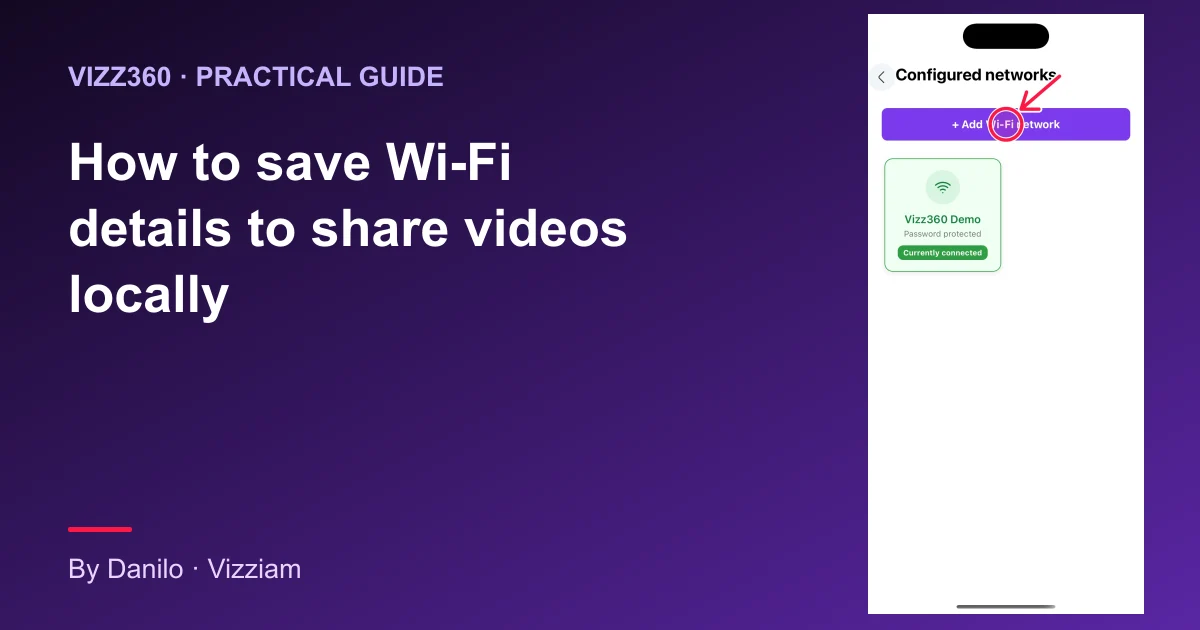
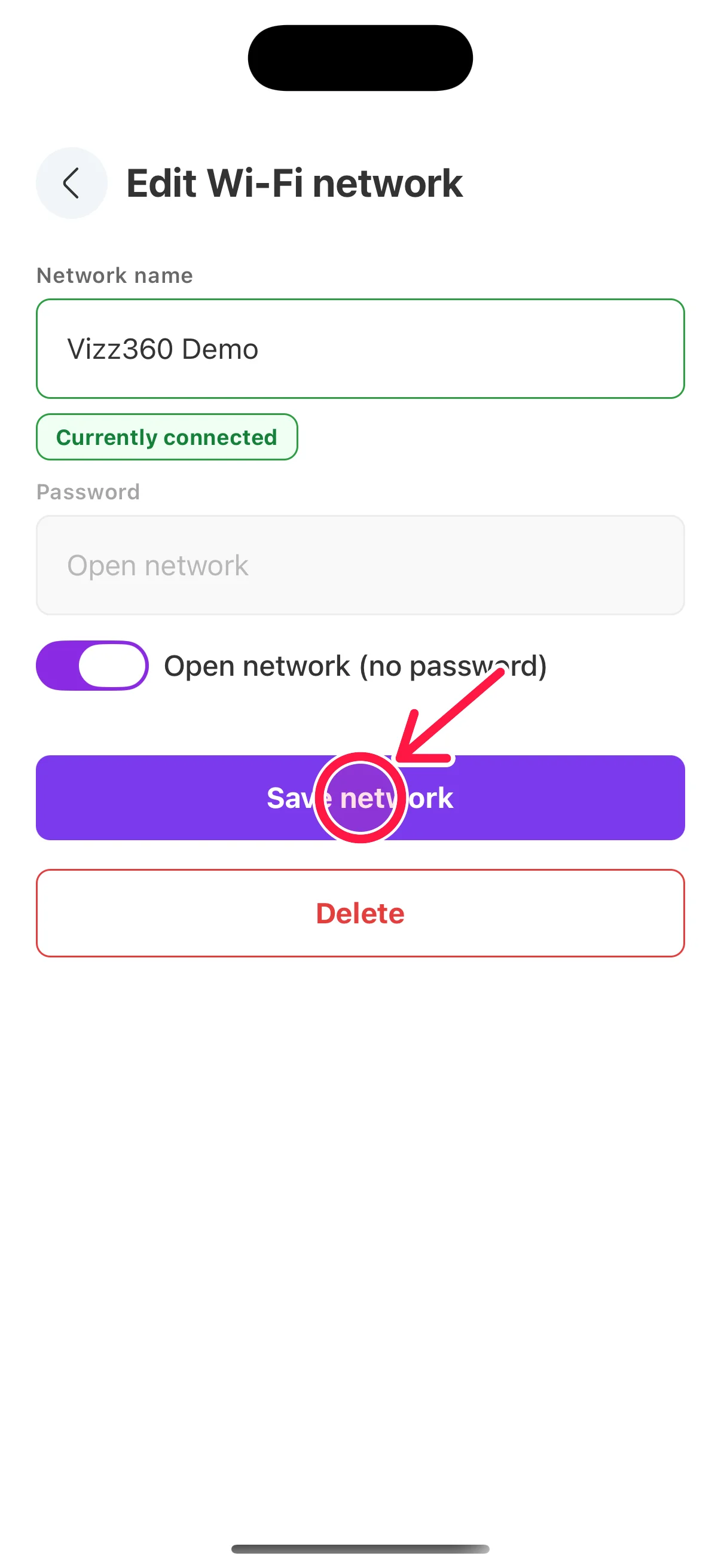
To prepare local delivery, use Manage networks in Profile or the current network settings in the Offline tab of a media item. Check the network name, enter the password, and tap Save network; for a network with no password, use Open network (no password).
Demonstration on the iPhone simulator, using Vizz360 7.39 and sample data. Some controls vary on Android and by plan.
Read the video steps
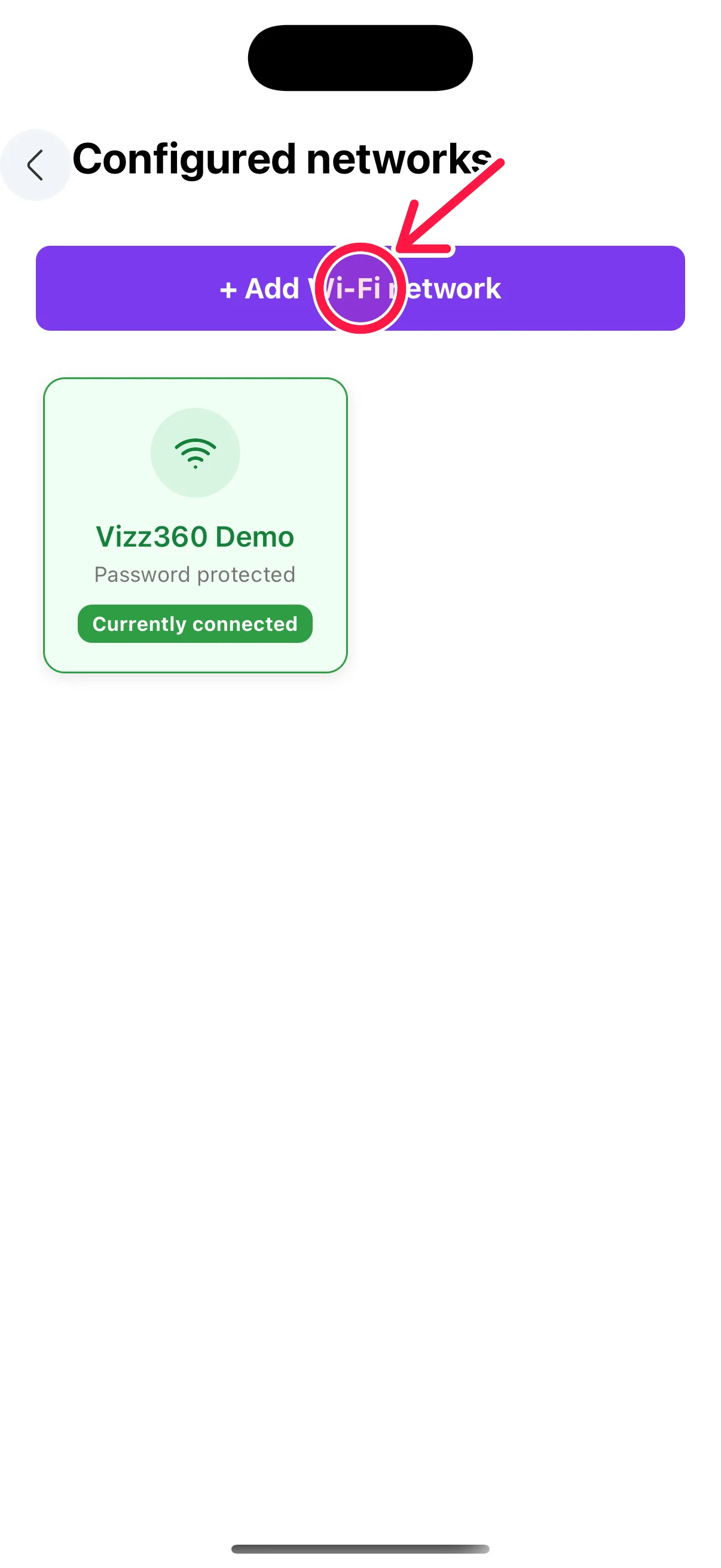
- In Configured networks, tap + Configure WiFi.
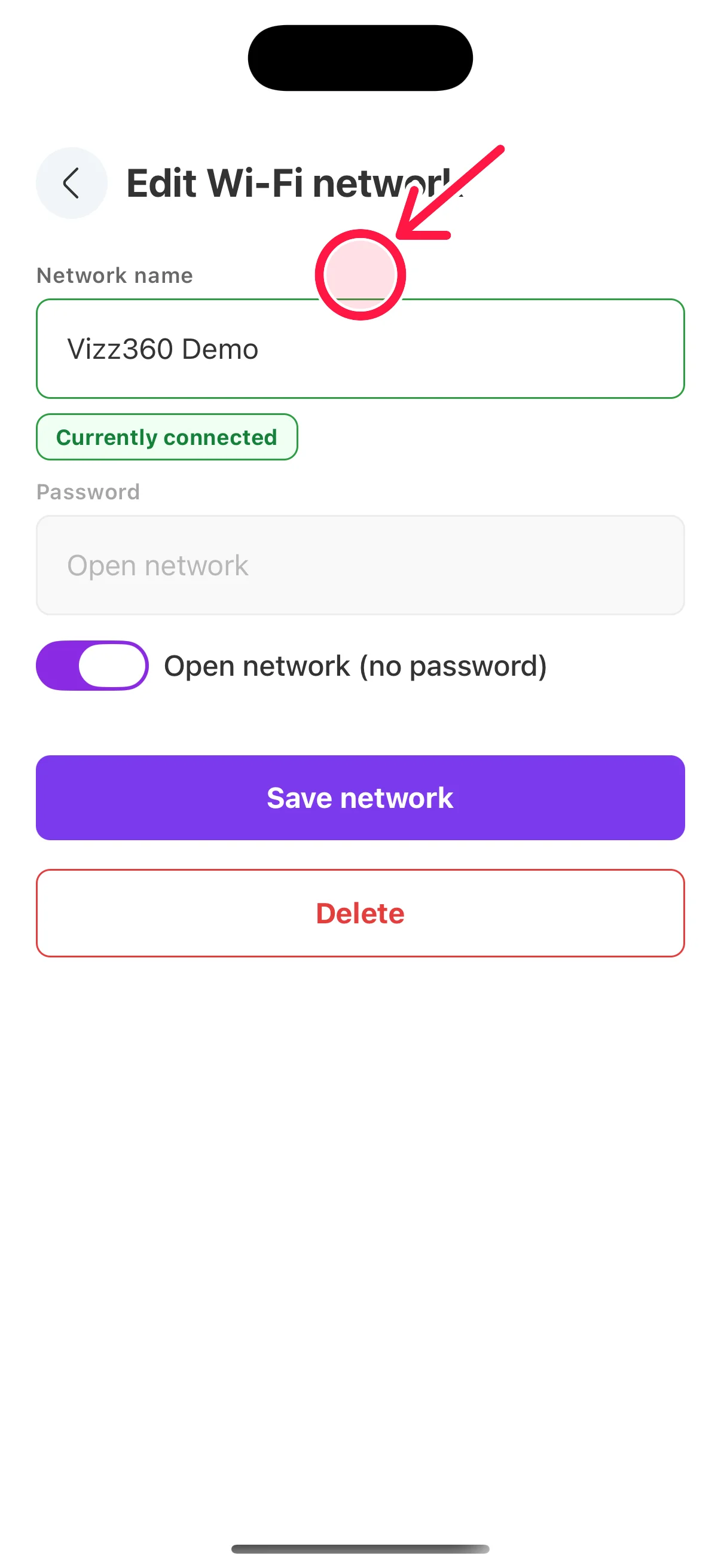
- Check the exact name of the event network.
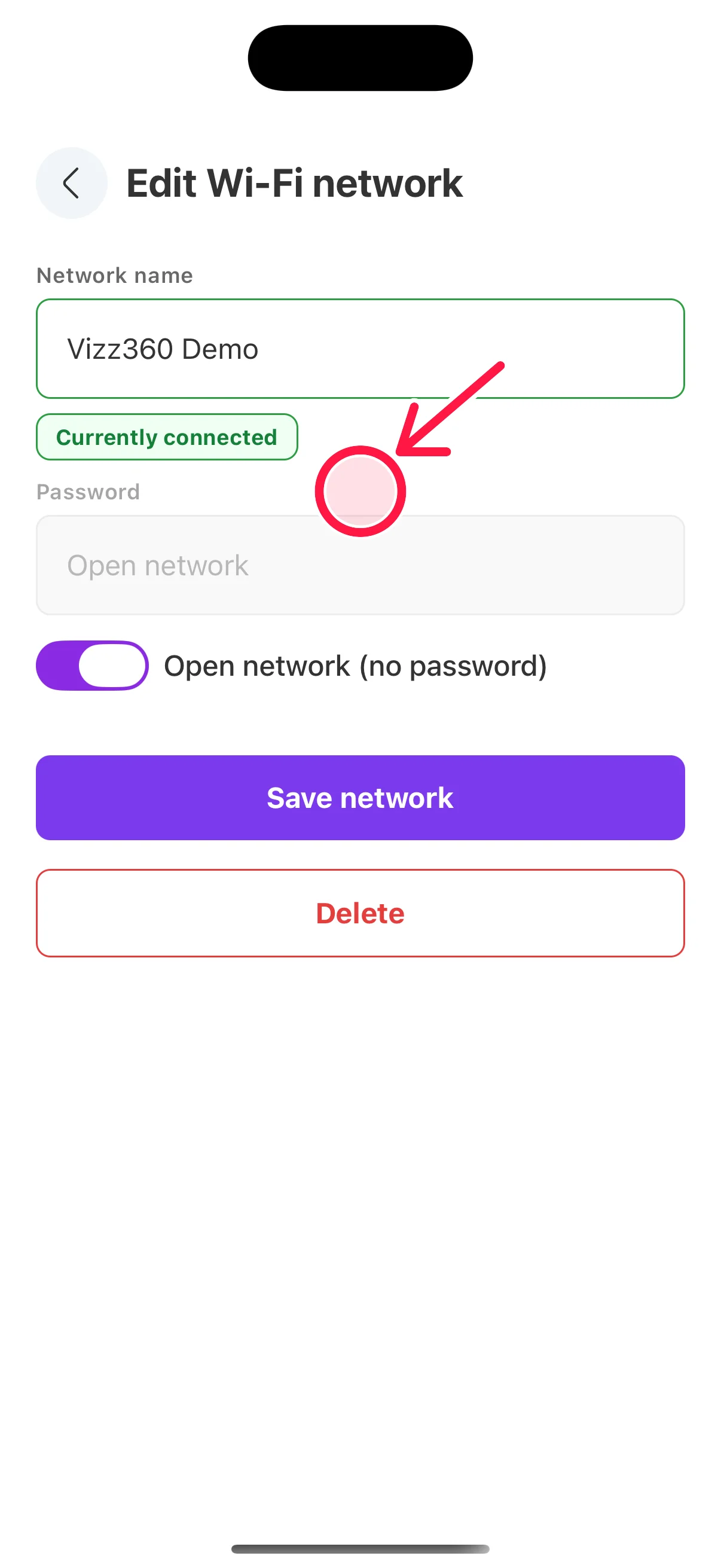
- Enter the password or mark the network as open, according to the router.
- Save the configuration and test the connection with another phone.
You have a router at the event and want to prepare your guests’ connection before delivering the videos. Saving the network helps the guest connect before opening the video QR code, without having to type in the details for each delivery.
Before you start
Connect the source device to the network that will be used and confirm the password. The network must allow communication between phones. Having a visible Wi-Fi name does not guarantee that a guest router allows this local access.
How to do it
-
Connect the operation phone to the Wi-Fi prepared for service.
-
Open Manage networks in Profile or go to Offline sharing for a video.
-
Check the name shown under Network.
-
Enter the correct password. Turn on Open network (no password) only if that is truly the network type.
-
Tap Save network.
-
Test it with another phone: first scan the network QR code, connect, and then open the media QR code.
Where to tap in the app
Check the result
The test phone should join the correct network and be able to open the local delivery. During the download, keep Vizz360 open on the source device. Testing only the Wi-Fi connection does not complete the sharing check.
If something does not work as expected
If the connection fails, review the password and network name, including differences in capitalization and characters. If it connects but does not open the media, check whether the network is isolating the devices. If you change routers on site, update the settings: details saved from another network will not make the device connect to the new network.
Quick questions
Does saving the details turn any network into internet?
No. You are preparing a Wi-Fi connection; the router may or may not have internet access.
Can I skip the network QR code?
The guest needs to be on the correct local network. If they are already connected, check that connection before opening the media QR code.
Is it better to use the local QR code to send the video the next day?
For remote delivery, use the Online link after upload. Local access depends on the network and the source device.
Continue in the app
Prepare a test event in Vizz360 and check the full flow before your next service. You can find the app for iPhone and Android in the links below.
Also read: How to share a video without internet in Vizz360; How to record 360 videos without internet in Vizz360; How to send videos from iPhone to Android and vice versa.

Download Vizz360
Record, edit and share 360° videos in seconds, right from your phone. Free download for Android and iOS, with in-app purchases.


Related articles

How to Position and Resize the Kiosk Shutter Button
How to Position and Resize the Kiosk Shutter Button. See the Vizz360 steps, app screens and what to check before using it at an event.

How to Adjust Photo Framing Inside an AI Overlay
How to Adjust Photo Framing Inside an AI Overlay. See the Vizz360 steps, app screens and what to check before using it at an event.

How to Change Your Vizz360 Account Email
How to Change Your Vizz360 Account Email. See the Vizz360 steps, app screens and what to check before using it at an event.