
Video not showing up in the link? Check pending uploads
Understand why the video appears in the app but not in the link. Check Processing, Uploading, and In queue in Vizz360’s pending uploads.



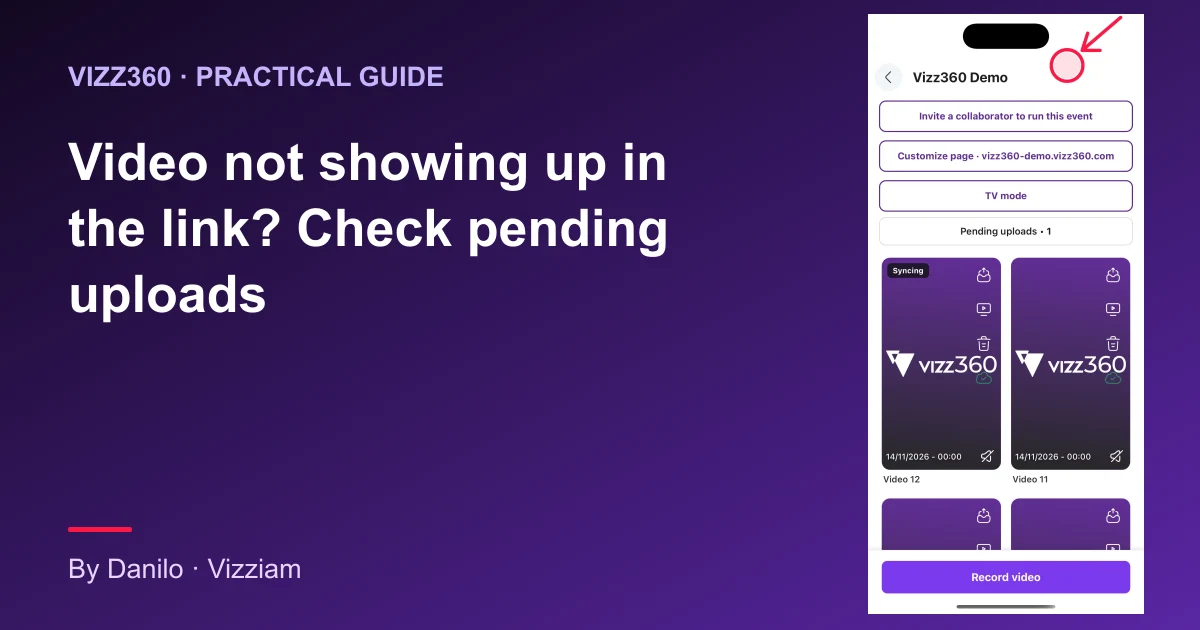
If the video appears in Vizz360 but still does not appear in the link, check Pending uploads on the device that recorded it. The file may be Processing, Uploading, or Queued, and the online gallery depends on that path being completed.
Demonstration on the iPhone simulator, using Vizz360 7.39 and sample data. Some controls vary on Android and by plan.
Read the video steps
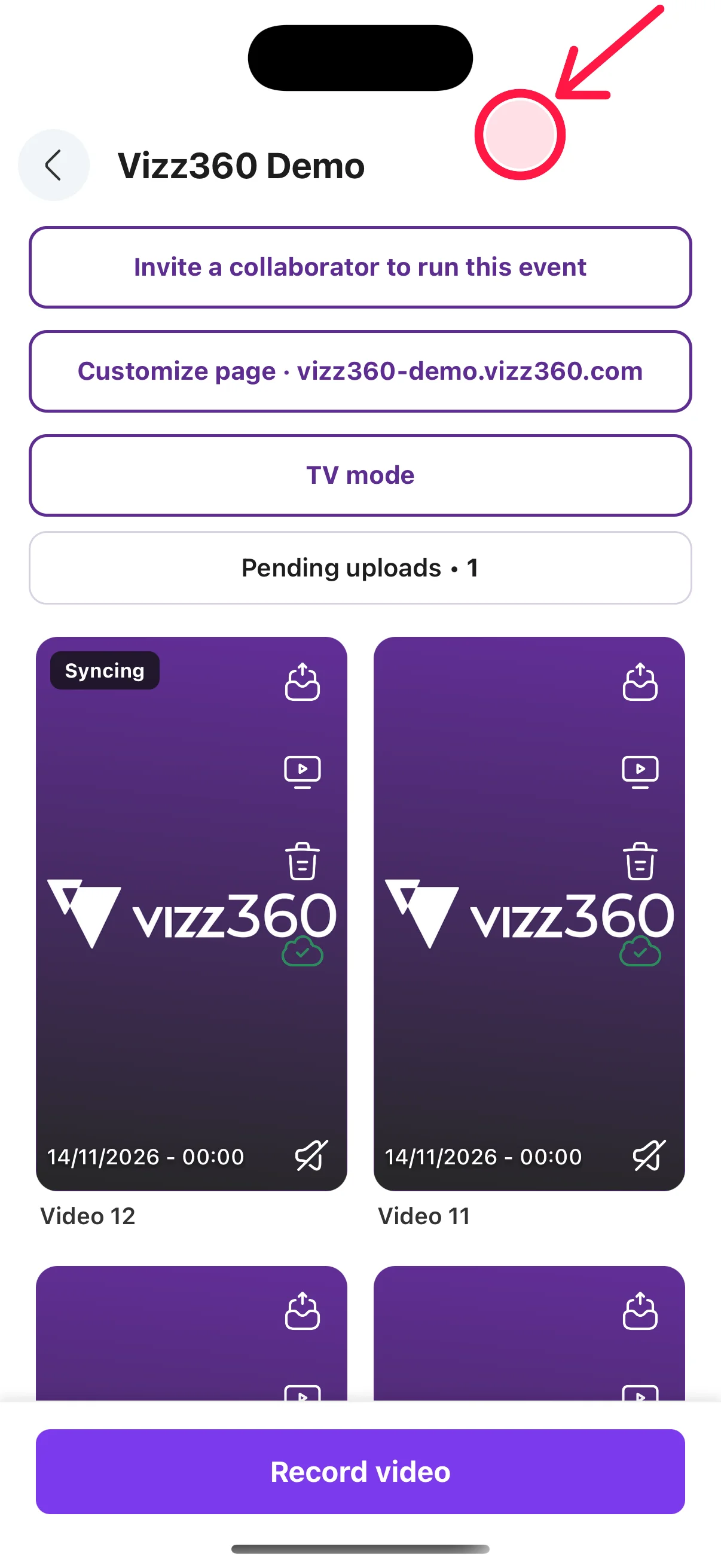
- Open Pending uploads on the phone that recorded the videos.
- Check the queue and keep the app available to finish uploads.
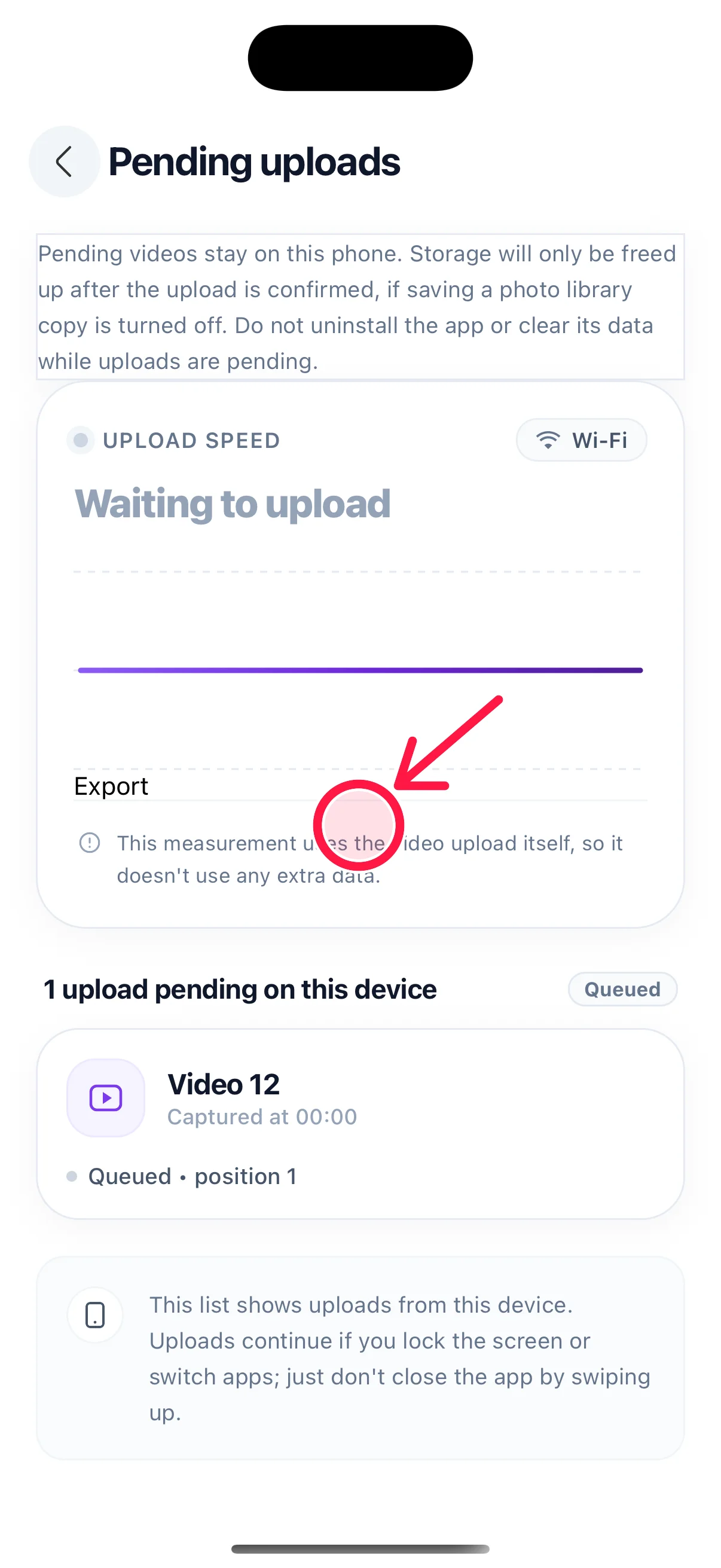
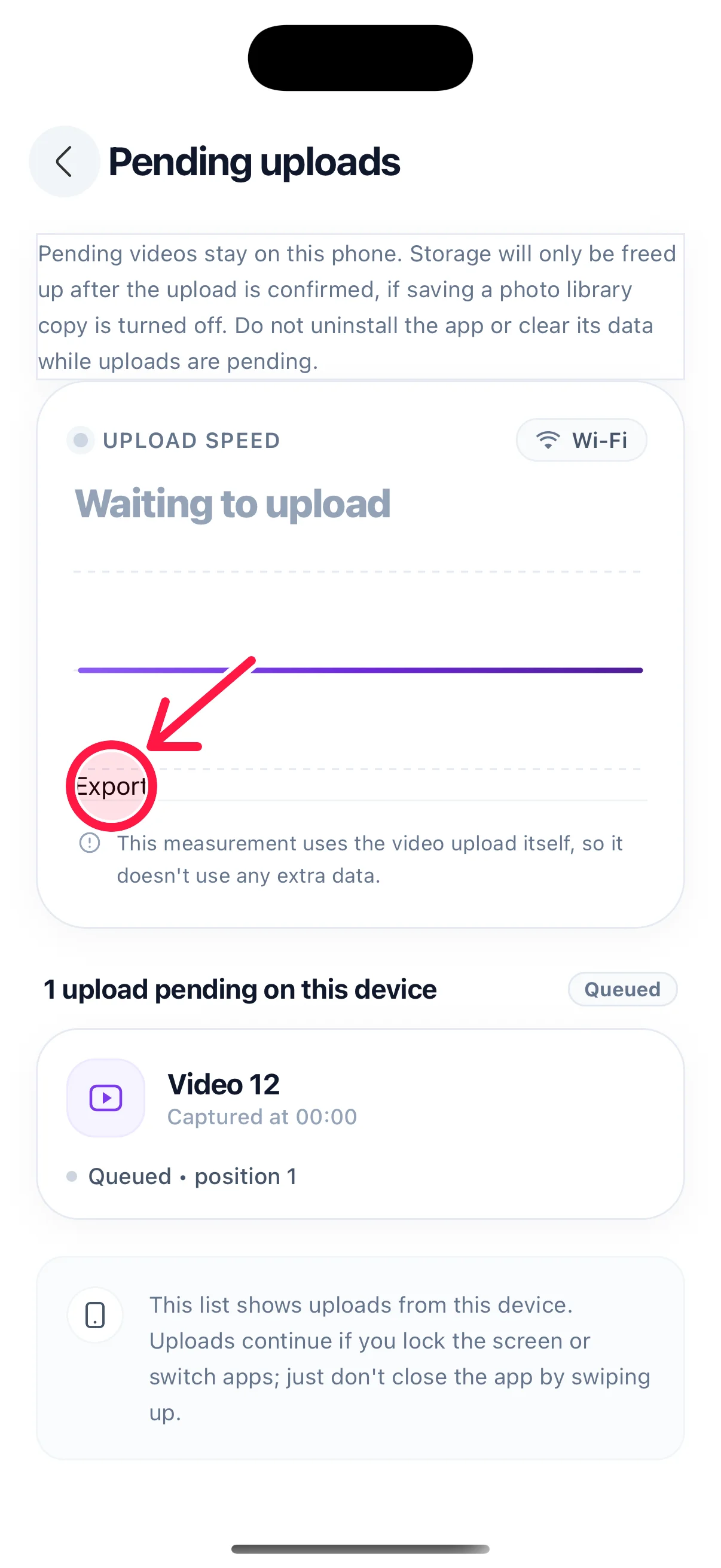
- If needed, use Export to preserve a copy of pending files.
The recording appears on your device, but the guest opens the link and still cannot find the video. This is common when several recordings are added to the queue or the venue’s connection is unstable.
Before you start
Use the phone that captured the video: pending uploads are tied to that device. Connect it to a stable network and allow time for the upload to finish, especially if there are several large files.
How to do it
-
Open the event on the device where the video was recorded.
-
Go to Pending uploads and find the corresponding recording.
-
Read the status shown. Processing indicates a step before online delivery; Uploading indicates transfer; Queued means the file’s turn has not arrived yet.
-
When the app offers Upload now or Try again, use the appropriate action after checking the connection.
-
Wait for it to finish and reopen the link on another phone to check the media.
Where to tap in the app
Check the result
The most useful confirmation combines a resolved queue on the source device with the video playing on the online page. The presence of a local thumbnail alone does not prove that the guest can already watch it through the link.
If something does not go as expected
If the queue persists, check the connection and the status of each item before repeating actions. On iPhone, the app’s guidance is not to force close it by swiping up during uploads. The screen can be locked or another app can be opened according to the instructions displayed, but force closing is a different action. Do not delete files or reinstall the app as the first step to solve a queue.
Quick questions
Why don’t I see the pending uploads on my other phone?
The screen follows the files on that device. Go back to the device that made the recording.
Is a processed video already in the cloud?
Not necessarily. Processing and uploading are different steps; check the upload.
Should I send the same link again?
Resending the address does not complete the upload. First resolve the upload and check the page; then notify the guest.
Continue in the app
Prepare a test event in Vizz360 and check the full flow before your next booking. You can find the app for iPhone and Android in the links below.
Also read: How to record 360 videos offline in Vizz360; How to share an individual video in Vizz360; How to save Vizz360 videos to your phone’s photo library.

Download Vizz360
Record, edit and share 360° videos in seconds, right from your phone. Free download for Android and iOS, with in-app purchases.


Related articles

How to Position and Resize the Kiosk Shutter Button
How to Position and Resize the Kiosk Shutter Button. See the Vizz360 steps, app screens and what to check before using it at an event.

How to Adjust Photo Framing Inside an AI Overlay
How to Adjust Photo Framing Inside an AI Overlay. See the Vizz360 steps, app screens and what to check before using it at an event.

How to Change Your Vizz360 Account Email
How to Change Your Vizz360 Account Email. See the Vizz360 steps, app screens and what to check before using it at an event.