
How to Change the Overlay for an Event You’ve Already Created
Update the artwork for a video event through the Change overlay menu in Vizz360. Check the file and test the next recording before serving guests.



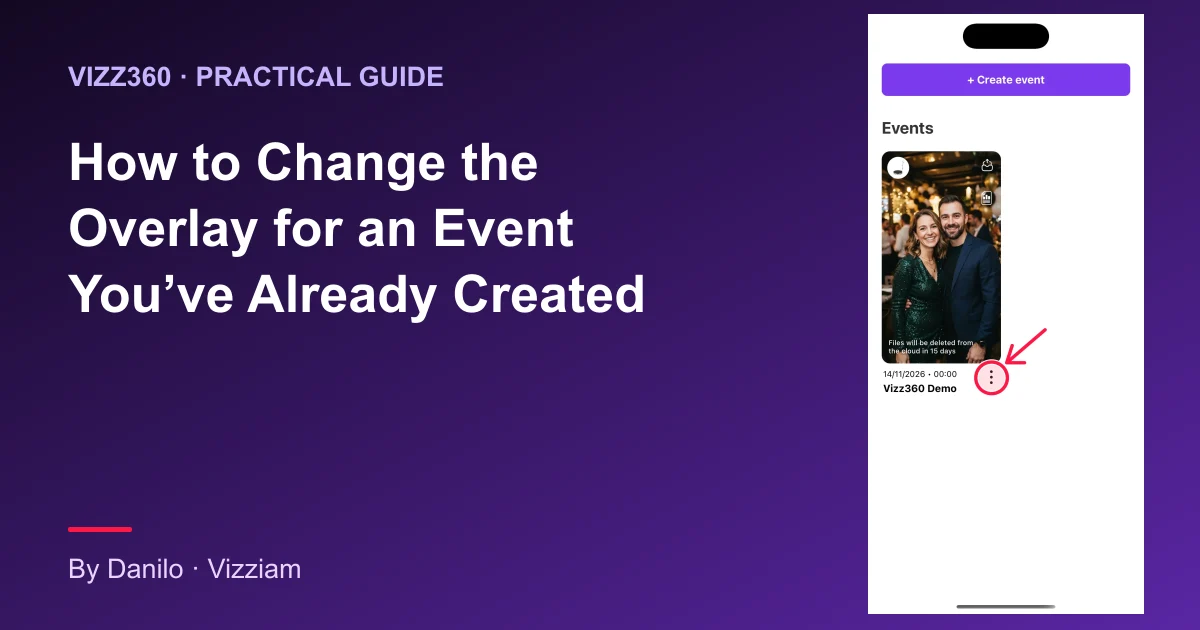
To update the artwork for an event you’ve already created, open the three dots on the cover and choose Change overlay. Select the correct file, save the change, and check a new recording before continuing with your guests.
Demonstration on the iPhone simulator, using Vizz360 7.39 and sample data. Some controls vary on Android and by plan.
Read the video steps
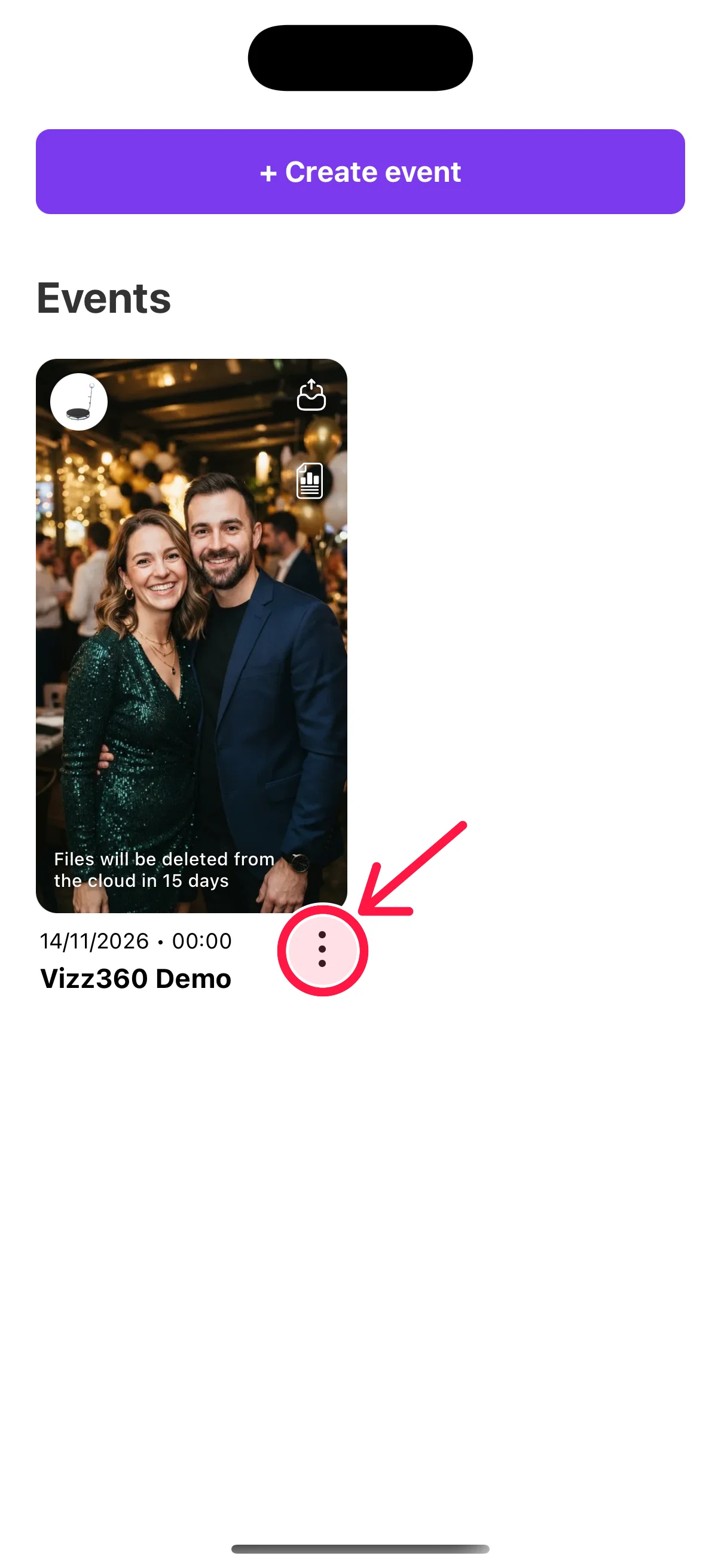
- The three dots open event actions, including changing music and overlays.
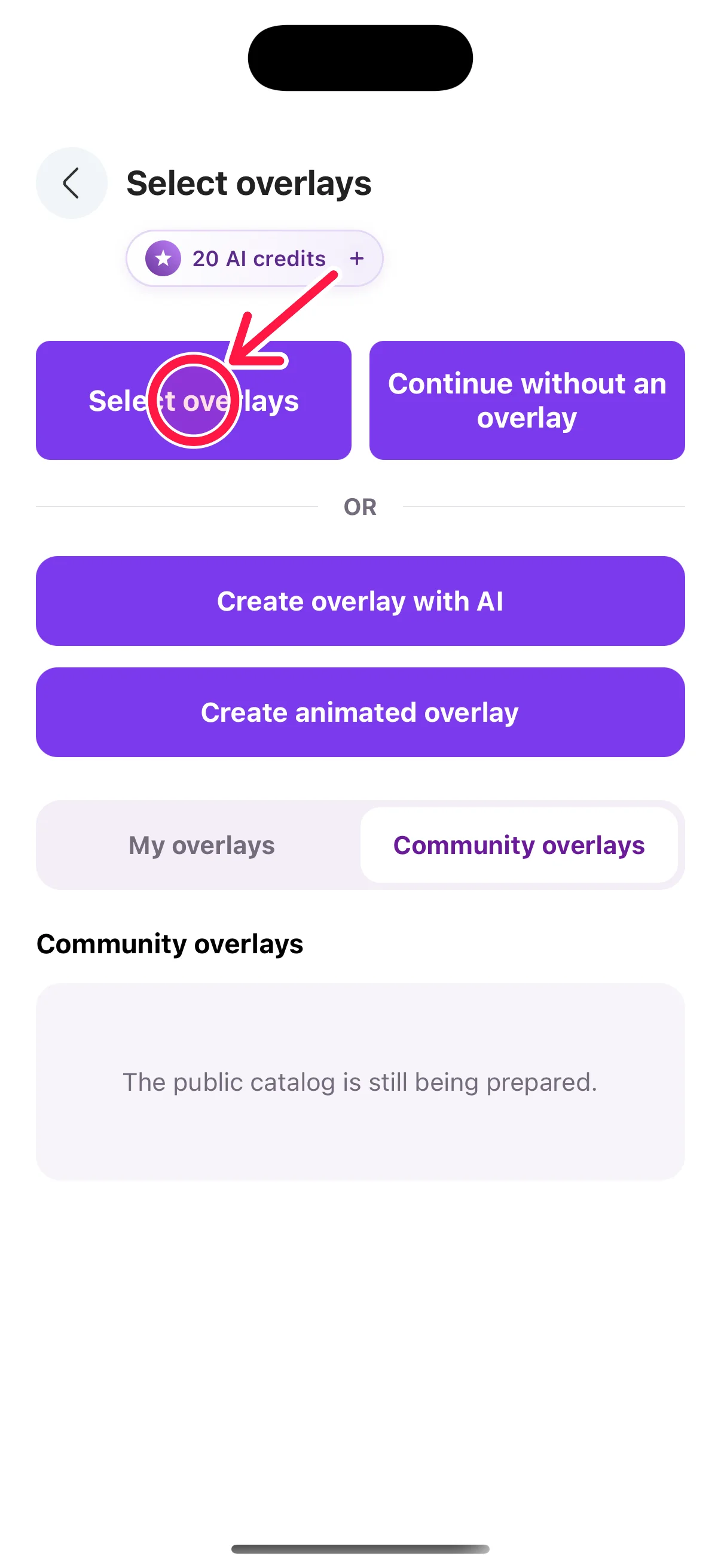
- Tap Select overlays to import your artwork.
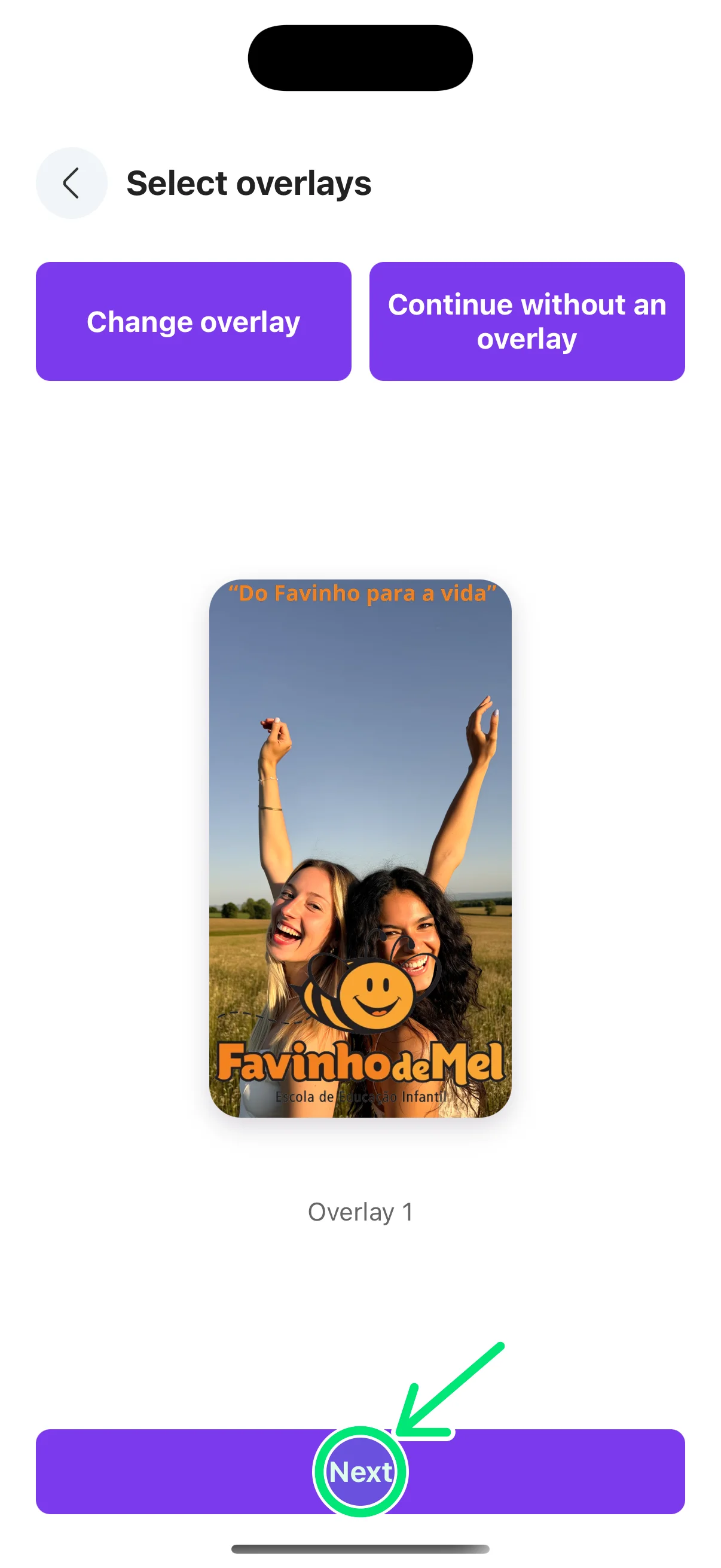
- Check the overlay preview before continuing.
The artwork was updated after the event was created, and you need to use the correct version in the next recordings. This action updates the setup for upcoming captures without requiring you to organize a new event just for the artwork.
Before you begin
Ask the client for the final version of the file and confirm names, date, and logo. For vertical video, follow the recommended 1080 × 1920 pixels, 9:16 format, with the guests’ area transparent. Files with nearly identical names deserve an extra check.
How to do it
-
On the Home screen, find the cover of the event that will be updated.
-
Tap the three dots and choose Change overlay.
-
Open the artwork selector and choose the version you want on the device.
-
Check the preview and any dimension or aspect-ratio warning before saving.
-
Complete the change, enter the event, and make a short test capture.
-
Play the final video to confirm the new artwork was applied correctly.
Where to tap in the app
Check the result
Look at the details that changed: client name, date, logo position, and transparency. Also check the face in the real framing. Updated artwork may have larger elements and occupy an area that was previously open.
If something doesn’t work as expected
If the old version appears in a file that has already been recorded, don’t treat that as a failure of the change: this process prepares the next recordings. If the new artwork doesn’t look good, review the original file and the aspect ratio before insisting on capturing. Don’t promise the client that the change automatically redoes all previous material.
Quick questions
Do I need to create another event to change the overlay?
There is a specific action for this update in the video event menu.
Are previous files reprocessed?
This guide does not cover reprocessing old files. Check the change in a new capture.
Can I make more than one overlay available?
Selecting multiple overlays for video depends on Plus. Check your access and the Overlays panel during recording.
Continue in the app
Practice changing the overlay in a test event in Vizz360 and keep final artwork organized before heading out to serve clients.
Also read: How to import a PNG overlay for 360 video; How to use multiple overlays in the same video event; Overlay for 360 photo booth: size, transparency, and customization.

Download Vizz360
Record, edit and share 360° videos in seconds, right from your phone. Free download for Android and iOS, with in-app purchases.


Related articles

How to Position and Resize the Kiosk Shutter Button
How to Position and Resize the Kiosk Shutter Button. See the Vizz360 steps, app screens and what to check before using it at an event.

How to Adjust Photo Framing Inside an AI Overlay
How to Adjust Photo Framing Inside an AI Overlay. See the Vizz360 steps, app screens and what to check before using it at an event.

How to Change Your Vizz360 Account Email
How to Change Your Vizz360 Account Email. See the Vizz360 steps, app screens and what to check before using it at an event.