
How to customize the page your guest opens
Edit and publish the event page in Vizz360. Understand the difference between a saved draft and the page guests can see, with Plus access.



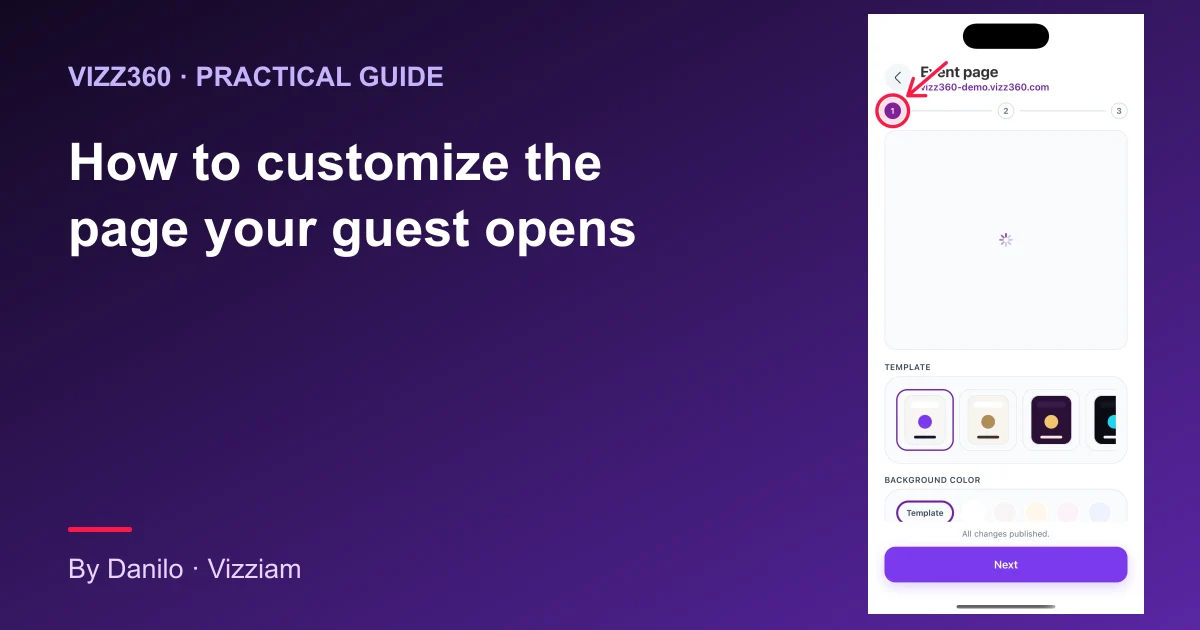
Open the event and tap Customize page to adjust the look of the delivery experience. Editing requires Plus. After reviewing the preview, tap Publish: saving the draft does not make the changes visible to guests.
Demonstration on the iPhone simulator, using Vizz360 7.39 and sample data. Some controls vary on Android and by plan.
Read the video steps
- Choose the event page template and colors.
- In Content, configure what guests will see.
- Check the company details before publishing the design.
- Check the cover, name and readability before sharing.
The video already has the client’s branding, but you also want to take care of the delivery page. Fine-tuning this screen keeps the presentation organized all the way to the moment the person receives the content.
Before you start
Have the company details, logo, and image you plan to use ready, when they apply to the chosen template. Check the event link and whether the media is still within the availability period. The delivery page follows that context; it is not a permanent website separate from retention.
How to do it
-
Open the event and go to Customize page.
-
Choose a template and review the content and company fields provided by the editor.
-
Add or replace the cover image and logo according to the approved identity.
-
Wait for the images to load and check the preview.
-
Tap Publish and wait for the confirmation.
-
Open the public link in another browser to check what guests actually see.
Where to tap in the app
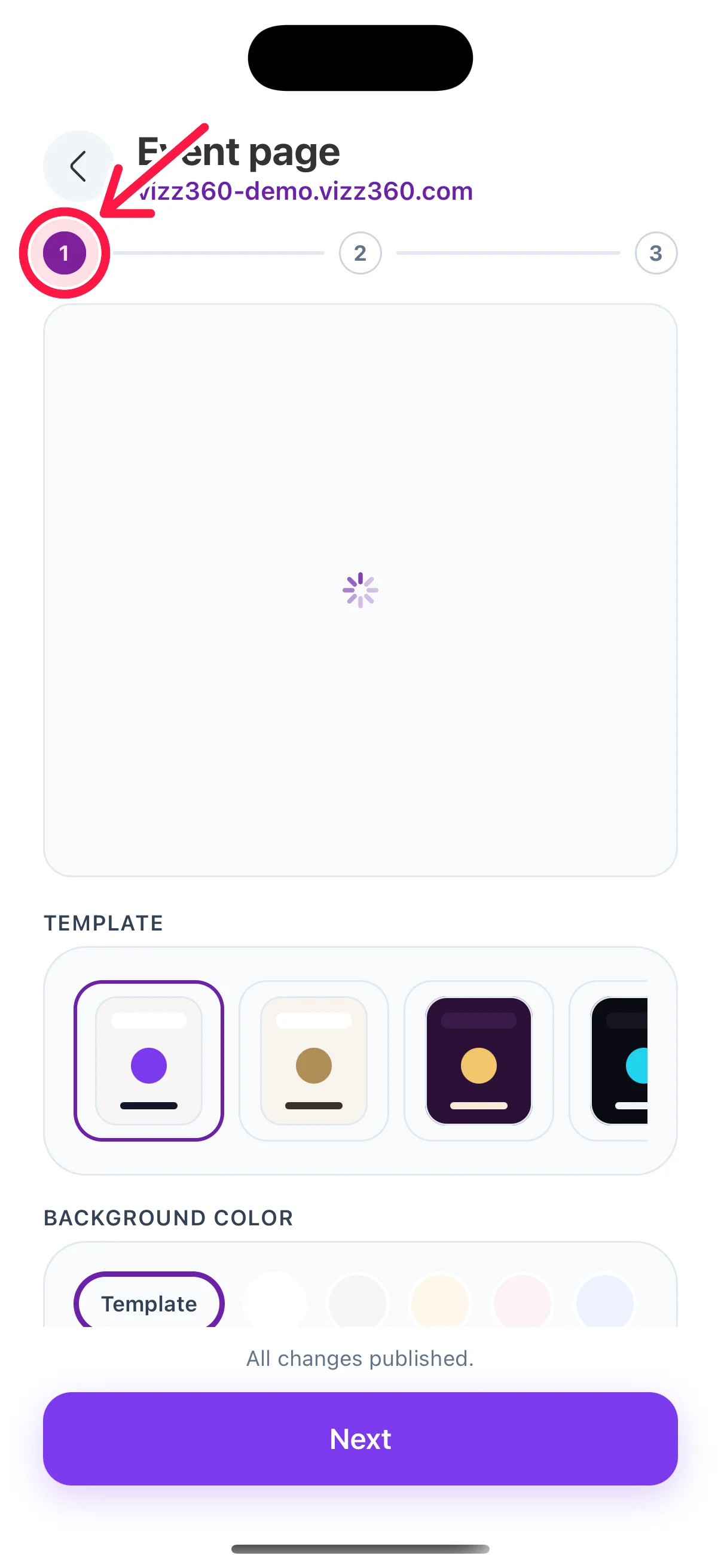
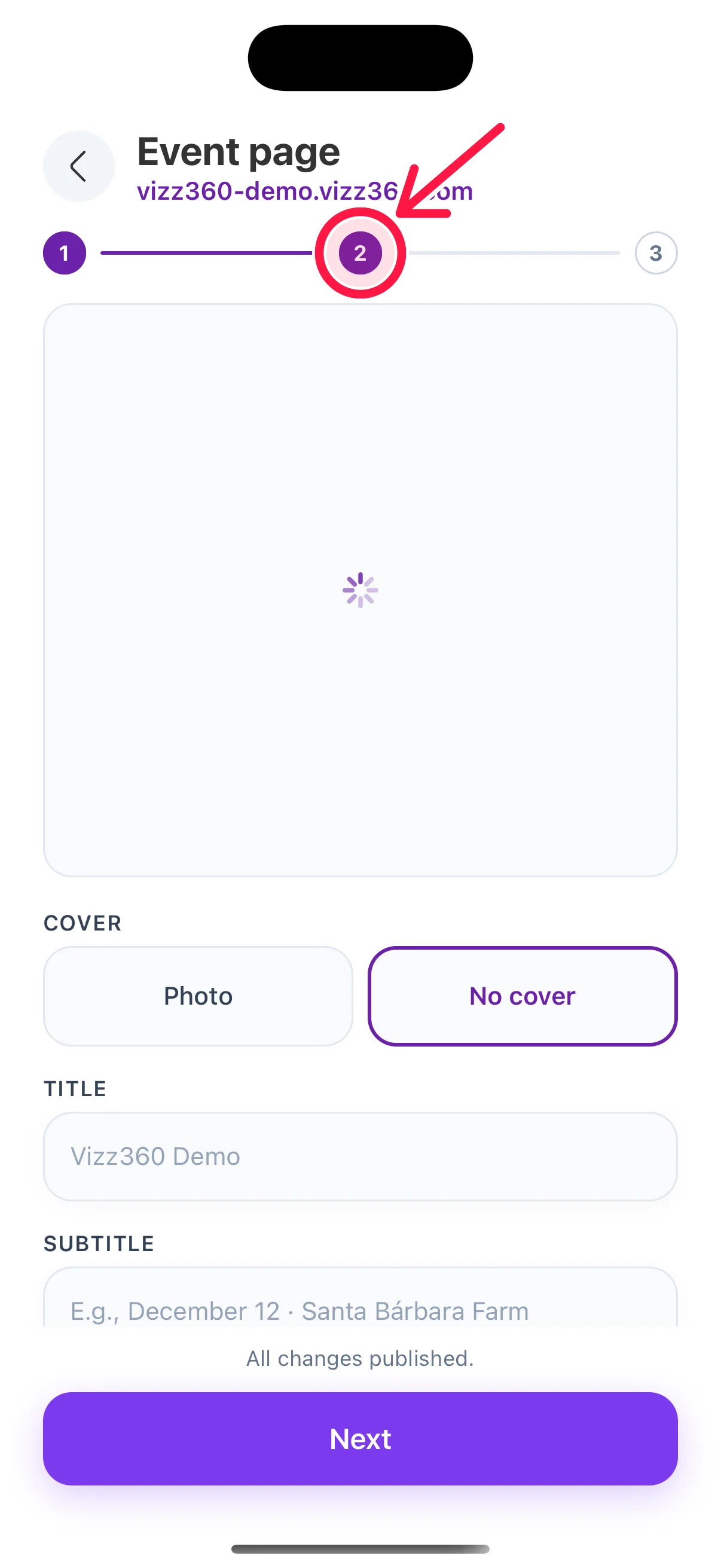
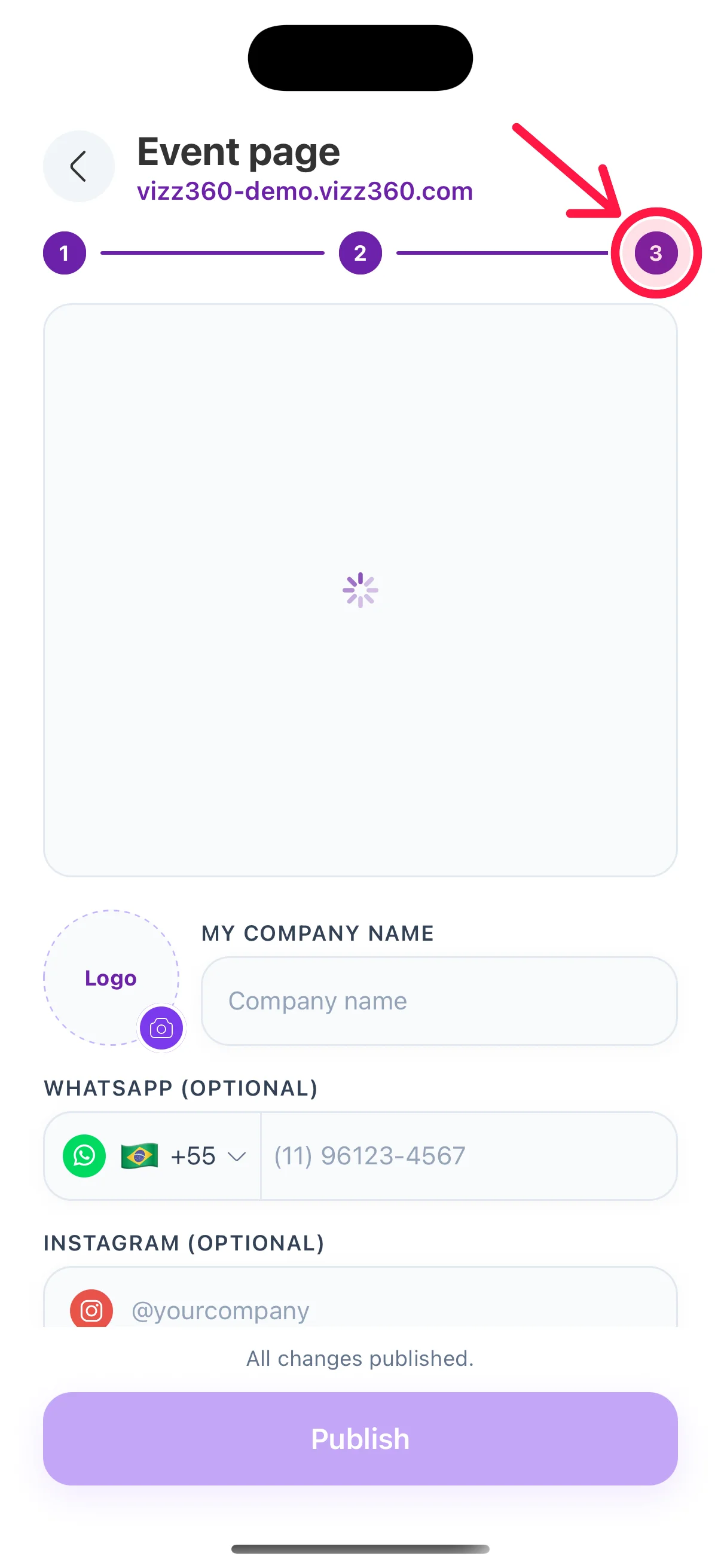
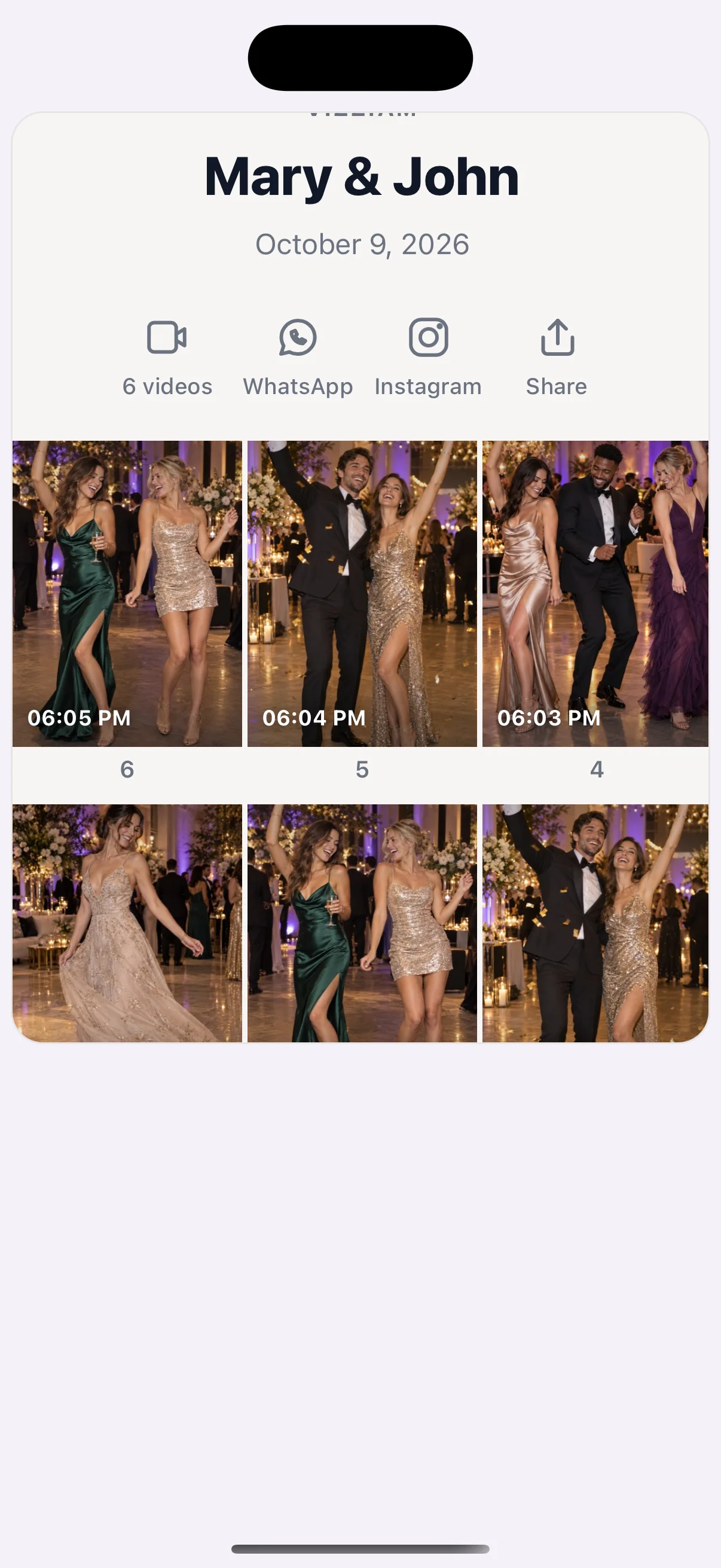
Check the result
The name, images, and information should be correct on the public page. The editor may show a preview with changes that have not been published yet, so it is important to check outside it after the confirmation.
If something does not go as expected
If the app shows Draft saved. Publish so guests can see it, it still needs to be published. If saving fails, check the connection and wait for the image uploads to finish before trying to publish. If the account does not have Plus, the button may show an explanation of the feature instead of opening the editor.
Quick questions
Does autosaving already change the guest page?
No. Drafting and publishing are separate steps. Use Publish after reviewing.
Can I check it without asking the client to test?
Yes. Open the public link on another phone or browser and compare it with what you published.
Does the page remain available after the media expires?
Do not rely on it as permanent hosting. The published page follows the availability of the event media.
Continue in the app
Set up a test event in Vizz360 and go through the full path before your next service. You can find the app for iPhone and Android in the links below.
Also read: How to create a custom link for the event; How to customize the QR code with a logo and colors; How to share the event link in Vizz360.

Download Vizz360
Record, edit and share 360° videos in seconds, right from your phone. Free download for Android and iOS, with in-app purchases.


Related articles

How to Position and Resize the Kiosk Shutter Button
How to Position and Resize the Kiosk Shutter Button. See the Vizz360 steps, app screens and what to check before using it at an event.

How to Adjust Photo Framing Inside an AI Overlay
How to Adjust Photo Framing Inside an AI Overlay. See the Vizz360 steps, app screens and what to check before using it at an event.

How to Change Your Vizz360 Account Email
How to Change Your Vizz360 Account Email. See the Vizz360 steps, app screens and what to check before using it at an event.