
How to customize the QR code with a logo and colors
Customize the QR code in Vizz360 with modules, colors, border, center, logo, and animation. Understand Plus access to apply the look and test scanning on another phone.



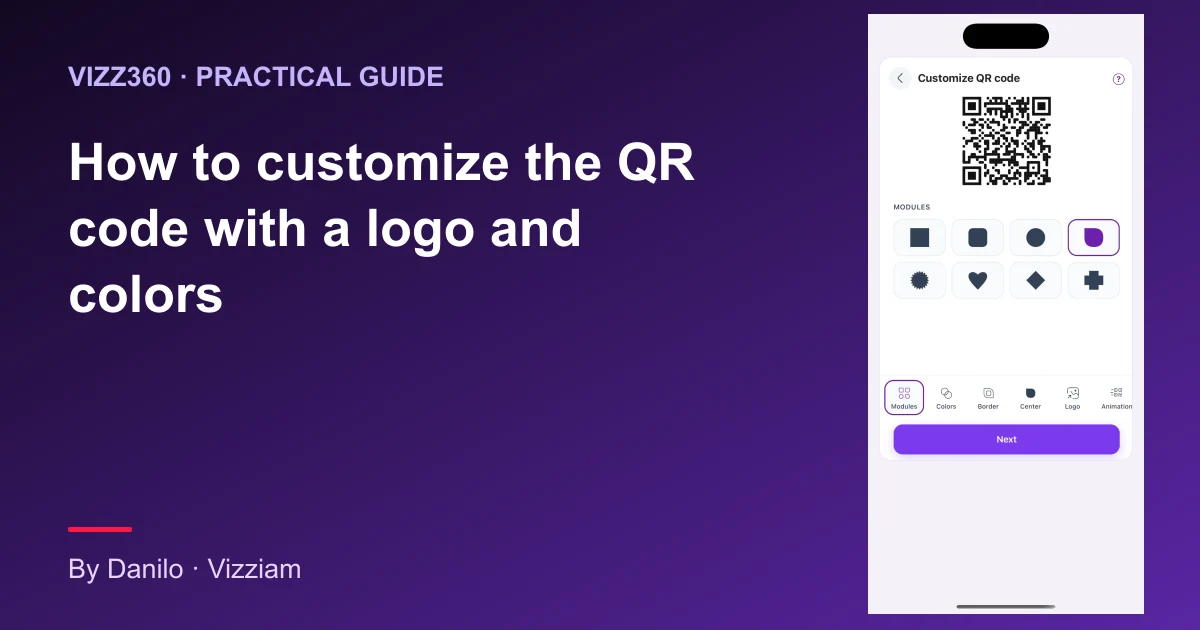
Vizz360’s QR code editor lets you configure colors, modules, border, center, logo, and animation. Everyone can prepare and save the settings on their device, but applying the custom look to sharing requires Plus.
Demonstration on the iPhone simulator, using Vizz360 7.39 and sample data. Some controls vary on Android and by plan.
Read the video steps
- Open QR Code settings during creation.
- Adjust the design and keep enough contrast for scanning.
- Test the final QR on another phone. Applying the custom design requires Plus.
You want the QR code to match the event’s identity without making it harder to scan. The goal is for the brand to be recognizable without turning the code into a detail that’s difficult to read.
Before you start
Set aside a legible logo and choose colors with contrast. The settings stay saved on this device for upcoming events; older events are not changed. Check the account access to know which look will be applied on delivery.
How to do it
-
When preparing the event, open the QR code editor.
-
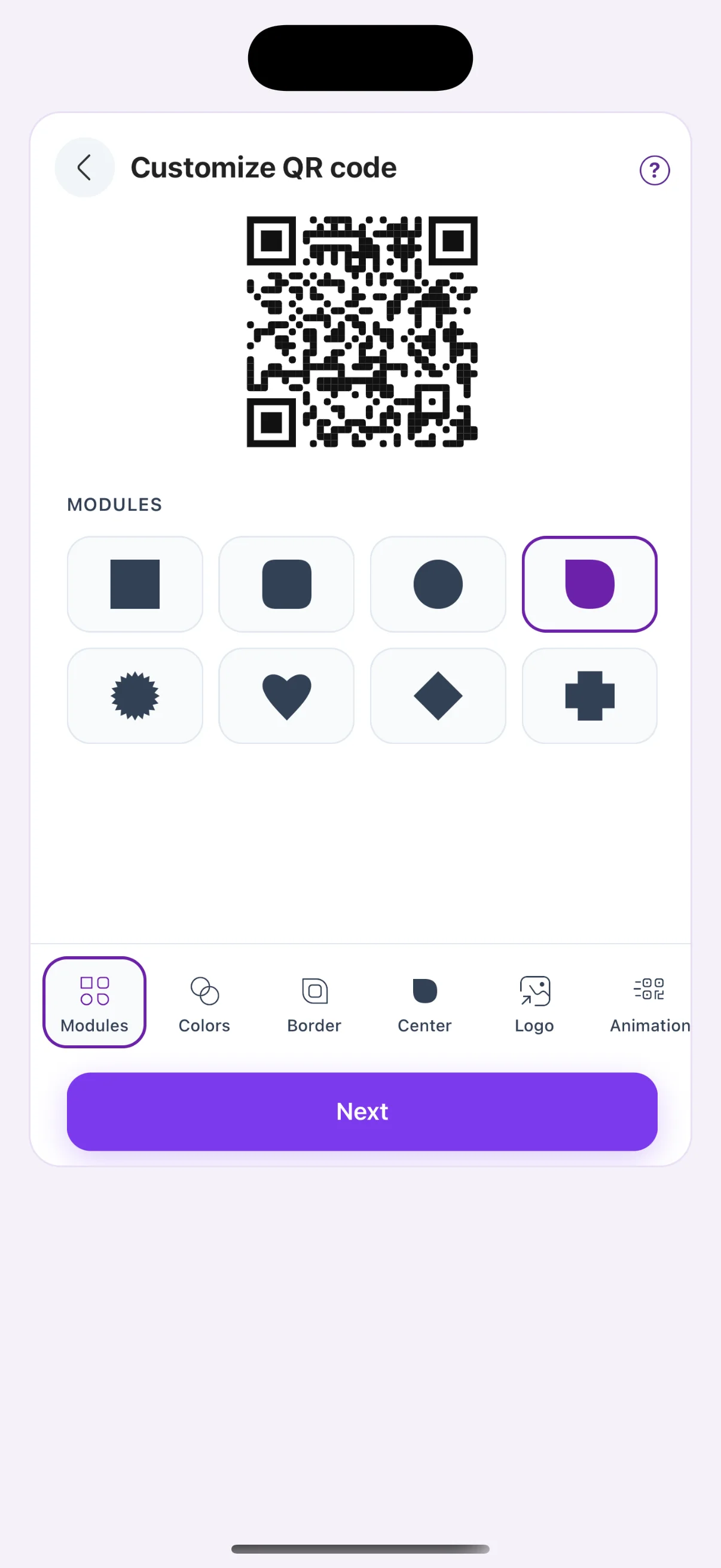
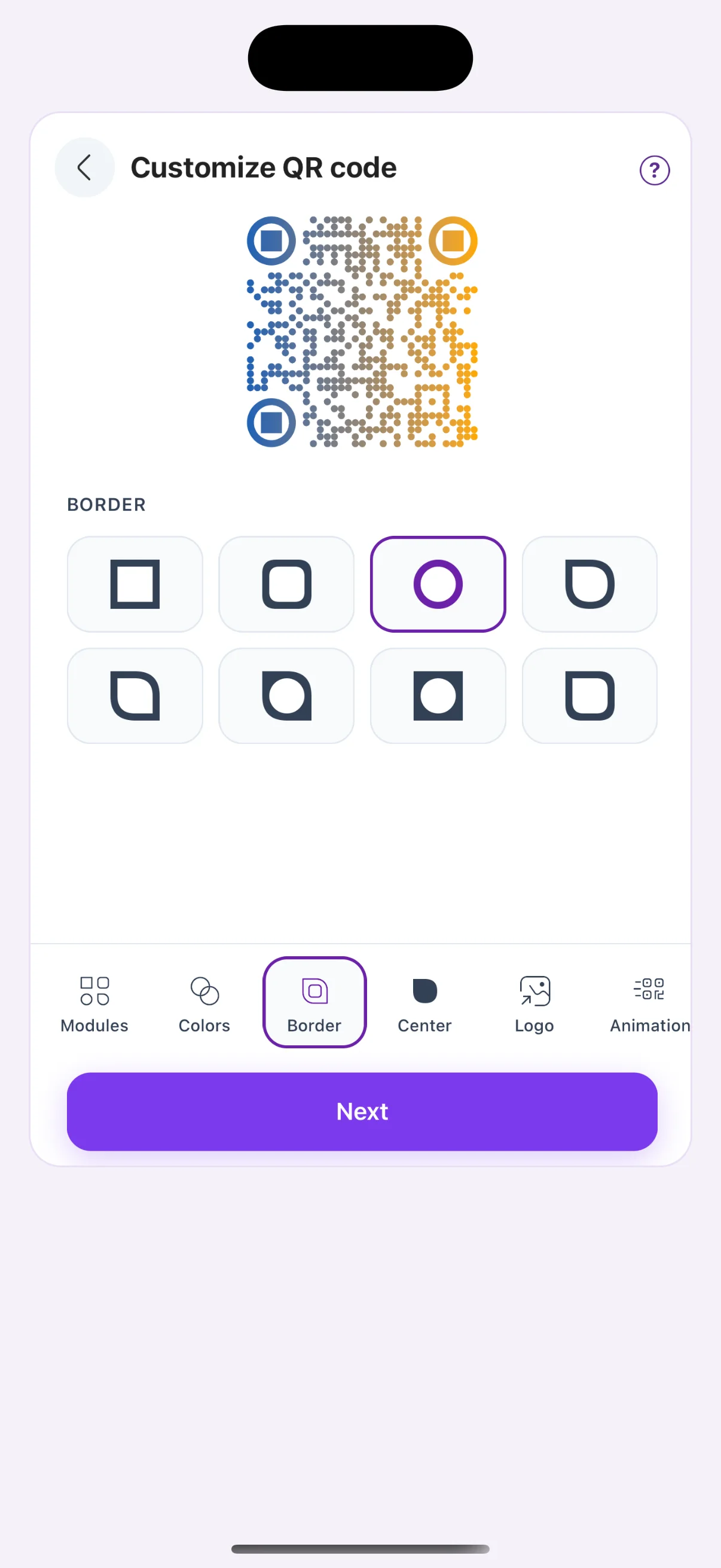
Review the Modules, Colors, Border, and Center areas according to the style you want.
-
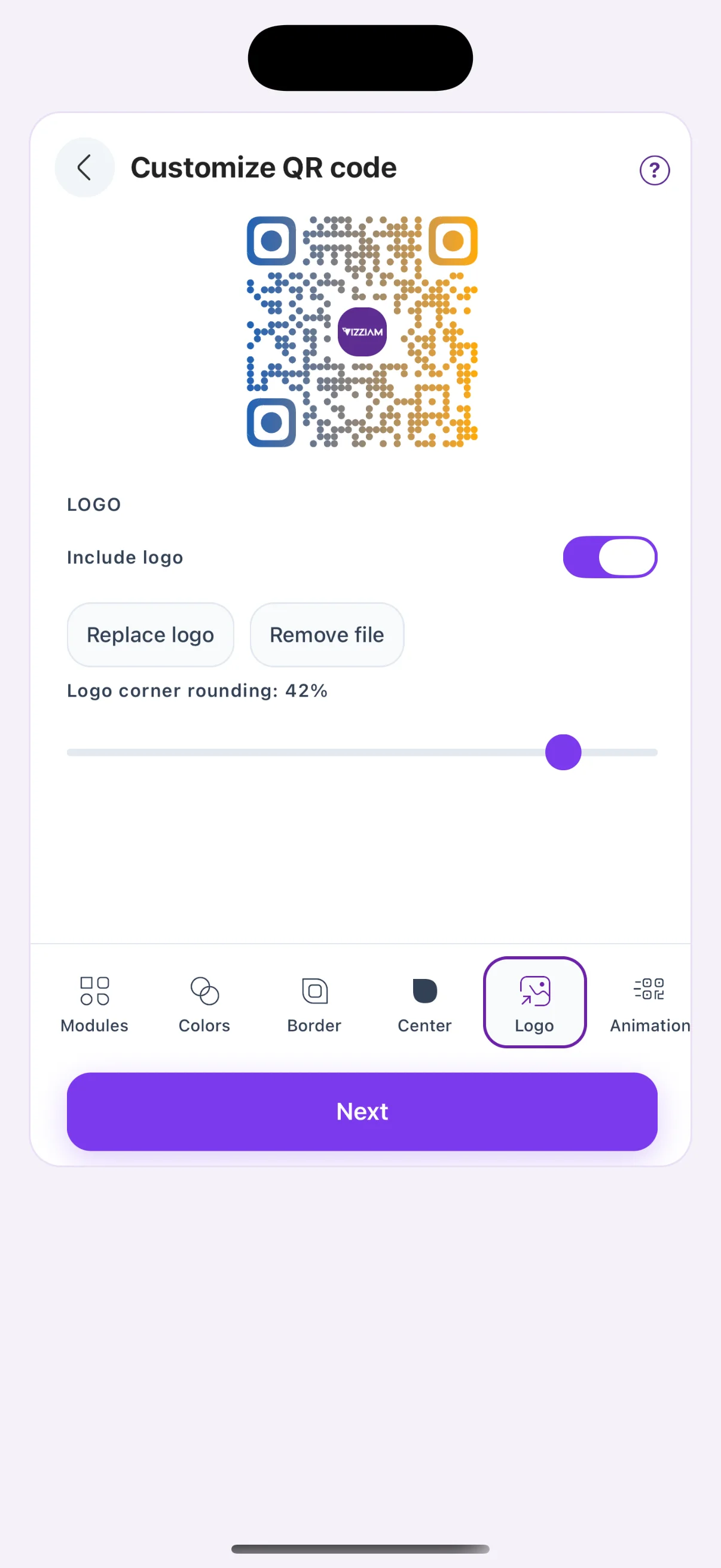
Add the Logo and check that it does not make the preview harder to scan.
-
If you use animation, watch the code in action, not just a still frame.
-
Save the configuration and finish the event.
-
Open the event sharing and test the QR code that was actually applied using another phone.
Where to tap in the app
Check the result
The code should lead to the correct page and be easy to recognize in the real usage conditions. For printing, test the printed file at the final size. A successful scan on the editor screen does not guarantee the same result on a small sign or with low contrast.
If something does not go as expected
If sharing shows the default QR code, check the Plus requirement. Your settings may be saved even without applying the custom look. If scanning gets worse, simplify the design and increase the contrast. Reset goes back to the default look without deleting the logo, according to the editor’s guidance.
Quick questions
Does customizing change old events?
No. The editor states that the settings are for upcoming events and do not change older ones.
Can I prepare the look without Plus?
Yes. You can configure and save the settings; applying the custom look to sharing requires Plus.
Does a larger logo make the code better?
Not necessarily. Prioritize scanning and test it on the guest’s device; the visual identity needs to work alongside the QR code’s function.
Continue in the app
Set up a test event in Vizz360 and check the full workflow before your next job. You can find the app for iPhone and Android at the links below.
Also read: How to save the event QR code to print; How to create a custom link for the event; How to customize the page your guest opens.

Download Vizz360
Record, edit and share 360° videos in seconds, right from your phone. Free download for Android and iOS, with in-app purchases.


Related articles

How to Position and Resize the Kiosk Shutter Button
How to Position and Resize the Kiosk Shutter Button. See the Vizz360 steps, app screens and what to check before using it at an event.

How to Adjust Photo Framing Inside an AI Overlay
How to Adjust Photo Framing Inside an AI Overlay. See the Vizz360 steps, app screens and what to check before using it at an event.

How to Change Your Vizz360 Account Email
How to Change Your Vizz360 Account Email. See the Vizz360 steps, app screens and what to check before using it at an event.