
How to Show Event Videos on a TV
Use Vizz360’s TV Mode to display the event gallery. See the custom link and Plus requirements, plus the recommendation to use a laptop with HDMI.



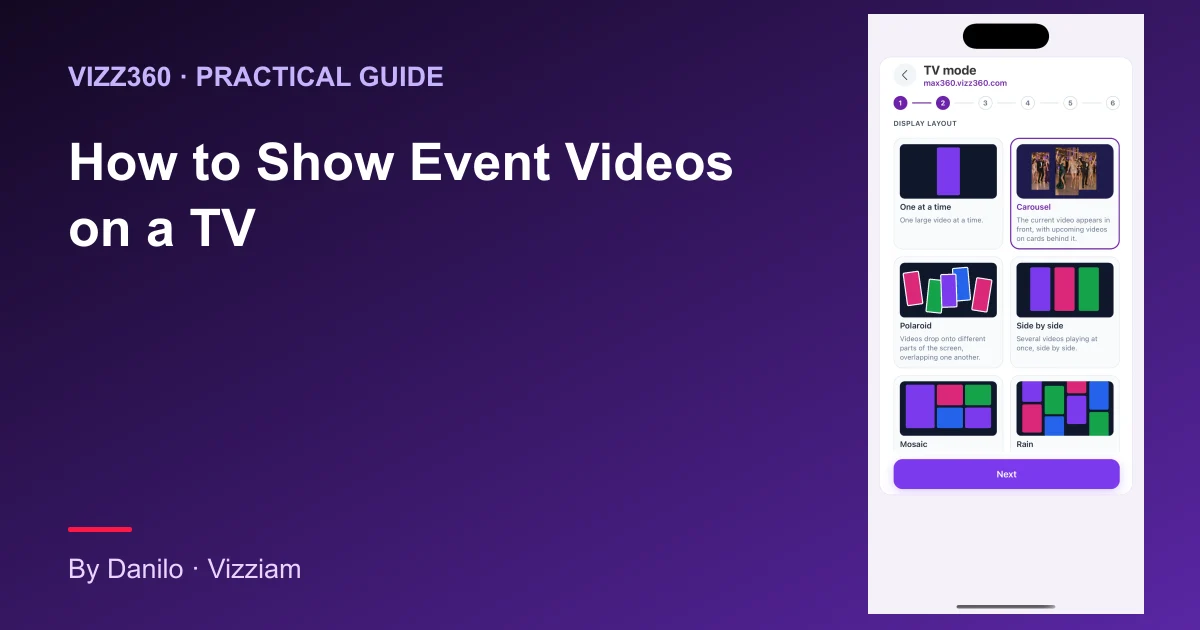
To display the videos on a TV, open the event and tap TV mode. The flow uses the event’s own link with a custom link and requires Plus access. The app’s guidance recommends opening the link on a laptop connected to the TV via HDMI.
Demonstration on the iPhone simulator, using Vizz360 7.39 and sample data. Some controls vary on Android and by plan.
Read the video steps
- Open the TV Mode demonstration to understand setup.
- Configure the display and test TV pairing before the event.
- Review the preview. TV playback needs a test on the actual equipment.
There is a screen at the venue and you want to display the event recordings for the audience. Setting up the screen path before the party helps you avoid relying on a Smart TV that has not yet been tested with the files.
Before you start
Have a TV, a compatible playback device, and a connection to access the online media. Check that the videos have already been uploaded and that the event is still within its active period. If you plan to use HDMI from a phone, confirm that the device supports that output.
How to do it
-
Open the event in Vizz360 and go to TV mode.
-
Copy the dedicated link shown on that screen.
-
Open the address on the laptop that will be used for the display.
-
Connect the laptop to the TV via HDMI and select the correct input on the television.
-
Adjust the TV Mode options according to the presentation you want.
-
Test with several videos and monitor playback before opening the screen to the audience.
Where to tap in the app
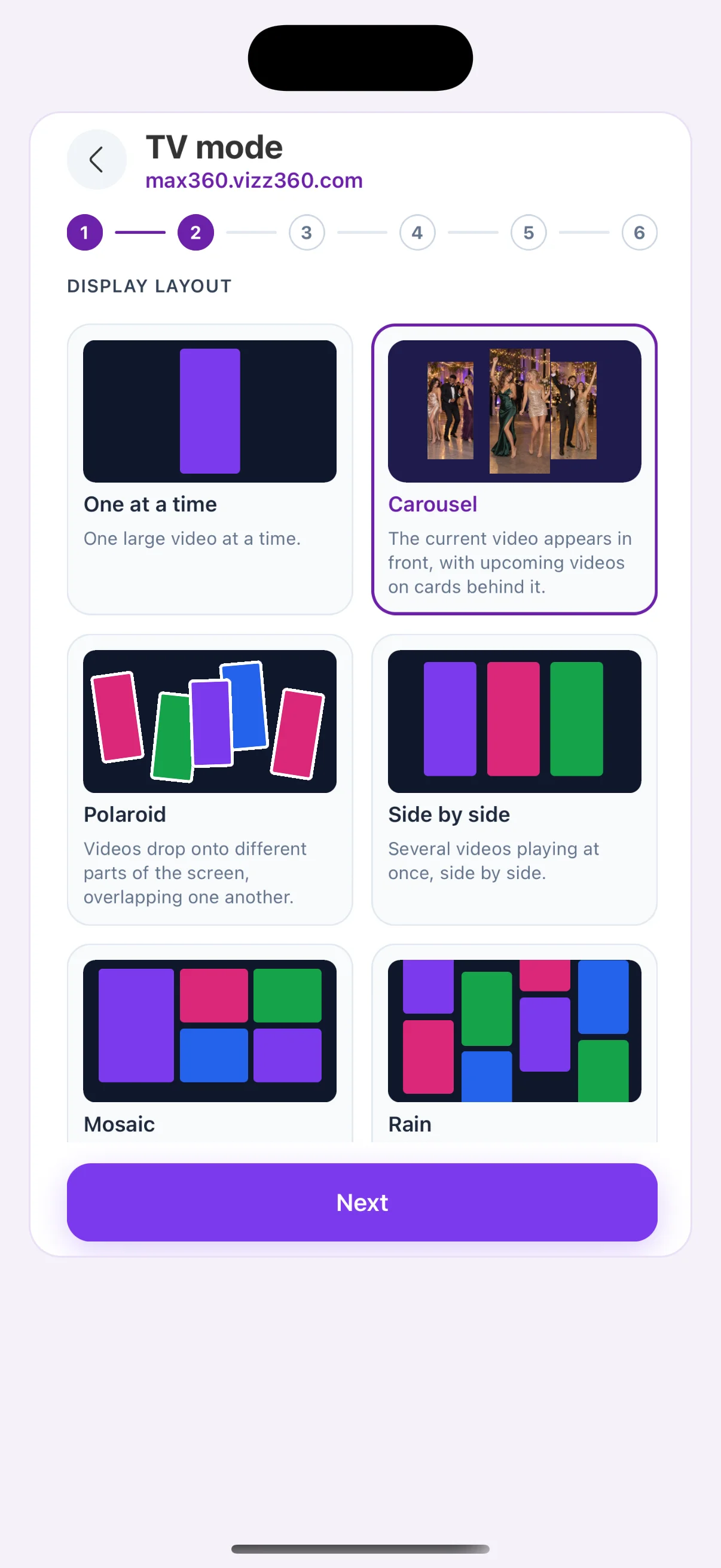
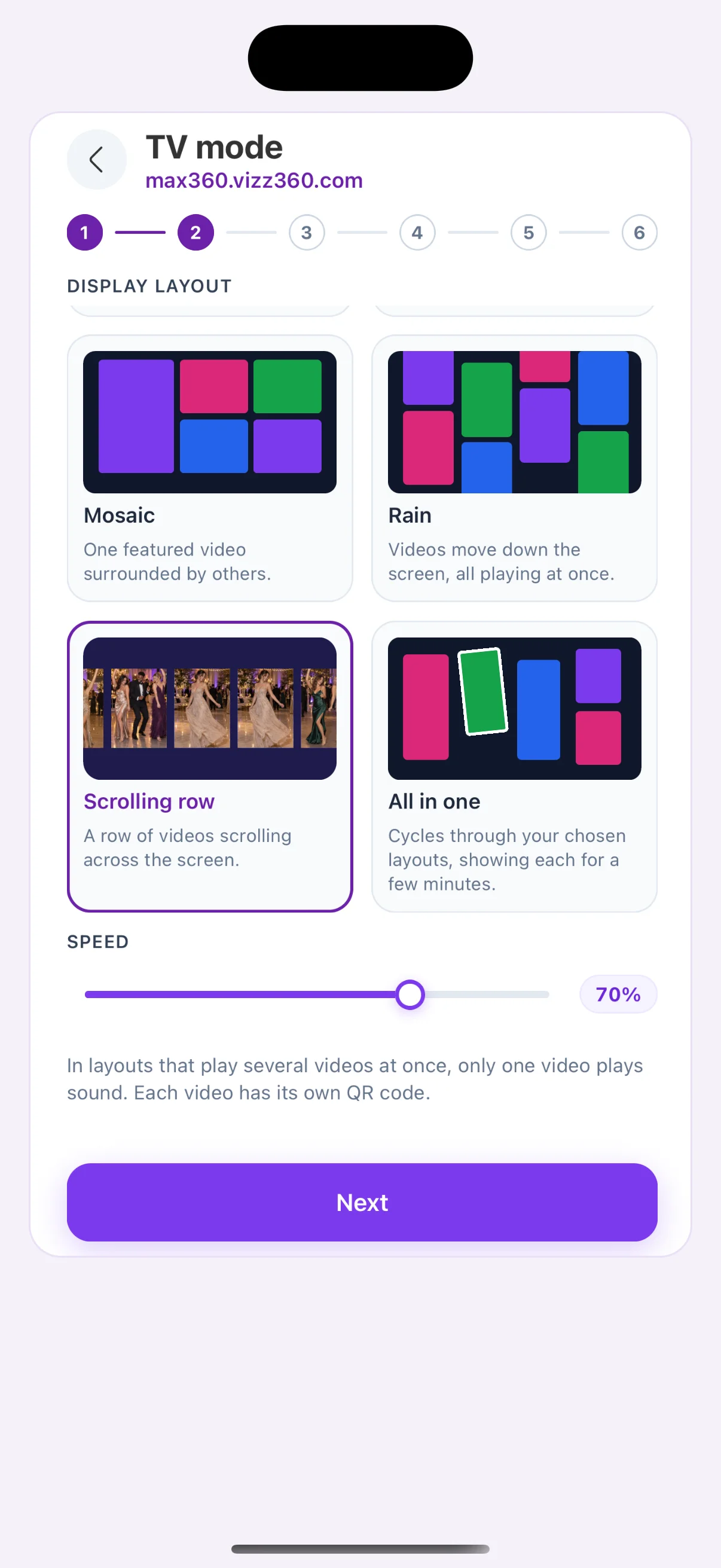
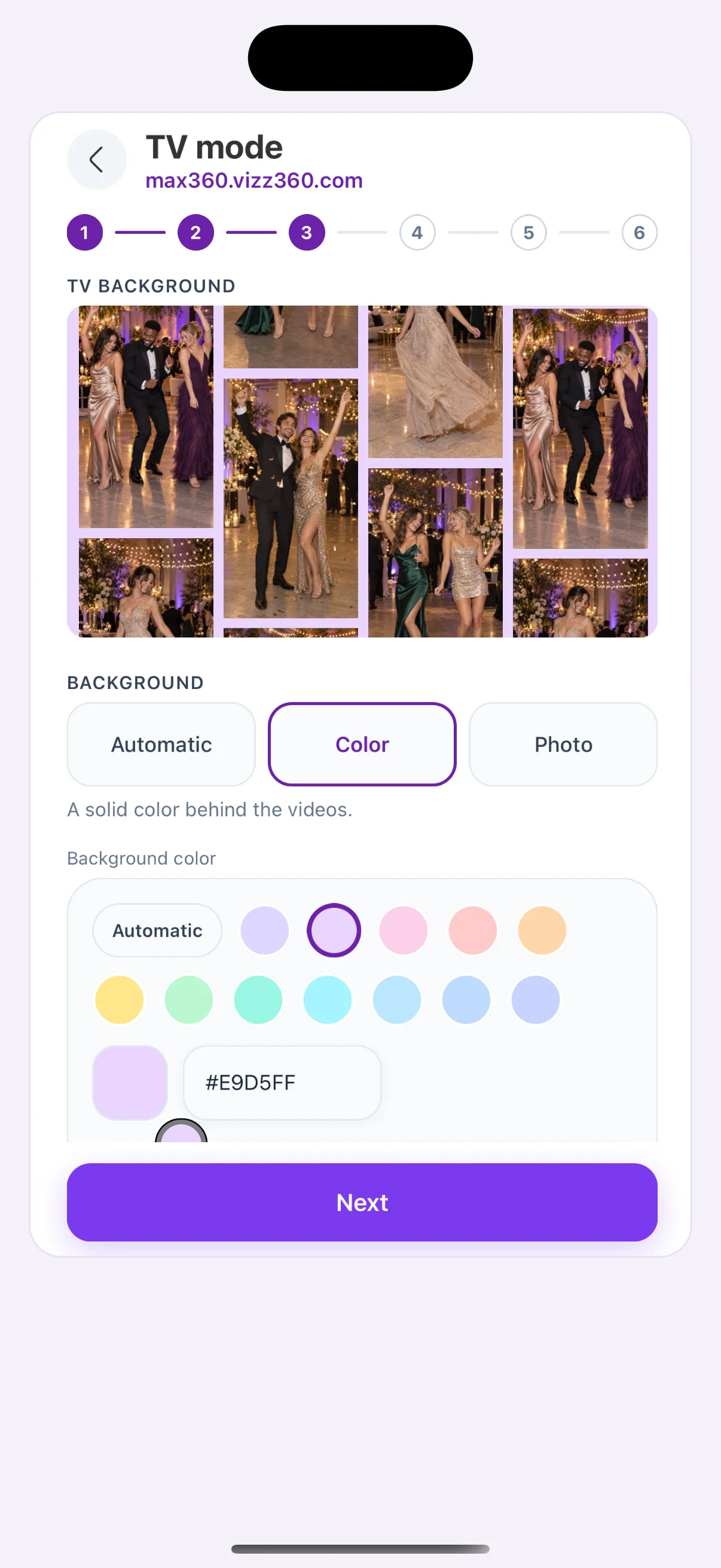
Check the result
Confirm the image, audio when needed, playback order, and continuity after the first media item. The test should run long enough to catch issues that do not appear when the link first opens.
If something does not work as expected
If you try opening it directly on a Smart TV, consider the browser’s memory limits: the app itself warns that it may play only the most recent videos. If the link is regenerated, the previous one stops working; update the playback device. If the account does not have access to the feature, the action may show the Plus presentation.
Quick questions
Is it the same link I send to the guest?
TV Mode provides its own address for display. Use the link from that screen to set up the presentation.
Can any phone send an image via HDMI?
No. Output depends on the device and compatible accessories. Confirm before setting up the operation.
Does the TV show videos that have not been uploaded yet?
Playback through the link depends on the media available online. Check the uploads before expecting them to display.
Continue in the app
Set up a test event in Vizz360 and check the full path before your next booking. You can find the app for iPhone and Android in the links below.
Also read: How to Choose a Video to Show on the TV Now; How to Create a Custom Link for the Event; Video Not Appearing in the Link? Check Pending Uploads.

Download Vizz360
Record, edit and share 360° videos in seconds, right from your phone. Free download for Android and iOS, with in-app purchases.


Related articles

How to Position and Resize the Kiosk Shutter Button
How to Position and Resize the Kiosk Shutter Button. See the Vizz360 steps, app screens and what to check before using it at an event.

How to Adjust Photo Framing Inside an AI Overlay
How to Adjust Photo Framing Inside an AI Overlay. See the Vizz360 steps, app screens and what to check before using it at an event.

How to Change Your Vizz360 Account Email
How to Change Your Vizz360 Account Email. See the Vizz360 steps, app screens and what to check before using it at an event.