
How to create an overlay with artificial intelligence in Vizz360
Create an AI overlay in Vizz360 by describing the theme and choosing the style and format. Check credits and review the artwork before using it at the event.



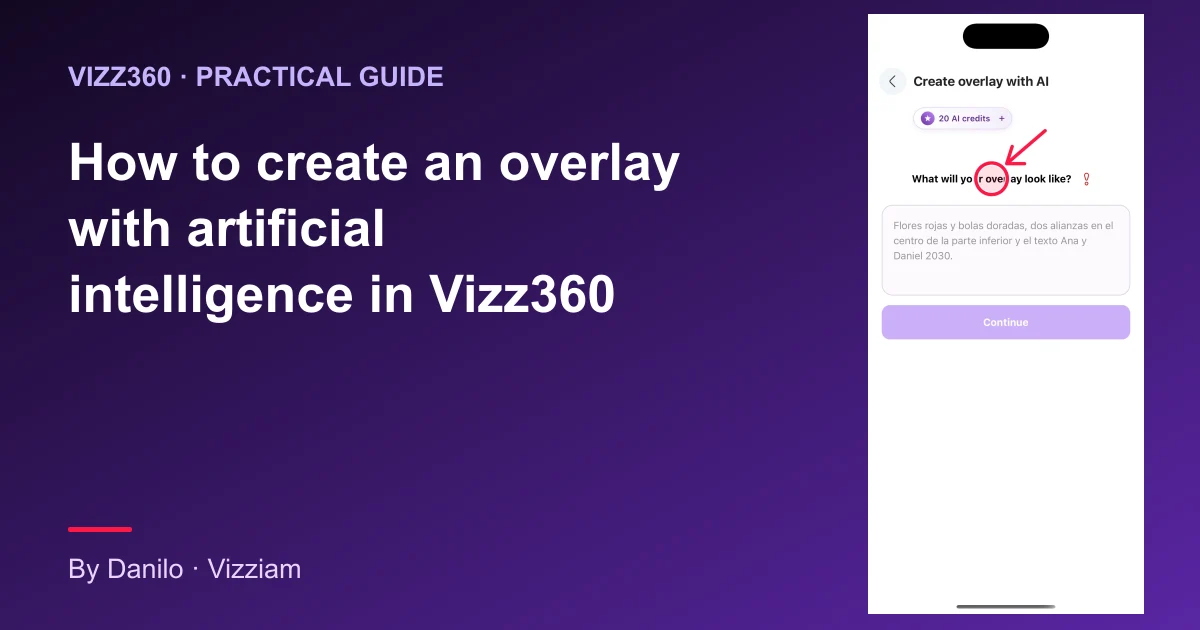
In the Create overlay with AI flow, describe your idea and choose the style and border format. Before generating, Vizz360 checks your credits and shows Confirm and generate. The asset needs to be reviewed before being added to the event.
Demonstration on the iPhone simulator, using Vizz360 7.39 and sample data. Some controls vary on Android and by plan.
Read the video steps
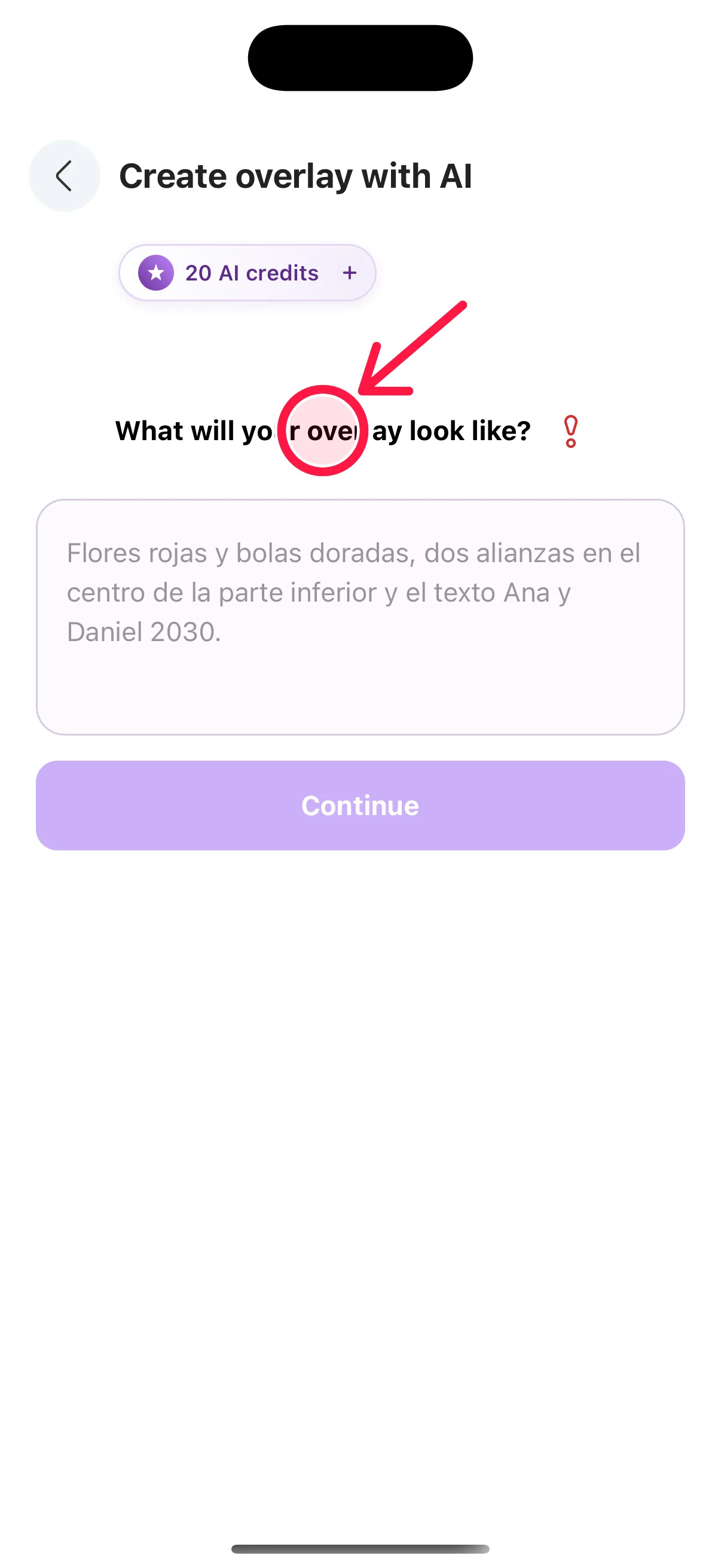
- Describe the overlay theme, colors and elements.
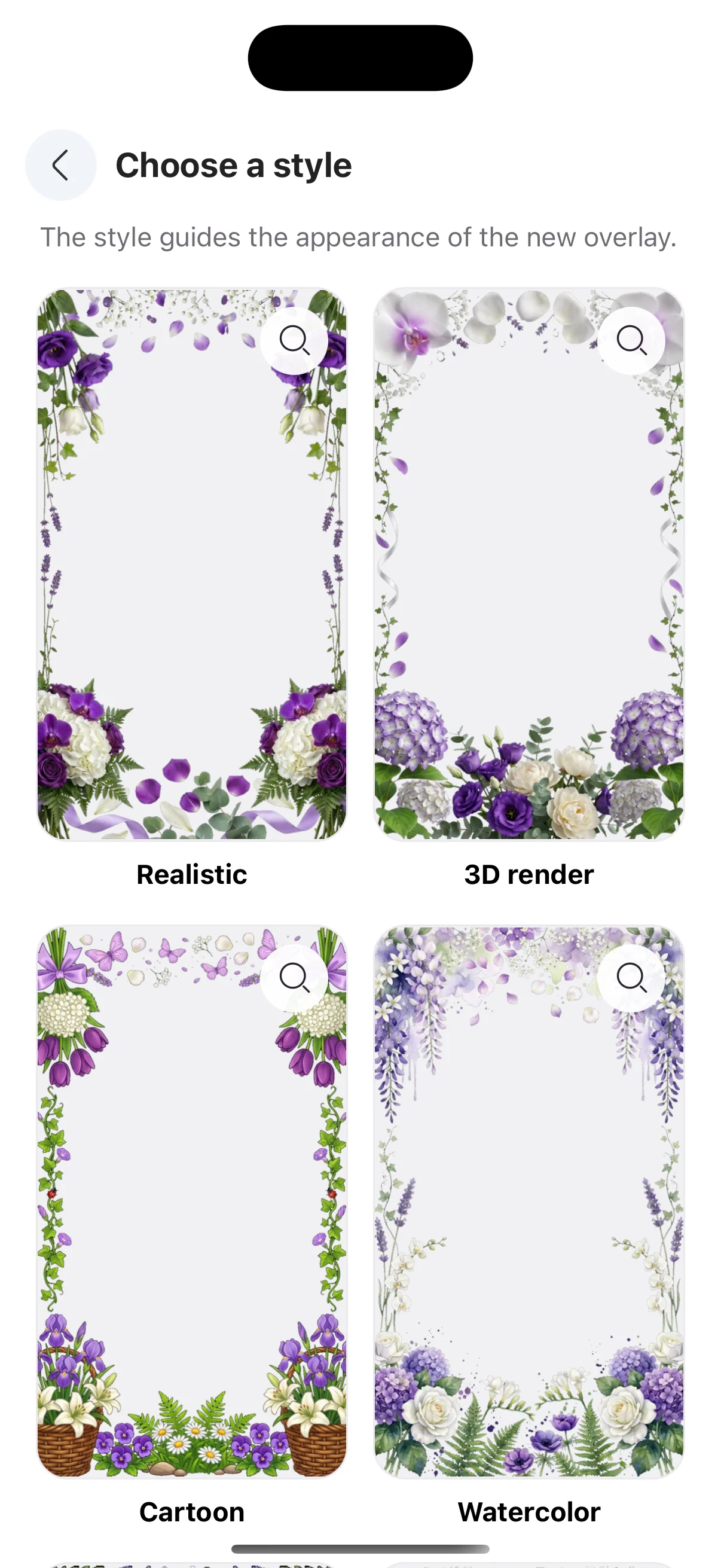
- Choose the overlay’s visual style.
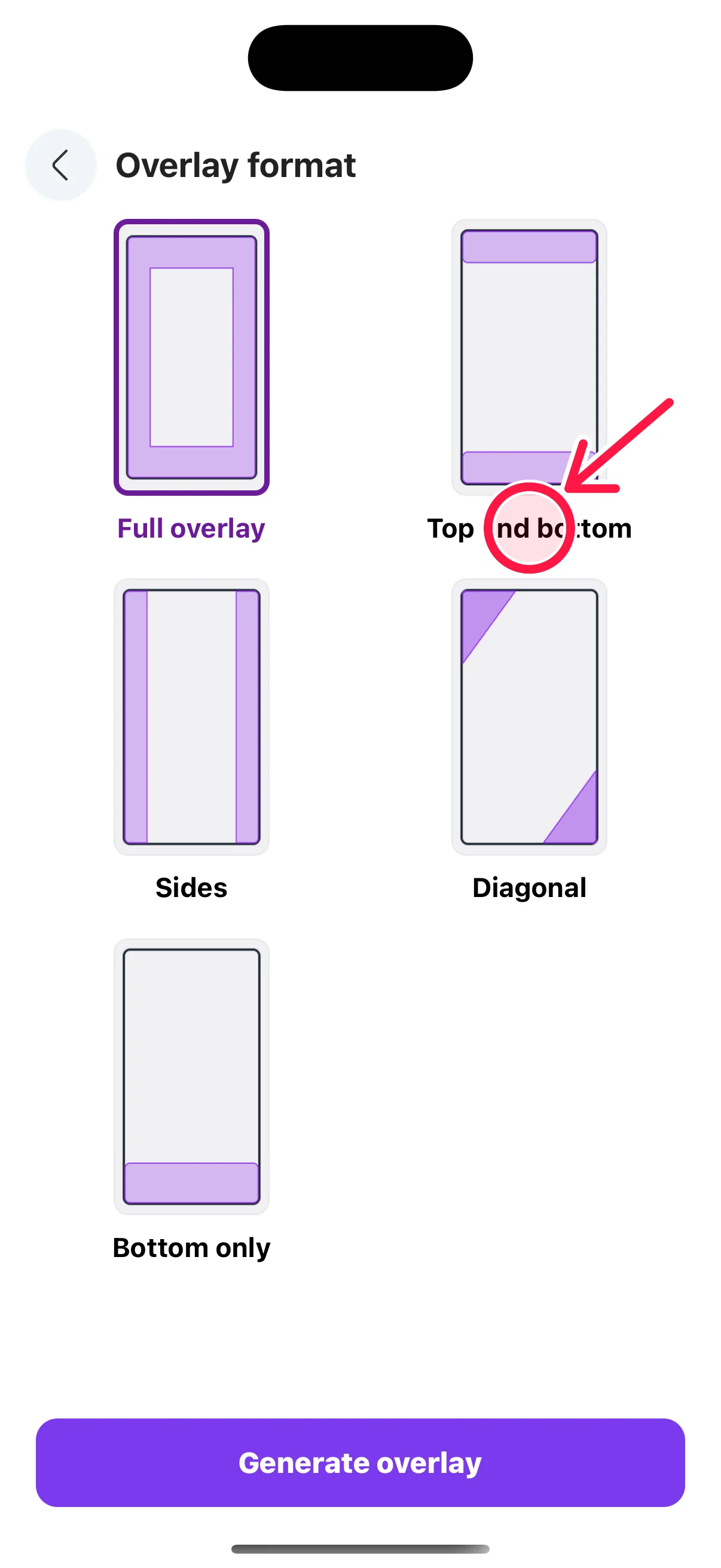
- Choose which borders should contain the artwork.
You have a theme idea and want to generate an overlay to review later in the event. A well-organized description helps turn the theme into a border that leaves space for the guests.
Before you start
Make sure you have an internet connection and check your overlay credit balance. Prepare a description with the theme, colors, and main elements. Avoid relying on the generation to automatically get names, logos, and dates right: these details need to be checked and edited.
How to do it
-
Open AI overlay creation from the app’s overlays flow.
-
Describe the theme and desired composition, including where the photo or video area should remain clear.
-
Choose the visual style from the options shown.
-
Under Overlay format, select the border that fits your concept.
-
Check your balance and the generation confirmation. Tap Confirm and generate when you’re ready.
-
Open the result, review the artwork, and test how it applies to the event before serving guests.
Where to tap in the app
Check the result
Check transparency, borders, aspect ratio, readability, and space for faces. Also look for unexpected elements or malformed details. The result should support the real composition, not just look interesting as a standalone image.
If something does not turn out as expected
If credits cannot be verified, check your connection and wait for the query before repeating the request. If the balance is not enough, review the credit options on the corresponding screen. If the artwork covers people, adjust the composition and the file before using it; a completed generation is not an automatic quality approval.
Quick questions
Are AI Photos credits the same as overlay credits?
The flows have separate balance checks. Check the credit shown on the overlays screen for this generation.
Can I use the first image without reviewing it?
Check the result and how it applies to the event. AI can produce unexpected details, including in text and brand elements.
Does this already configure the photo spaces for the kiosk?
The artwork and the space configuration are different tasks. In the kiosk, review Configure this overlay before operating.
Continue in the app
Prepare a test event in Vizz360 and check the full path before your next booking. You can find the app for iPhone and Android in the links below.
Also read: Overlay for 360 photo booth: size, transparency, and customization; How to import a PNG overlay for a 360 video; How to check AI Photos and overlay credits.

Download Vizz360
Record, edit and share 360° videos in seconds, right from your phone. Free download for Android and iOS, with in-app purchases.


Related articles

How to Position and Resize the Kiosk Shutter Button
How to Position and Resize the Kiosk Shutter Button. See the Vizz360 steps, app screens and what to check before using it at an event.

How to Adjust Photo Framing Inside an AI Overlay
How to Adjust Photo Framing Inside an AI Overlay. See the Vizz360 steps, app screens and what to check before using it at an event.

How to Change Your Vizz360 Account Email
How to Change Your Vizz360 Account Email. See the Vizz360 steps, app screens and what to check before using it at an event.