
How to Create a 360 Photo Booth Event in Vizz360
Create your 360 photo booth event in Vizz360: name, date, effect, link, QR, overlay, and music. See what to review before recording.



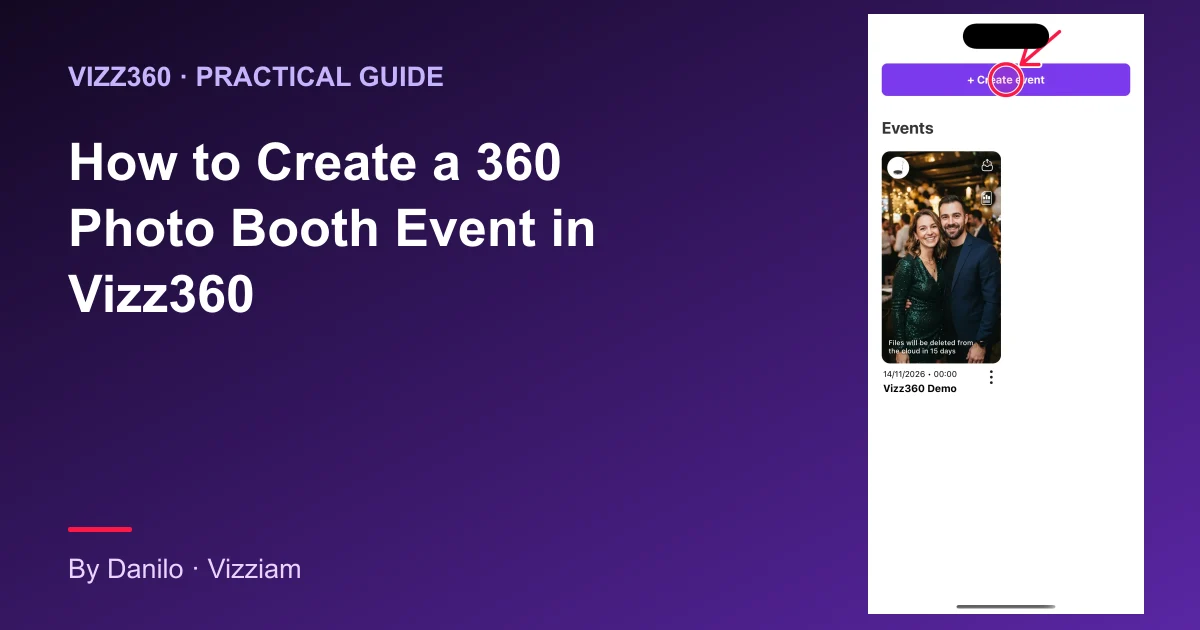
To create a 360 photo booth event, tap + Create event in Vizz360 and choose 360 Photo Booth. Then fill in the details and go through the effect, link, QR code, overlay, and music steps.
Demonstration on the iPhone simulator, using Vizz360 7.39 and sample data. Some controls vary on Android and by plan.
Read the video steps
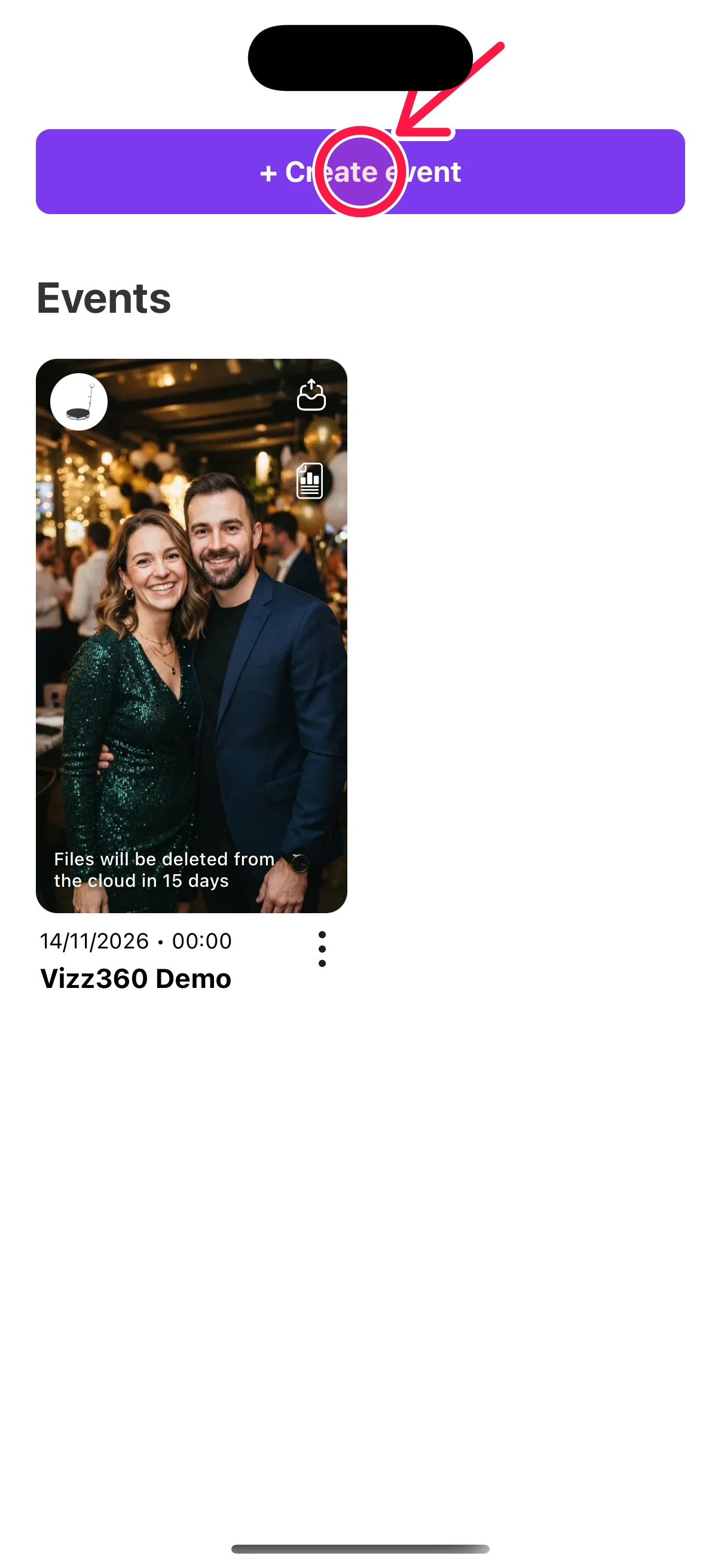
- Tap + Create event to get started.
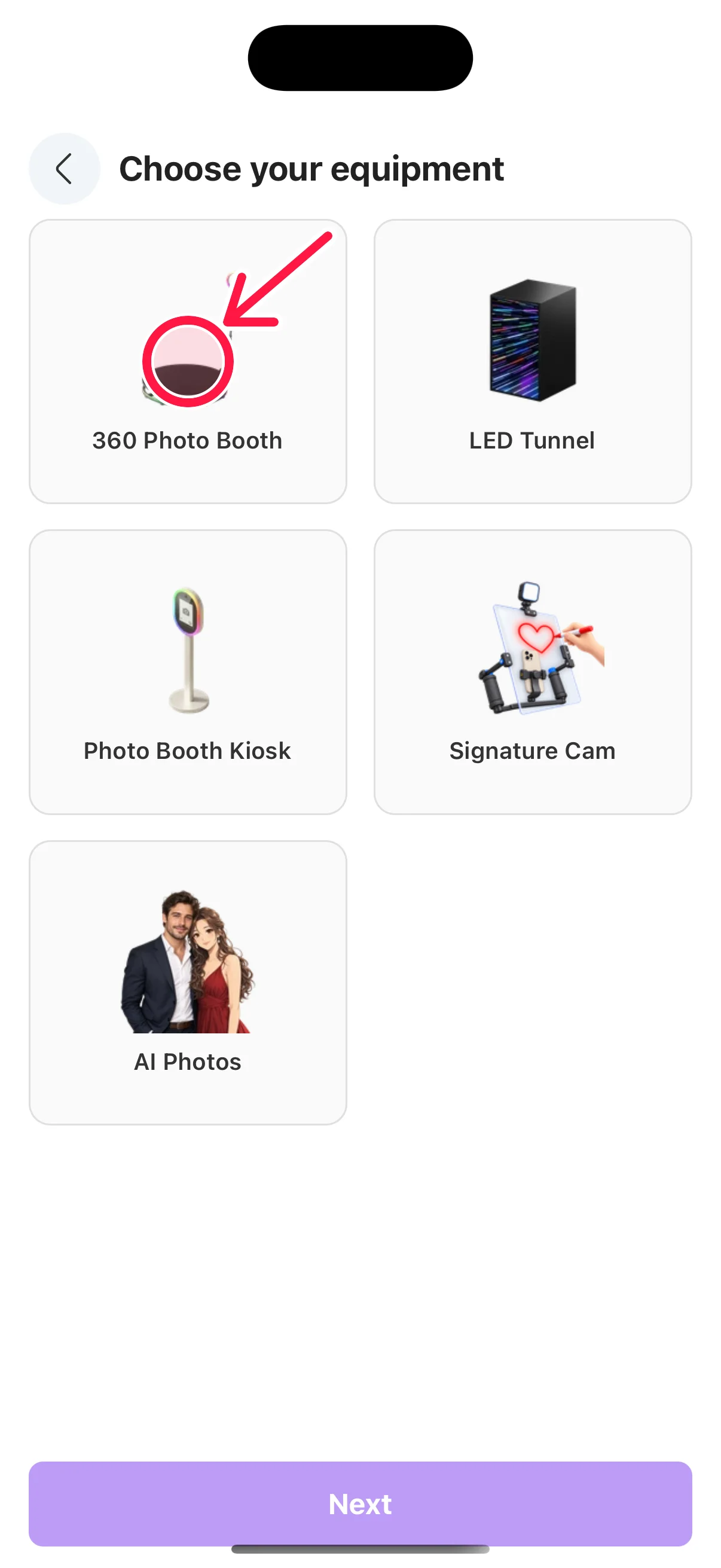
- Select 360 Photo Booth and continue.
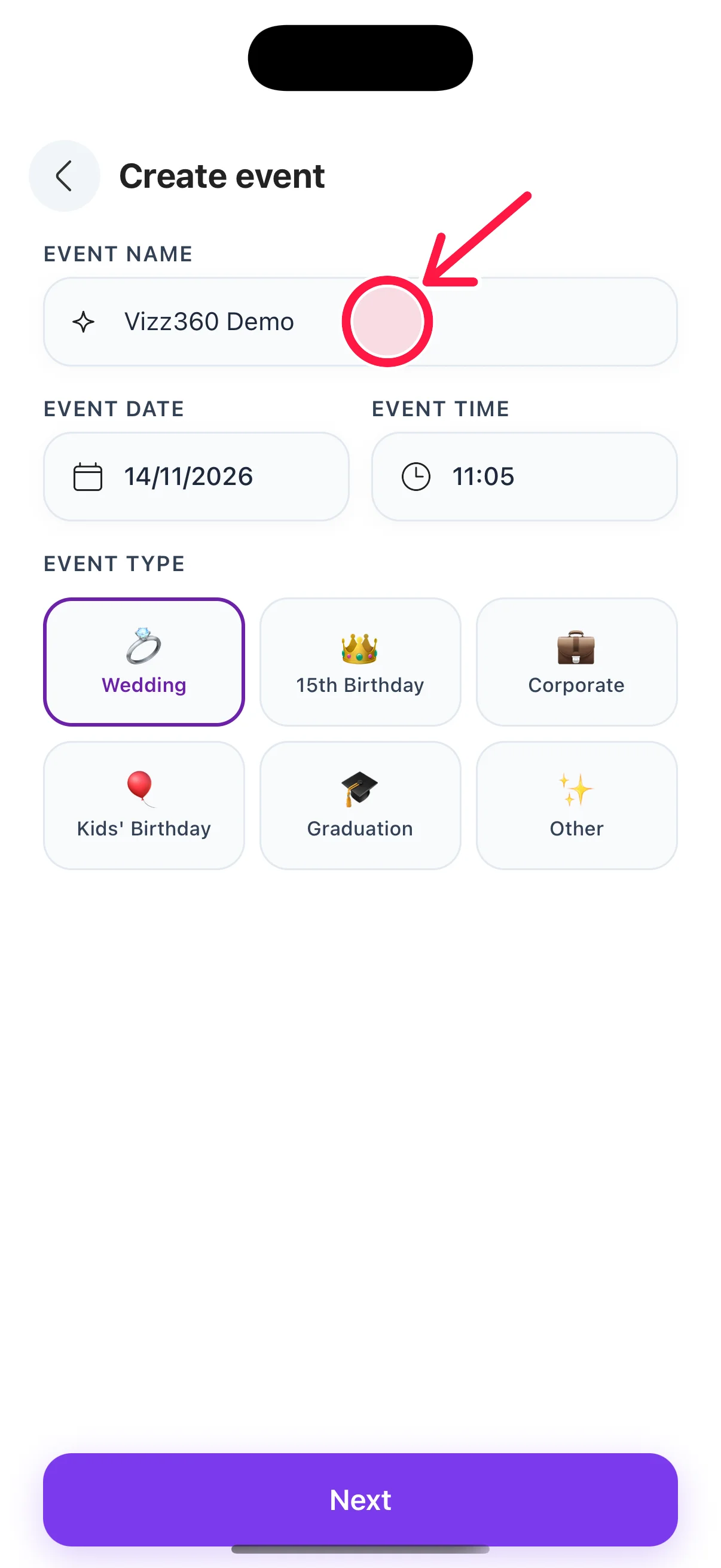
- Enter the event name and check its date and time.
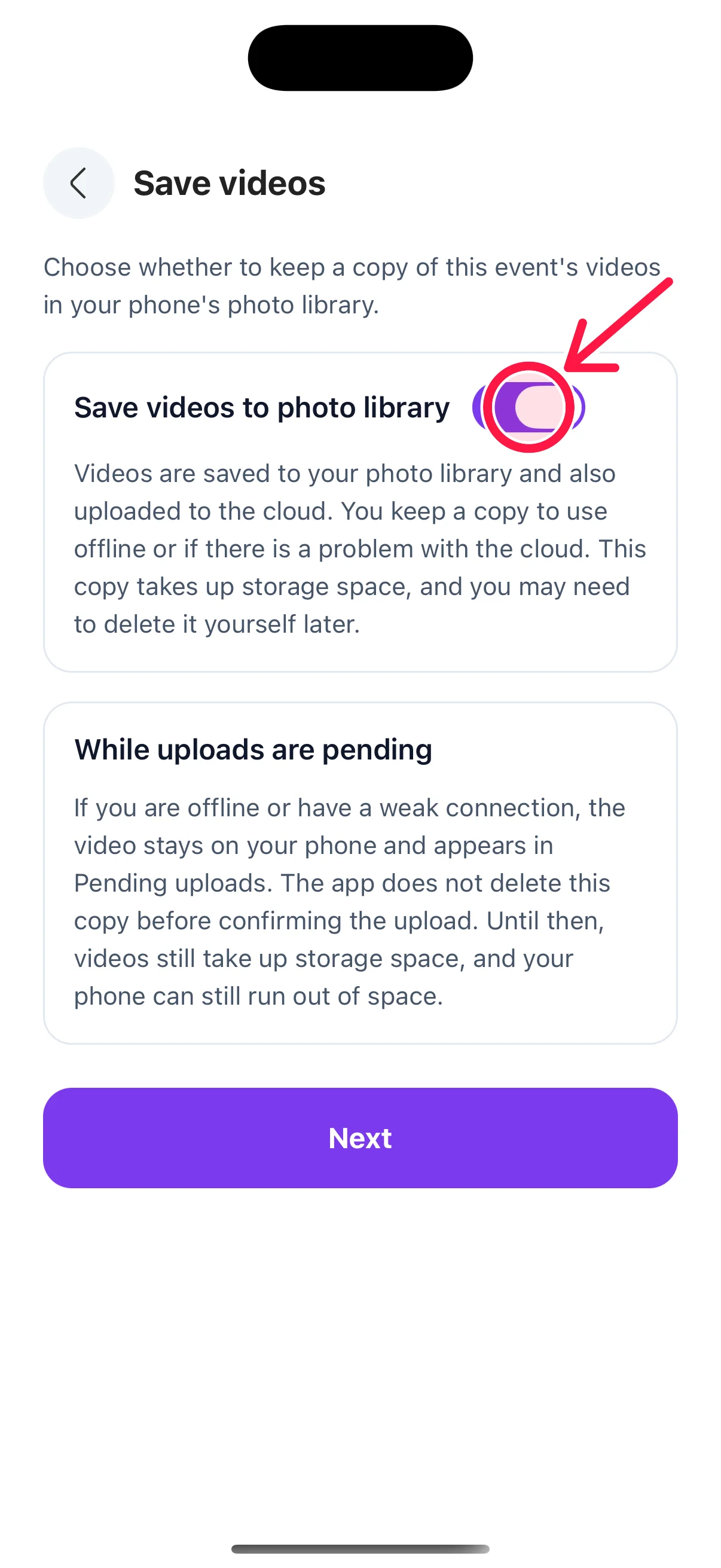
- Enable Save videos to photo library to keep a copy on the phone.
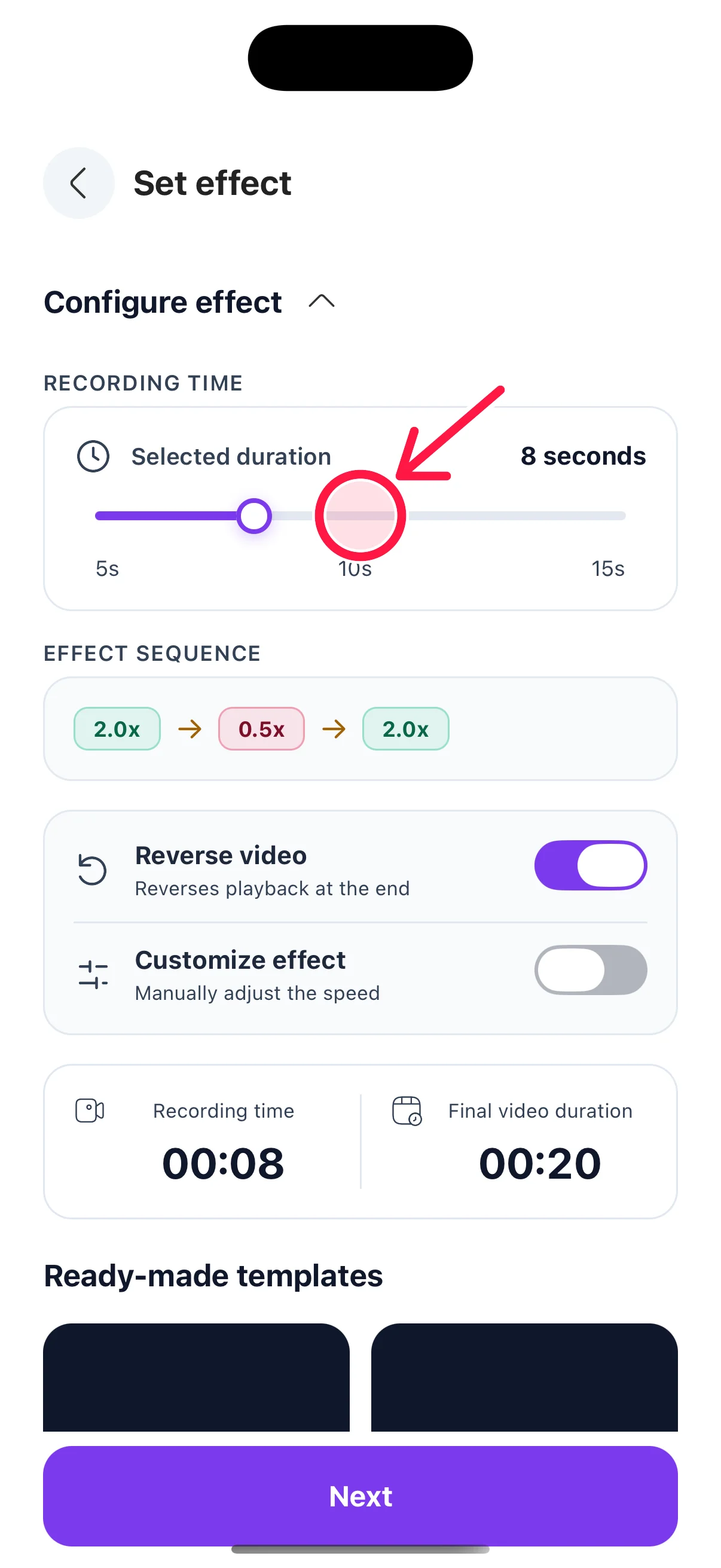
- Expand Configure effect and adjust Recording time.
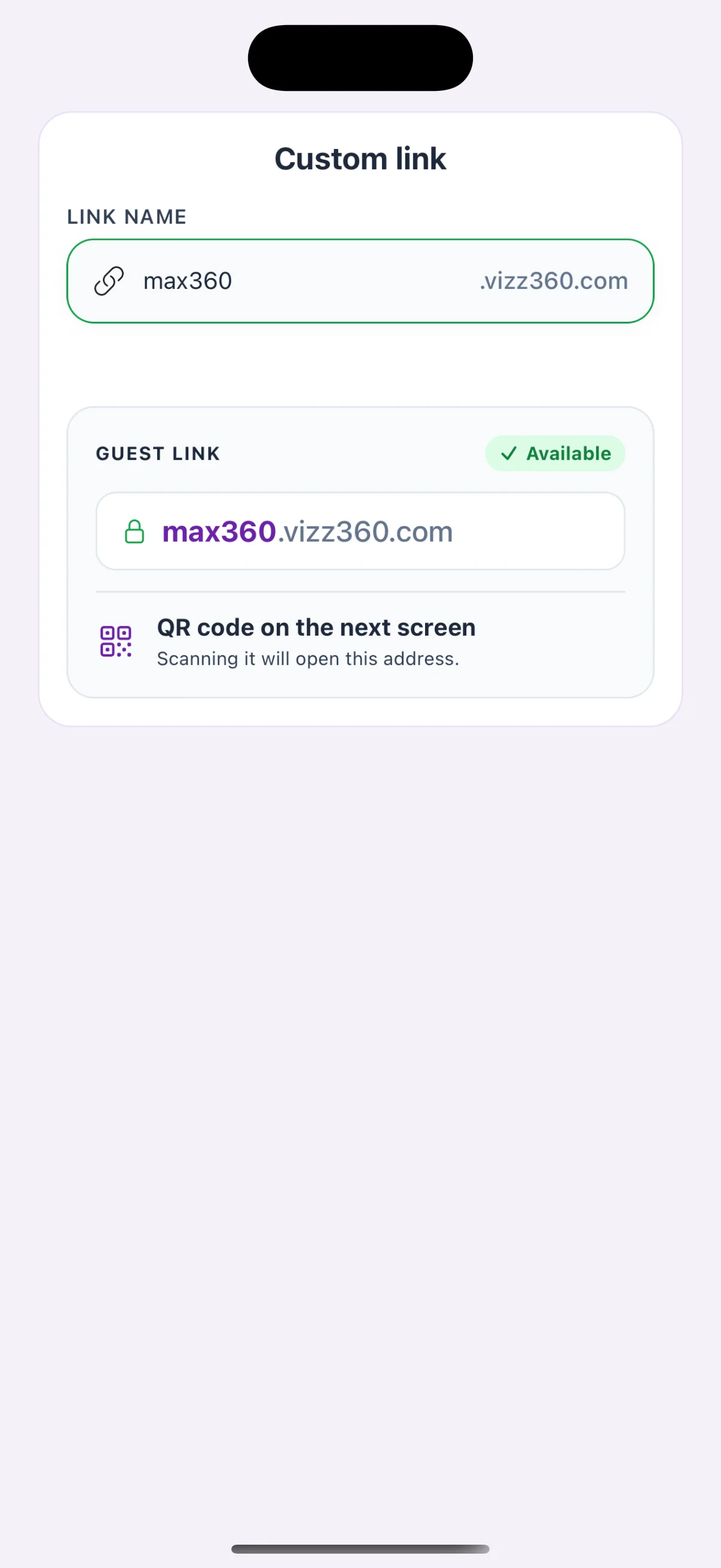
- Open Custom link during event creation.
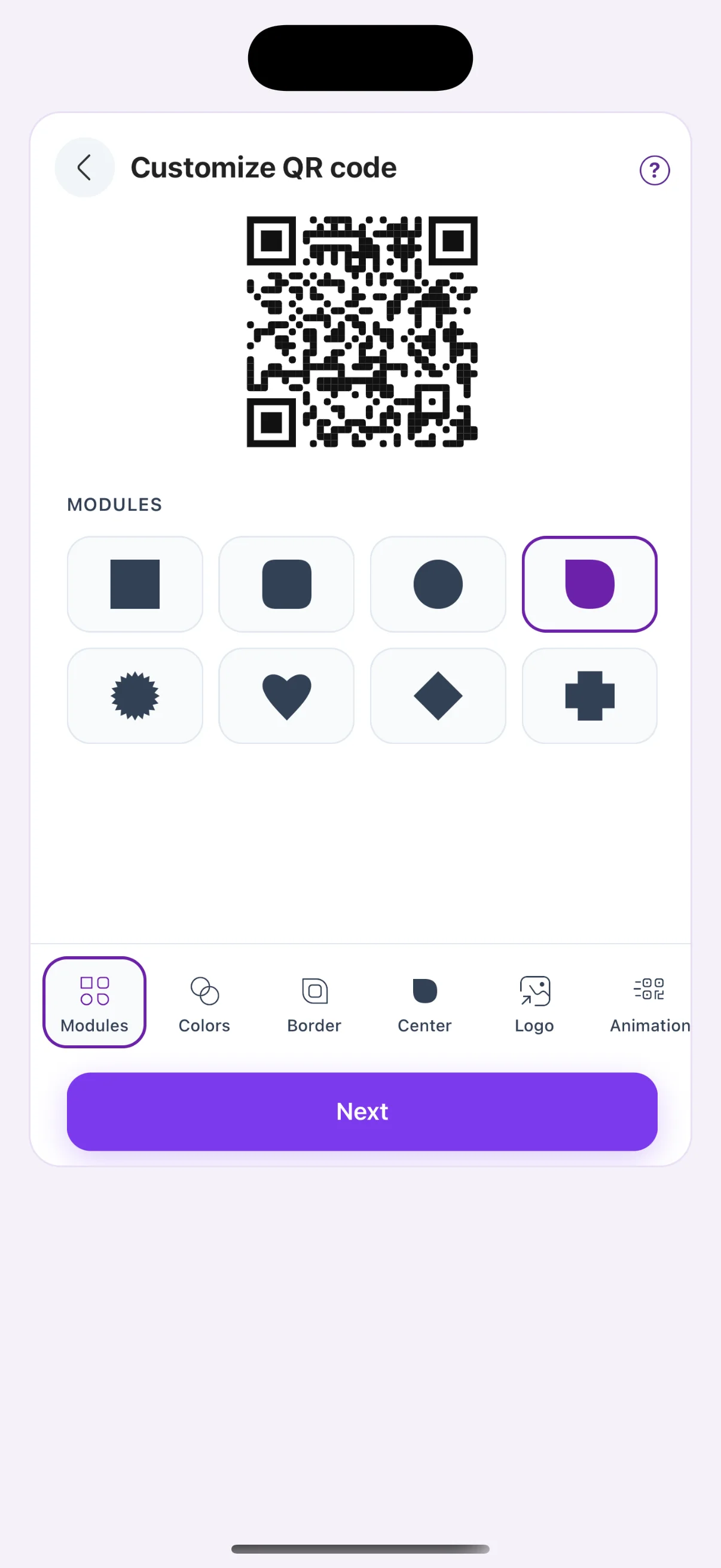
- Open QR Code settings during creation.
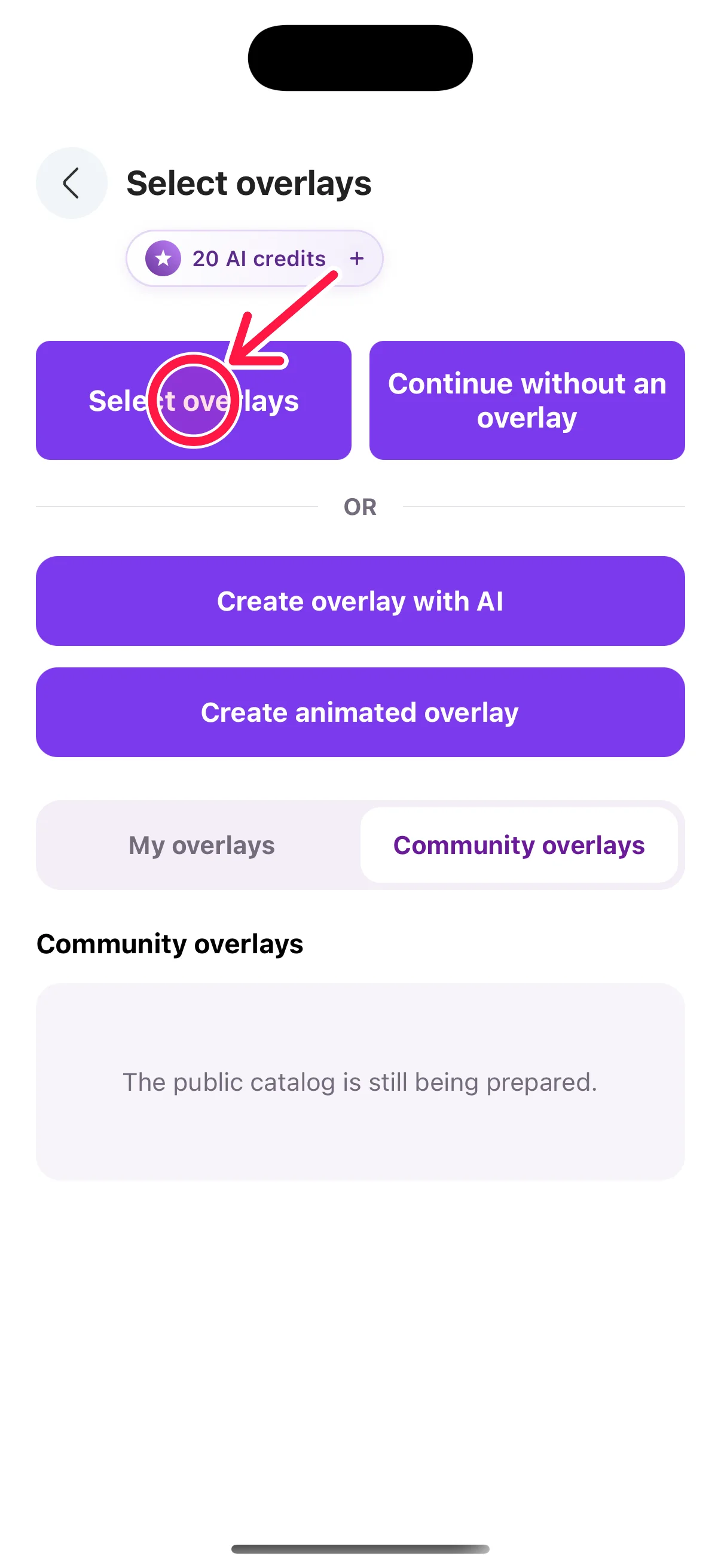
- Tap Select overlays to import your artwork.
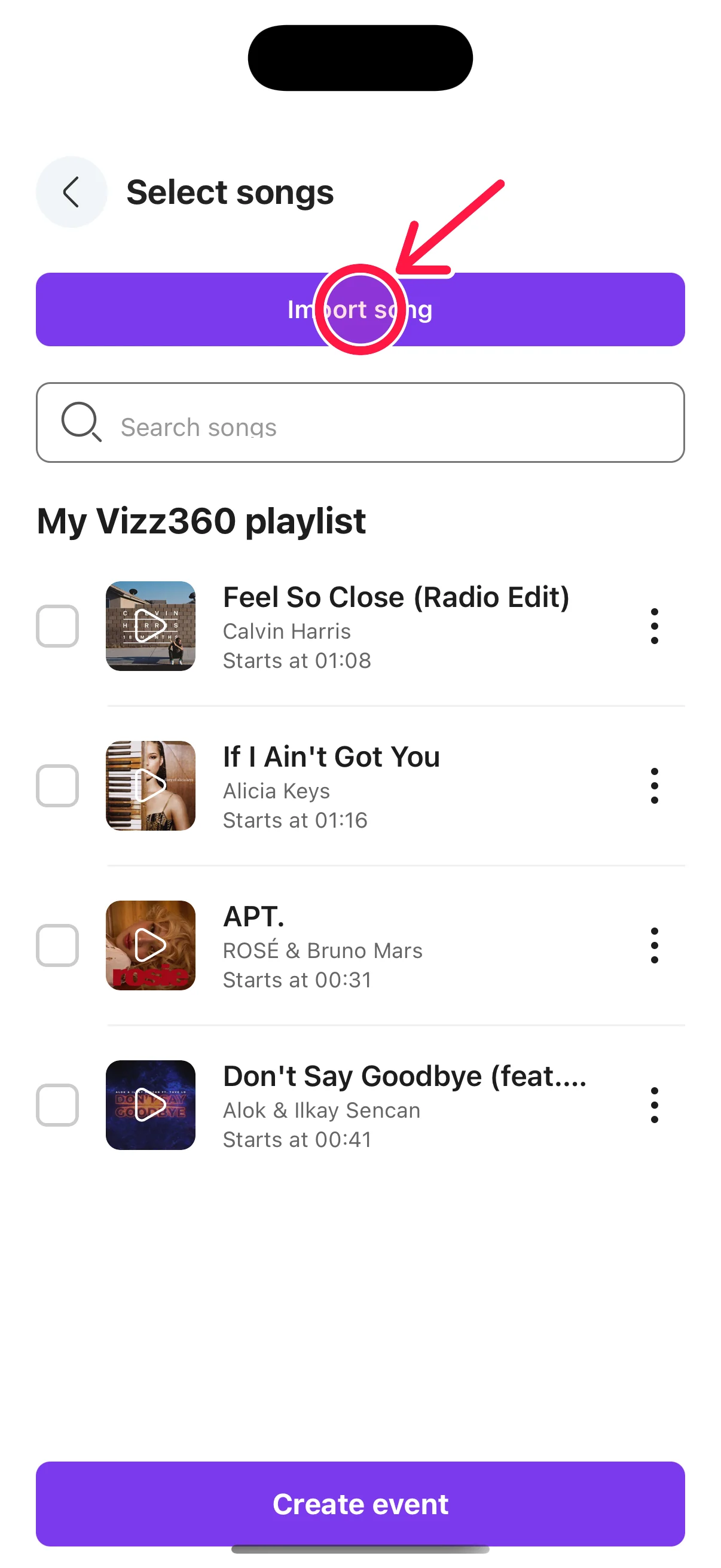
- On the music selection screen, tap Import music.
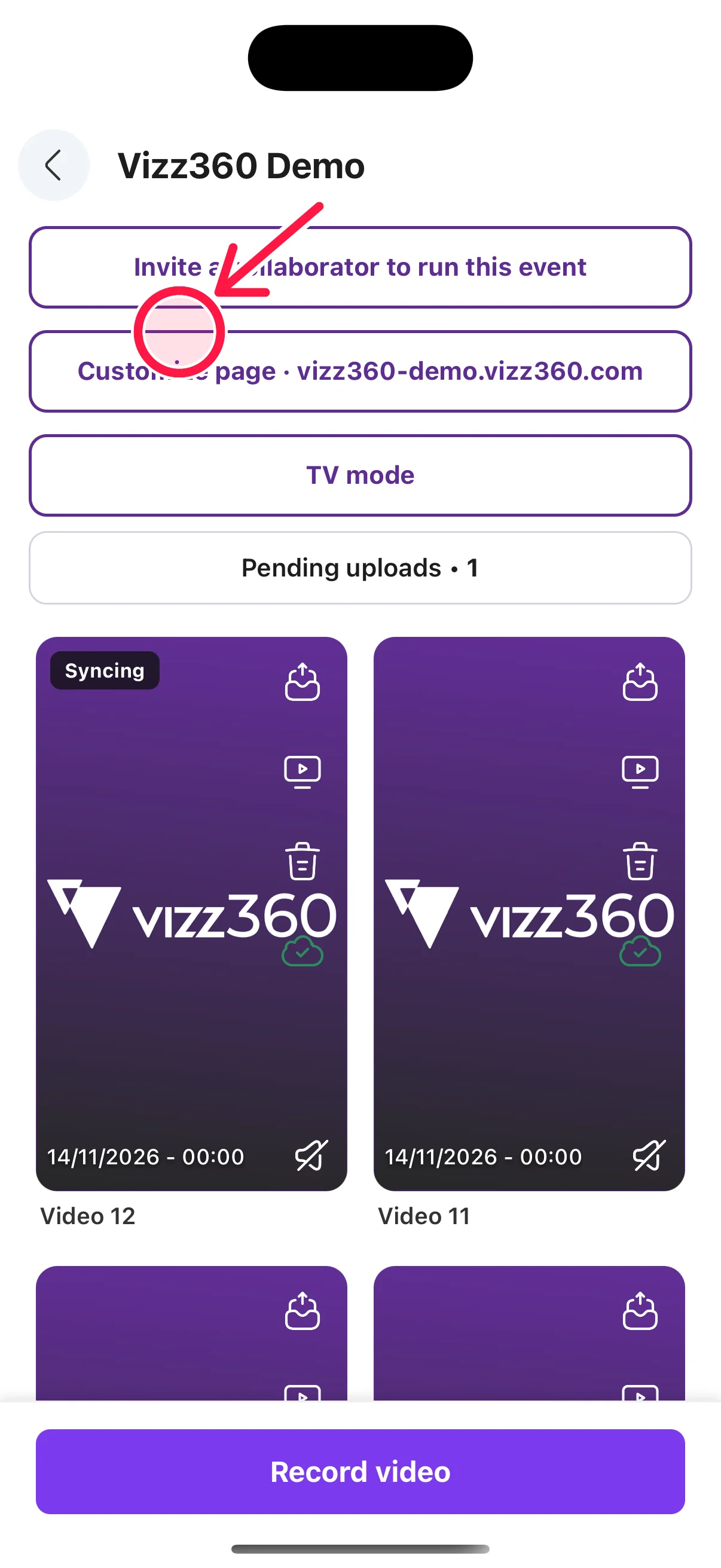
- Inside the event, choose the guest’s video.
Your next event is already booked, and you want to arrive with the name, effect, music, and overlay organized. Setting this up in advance also lets you do a test recording without the pressure of a line.
Before you start
Have the correct name and date, plus the artwork and track you plan to use. Features such as ready-made templates, multiple songs, and multiple overlays have access requirements, including Plus. Check the Plans screen before building an operation that depends on these options.
How to do it
-
On the Home screen, tap + Create event and select 360 Photo Booth.
-
Fill in Event name, Event date, and Event time. Check the date carefully: it also guides how long media stays in the cloud.
-
Under Set effect, adjust the standard configuration or choose a template available with your access.
-
Continue through the Custom link and QR code steps. If you are not using plan-based customization, continue with the options available in your account.
-
Under Select overlay, choose the artwork you want or use Continue without an overlay when that makes sense for the test.
-
Select the music, complete the steps shown, and open the event you created to make a test recording.
Where to tap in the app
Check the result
Play the final video and check the framing, overlay, music, and speed. Then share a media file with another phone. An event that is ready for operation includes both capture and delivery working on your device.
If something does not go as expected
Artwork with the wrong proportions, the wrong music segment, and an incorrect date are adjustments worth fixing before serving guests. If you will be working without internet, open the event while connected first to download the necessary materials on that device. Do not assume that a file that exists on another phone is already available locally.
Quick questions
Does creating the event already record a video?
No. Creation organizes the settings; capture happens when you enter the event and start recording.
Can I continue without an overlay?
The selection includes Continue without an overlay. Check whether that choice matches the delivery agreed with the client.
Can I change the music later?
There is a Change song action in the event options. The change should be checked in the next recordings, without assuming automatic changes to older files.
Continue in the app
Prepare a test event in Vizz360 and review the full workflow before your next booking. You can find the app for iPhone and Android in the links below.
Also read: How to choose the recording time for a 360 video; How to import a PNG overlay for a 360 video; How to import music for an event in Vizz360.

Download Vizz360
Record, edit and share 360° videos in seconds, right from your phone. Free download for Android and iOS, with in-app purchases.


Related articles

How to Position and Resize the Kiosk Shutter Button
How to Position and Resize the Kiosk Shutter Button. See the Vizz360 steps, app screens and what to check before using it at an event.

How to Adjust Photo Framing Inside an AI Overlay
How to Adjust Photo Framing Inside an AI Overlay. See the Vizz360 steps, app screens and what to check before using it at an event.

How to Change Your Vizz360 Account Email
How to Change Your Vizz360 Account Email. See the Vizz360 steps, app screens and what to check before using it at an event.