
How to share an individual video in Vizz360
Deliver only the guest’s video in Vizz360. Learn how to open individual sharing, use a link or QR code, and check the upload.



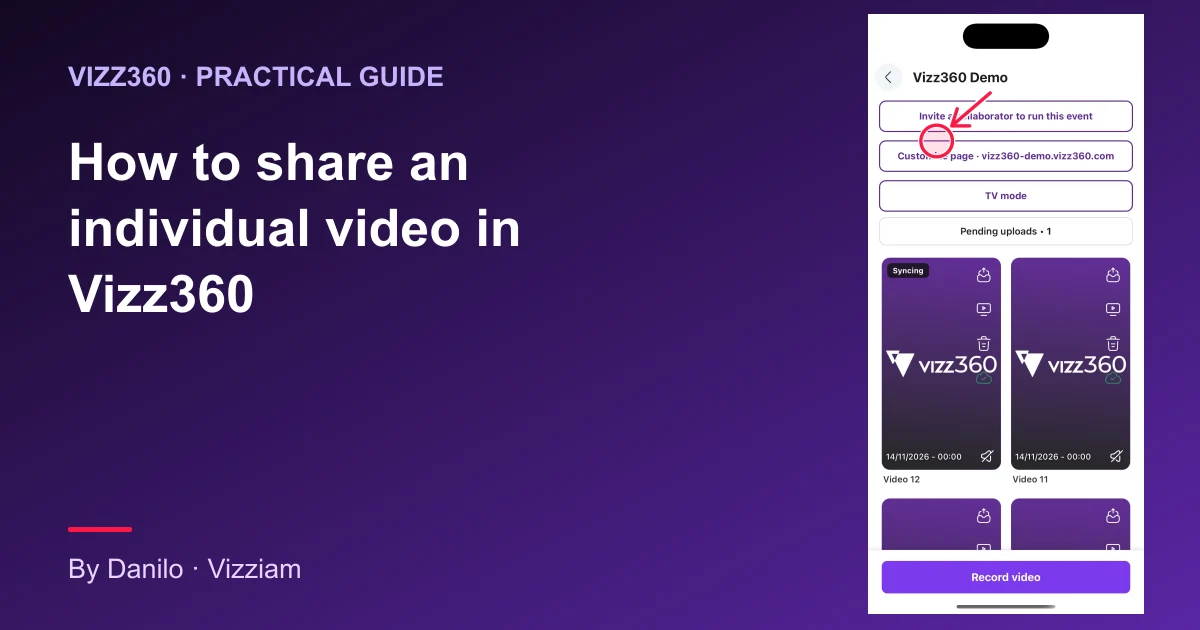
To share just one video in Vizz360, open the event and tap the sharing option for the recording you want. In the Share video window, use the online link or QR code to deliver that specific media file.
Demonstration on the iPhone simulator, using Vizz360 7.39 and sample data. Some controls vary on Android and by plan.
Read the video steps
- Inside the event, choose the guest’s video.
- For one video, use that recording’s share options.
- Copy this video’s link and open it on another phone to check it.
A guest just finished recording and wants to receive only their own video. This option keeps you from sending the full gallery when the person only needs to find their own recording.
Before you start
Identify the right video from the preview and wait for processing to finish. To deliver it through an online link, the upload must be complete. Make sure you have a connection available both to upload the media and for the guest to open the page.
How to do it
-
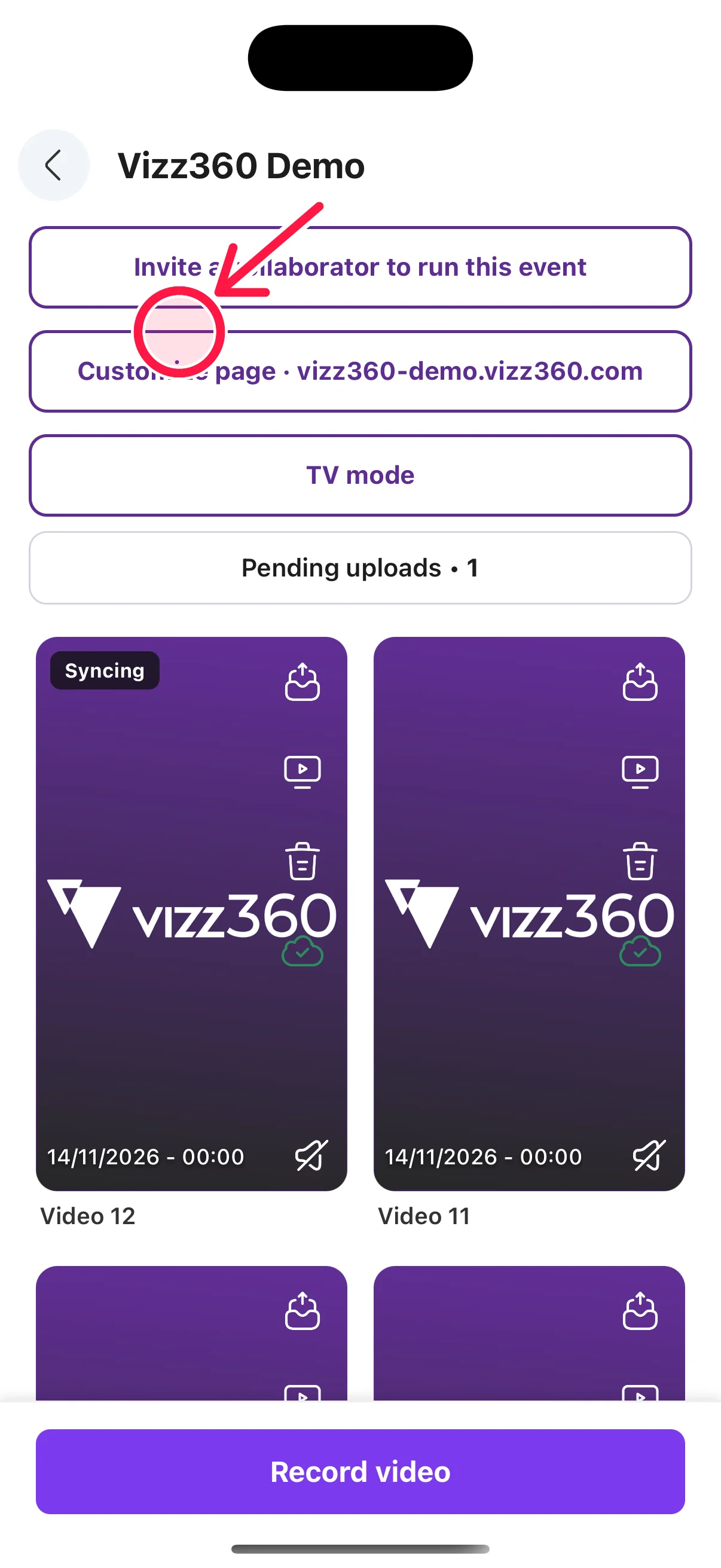
On the home screen, open the event where the recording was made.
-
Find the video and check the preview to recognize the people and the shot you want.
-
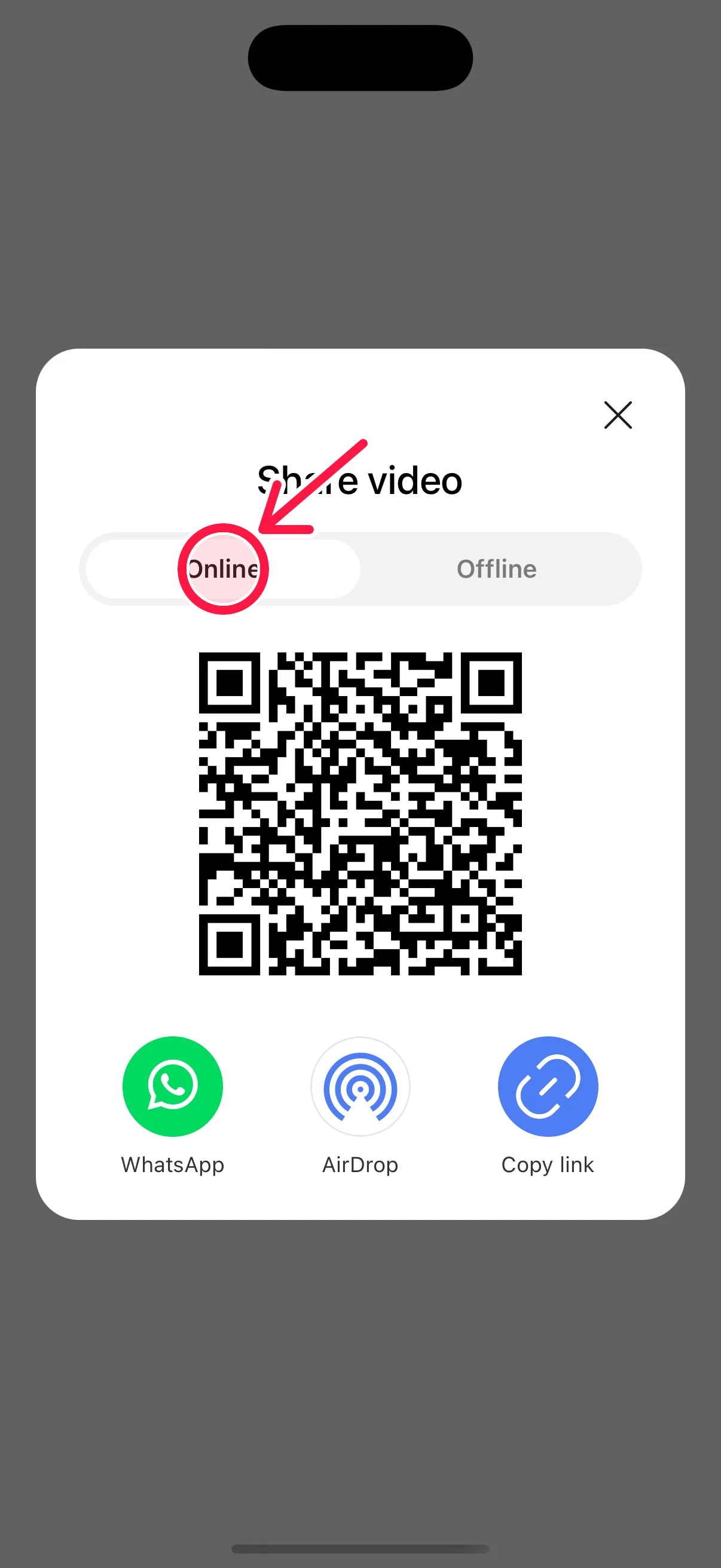
Tap the sharing icon for that video to open Share video.
-
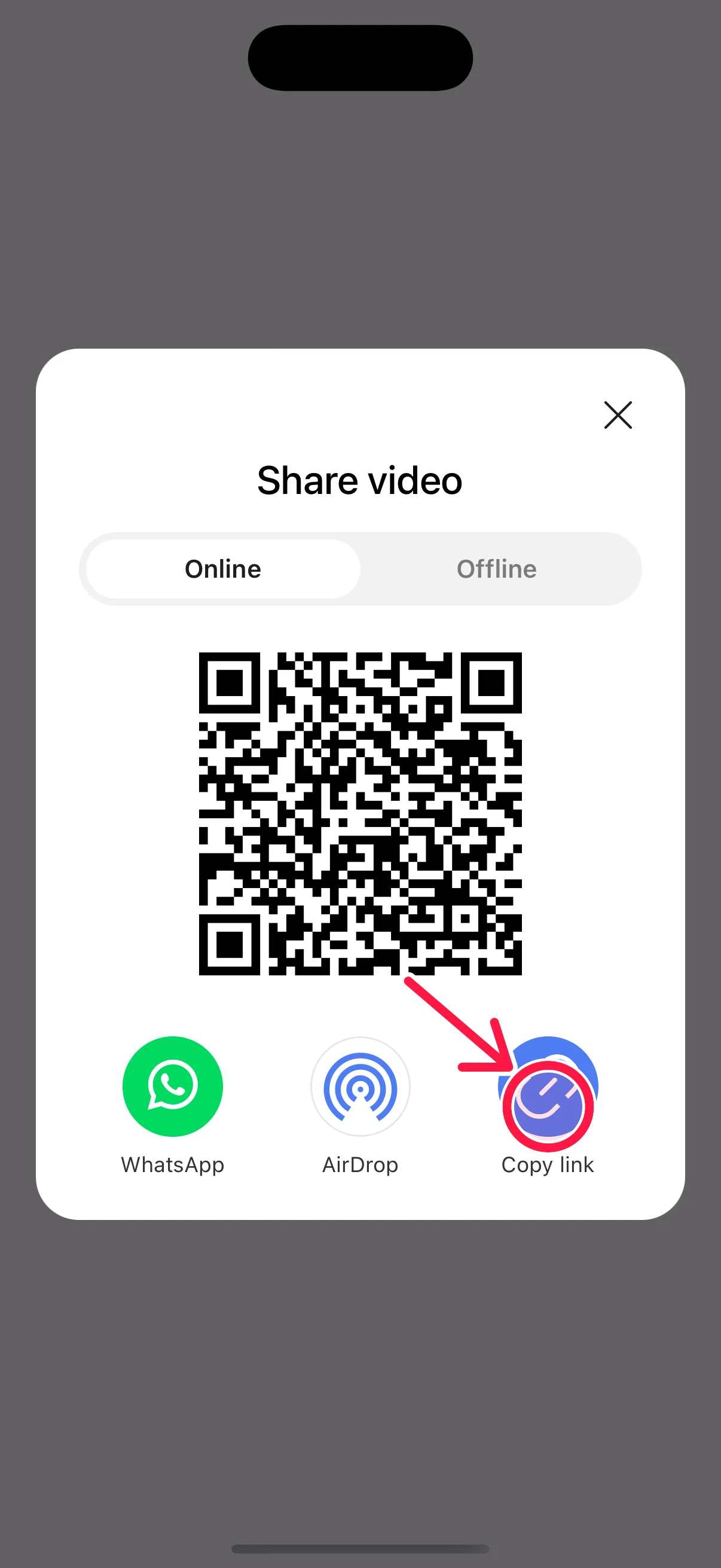
In the Online tab, show the QR code to the guest or tap Copy link to send the URL.
-
If you choose WhatsApp, follow the fields shown to prepare the message and check the recipient before finishing.
Where to tap in the app
Check the result
Ask the guest to open the URL and check the recording. The page should show the selected video; it is not enough to confirm that some page opened. This lets you complete the delivery while the person is still close to your operation.
If something does not work as expected
If the link is unavailable or content is missing, check Pending uploads on the phone that recorded it. If the whole gallery appears, you probably shared from the event cover. Go back to the individual media file. In a location without internet, the Offline flow requires setting up the local network and keeping the app open during the download.
Quick questions
Does showing the QR send the file by Bluetooth?
No. The QR code is a way to open the media URL. The connection used depends on whether you choose Online or Offline mode.
Can I deliver the same video to two people?
Yes, you can show the QR or share that media link again. Check that access is still within the event’s availability period.
Can I copy the link before the upload finishes?
A URL does not prove that the file is already available. Check the upload and open the page before promising the delivery.
Keep going in the app
Make a short recording in Vizz360 and test individual delivery on another phone. Learning this flow before the party makes service easier.
Also read: How to share the event link in Vizz360; How to share a video by AirDrop in Vizz360; How to send videos from iPhone to Android and vice versa.

Download Vizz360
Record, edit and share 360° videos in seconds, right from your phone. Free download for Android and iOS, with in-app purchases.


Related articles

How to Position and Resize the Kiosk Shutter Button
How to Position and Resize the Kiosk Shutter Button. See the Vizz360 steps, app screens and what to check before using it at an event.

How to Adjust Photo Framing Inside an AI Overlay
How to Adjust Photo Framing Inside an AI Overlay. See the Vizz360 steps, app screens and what to check before using it at an event.

How to Change Your Vizz360 Account Email
How to Change Your Vizz360 Account Email. See the Vizz360 steps, app screens and what to check before using it at an event.