
How to share a video via AirDrop in Vizz360
See how to open AirDrop through video sharing in Vizz360, prepare the devices, and check whether a file or link was received.



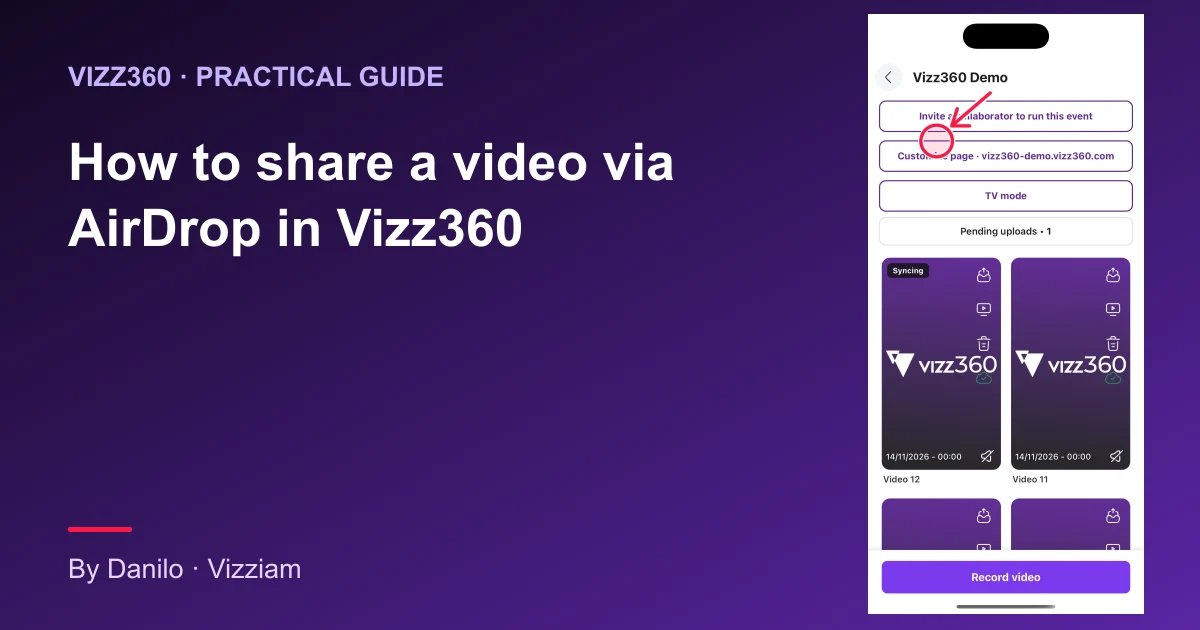
On iPhone, open Share video in Vizz360 and tap AirDrop. The app opens the iOS share sheet; from there, choose AirDrop and the destination device. Confirmation and receiving follow the system controls.
Demonstration on the iPhone simulator, using Vizz360 7.39 and sample data. Some controls vary on Android and by plan.
Read the video steps
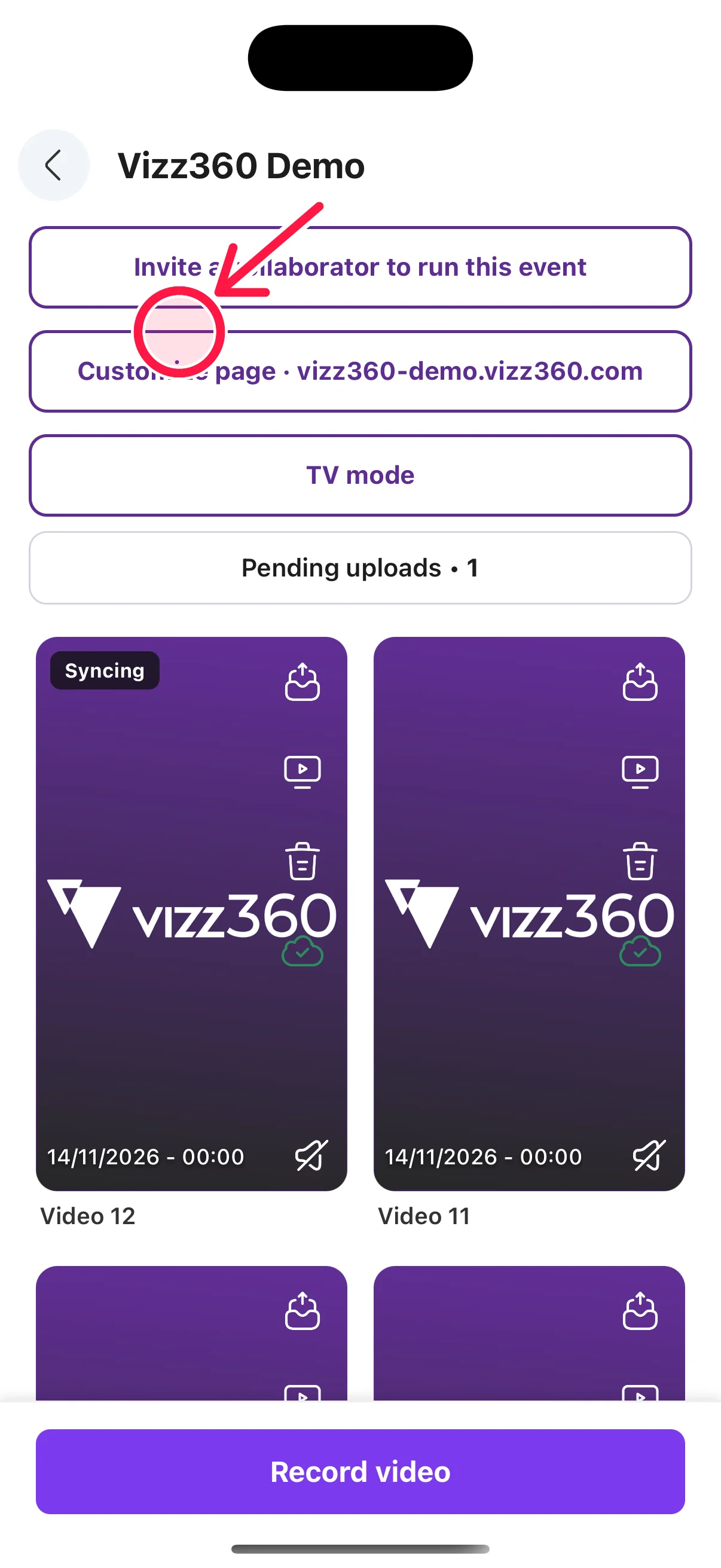
- Inside the event, choose the guest’s video.
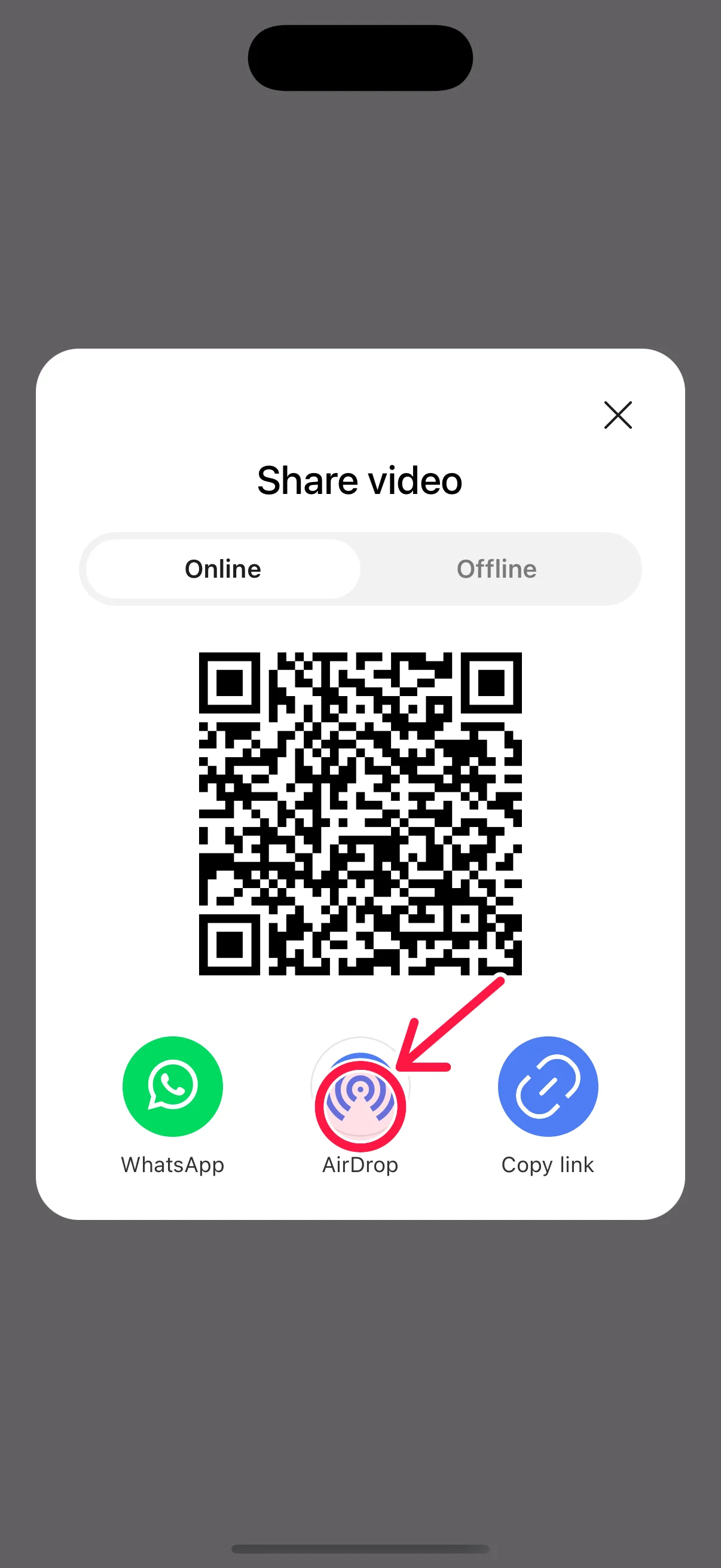
- On iPhone, tap Airdrop and choose an available device.
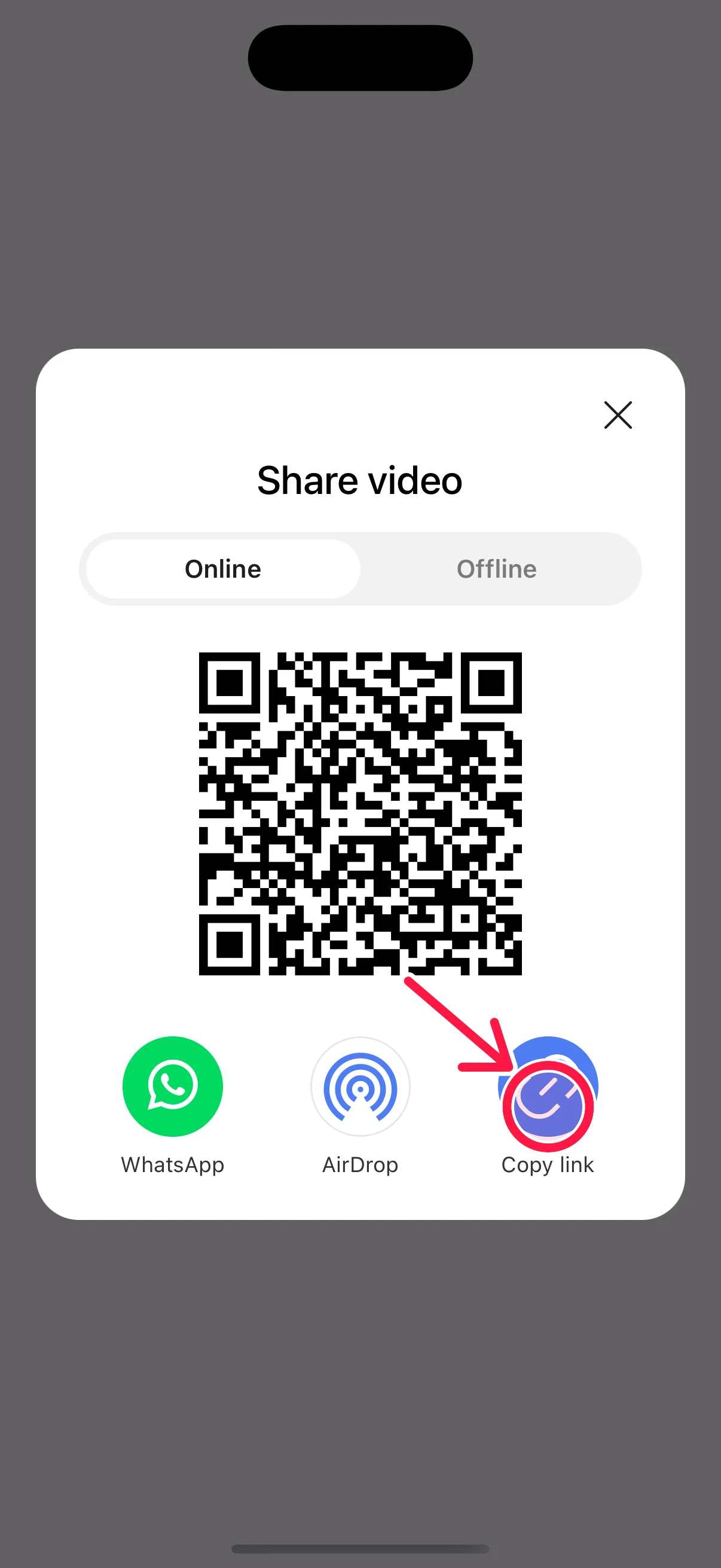
- Copy this video’s link and open it on another phone to check it.
The guest has an iPhone next to the 360 photo booth and wants to receive the video right then. Before looking for alternatives, check the discovery settings on both devices.
Before you start
Apple’s official guidance requires nearby devices, Wi-Fi and Bluetooth turned on, and Personal Hotspot disconnected. For someone outside your contacts, check Everyone for 10 Minutes in the receiving options. Recent system versions may ask for a code to share with people outside your contacts.
How to do it
-
In Vizz360 on the iPhone, open the event and find the video you want.
-
Tap the video sharing option, then tap AirDrop.
-
In the iOS sheet, choose AirDrop and select the correct name of the guest’s device.
-
Ask the recipient to accept the transfer and follow any code request shown by the system.
-
Check what arrived: the app may share the prepared file or use the link as an alternative, depending on media availability.
Where to tap in the app
Check the result
If a file arrived, open it and play it to the end. If a link arrived, open the page and check online availability. This distinction keeps you from saying the video is already saved on the phone when the person received only the address.
If something does not go as expected
If the device does not appear, review proximity, Wi-Fi, Bluetooth, and receiving visibility. Also check whether the selected recipient is actually the guest. Having a button in Vizz360 does not guarantee that the system found another device. On Android, Vizz360 does not show this same AirDrop button; the link or QR guide is the more general path between systems.
Quick questions
Does the app’s AirDrop always send the file?
No. When there is a prepared file, it is prioritized; in other states, the shared content may be the link. Check on the receiving device.
Do you need internet?
AirDrop file transfer between compatible devices uses the system’s local resources. If what arrived was an online link, a connection will be required to open the content.
How do you know the delivery is finished?
Check the acceptance on the destination device and open the received content. The share sheet closing by itself does not prove that the guest ended up with the video.
Continue in the app
Prepare a test event in Vizz360 and check the full path before your next booking. You can find the app for iPhone and Android in the links below.
Also read: How to share an individual video in Vizz360; How to send videos from iPhone to Android and vice versa; Video not appearing in the link? Check pending uploads.

Download Vizz360
Record, edit and share 360° videos in seconds, right from your phone. Free download for Android and iOS, with in-app purchases.


Related articles

How to Position and Resize the Kiosk Shutter Button
How to Position and Resize the Kiosk Shutter Button. See the Vizz360 steps, app screens and what to check before using it at an event.

How to Adjust Photo Framing Inside an AI Overlay
How to Adjust Photo Framing Inside an AI Overlay. See the Vizz360 steps, app screens and what to check before using it at an event.

How to Change Your Vizz360 Account Email
How to Change Your Vizz360 Account Email. See the Vizz360 steps, app screens and what to check before using it at an event.