
How to Use Ready-Made Kiosk Screen Templates
How to Use Ready-Made Kiosk Screen Templates. See the Vizz360 steps, app screens and what to check before using it at an event.



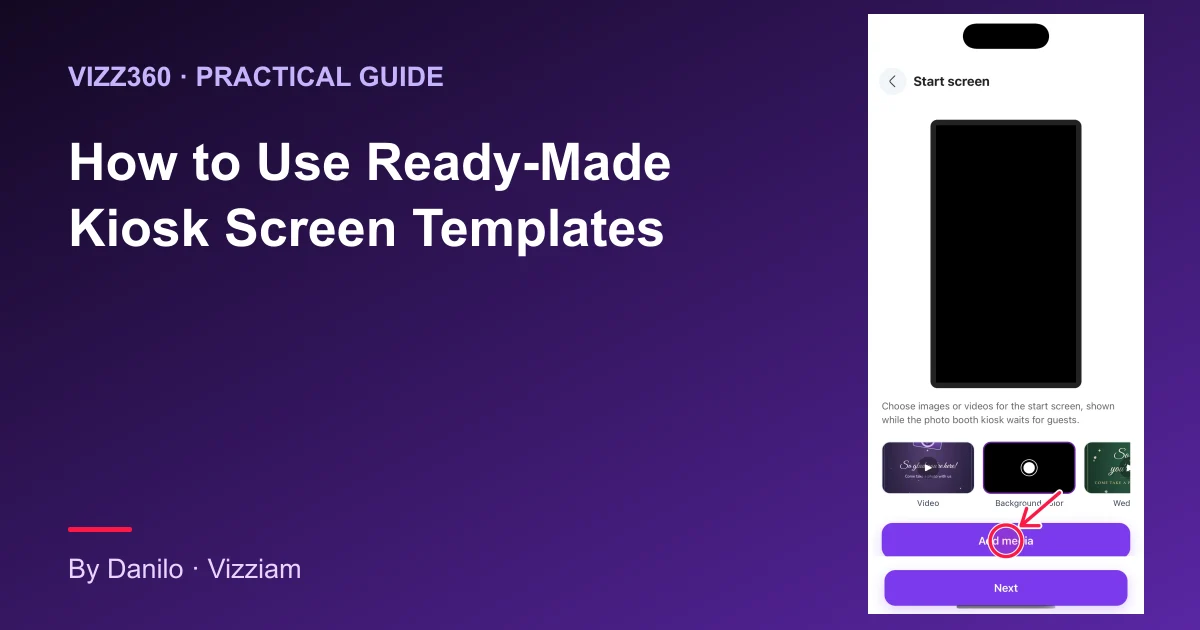
Need a kiosk design without building every screen from scratch? Templates on Start screen can provide media for other stages. Choose one and review each stage to see what guests will be shown.
Demonstration on the iPhone simulator, using Vizz360 7.39 and sample data. Some controls vary on Android and by plan.
Read the video steps
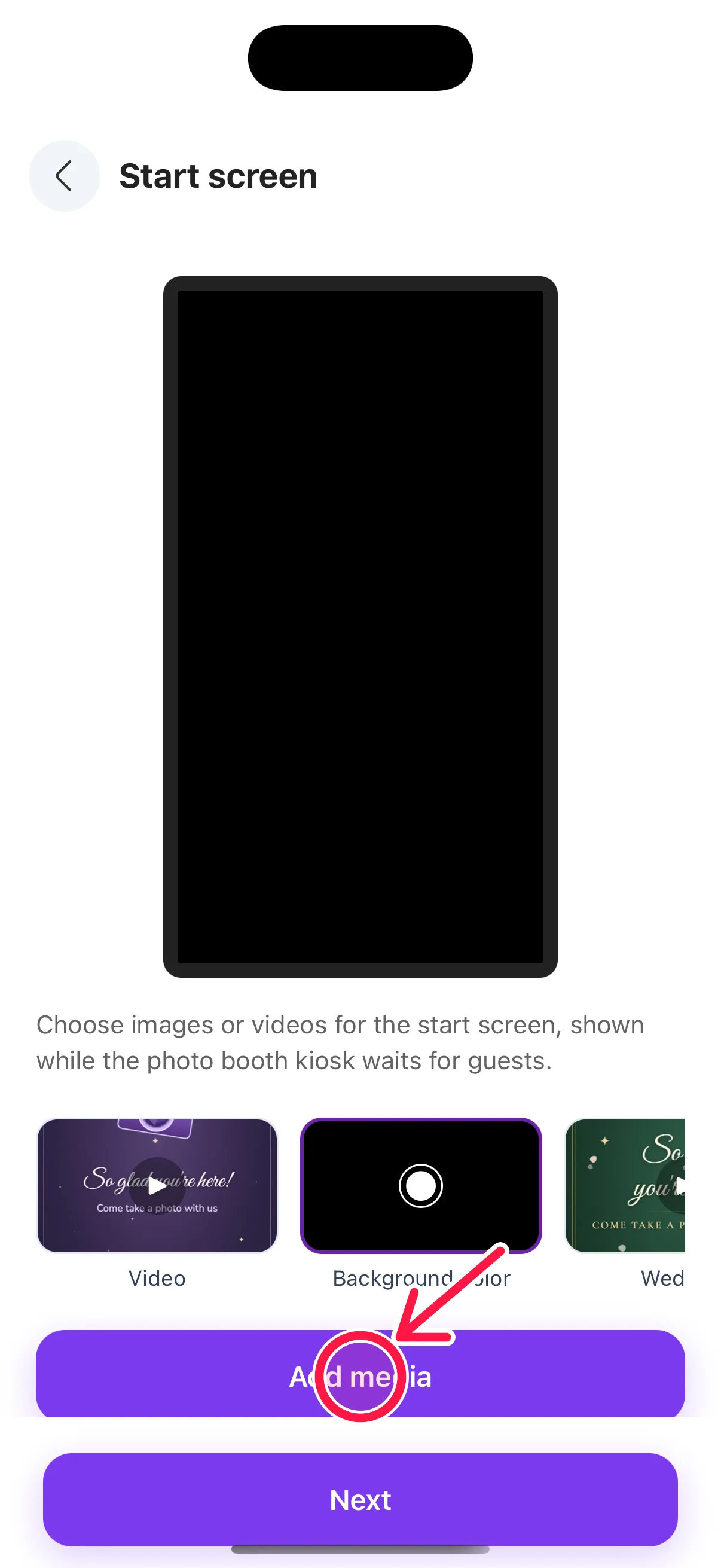
- On the idle screen, choose the media shown while the kiosk waits.
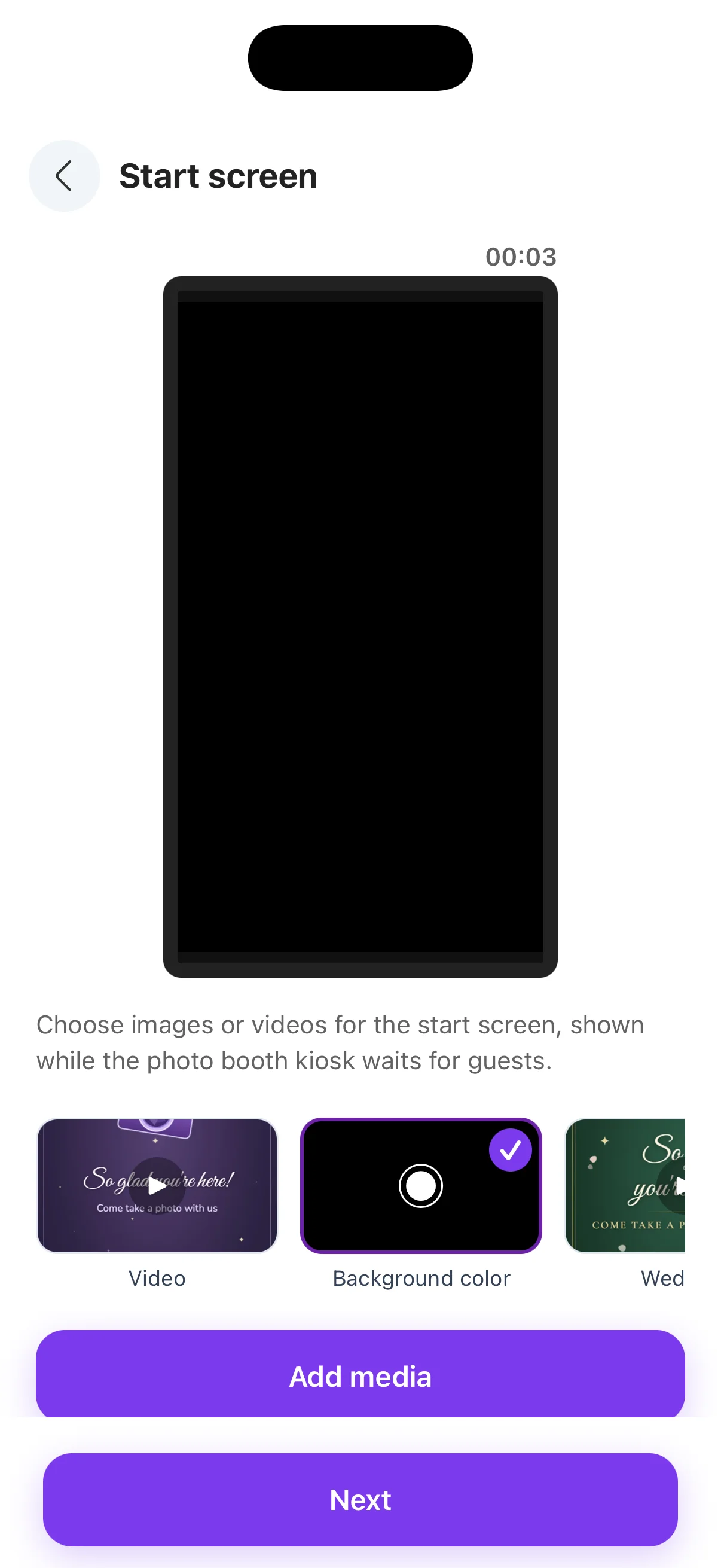
- On Idle screen, review available templates.
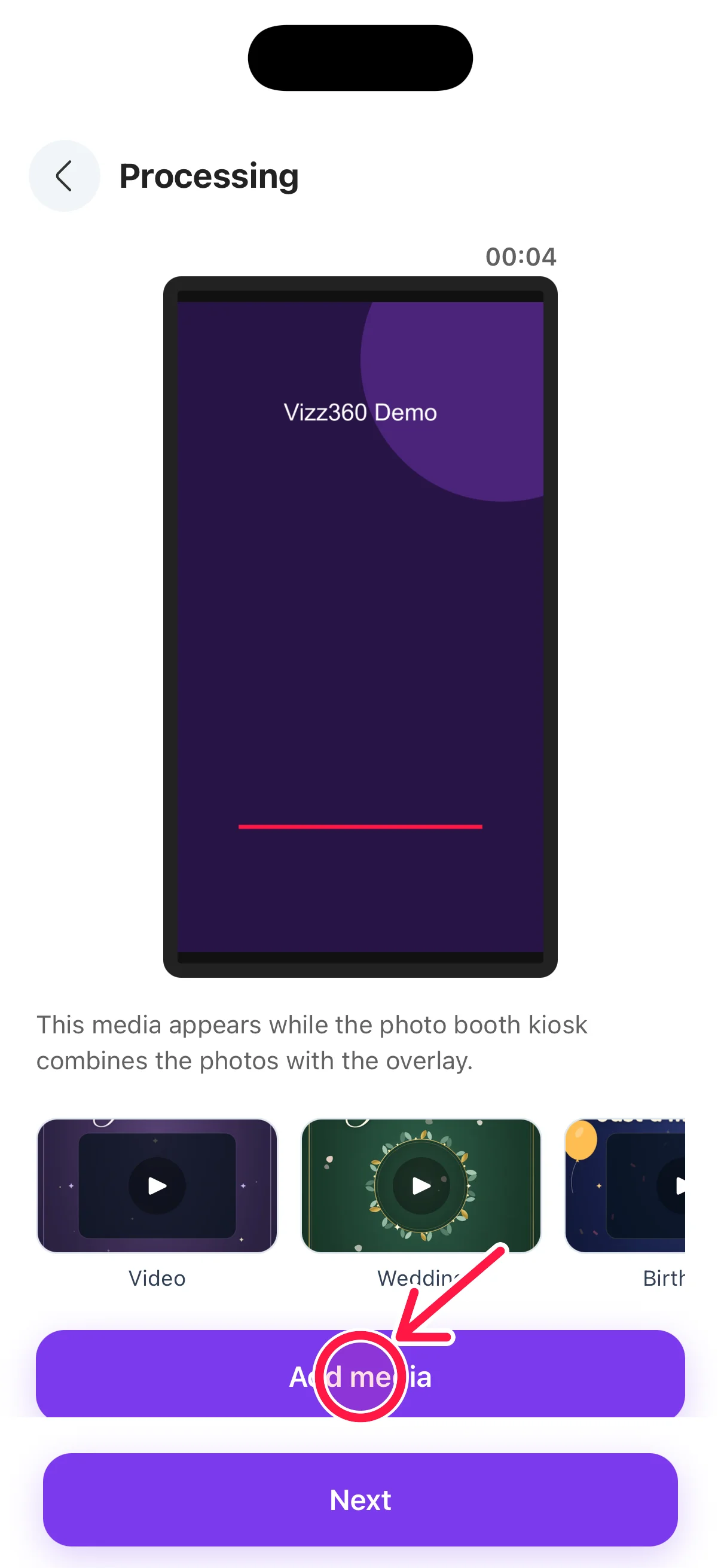
- Choose media shown during processing.
Before you start
Prepare a test event and assets matching the installation orientation. Review the full guest experience after setup.
How to do it
-
Open Start screen in setup and review templates for the chosen orientation.
-
Select a template and review its preview. Also check any custom media you have added.
-
Review frame selection, camera, processing, photo result and thank-you stages to check each stage’s media.
Where to tap in the app
Check the result
Test a full session. Check the language inside videos as well as the language of app buttons.
If something does not go as expected
If media is not in the required language, add your own material for that stage. Interface language does not guarantee every catalog video is translated.
Quick questions
Can I replace a stage with my own artwork?
Use that stage’s add-media options and review the preview. Check the whole flow to avoid unintended combinations.
Why might my screen look different?
Screenshots use working version 7.39 on iPhone. Controls and access may differ with the installed version, Android, device and plan. Check the path in your app and test before the event.
Continue in the app
Download Vizz360 for iPhone or Android using the buttons below. Prepare a test event and check this procedure before your next booking.
Also read: How to Choose TV Orientation for a Photo Booth Kiosk; How to Create a Photo Booth Kiosk Event in Vizz360; How to configure the photo spaces in the photo booth kiosk overlay.

Download Vizz360
Record, edit and share 360° videos in seconds, right from your phone. Free download for Android and iOS, with in-app purchases.


Related articles

How to Position and Resize the Kiosk Shutter Button
How to Position and Resize the Kiosk Shutter Button. See the Vizz360 steps, app screens and what to check before using it at an event.

How to Adjust Photo Framing Inside an AI Overlay
How to Adjust Photo Framing Inside an AI Overlay. See the Vizz360 steps, app screens and what to check before using it at an event.

How to Change Your Vizz360 Account Email
How to Change Your Vizz360 Account Email. See the Vizz360 steps, app screens and what to check before using it at an event.