
Could Not Prepare the Report: How to Continue
Could Not Prepare the Report: How to Continue. See the Vizz360 steps, app screens and what to check before using it at an event.



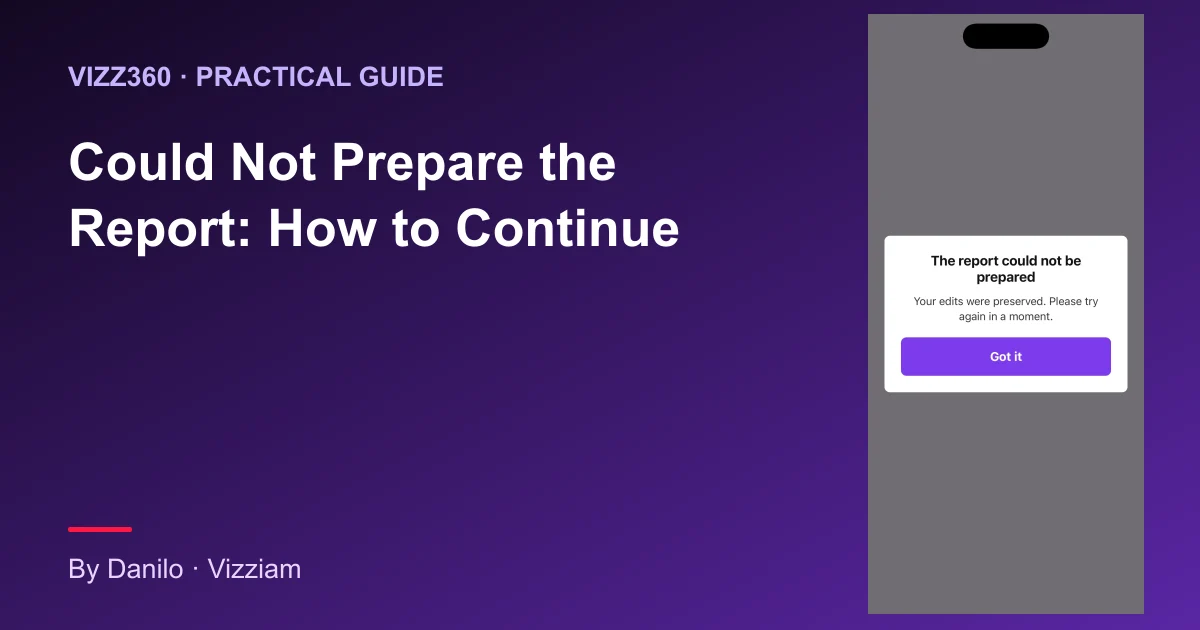
A report preparation failure does not call for immediately reentering all details. Read the notice, preserve choices and review retry conditions.
Demonstration on the iPhone simulator, using Vizz360 7.39 and sample data. Some controls vary on Android and by plan.
Read the video steps
- Read the notice before repeating preparation.
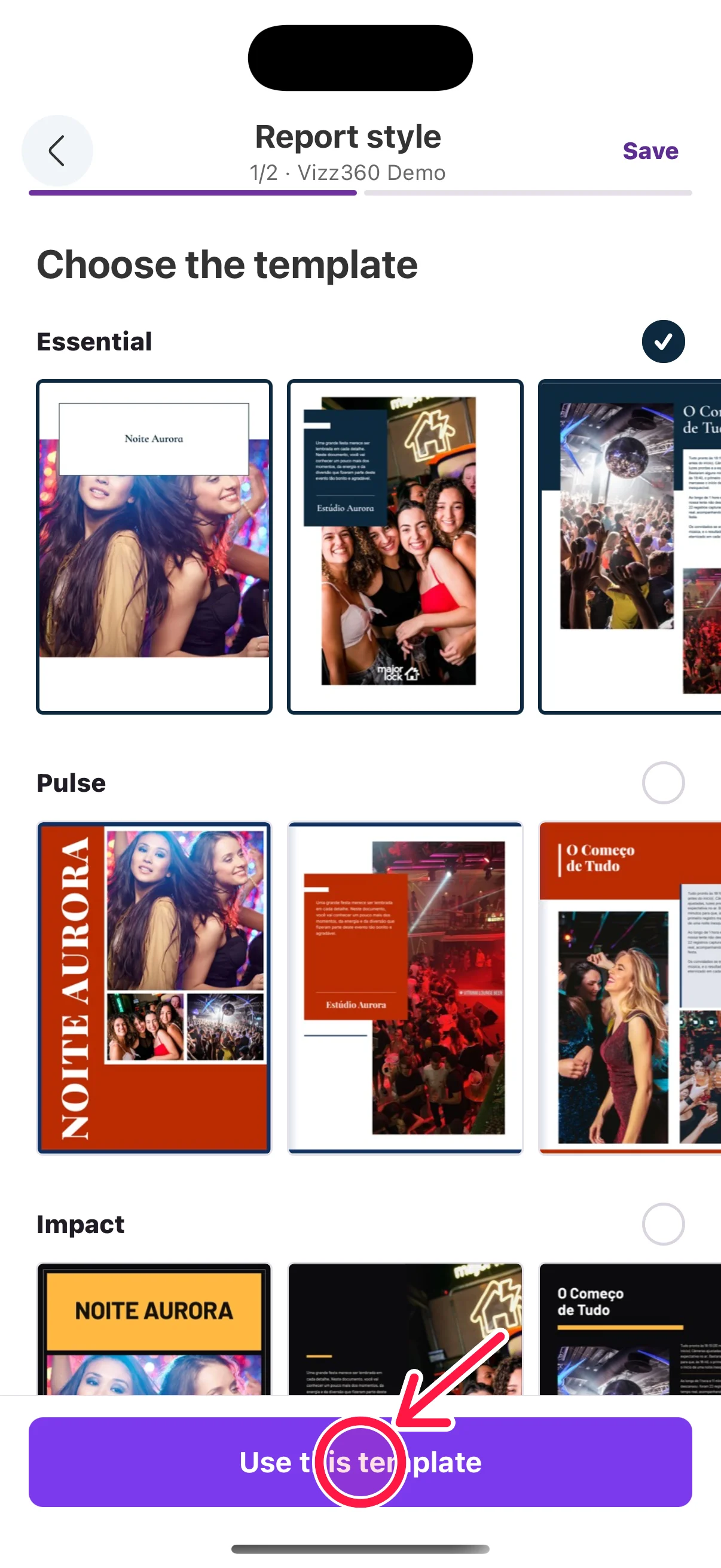
- Choose a design and tap Use this template.
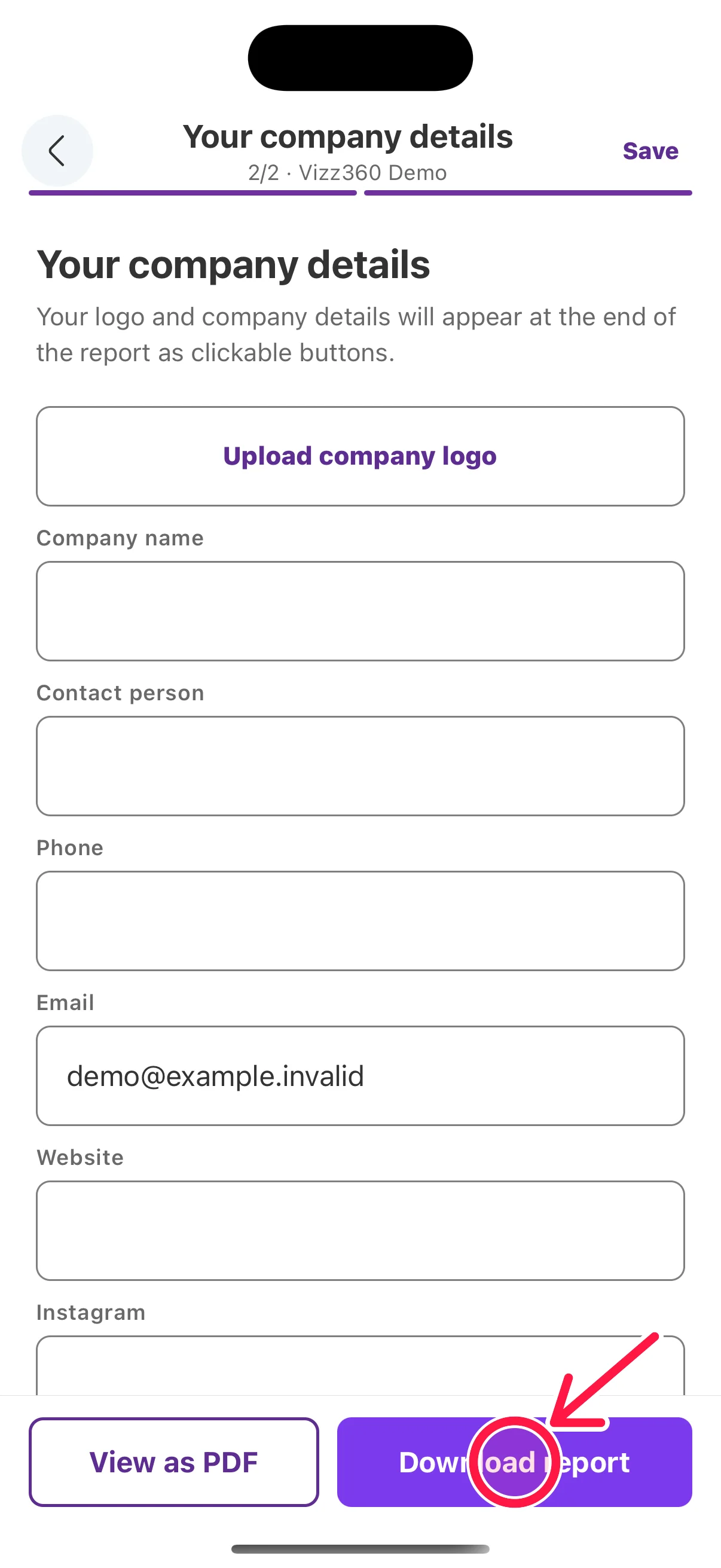
- Tap Download report after checking the details.
Before you start
Use an event with loaded data and review available media. Reports require at least 10 media files; review the preview before sending to a client.
How to do it
-
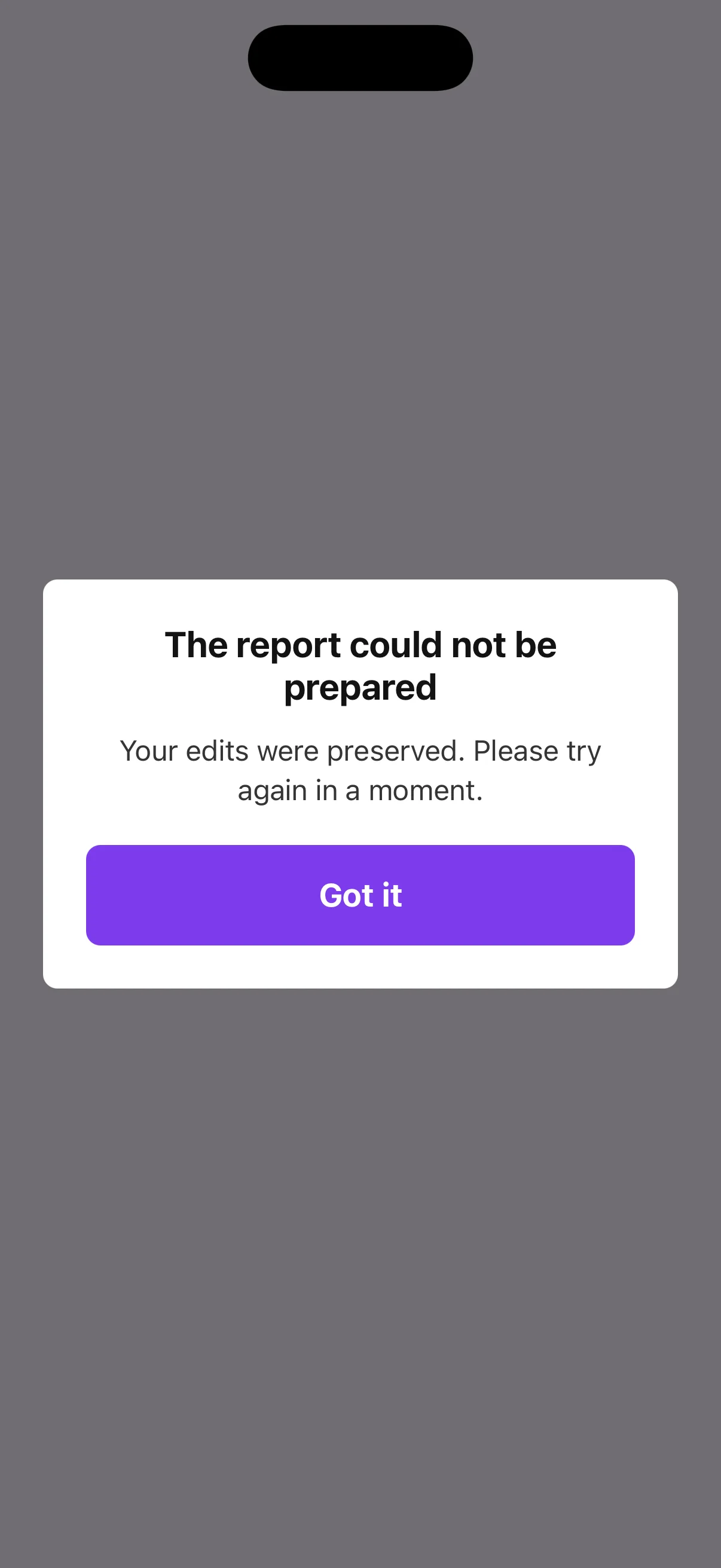
Read The report could not be prepared and check whether the notice says your edits were preserved.
-
Check internet and access to the images used. Wait briefly before repeating preparation.
-
Review choices and try again. Finish only after opening and checking the full preview.
Where to tap in the app
Check the result
The result must reach the expected editor or preview. Pressing the button does not confirm completed generation.
If something does not go as expected
If repeated, send message, event and version to support. Keep reviewed details and avoid simultaneous attempts.
Quick questions
Must I immediately choose another template?
Check the stated cause and connectivity first. Switching visuals does not necessarily resolve file or network failures.
Why might my screen look different?
Screenshots use working version 7.39 on iPhone. Controls and access may differ with the installed version, Android, device and plan. Check the path in your app and test before the event.
Continue in the app
Download Vizz360 for iPhone or Android using the buttons below. Prepare a test event and check this procedure before your next booking.
Also read: How to Save Report Changes for Later Review; How to Download an Event Report to Send to Your Client; How to Use Upload to the Cloud in Event Options.

Download Vizz360
Record, edit and share 360° videos in seconds, right from your phone. Free download for Android and iOS, with in-app purchases.


Related articles

How to Position and Resize the Kiosk Shutter Button
How to Position and Resize the Kiosk Shutter Button. See the Vizz360 steps, app screens and what to check before using it at an event.

How to Adjust Photo Framing Inside an AI Overlay
How to Adjust Photo Framing Inside an AI Overlay. See the Vizz360 steps, app screens and what to check before using it at an event.

How to Change Your Vizz360 Account Email
How to Change Your Vizz360 Account Email. See the Vizz360 steps, app screens and what to check before using it at an event.