
How to use ready-made styles in an AI Photos event
Choose ready-made styles for AI Photos in Vizz360. Use a fixed style or multiple options for guests to choose from, and run a test before the event.



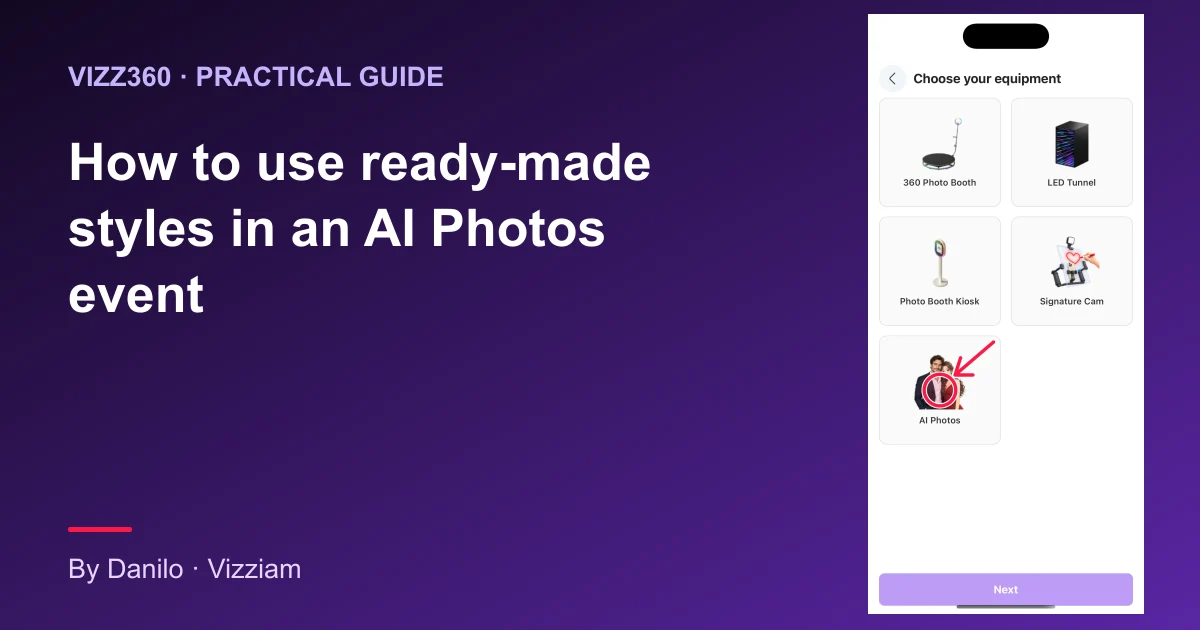
In AI Photos, tap Ready-made styles and choose the models in Select styles for the event. With one style, all captures use that option; with several, guests choose before taking the photo.
Demonstration on the iPhone simulator, using Vizz360 7.39 and sample data. Some controls vary on Android and by plan.
Read the video steps
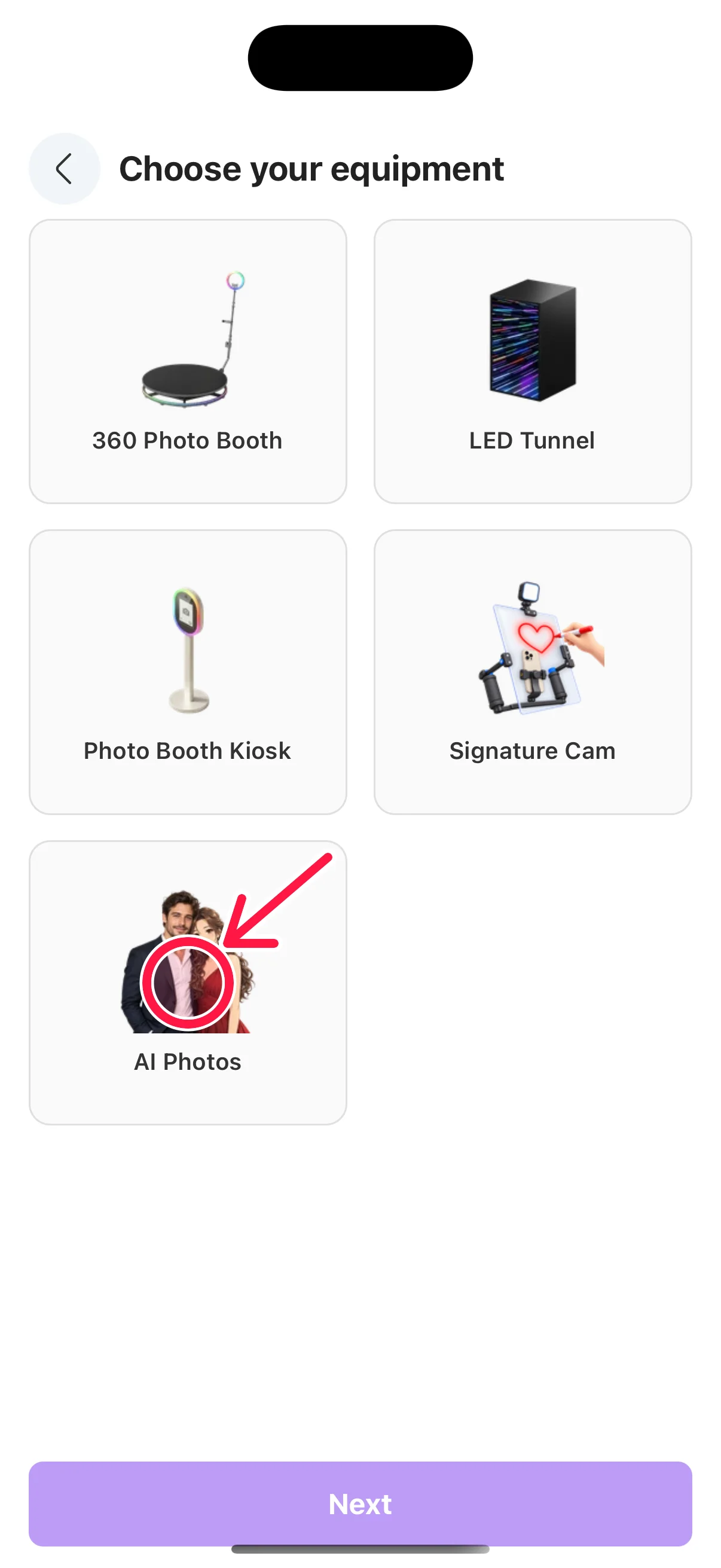
- Choose AI Photos to set up an AI photo experience.
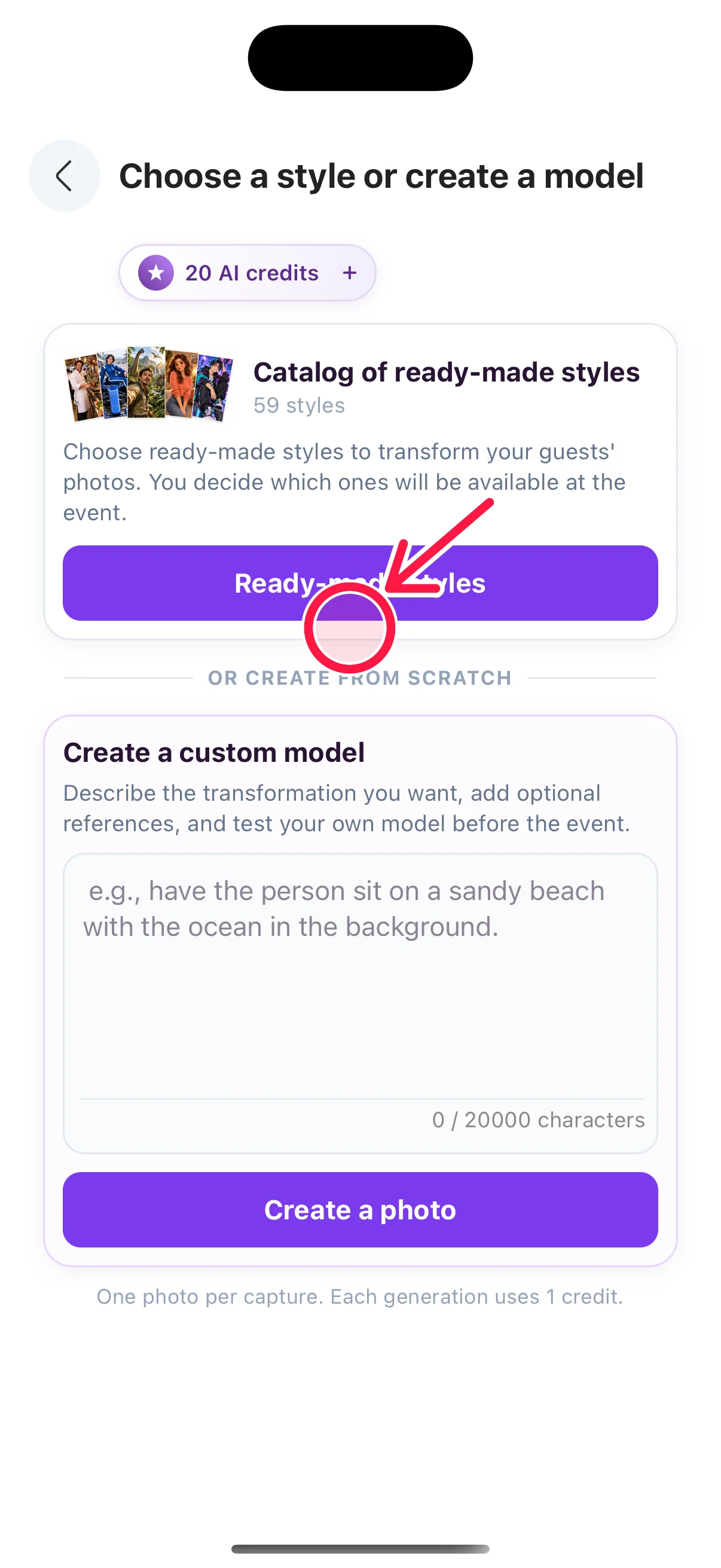
- Choose between ready-made styles and creating your own model.
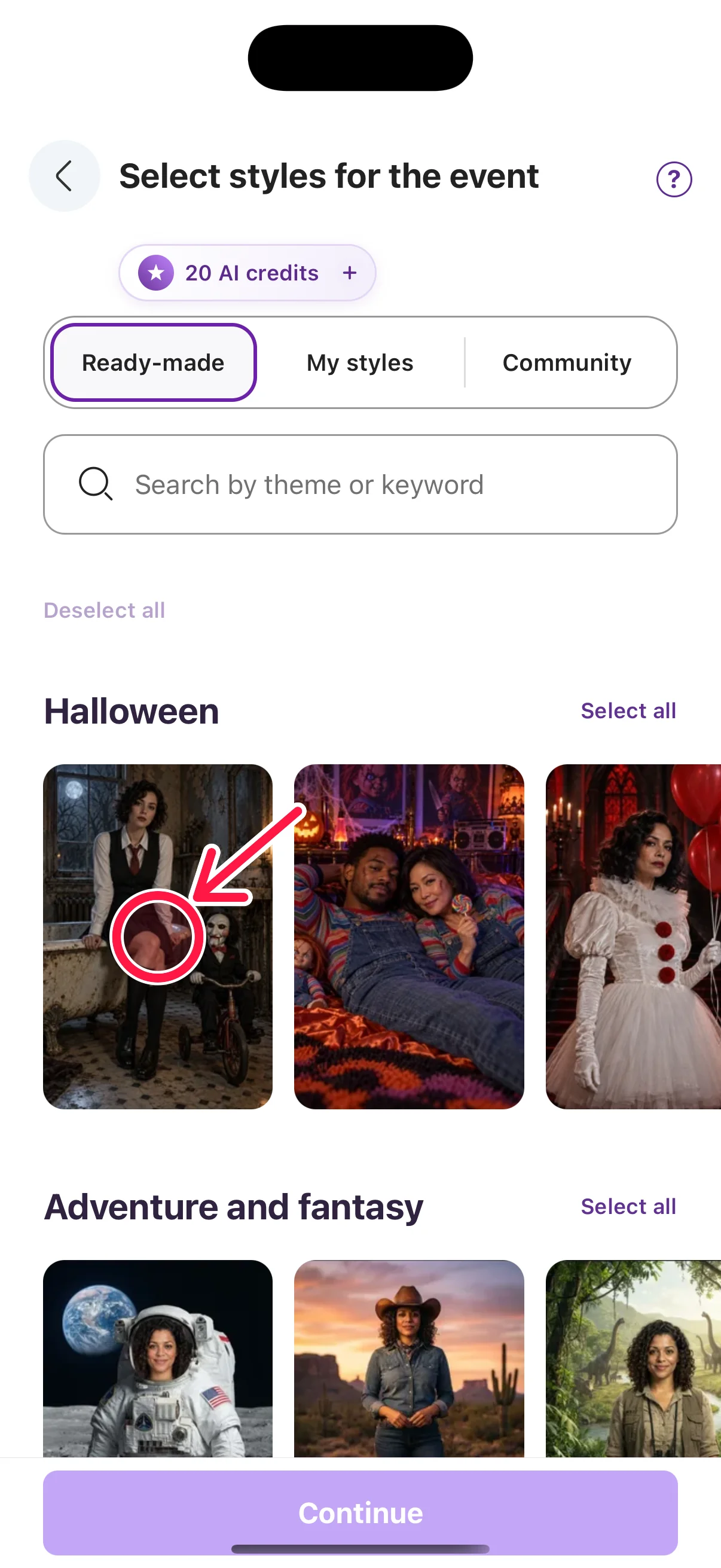
- Explore available styles and choose one for the event.
You want to start the AI Photos experience by choosing models from the catalog. Starting with the catalog makes it easier to understand the experience without writing a model from scratch.
Before you start
Make sure you have an internet connection, AI Photos credits, and a suitable photo for testing. Each photo generation uses 1 credit. The catalog previews show the visual concept; the result with another person may vary.
How to do it
-
When creating the event, choose AI Photos.
-
Open Ready-made styles to enter the catalog.
-
Select one style for fixed use, or multiple options for guests to choose from.
-
Tap Continue and check the style that will be used in the test.
-
Choose a test photo with a visible face and proper lighting, then generate the result according to the app’s confirmation.
-
Review the photo and finish preparing the event only after checking the full flow.
Where to tap in the app
Check the result
The transformation should match the theme and deliver a result that is appropriate for your audience. Look at the face, hands, clothing, composition, and any unexpected elements. If there are several styles, evaluate the main ones: approving one result does not automatically validate every selected option.
If something does not work as expected
If the guest does not get a style choice, check whether you selected only one model. With one option, the flow is fixed. If the test does not come out as expected, review the original photo and the style concept before generating it again. Do not promise perfect similarity or identical generation time for every capture.
Quick questions
Does a single style appear as a choice for the guest?
The app’s guidance is to use the same style for captures when only one is selected. Multiple options enable guest choice.
Does testing also use a credit?
Each generation uses 1 credit, including new generations used to evaluate the model.
Do I need to write a prompt to use the catalog?
The Ready-made styles path starts with the available styles. Creating a model with your own text is a different flow.
Continue in the app
Prepare a test event in Vizz360 and check the complete flow before your next booking. You can find the app for iPhone and Android in the links below.
Also read: How to test AI Photos before the party; How to create an AI Photos style with your own text; How to check AI Photos and overlay credits.

Download Vizz360
Record, edit and share 360° videos in seconds, right from your phone. Free download for Android and iOS, with in-app purchases.


Related articles

How to Position and Resize the Kiosk Shutter Button
How to Position and Resize the Kiosk Shutter Button. See the Vizz360 steps, app screens and what to check before using it at an event.

How to Adjust Photo Framing Inside an AI Overlay
How to Adjust Photo Framing Inside an AI Overlay. See the Vizz360 steps, app screens and what to check before using it at an event.

How to Change Your Vizz360 Account Email
How to Change Your Vizz360 Account Email. See the Vizz360 steps, app screens and what to check before using it at an event.