
How to Fill In a Ready-Made AI Photo Style’s Custom Fields
How to Fill In a Ready-Made AI Photo Style’s Custom Fields. See the Vizz360 steps, app screens and what to check before using it at an event.



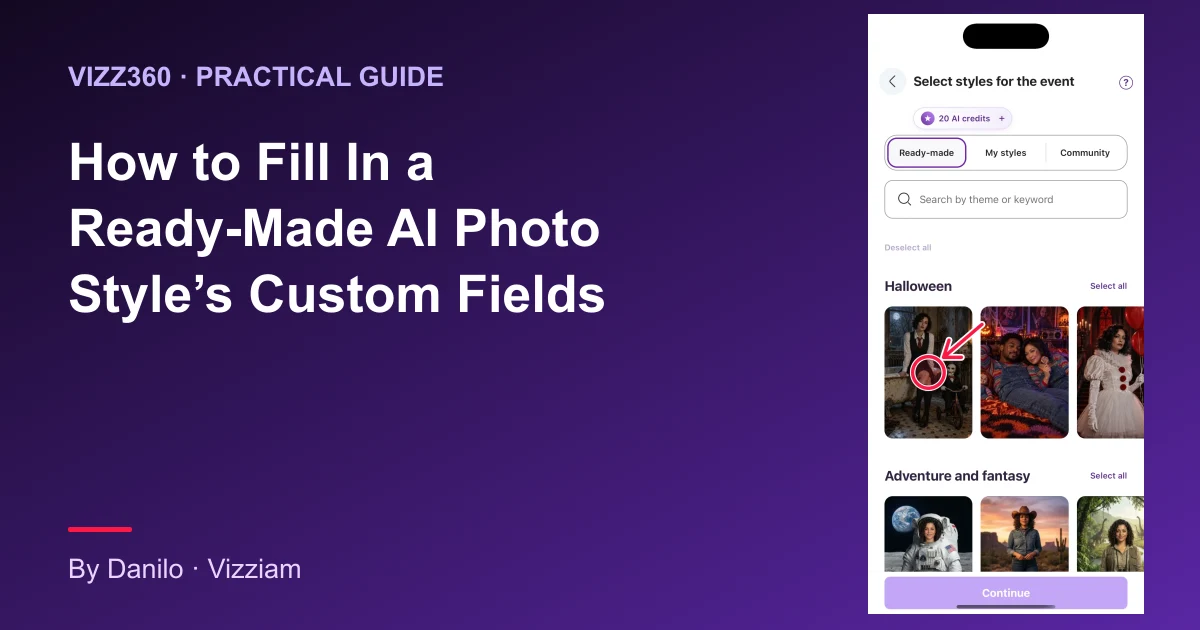
Does a style ask for specific details before generating? Some AI Photo models have their own fields to guide the transformation. Complete the requested information and test that style with your intended details.
Demonstration on the iPhone simulator, using Vizz360 7.39 and sample data. Some controls vary on Android and by plan.
Read the video steps
- Explore available styles and choose one for the event.
- Fill in the fields offered by the selected style.
- Check the cost shown on the button before processing a test photo.
Before you start
Use authorized photos and check your balance before generating. Each AI Photo generation uses 1 credit; test on the intended device and format.
How to do it
-
Choose a catalog style and open its setup. Check whether it includes additional fields.
-
Complete each field according to its description. Review names and text before generating.
-
Run a test and compare the result with your entries. Repeat for each event style.
Where to tap in the app
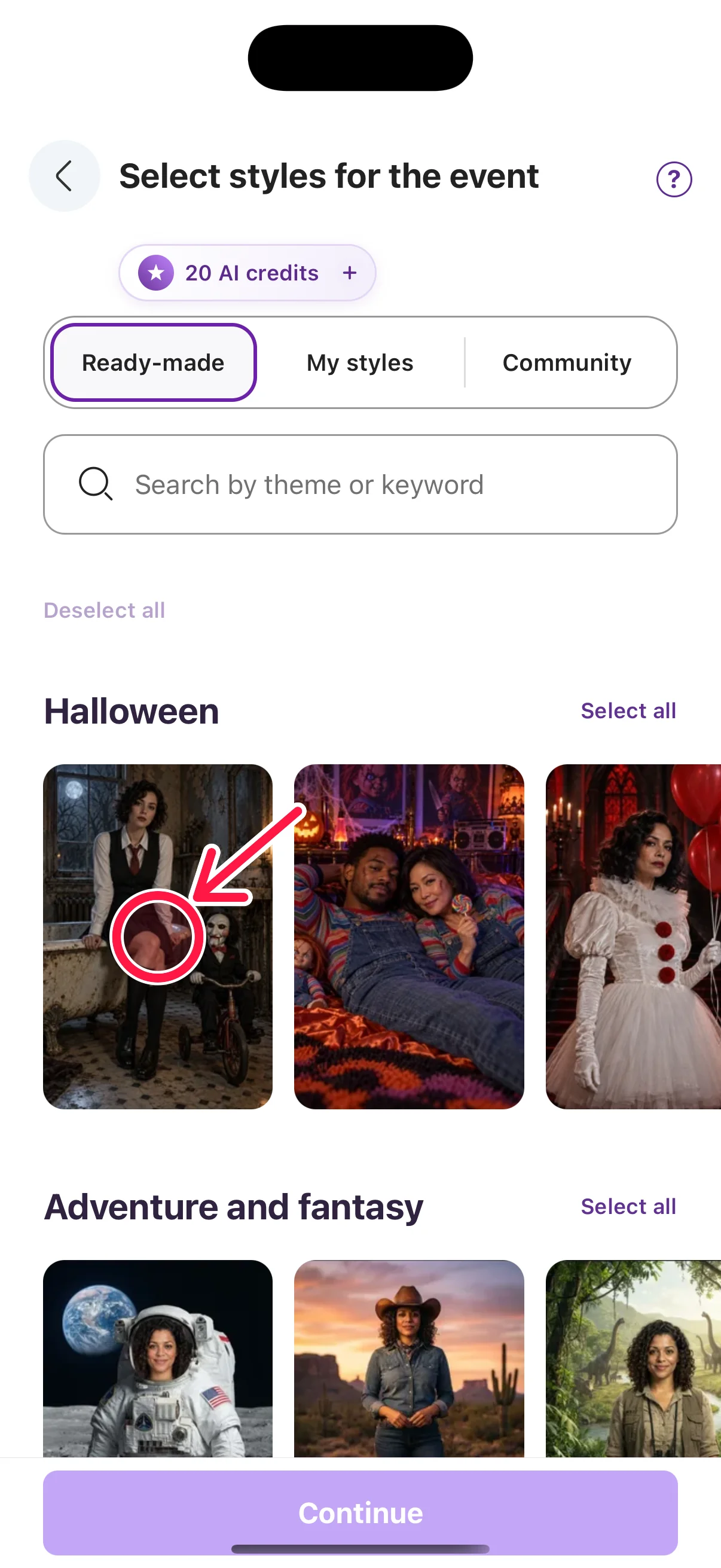
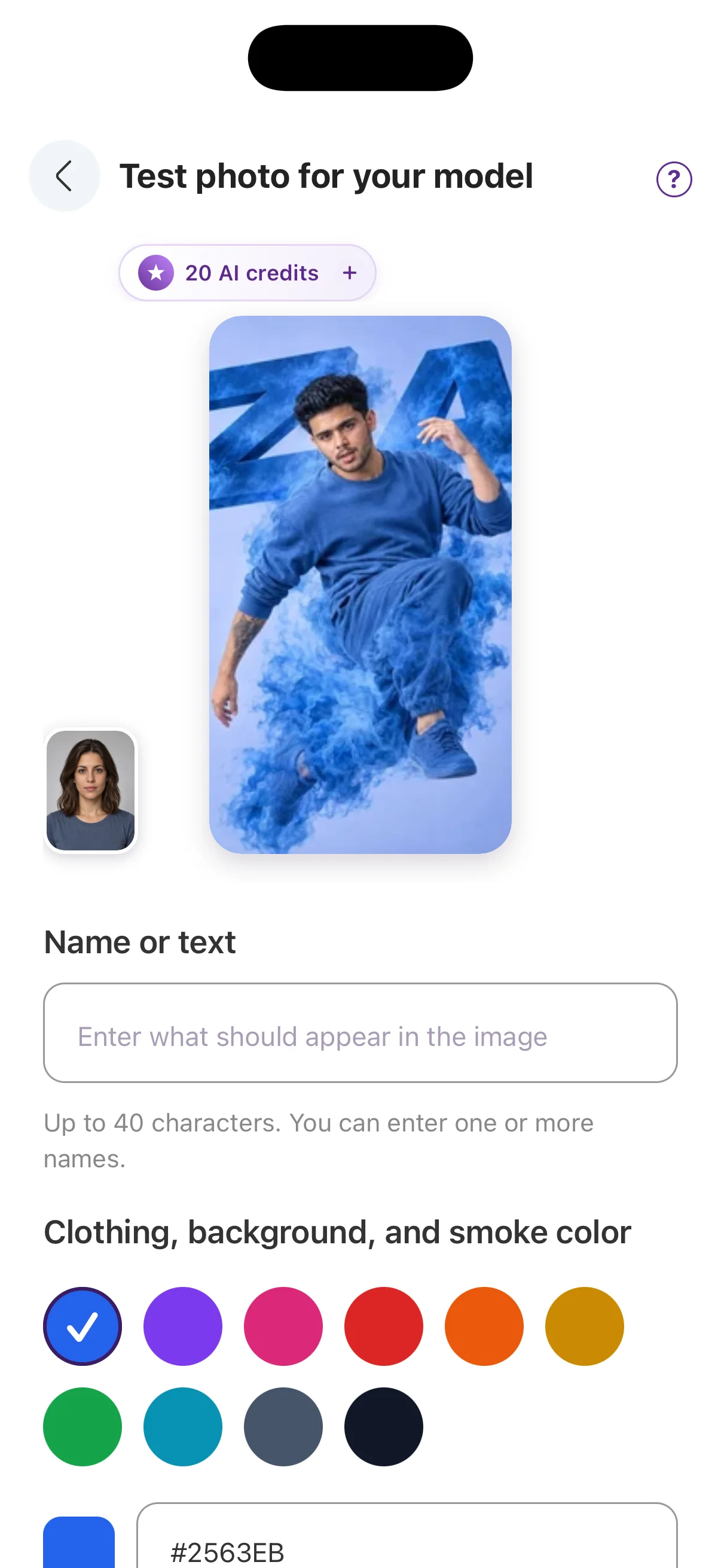
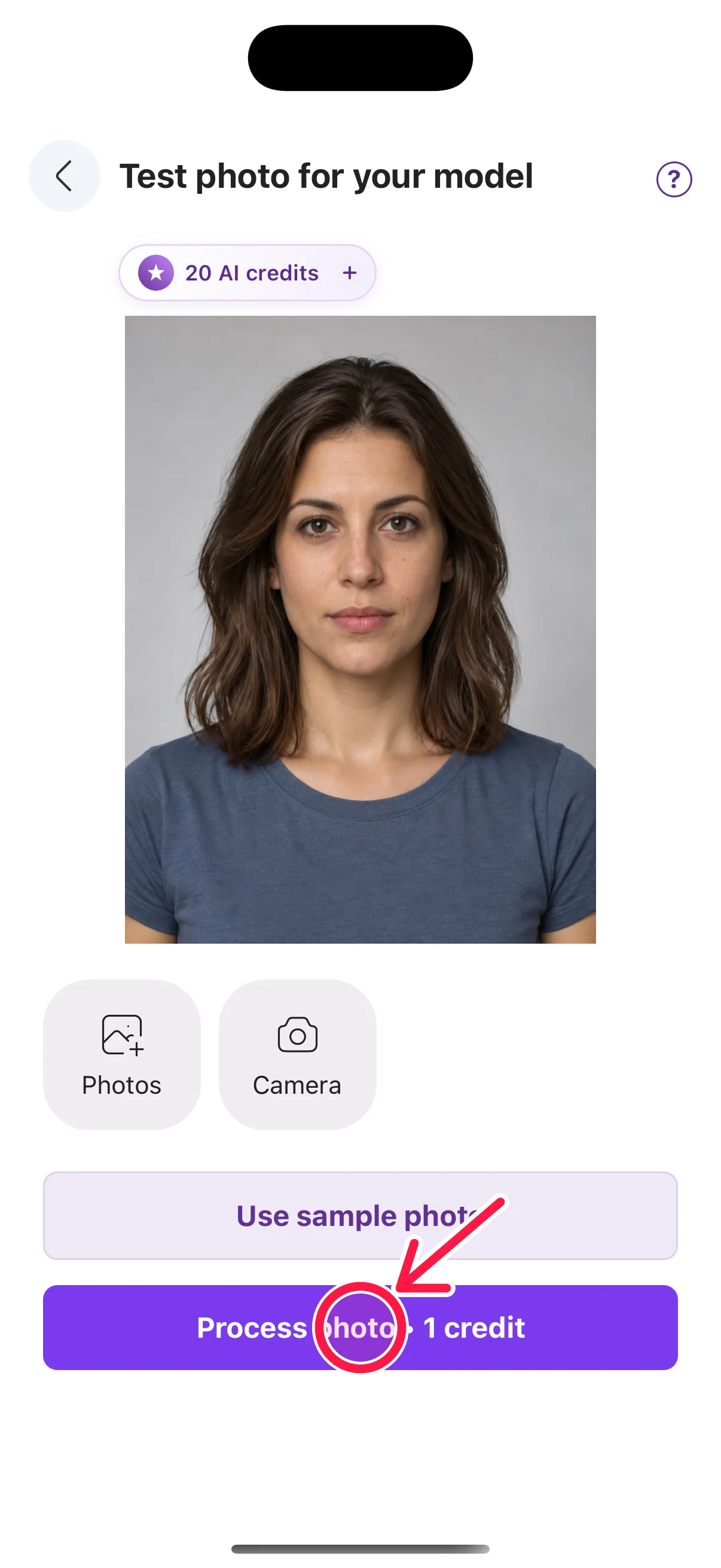
Check the result
Check that information was interpreted as intended. Read any generated text inside the image carefully.
If something does not go as expected
If there are no extra fields, that style may not offer this customization. Consider a custom model for your own concept.
Quick questions
Do all styles have the same fields?
Do not assume so. Fields depend on the style and its configuration; follow the selected style’s instructions.
Why might my screen look different?
Screenshots use working version 7.39 on iPhone. Controls and access may differ with the installed version, Android, device and plan. Check the path in your app and test before the event.
Continue in the app
Download Vizz360 for iPhone or Android using the buttons below. Prepare a test event and check this procedure before your next booking.
Also read: How to Choose the Format of an AI-Generated Photo; How to Test AI Photos Before the Party; How to check AI Photos and overlay credits.

Download Vizz360
Record, edit and share 360° videos in seconds, right from your phone. Free download for Android and iOS, with in-app purchases.


Related articles

How to Position and Resize the Kiosk Shutter Button
How to Position and Resize the Kiosk Shutter Button. See the Vizz360 steps, app screens and what to check before using it at an event.

How to Adjust Photo Framing Inside an AI Overlay
How to Adjust Photo Framing Inside an AI Overlay. See the Vizz360 steps, app screens and what to check before using it at an event.

How to Change Your Vizz360 Account Email
How to Change Your Vizz360 Account Email. See the Vizz360 steps, app screens and what to check before using it at an event.